1
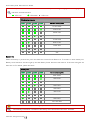
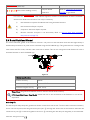
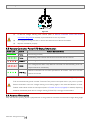
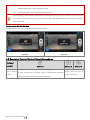
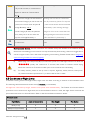
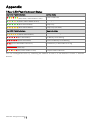
(Solid red)
(Red, Yellow flashing in turn)
If a solid red
Error*
Cannot fly.
Compass Needs
Refer to Calibrating the Compass
Calibration
(Page38) to get details.
LED indicator appears, connect to the Phantom 2 Vision+ Assistant
Software for details and resolution. This may be caused by:
1)
IMU calibration required: Recalibrate IMU using Assistant Software.
2)
IMU is abnormal: Repair required.
3)
Compass is abnormal: Repair required.
4)
Remote controller mid-point is set abnormally: Refer to How to solve large margin(s)
mid-point error (Page 73).
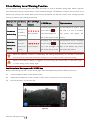
3.4 3-axial Stabilized Gimbal
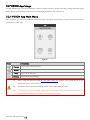
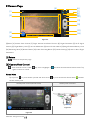
The 3-axial stabilized gimbal of the Phantom 2 Vision+ will power on and self-check each time the flight battery is
installed and powered on. Its pitch can be controlled using the DJI VISION App. This gimbal has two working modes,
video mode and FPV mode, with the video mode set as default. This can be configured inside Phantom 2 Vision+
Assistant Software or the DJI VISION App.
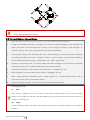
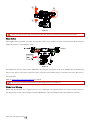
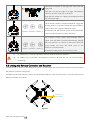
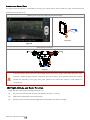
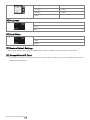
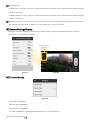
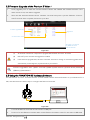
0°
-90°
Figure 13
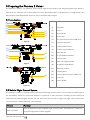
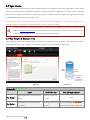
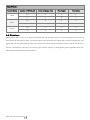
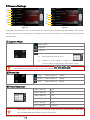
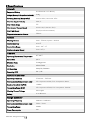
Gimbal specifications
Control accuracy
±0.03°
Controllable range
Pitch : -90°~0°
Maximum angular velocity
Pitch : 90°/s
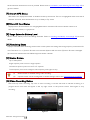
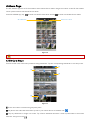
Video Mode: the gimbal will stabilize across 3-axial for smooth aerial creativity.
FPV Mode (First Person View Mode): Gimbal will lock to the movements of the Phantom for a true FPV
experience.
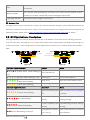
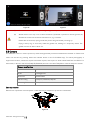
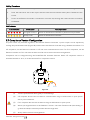
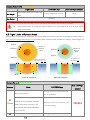
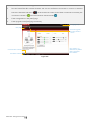
Anti-drop Kit
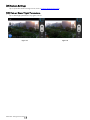
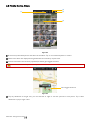
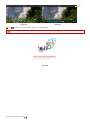
The Anti-drop Kit helps keep the gimbal and camera connected to the aircraft. Two have been mounted on delivery.
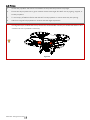
If new ones are required, take the gimbal and press part ① through the center hole of the Vibration Absorber the
center hole of part ②. Lock them together as shown in ③. Mounting the Anti-drop Kit diagonally is recommended.
©2014 DJI. All Rights Reserved.