1
No node ID
Under normal operation, when the Switch has
not been allocated to a node ID, the LED flashes
on and off alternately at 2-second intervals. By
pressing S1, S2 or On/Off button, it will stop
flashing temporarily.
Learning
When Micromodule Single Switch Max.Load:
11A is in learning mode, LED flashes on and
off alternately and repeatedly at 0.5 second
intervals.
Overload
When overload state occurs, the Switch is
disabled of which LED flashes on and off
alternately at 0.5 second intervals. Overload
state can be cleared by unplugging and
reconnecting the Switch to the wall outlet.
Binary Switch Get Command:[Command Class Switch Binary,
Switch Binary Get]
Meter Get Command: [Command Class Meter, Meter Get,
Scale =0x02(W)]
Binary Switch Report Command:
Report OFF:[Command Class Switch Binary, Switch Binary
Report, Value =0(0x00)]
Report ON:[Command Class Switch Binary, Switch Binary
Report, Value = 255(0xFF)]
Meter Report Command:
[Command Class Meter, Meter Report, Rate Type = 0x01,
Meter Type = 0x01, Precision = 1, Scale = 0x02, Size = 4, Meter
Value(W) ]
1.2 | BASIC_SET / SWITCH_BINARY_SET
Upon receipt of the following commands from a Z-Wave, the load
attached to the Switch will turn on or off.
[Command Class Basic, Basic Set, Value = 1~99,255(0xFF)]:
the load attached to the Switch turns on.
CHOOSING A SUITABLE LOCATION
o not locate the Switch facing direct sunlight, humid or dusty
D
place.
The suitable ambient temperature for the Switch is 0°C~40°C.
Do not locate the Switch where exists combustible substances or
any source of heat, e.g. fires, radiators, boiler etc.
After putting it into use, the body of Switch will become a little bit
hot of which phenomenon is normal.
INSTALLATION AND OPERATION
ut the in wall switch into a wall box and connect the AC power
P
wire L,N to Micromodule Single Switch Max.Load: 11A’s L and N.
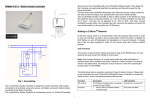
Connect the wall switch to the Micromodule Single Switch Max.
Load: 11A as shown in picture.
There are 3 modes Micromodule Single Switch Max.Load: 11A
can be configured to match different kind of wall switch, please
refer to 3-10 Edge / Pulse / Edge-Toggle modes which are
described in next section of this user manual
[Command Class Basic, Basic Set, Value = 0(0x00)]: the load
attached to the Switch turns off.
[Command Class Switch Binary, Switch Binary Set, Value =
1~99, (255)0xFF]: the load attached to the Switch turns on.
[Command Class Switch Binary, Switch Binary Set, Value =
0(0x00)]: the load attached to the Switch turns off.
2 | Z-WAVE’S GROUPS (ASSOCIATION COMMAND
CLASS VERSION 2)
The Switch can be set to send associated Z-Wave devices. It
supports one association group with one node support for Grouping
1. For group 1, the Switch will report its latest status to Z-Wave
Controller.
Grouping 1 includes, SWITCH_BINARY_REPORT, METER_
REPORT, ALARM_REPORT.
2.1 | AUTO REPORT TO GROUPING 1 (MAXIMUM NODE 1)
2.1.1 | ON/OFF EVENT REPORT
Upon receipt of the following commands from a Z-Wave
Controller, the Switch will report its On/Off state to the node
asked.
BASIC GET COMMAND: [COMMAND CLASS BASIC, BASIC GET]
Basic Report Command:
Report OFF: [Command Class Basic, Basic Report, Value =
0(0x00)]
Report ON:[Command Class Basic, Basic Report, Value =
255(0xFF)]
2.1.3 | OVERLOAD ALARM REPORT
When Micromodule Single Switch Max.Load: 11A detects the
current is more than 12A, it will send Alarm Report to Group 1 node.
The content of Alarm Report:
Alarm report command: [Command_Class_Alarm, Alarm_
Report, Alarm Type = 0x08, Alarm Level = 0xFF]
2.2 | RESPONSE TO METER GET COMMAND
The Switch will report its (1) instant Power Consumption (Watt) or
(2) accumulated power consumption(KWH) or (3) AC load Voltage
(V) or (4) AC load current ( I ) (5) load power factor (PF) to Z-Wave
Controller after receive the Meter Get Command from Z-Wave
Controller.
2.2.1 | I NSTANT POWER CONSUMPTION (WATT) OF
SWITCH
When receiving Meter Get Command, it will report Meter Report
Command to the node.
make your home smart
Meter Report Command:
[Command Class Meter, Meter Report, Rate Type = 0x01,
Meter Type = 0x01, Precision = 2, Scale = 0x00, Size = 4, Meter
Value (KWh)]
Example:
Scale = 0x00 (KWh)
Precision = 2
Size = 4 Bytes (KW/h)
Meter Value 1 = 0x00(KWh)
Meter Value 2 = 0x01(KWh)
Meter Value 3 = 0x38(KWh)
Meter Value 4 = 0xA3(KWh)
2.2.3 | CLEARING ACCUMULATED POWER
CONSUMPTION
Meter Report Command:
[Command Class Meter, Meter Report, Rate Type = 0x01.
Meter Type = 0x01, Precision = 1, Scale = 0x02, Size = 4, Meter
Value(W) ]
1.1 | B
ASIC_GET / BINARY_SWITCH_GET
Meter Get Command: [Command Class Meter, Meter Get,
Scale = 0x00 KW/h)]
Binary Switch Report
When the power consumption of load vary over 5%, it will send
Meter report to the nodes of Grouping 1.
The Switch will respond to BASIC and BINARY commands that are
part of the Z-Wave system.
When receiving Meter Get Command, it will report Meter Report
Command to the node.
Accumulated power consumption (KW/h) = (Meter Value 2*65536) +
(Meter Value 3*256) + (Meter Value 4) = 800.35 (KW/h)
2.1.2 | INSTANT POWER CONSUMPTION VARY OVER
5% REPORT
1 | BASIC COMMAND CLASS / BINARY SWITCH
COMMAND CLASS
2.2.2 | ACCUMULATED POWER CONSUMPTION (KW/H)
When “on” or “off” state has been changed, it will send Binary
Switch Report to the node of Grouping 1.
ON:[Command Class Switch Binary, Switch Binary Report,
Value =255(0xFF)]
OFF:[Command Class Switch Binary, Switch Binary Report,
Value =0(0x00)]
PROGRAMMING
xample:
E
Meter Value 1 = 0x00 (W)
Meter Value 2 = 0x00 (W)
Meter Value 3 = 0x03 (W)
Meter Value 4 = 0xEA (W)
Meter(W) = Meter Value 3 *256 + Meter Value 4 = 100.2W
www.zipato.com
Whenever re-start counting the accumulated power consumption is
needed, you can use Meter Reset Command to clear it.
Meter Reset Command: [Command Class Meter, Meter Reset]
Example:
Scale = 0x05 (I)
Precision = 2
Size = 2 (2 Bytes of I)
Meter Value 1 = 0x01(I)
Meter Value 2 = 0x21(I)
AC load current = (Meter Value 1*256) +(Meter Value 2)= 2.89 (A)
2.2.6 | LOAD POWER FACTOR (PF)
When receiving Meter Get Command, it will report Meter Report
Command to the node.
Meter Get Command: [Command Class Meter, Meter Get,
Scale =0x06(PF)]
Meter Report Command:
[Command Class Meter, Meter Report, Rate Type = 0x01,
Meter Type = 0x01, Precision = 2, Scale = 0x06, Size = 1 Bytes,
Meter Value(PF)]
Example:
Scale = 0x06 (PF)
Precision = 2
Size = 1 (1 Byte of PF)
Meter Value 1 = 0x63(PF)
Load power factor (PF) = Meter Value 1 =0.99
3|Z
-Wave’s Configuration
Configuration Parameter 1
Function
Size (byte)
Value
Watt Meter
Report Period
2
0x010x7FFF
Unit
Default
Description
5s
720
720*5s=3600s=1
hour
Configuration Parameter 2
Function
Size (byte)
Value
KWH Meter
Report Period
2
0x010x7FFF
Unit
Default
Description
10min
6
6*10min=1 hour
2.2.4 | AC LOAD VOLTAGE (V)
When receiving Meter Get Command, it will report Meter Report
Command to the node.
Meter Get Command: [Command Class Meter, Meter Get,
Scale =0x04(V)]
Meter Report Command:
[Command Class Meter, Meter Report, Rate Type = 0x01,
Meter Type = 0x01, Precision = 1, Scale = 0x04, Size = 2, Meter
Value(V)]
Example:
Scale = 0x04 (V)
Precision = 1
Size = 2 (2 Bytes of V)
Meter Value 1 = 0x09(V)
Meter Value 2 = 0x01(V)
AC load Voltage = (Meter Value 1*256) +(Meter Value 2)= 230.5 (V)
Configuration Parameter 3
Function
Size (byte)
Value
Threshold of
current for Load
caution
2
10-1100
Unit
Default
Description
0.01A
1100
1100*0.01A = 11A
Configuration Parameter 4
Function
Size (byte)
Value
Threshold of
KWh for Load
caution
2
1-10000
Unit
Default
Description
1KWh
10000
2.2.5 | AC LOAD CURRENT ( I )
When receiving Meter Get Command, it will report Meter Report
Command to the node.
Meter Get Command: [Command Class Meter, Meter Get,
Scale =0x05(I)]
Meter Report Command:
[Command Class Meter, Meter Report, Rate Type = 0x01,
Meter Type = 0x01, Precision = 2, Scale = 0x05, Size = 2, Meter
Value(I)]
make your home smart
Configuration Parameter 5
Function
Size (byte)
Restore switch state
mode
1
Value
0-2
Unit
Default
Description
1
0 : Switch off
1 : Last switch state
2 : Switch on
www.zipato.com 02