1
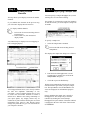
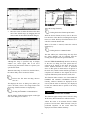
Start/Stop Recording — When activated with a
data file already open, recording starts immediately.
When activated without a data file open, the Open
dialog box appears prompting you to specify a new
file name or select an existing file. When activated
during recording, recording is stopped.
WINDAQ/Lite
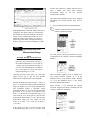
User Annotation…
Allows you to display a custom message (up to 30
characters) on the baseline of each display channel
(used in tandem with the User Annotation function
on the Options menu).
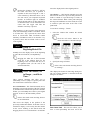
Enable Channels — The same as choosing
Channels… from the Edit menu.
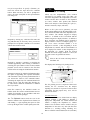
The desired channel annotation must first be entered
before it can be toggled on or off. To enter channel
annotation:
Channel Setup — The same as choosing Channel
Settings… from the Edit menu.
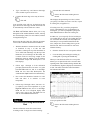
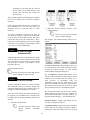
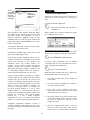
Point to the Edit menu and drag down to
User Annotation…
Calibration — The same as choosing Fixed
Calibration… from the Edit menu.
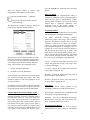
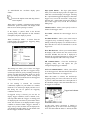
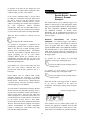
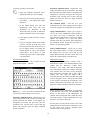
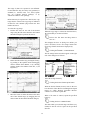
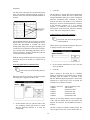
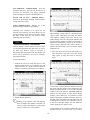
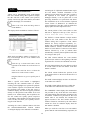
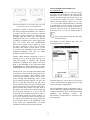
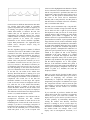
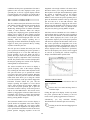
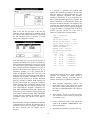
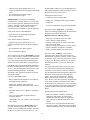
This displays the Channel Annotation dialog box as
follows:
Sample Rate — The same as choosing Sample
Rate… from the Edit menu.
Waveform Compression — The same as choosing
Compression… from the Edit menu.
Commented Event Marker — The same as
choosing Insert Commented Mark from the Edit
menu.
This dialog box prompts you to enter the desired
channel annotation for the currently selected
channel, or any other channel. If not the currently
selected channel, enter the desired channel number
for which you want to provide annotation in the
Channel # = text box. In the Annotation = text
box, enter the desired channel annotation (up to 30
characters).
Show/Hide Grid — The same as choosing Grids
from the Options menu.
Change Palette — The same as choosing User
Palette… from the File menu.
Expand Waveform 2X — The same as choosing
Grow 2X from the Scaling menu.
Once the channel annotation is entered, the display
of user annotation can be toggled on or off with the
User Annotation command on the Options menu.
Shrink Waveform 2X — The same as choosing
Shrink 2X from the Scaling menu.
Shift Waveform Up — The same as choosing
Waveform Up 10 Pixels from the Scaling menu.
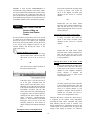
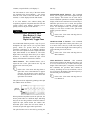
The Next and Previous buttons allow you to step
through all of the enabled channels in order, entering
the desired channel annotation for each channel,
without closing this dialog box.
Shift Waveform Down — The same as choosing
Waveform Down 10 Pixels from the Scaling menu.
Scroll Mode — The same as choosing Scroll Mode
from the Options menu.
WINDAQ/Lite
Compression…,
Compression x2,
Compression /2
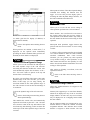
Oscilloscope Mode — The same as choosing
Oscilloscope Mode… from the Options menu.
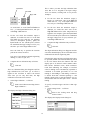
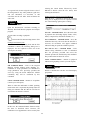
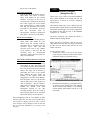
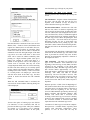
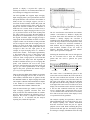
Allows you to vary the number of data points used
to display the real time waveform on your computer
screen.
Triggered Mode — The same as choosing
Triggered Mode… from the Options menu.
19