1
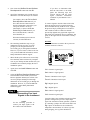
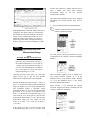
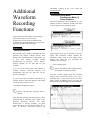
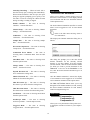
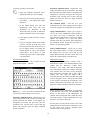
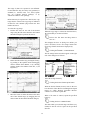
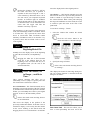
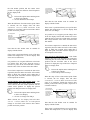
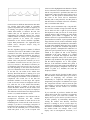
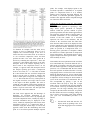
All the
channels in
the data file
with their
current user
annotation.
WINDAQ Waveform
Browser
Select an
annotation for
editing from
this list…
Compression
Allows the waveform data file to be compressed: a)
entirely onto one screen width or b) to any given
ratio.
To enable waveform compression:
…and edit it here.
1. Point to the Edit menu and drag down to
Compression….
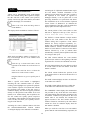
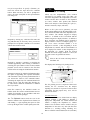
The top portion of the Channel Annotation dialog
box displays all the channels in the data file along
with their current user annotation. To edit a
channel’s annotation, highlight (click) on the
annotation in the list at the top of the window and
perform the editing in the Annotation = box at the
bottom of the window.
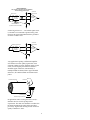
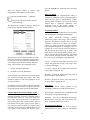
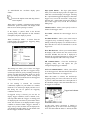
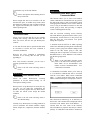
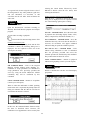
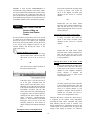
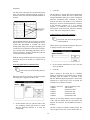
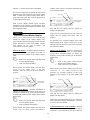
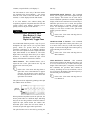
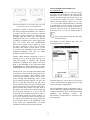
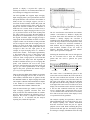
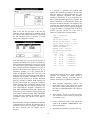
When enabled, the waveform compression dialog
box is displayed on the screen:
Activating the OK button accepts all of the editing
you have done and closes this box.
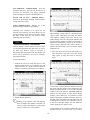
Compression Onto One Screen Width
To achieve waveform data file compression so that
the entire file is compressed onto one screen width:
Activating the Cancel button closes this box and
ignores any editing changes made.
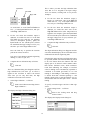
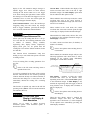
Click the Maximum command button.
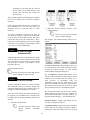
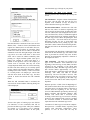
Note that the display annotation options can be
enabled in virtually any combination to provide the
desired result. However in some instances, one
annotation option will override another. For
example, it is not possible to enable both limit &
frequency display and acquisition assignments.
When limit & frequency display is enabled, it will
be automatically disabled when you attempt to
enable acquisition assignments, and vice versa.
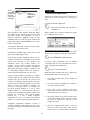
Conversely, time compression can be disabled
(causing the data file to be “uncompressed”) just as
easily. To disable time compression:
Click the 1 command button.
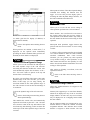
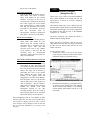
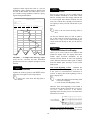
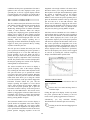
When the entire waveform data file is compressed,
the following features are also activated:
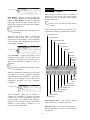
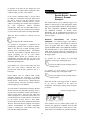
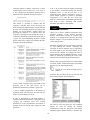
A logical channel number corresponds to a channel
number's appearance in a data file. The first channel
acquired is the first in the file, the second is the
second, etc. In Playback, logical channels are always
specified. However, during acquisition you have the
ability to acquire any number of channels, not
necessarily in sequential order. For example, you
may have acquired channels 0, 2, and 3. These
channel numbers are called physical channels ó
relating to the actual physical channel number that
provided the waveform. Their logical channel
numbers are 1, 2, and 3. When acquisition
assignments are active, L=P means logical channel
number L is assigned to physical channel number P.
1. The entire waveform data file fits within one
screen width.
2. The cursor will not automatically be displayed,
it must be manually enabled.
3. The ← and → cursor control keys are active,
allowing the cursor to be moved in a left or right
direction across the waveform(s).
4. The cursor position at any given location on the
screen will define the center of the screen when
the screen is expanded by entering a lower
compression factor.
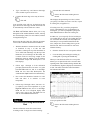
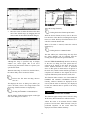
Acquisition assignments annotation provides a
convenient method of determining, for any given
waveform, which physical channel number provided
the signal.
5. The fully compressed file display is saved in
memory to allow fast reentry when moving
between lower (or uncompressed), and the full
52