1
e_hd100.book Page 65 Tuesday, October 4, 2005 10:31 AM
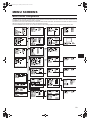
MENU SCREENS
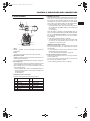
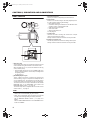
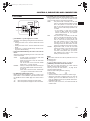
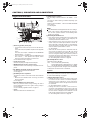
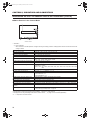
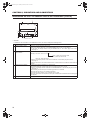
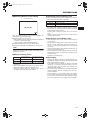
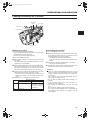
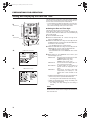
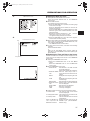
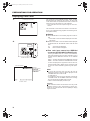
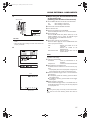
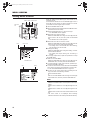
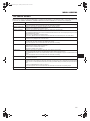
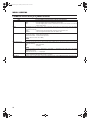
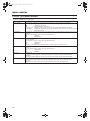
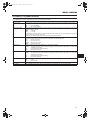
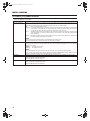
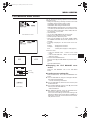
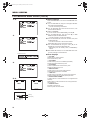
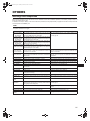
CAMERA PROCESS [1/2] Menu Screen
The CAMERA PROCESS menu screen consists of two screens. (1/2 screen, 2/2 screen)
The CAMERA PROCESS menu screen is only displayed in camera mode.
Item
Function/Setting (bold characters indicate initial settings)
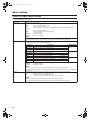
MASTER BLACK
Adjusts the pedestal level (master black) that serves as the reference black.
Increase the number : Raises the pedestal level.
Decrease the number : Lowers the pedestal level.
[Settings: MIN (–10), –9 - NORMAL (0) - 9, MAX (10)]
DETAIL
Adjusts the contour (detail) sharpness level.
Increase the number : Sharpens the contour.
Decrease the number : Softens the contour.
OFF
: Does not function.
[Settings: OFF, MIN (–10), –9 - NORMAL (0) - 9, MAX (10)]
When this item is set to “OFF”, “-----” is displayed for the following menu items and they cannot be selected.
V/H BALANCE
Sets which contours (details) to sharpen, those in the horizontal (H) direction or those in the vertical (V) direction.
Increase the number : Sharpens H direction.
Decrease the number : Sharpens V direction.
[Settings: H-MIN (–5), –4 - NORMAL (0) - 4, H-MAX (5)]
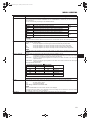
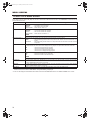
H FREQUENCY
Changes the horizontal contour compensation frequency for the contours (details). Set this as appropriate for the
subject.
LOW
: Enhances low frequency bands.
Use this when shooting subjects with large patterns.
MIDDLE
: Enhances middle frequency bands.
HIGH
: Enhances high frequency bands.
Use this when shooting subjects with small patterns.
V FREQUENCY*1
Use this when shooting subjects with finely detailed patterns.
Changes the vertical contour compensation frequency for the contours (details). Compensates for distortion when
outputting progressive video to an interlaced monitor.
HIGH
: Enhances high frequency bands.
LOW
: Enhances low frequency bands.
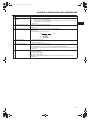
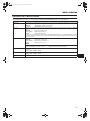
SKIN DETECT
Sets ON/OFF for the skin detail function.
OFF
: Turns off the skin detail function.
ON
: Turns on the skin detail function. (Softens detected skin color area details.)
X See “Using the Skin Detail Function” on page 83.
LEVEL
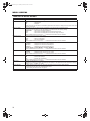
BLACK
Sets the contour compensation level (amount of softening) for the skin detail function.
This can only be selected when the SKIN DETECT item is set to ON.
–1
: Low contour compensation level (amount of softening)
–2
: Medium contour compensation level (amount of softening)
–3
: High contour compensation level (amount of softening)
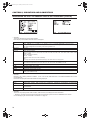
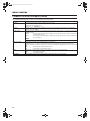
Changes the gain in dark areas. Change this depending on the video signal being shot.
STRETCH1
: Enhances the dark areas of the video so the contrast between light and dark is more visible by
STRETCH2
stretching the signal only in the dark areas.
STRETCH3
The amount of stretching increases from STRETCH1→STRETCH2→STRETCH3.
NORMAL
: Normal status
COMPRESS1 : If the video that was shot is bright overall and lacking in contrast, the gain in the dark areas is comCOMPRESS2 pressed, which adds contrast.
COMPRESS3 The amount of compression increases from COMPRESS1→COMPRESS2→COMPRESS3.
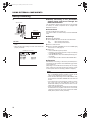
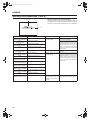
NEXT PAGE
To display the CAMERA PROCESS [2/2] menu screen, move the cursor to this position and press the SHUTTER
dial.
PAGE BACK
The TOP MENU returns when the SHUTTER dial is pressed while the cursor is at this position.
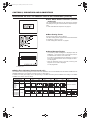
*1 When the REC item on the VIDEO FORMAT menu is set to “DV-60I” or “DV-50I”, “-----” is displayed and this cannot be
selected.
65