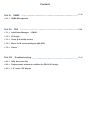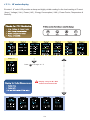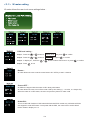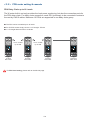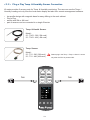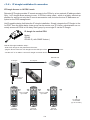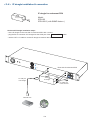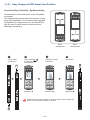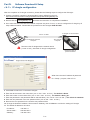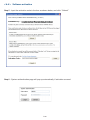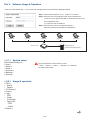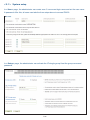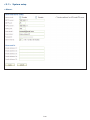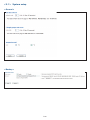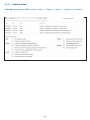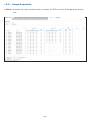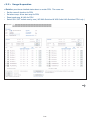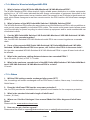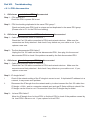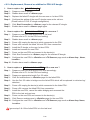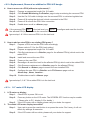
1
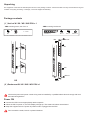
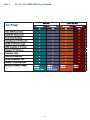
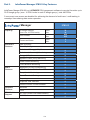
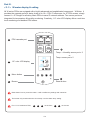
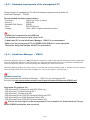
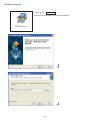
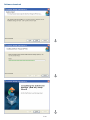
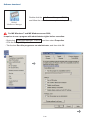
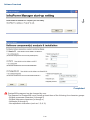
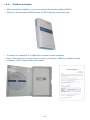
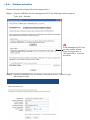
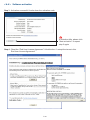
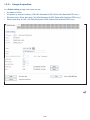
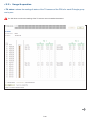
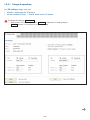
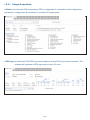
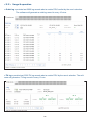
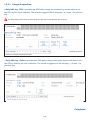
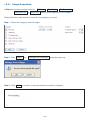
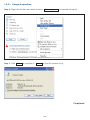
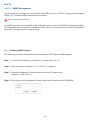
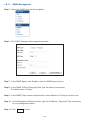
Toll Free: 1-888-865-6888 Tel: 510-226-8368 Fax: 510-226-8968 Email: [email protected] PDU Inspired by Your Data Center User Manual IPM-03 PDU management software W kWh Monitored PDU Wi Outlet kWh Monitored PDU WS kWh Switched PDU WSi Outlet kWh Switched PDU Legal Information First English printing, October 2002 Information in this document has been carefully checked for accuracy; however, no guarantee is given to the correctness of the contents. The information in this document is subject to change without notice. We are not liable for any injury or loss that results from the use of this equipment. Safety Instructions Please read all of these instructions carefully before you use the device. Save this manual for future reference. ■ ■ ■ ■ ■ ■ ■ ■ ■ ■ ■ Unplug equipment before cleaning. Don’t use liquid or spray detergent; use a moist cloth. Keep equipment away from excessive humidity and heat. Preferably, keep it in an air-conditioned environment with temperatures not exceeding 40º Celsius (104º Fahrenheit). When installing, place the equipment on a sturdy, level surface to prevent it from accidentally falling and causing dam age to other equipment or injury to persons nearby. When the equipment is in an open position, do not cover, block or in any way obstruct the gap between it and the power supply. Proper air convection is necessary to keep it from overheating. Arrange the equipment’s power cord in such a way that others won’t trip or fall over it. If you are using a power cord that didn’t ship with the equipment, ensure that it is rated for the voltage and current labelled on the equipment’s electrical ratings label. The voltage rating on the cord should be higher than the one listed on the equipment’s ratings label. Observe all precautions and warnings attached to the equipment. If you don’t intend on using the equipment for a long time, disconnect it from the power outlet to prevent being dam aged by transient over-voltage. Keep all liquids away from the equipment to minimize the risk of accidental spillage. Liquid spilled on to the power supply or on other hardware may cause damage, fire or electrical shock. Only qualified service personnel should open the chassis. Opening it yourself could damage the equipment and invali date its warranty. If any part of the equipment becomes damaged or stops functioning, have it checked by qualified service personnel. What the warranty does not cover ■ ■ ■ Any product, on which the serial number has been defaced, modified or removed. Damage, deterioration or malfunction resulting from: Accident, misuse, neglect, fire, water, lightning, or other acts of nature, unauthorized product modification, or failure to follow instructions supplied with the product. Repair or attempted repair by anyone not authorized by us. Any damage of the product due to shipment. Removal or installation of the product. Causes external to the product, such as electric power fluctuation or failure. Use of supplies or parts not meeting our specifications. Normal wear and tear. Any other causes which does not relate to a product defect. Removal, installation, and set-up service charges. □ □ □ □ □ □ □ □ Regulatory Notices Federal Communications Commission (FCC) This equipment has been tested and found to comply with the limits for a Class B digital device, pursuant to Part 15 of the FCC rules. These limits are designed to provide reasonable protection against harmful interference in a residential installation. Any changes or modifications made to this equipment may void the user’s authority to operate this equipment. This equipment generates, uses, and can radiate radio frequency energy and, if not installed and used in accordance with the instructions, may cause harmful interference to radio communications. However, there is no guarantee that interference will not occur in a particular installation. If this equipment does cause harmful interference to radio or television reception, which can be determined by turning the equipment off and on, the user is encouraged to try to correct the interference by one or more of the following measures: ■ Re-position or relocate the receiving antenna. ■ Increase the separation between the equipment and receiver. ■ Connect the equipment into an outlet on a circuit different from that to which the receiver is connected. The company reserves the right to modify product specifications without prior notice and assumes no responsibility for any error which may appear in this publication. All brand names, logo and registered trademarks are properties of their respective owners. Copyright 2012 Synergy Global Technology Inc. All rights reserved. Unpacking The equipment comes with the standard parts shown on the package contents. Check and make sure they are included and in good condition. If anything is missing, or damage, contact the supplier immediately. Package contents ( 1 ) Vertical W / Wi / WS / WSi PDU x 1 - VMS mounting screw, set of 2 or 3 + - VMB mounting bracket set 2 - 3 sets M4 PEG M4 x 2 Bracket x 2 M6 M6 x 2 M6 nut x 2 M6 nut M4 LINK OUT TH 1 TH 15.9 2 31. 7 15.8 3.49 3.48 6.9 22.3 37.5 7 45 65 LINK OUT TH 1 TH 15.9 2 31. 7 15.8 3.49 3.48 6.9 22.3 37.5 7 45 65 M4 M6 nut OR M6 ( 2 ) Rackmount W / Wi / WS / WSi PDU x 1 All electrical power and power control wiring must be installed by a qualified electrician and comply with local and national regulations. Power ON ■ Connect the PDU into an appropriately rated receptacle ■ When the PDU is power on, the LED display will light up. That means all outlets are activated ■ Keep the equipments in the power off position until it is plugged into the PDU Don’t exceed the outlet, branch or phase limitations Content Part I. W / Wi / WS / WSi PDU Key Features P. 1 Part II. InfraPower Manager IPM-03 Key Features P. 2 Part III. Hardware Setup & Connection P. 3 < 3.1 > W meter display & setting < 3.2 > PDU cascade & connection < 3.3 > Temp. & Humidity sensor connection < 3.4 > IP dongle connection < 3.5 > Easy change on PDU Power Feed Position Part IV. Software Download & Setup P. 11 < 4.1 > IP dongle configuration < 4.2 > Hardware requirements of the management PC < 4.3 > InfraPower Manager - IPM-03 Licensed PDU management software < 4.4 > Software activation Part V. Software Usage & Operation < 5.1 > System setup < 5.2 > Usage & operation P. 21 Content Part VI. SNMP P. 36 < 6.1 > SNMP Management Part VII. FAQ P.38 < 7.1 > InfraPower Manager - IPM-03 < 7.2 > IP dongle < 7.3 > Temp. & Humidity sensor < 7.4 > Meter for W series Intelligent kWh PDU < 7.5 > Others Part VIII. Troubleshooting < 8.1 > PDU disconnection < 8.2 > Replacement, removal or addition for PDU & IP dongle < 8.3 > 1.8” meter LCD display P. 41 Part I. W / Wi / WS / WSi PDU Key Features P.1 Part II. InfraPower Manager IPM-03 Key Features InfraPower Manger IPM-03 is a LICENSED PDU mangement software to remote & monitor up to 30 IP dongle group ( max. 16 PDU levels in each IP dongle group ), total 480 PDUs 5 concurrent user access are bundled for achieving the demand of multi-user / multi-tasking in nowadays’ time-sharing date center operation. Manager Capacity Enhance d Features IPM-03 IP Dongle Groups (Just 1 for 16 PDU levels) Basic Max. 30 30 PDU number Basic Max. 480 480 Concurrent Users Basic Max. 5 5 User Grouping Chart Reporting Outlet Level Energy (kWh) Measurement Outlet Level Current (A) Monitoring Energy (kWh) Measurement Apparent Power (kVA) Monitoring Power Factor Monitoring Circuit Breaker Monitoring Basic Features Aggregate Current (A) Monitoring Individual Outlet Switch ON / OFF Temp-Humid Monitoring Alarm Threshold Setting Reporting Graphical User Interface Remote Access via Web Browser Software Platform PDU Models Suppor t Windows Linux Wi / WSi (Outlet Level Measurement) W / WS P.2 Part III. < 3.1 > W meter display & setting All W series PDUs are equipped with a highly advanced and sophisticated component - W Meter. It provides the cascade ports for daisy chain up to 16 x PDU. Furthermore, for IP PDU access, simply connect 1 x IP Dongle for all daisy chain PDUs to save IP network address. Two sensor ports are integrated for temperature & humidity monitoring. Creatively, 1.8” color LCD display offers a real time local monitoring and detailed PDU status. 1 PDU cascade port 2 Temp. + Humidity sensor port x 2 or Temp. sensor port x 2 3 1.8” color LCD display 4 Menu button 5 6 Reset button Buzzer Reset button is to re-power the meter. It will not affect any settings and memories. The buzzer only sounds when the circuit amp. over the alarm amp. setting. For 1U / 2U rackmount PDU, 3 4 5 on the front, P.3 1 2 on the rear < 3.1 > W meter display W meter 1.8” color LCD provides a sharp and highly visible reading for the local reading of Current ( Amp ), Voltage ( Volt ), Power ( kW ), Energy Consumption ( kWh ), Power Factor, Temperature & Humidity. Display 1.1 Press to change °C / °F Display 6 only for Wi / WSi outlet measurement PDU P.4 < 3.1 > W meter setting W meter allows the user to do some settings below : PDU level setting : Step 1 - Press the & button to display no.9 Step 2 - Press the & button to PDU ID Step 3 - In display 9.1, Press the Step 4 - Press & and press and press to confirm to confirm button to select PDU level no. & press to confirm to exit Buzzer : W meter allows the user to set the meter buzzer ON / OFF by meter’s 4 buttons Screen OFF : All PDUs are shipped with the metter LCD in always ON status. W meter allows the user to turn off the meter LCD by time setting ( 1 - 60 mins, 0 = always ON ) When the meter is in OFF status, the user can press any button to make it ON. Outlet ON : This is for WS kWh Switched / WSi outlet kWh Switched PDU models only. All Switched PDUs are shipped in outlet OFF status. Once power ON the PDU, the users have to switch ON all PDUs’ outlets in display no. 9.4 P.5 < 3.2 > PDU meter setting & cascade PDU Daisy Chain up to 16 Levels The W meter built-in not only provides the local power monitoring, but also the connection ports for the PDU daisy chain. For daisy chain connection, each PDU just simply to be connected in series to the next by Cat5/6 cables. Maximum 16 PDUs are supported in one daisy chain group. ■ ■ ■ The PDU can be cascaded up to 16 levels For IP PDU access simply connect 1 x IP dongle - IPD-02 1 x IP dongle allows access to 16 levels Cat 5 / 6 cable Up to 20M 1st level PDU meter Cat 5 / 6 cable Up to 20M 2nd level PDU meter 3rd level PDU meter For PDU level setting, please refer to the left side page. P.6 Final level PDU meter < 3.3 > Plug n Play Temp. & Humidity Sensor Connection W meter provides 2 sensor ports for Temp. & Humidity monitoring. The user can see the Temp. / Humidity reading not only from the local meter display but also from remote management software. • • • • low profile design with magnetic base for easy affixing to the rack cabinet Plug n Play sensor with 2M or 4M cord pair of sensors can be connected to a single W meter Temp. & Humid. Sensor Model : IG - TH01 - 2M ( 2M cord ) IG - TH01 - 4M ( 4M cord ) Temp. Sensor Model : IG - T01 - 2M ( 2M cord ) IG - T01 - 4M ( 4M cord ) TH1 Please plug in the Temp. / Temp. & Humid. sensor only after the PDU is powered ON. TH2 P.7 < 3.4 > IP dongle installation & connection IP Dongle Access to 16 PDU Levels Patented IP Dongle provides IP remote access to the PDUs by a true network IP address chain. Only 1 x IP dongle allows access to max. 16 PDUs in daisy chain - which is a highly efficient application for saving not only the IP remote accessories cost, but also the true IP addresses required on the PDU management. Hot-Pluggable design facilitates the IP dongle installation. Simply integrate the IP Dongle to the 1st PDU, then the entire daisy chain group can be remote over IP. Hence, administrator can remotely access all PDUs in the daisy chain group by one single IP via the IP Dongle. IP dongle for vertical PDU Model : IPD-02 IPD-02-S ( with SNMP feature ) Vertical IP dongle installation steps : - slide the IP dongle on the plate above the meter - plug the RJ-45 connector of IP dongle into the LINK port of the 1st level PDU meter - use the CAT. 5 / 6 cable to connect IP dongle to network device Network Hub To LAN port IP dongle To LINK port of the 1st PDU Cat 5 / 6 cable Up to 20M Cat 5 / 6 cable Up to 20M To LINK port of next PDU ( Up to 16 levels ) 1st level PDU meter 2nd level PDU meter 3rd level PDU meter P.8 < 3.4 > IP dongle installation & connection IP dongle for rackmount PDU Model : IPD-H02 IPD-H02-S ( with SNMP feature ) IP dongle Horizontal IP dongle installation steps : - fix the IP dongle on the rear side of rackmount PDU with 4 screws - plug the RJ-45 connector of IP dongle into the LINK port of the 1st level PDU meter - use the CAT. 5 / 6 cable to connect IP dongle to network device A Rear side of rackmount PDU B To LAN port of IP dongle IP dongle To LINK port of the 1st PDU Network Hub P.9 < 3.5 > Easy Change on PDU Power Feed Position Power Feed Entry Flexibility - By Meter Setting Customization of top feed power entry is available on request. The change of the power feed entry position is possible after installation. The W series meter provides the flexibility to simply turnover on top feed PDUs with the use of meter inversion buttons and an alternative membrane. Meter Membrane A 1 2 Turn the PDU upside-down 3 Meter Membrane B 4 Press first button & last button to invert display Replace the meter membrane Completed Membrane A Membrane A Membrane B B B A A A B Please take the reverse steps to change top-feed to bottom-feed entry. Outlet no. stickers are provided on request. P.10 Part IV. Software Download & Setup < 4.1 > IP dongle configuration After the completion of IP dongle connection, please take the following steps to configure the IP dongle : 1. Prepare a notebook computer to download the IP setup utilities from the link : http://www.rackmountmart.com/support/utilities/infrapower/IPdongleSetup.msi 2. Double click the IPDongleSetup.msi and follow the instruction to complete the installation. 3. Go to each first level PDU with the notebook computer & a piece of CAT. 5 / 6 cable to configure the IP dongle by IP setup utilities as below. Please take the procedure for all IP dongles ONE BY ONE. IP dongle on 1st level PDU CAT. 5 / 6 cable To notebook computer LAN port To IP dongle LAN port Reconnect the IP dongle with the network device ( router or hub ), after finish IP dongle configuration. Ensure the PDU in power ON status Write down the new IP address & password for < Setup > purpose, refer to P.18 4. Click Scan to search the connected IP dongles 5. Enter the device name in the name field ( min. 4 char. / max. 16 char. ). The default is Name. 6. Enter the location in the location field ( min. 4 char. / max. 16 char. ). The default is Rack_001. 7. Enter the password in the password field for authentication ( min. 8 char. / max. 16 char. ). The default is 00000000. 8. Enter the new password in the new password field ( min. 8 char. / max. 16 char. ). 9. Re-enter the new password in the Confirm new password field. 10. Change the desired IP address / Subnet mask / Gateway, then click Save to confirm the setting to IP dongle. 11. The default IP address is as below: IP address : 192.168.0.1 Subnet mask : 255.255.255.0 Gateway : 192.168.0.254 P.11 < 4.2 > Hardware requirements of the management PC Please prepare a management PC with the hardware requirements as below for InfraPower Manager - IPM-03 Recommended hardware requirements : - Processor: Dual Core 2GHz or above - Memory: 2GB RAM - Available Disk Space: 500GB - Drive: DVD ROM drive - Display: 1440 x 900 or higher resolution monitor - A USB port is required for the USB Key - The default service port of web server is 80. - A dedicated PC to run InfraPower Manager - IPM-03 is recommended. - Make sure the management PC is POWER ON & IPM-03 is under operation. Otherwise, daily data backup will NOT be proceeded. < 4.3 > InfraPower Manager - IPM-03 InfraPower Manager, IPM-03, is a PDU management software to enhance the features and benefits of the W kWh Monitored / Wi Outlet kWh Monitored / WS kWh Switched / WSi Outlet kWh Switched PDUs by providing a centralized and remote management platform, and total reporting with detailed logs & event occurrences. InfraPower Manager IPM-03 can support max. 5 concurrent login users and manage multi- IP dongles max. 30, hence the concurrent login users can access & remote PDUs max. 480 ( 30 IP dongles x 16 level PDUs ). Software download Please download the InfraPower Manager - IPM-03 to the management PC from the link http://www.rackmountmart.com/support/software/infrapower/IPM-03.msi Supported OS platform list : - MS Windows XP Professional with SP3 (32bit only) - MS Windows 7 Professional with SP1 - MS Windows 7 Ultimate with SP1 - MS Windows Server 2003 R2 Standard Edition with SP2 - MS Windows Server 2008 Standard Edition SP2 - MS Windows Server 2008 R2 Standard Edition SP1 Ensure the user logins in the management PC as a member of “Administrators” Group before IPM-03 Installation and execution. P.12 Software download Double click the IPM-03.msi and follow the instruction to complete the installation. IPM-03.msi P.13 Software download P.14 Software download Double click the InfraPower Manager - IPM-03 IPM-03 InfraPower Manager and follow the instruction to complete start-up setting. For MS Windows 7 and MS Windows server 2008, it requires to run a program with administrator rights before execution: - Right click InfraPower Manager - IPM-03 , and then select Properties. - Click the Compatibility tab. - Tick the box Run this program as an administrator, and then click OK. 3 P.15 Software Download Completed PostgreSQL password can be changed by user. The password of PostgreSQL must contain at least three of the following four character groups: - English uppercase characters (A through Z) - English lowercase characters (a through z) - Numerals (0 through 9) - Non-alphabetic characters (such as !, $, #, %) P.16 < 4.4 > Software activation • • After the software installation, you need to activate the licensed software IPM-03. When the user purchases IPM-03 license, a IPM-03 Key Box will be delivered. • • It consists of a software CD, a USB Key & a software license certificate. Note : Please ensure a common Serial no. shown on Key Box, USB Key & software license certificate. If NOT, please contact your reseller. P.17 < 4.4 > Software activation Please activate the software follows the steps below : Step 1 - Plug the USB Key into the management PC & the following window pops up. Then, click “ Activate” If the management PC has no web access, please follow the instruction in “Activate Offline” to do the activation Step 2 - Input the installation key & company information & click “ Submit” to get the activation code P.18 < 4.4 > Software activation Step 3 - Activation successful & write down the activation code If activation fails, please click “Next activation” to repeat step 2 again Step 4 - Read the “End User License Agreement” & tick the box “I accept the terms in this End User License Agreement” P.19 < 4.4 > Software activation Step 5 - Input the activation code in the box as shown below, and click “ Submit” Step 6 - System authentication page will pop up automatically if activation succeed P.20 Part V. Software Usage & Operation Users can follow below step 1 - 3 to access the management PC and InfraPower Manager IPM-03 Step 1. Open Internet Explorer ( I.E. ), version 7.0 or above Step 2. Enter the URL of management PC into the address bar ( If fail to access, please ask MIS to check the service port of the management PC ) e.g. http://192.168.0.1/IPM-03/ Step 3. Enter the user name ( the default is admin ) Enter the password ( the default is 00000000 ) 1 Login user 2 3 Login user 4 Login user Router or hub Login user 5 Login user Management PC InfraPower Manager IPM-03 < 5.1 > System setup Initial system setup on : < User > < Setup > < Alarm > < General > < Backup > < Sys log > Only Administrator is authorised to access < User >, < Setup >, < Alarm >, < General > & < Backup > for initial system setup < 5.2 > Usage & operation < PDU > • Status • Details < TH Sensor > < Event > < Log > • PDU • Outlet • TH Sensor • Daily kWh - PDU - Outlet < Report > P.21 < 5.1 > System setup In < User > page, the administrator can create max. 5 concurrent login users and set the user name & password. After this, all users can take the three steps above to access IPM-03. In < Setup > page, the administrator can activate the IP dongle group & set the group command password. P.22 < 5.1 > System setup < Alarm > P.23 < 5.1 > System setup < General > < Backup > P.24 < 5.1 > System setup < Sys log > provides last 2000 events in < User >, < Setup >, < Alarm >, < General > & < Backup >. P.25 < 5.2 > Usage & operation < Status > provides the users a scan function to monitor the PDUs of each IP dongle group one by one. P.26 < 5.2 > Usage & operation < Details > provides a detailed status about a certain PDU. The users can • Set the name & location for PDU • Set alarm amp. & low alert amp for PDU • Reset peak amp. & kWh for PDU • Switch ON / OFF outlets one by one ( WS kWh Switched & WSi Outlet kWh Switched PDU only ) P.27 < 5.2 > Usage & operation In < Outlet setting > page, the users can set • the name of outlet • the power up sequence delay ( WS kWh Switched & WSi Outlet kWh Switched PDU only ) • Set alarm amp. & low alert amp ( Wi kWh Monitored & WSi Outlet kWh Switched PDU only ) • Reset peak amp. & kWh ( Wi kWh Monitored & WSi Outlet kWh Switched PDU only ) i P.28 < 5.2 > Usage & operation < TH status > shows the readings & status of the TH sensors of the PDUs for each IP dongle group one by one. The GUI does not show the readings if the TH sensors are not installed & activated. P.29 < 5.2 > Usage & operation In < TH setting > page, user can • activate / deactivate the TH sensor • set the location & Temp. / Humid. alarm of the TH sensor The default TH setting is Deactivate . • When install T or TH sensor, please tick Activate . Otherwise, no readings display. • DON’T activate T or TH sensor if no sensor installed. i i16-32A P.30 < 5.2 > Usage & operation < Event > provides last 2000 events about PDU’s configuration & connection,outlet configuration and sensor’s configuration & connection in a certain IP dongle group. < PDU log > provides last 2000 PDU log records about a certain PDU by the user’s selection. The software will generate a PDU log record in every 10 mins. i P.31 < 5.2 > Usage & operation < Outlet log > provides last 2000 log records about a certain PDU’s outlet by the user’s selection. The software will generate a outlet log record in every 10 mins. < TH log > provides last 2000 TH log records about a certain PDU by the user’s selection. The software will generate a TH log record in every 10 mins. i P.32 < 5.2 > Usage & operation < Daily kWh log - PDU > provides last 2000 daily energy consumption log records about a certain PDU by the user’s selection. The record is logged at 00:00 everyday ( ± 5 mins. ) for previous day. The daily kWh log will not be recorded at 00:00 if the PDU connected less than 24 hours. i < Daily kWh log - Outlet > provides last 2000 daily energy consumption log records about a certain PDUs’ outlet by the user’s selection. The record is logged at 00:00 everyday ( ± 5 mins. ) for previous day. Completed P.33 < 5.2 > Usage & operation < Report > provides monthly report for PDU log , Outlet log , TH Sensor log , Daily kWh log & Event log which can be exported in CSV format. Please follow the steps below to export the log category you want : Step 1 - Select the category, period & target. Step 2 - Click Apply Step 3 - Click OK &a Message from webpage dialog box pops up. to confirm. It may take several minutes to complete. P.34 < 5.2 > Usage & operation Step 4 - Right click the file name below & select Step 5 - Click Close to complete or Open Save target as to download the log file. to view the content of log. Completed P.35 Part VI. < 6.1 > SNMP Management The IP dongle can manage the connected W series PDUs ( up to 16 PDUs), using tools that support SNMP v2c ( Simple Network Management Protocol). Only for IPD-02-S or IPD-H02-S An SNMP trap is an event notification the IP dongle device sends to an SNMP management station. The trap identifies when a specific condition occurs, such as a value that is more than its predefined threshold. IP dongle device can send a trap. ( II ). Enabling SNMP Support The following procedure summarizes how to enable the IP Dongle for SNMP support. Step 1 - Connect the IP dongle to a computer. ( Please refer to P.11 ) Step 2 - Open the Internet Explorer ( I.E. ) version 7.0 or above Step 3 - Enter the configured IP dongle address into the I.E. address bar ( default IP : 192.168.0.1 ) Step 4 - Enter login name & password ( default login name & password are 00000000 ) P.36 < 6.1 > SNMP Management Step 5 - Select the SNMP from the left navigation Step 6 - The SNMP Settings window appears as below: Step 7 - In the SNMP Agent, click Enable to start the SNMP agent service. Step 8 - In the SNMP Polling Community field, type the name of community. The default value is “public” Step 9 - In the SNMP Traps version drop-down list, select disable or V2Trap you want to use. Step 10 - In the Management Station text box, type the IP address, Trap port & Trap community of your management station. Step 11- Click Apply to save. P.37 Part VII. FAQ < 7.1 > InfraPower Manager - IPM-03 1. What is InfraPower Manager? The InfraPower Manager IPM-03 is a Windows based system to consolidate management of max. 480 PDUs via 30 IP dongles, using a simple web interface which monitors and controls the WSi Outlet kWh Switched / Wi Outlet kWh Monitored / WS kWh Switched / W kWh Monitored PDUs in the data center. Authorized users have a secure control over outlets to power ON / OFF at the managed device level. It also provides the detailed PDU, daily energy consumption and event logged records, and sends alarm email once ampere & Temp. / Humid. over the predefined alarm threshold. Please find the link below: http://www.rackmountmart.com/support/software/infrapower/IPM-03.msi 2. Which OS platform does IPM-03 support? - MS Windows XP Professional with SP3 (32bit only) - MS Windows 7 Professional with SP1 - MS Windows 7 Ultimate with SP1 - MS Windows Server 2003 R2 Standard Edition with SP2 - MS Windows Server 2008 Standard Edition SP2 - MS Windows Server 2008 R2 Standard Edition SP1 Ensure the user logins in the management PC as a member of “Administrators” Group before IPM-03 Installation and execution. 3. Which database does the IPM-03 support? PostgreSQL 4. What is the PostgreSQL default password for IPM-03? 1qaz2WSX 5. How can I receive alarm email and get full log report? Ensure that IPM-03 is executed and the alarm server is configured properly and being enabled. 6. What is the default user name & password of IPM-03? Default user name “admin” & password “00000000” 7. What is the command password of IPM-03? Each IP dongle group has its command password. It will be requested for any PDU configuration and control. The administrator can set different command password for different IP dongle group or all IP dongle groups use the same password. 8. The WSi Outlet kWh Switched / Wi Outlet kWh Monitored / WS kWh Switched / W kWh Monitored PDUs can’t be found by IPM-03? Please double check the cable connection and the level setting of each PDU. If a cascade chain has duplicate the level PDUs, it will cause this problem. 9. Is it possible to manage the WSi Outlet kWh Switched / Wi Outlet kWh Monitored / WS kWh Switched / W kWh Monitored PDUs from different workstations? Yes, the InfraPower manager supports 5 concurrent login users from different workstations. P.38 < 7.2 > IP dongle 1. What is the IP dongle? The IP dongle provides a simple and economical way to consolidate management of max. 16 pcs WSi Outlet kWh Switched / Wi Outlet kWh Monitored / WS kWh Switched / W kWh Monitored PDUs, by a single IP connection to the network. 2. What is the IP setup utilities? This is a windows application used to assign the IP address of IP dongle. You can download the IP setup utilities from the link below: http://www.rackmountmart.com/support/utilities/infrapower/IPdongleSetup.msi 3. Does the IP dongle support DHCP (Dynamic Host Configuration Protocol)? No, the IP dongle only works with static IP-address. 4. Will the reset of IP dongle affect the power to the outlets? No, the IP dongle operates on a separate circuit, so the power to the outlets will remain unchanged. 5. How can I replace a failed IP dongle? As the IP dongle is hot swappable, without power disconnection, you can unplug the RJ45 connector and slide out the failed IP dongle from the WSi Outlet kWh Switched / Wi Outlet kWh Monitored / WS kWh Switched / W kWh Monitored PDU. Then replace a new one for the PDU and re-configure the IP address to fit your network setting. ( Please refer to the P. 11 ) < 7.3 > Temp. Humidity sensor 1. How accurate is the Temp. & Humid. sensor? It is accurate to ± 1°C ( typical ) & ± 4.5% RH ( typical ). 2. How accurate is the Temp. sensor? It is accurate to ± 1.5°C ( typical ). 3. How to install the Temp. / Temp. & Humid. sensor ? Plug in the Temp. / Temp. & Humid. sensor ONLY AFTER the PDU is ON. P.39 < 7.4 > Meter for W series Intelligent kWh PDU 1. What is feature of the Wi Outlet kWh Monitored / W kWh Monitored PDU? The W kWh Monitored PDU offers simple & highly reliable power distribution to multiple equipments, and built-in a 1.8” LCD meter indicates the total energy consumption of equipment connected to the PDU. The digital ampere meter has an interface which can connect to an IP dongle to the ethernet network, which allows managers to real-time remote monitor the PDU load thru the InfraPower manager (IPM-03). 2. What is feature of the WSi Outlet kWh Switched / WS kWh Switched PDU? The WS kWh Switched PDUs offers the same features as W kWh Monitored PDUs, with an addition remote control power capability to individual PDU outlets. The remote outlet power control allows power on/off functionality for power recycling to reboot locked-up equipment and to avoid unauthorized use of individual outlets. 3. Can the WSi Outlet kWh Switched / Wi Outlet kWh Monitored / WS kWh Switched / W kWh Monitored PDUs cascade together? Yes, the WS kWh Switched & W kWh Monitored model PDUs can connect together as a cascade chain. 4. If one of the cascaded WSi Outlet kWh Switched / Wi Outlet kWh Monitored / WS kWh Switched / W kWh Monitored PDU loses power, will it affect other PDUs in the same chain? No, the other cascaded WS kWh Switched & W kWh Monitored PDUs in upper & lower level will not be affected. 5. What is the maximum cabling distance between two cascaded PDUs? Up to 20 meter (66 feet) of CAT. 5 / 6 cable. 6. What is the maximum cascade level of the WSi Outlet kWh Switched / Wi Outlet kWh Monitored / WS kWh Switched / W kWh Monitored PDU in a chain? 16 levels < 7.5 > Others 1. Will the PDU settings remain unchanged after power OFF? Yes, the settings will remain unchanged such as PDU Name, Location, Alarm amp., Low alert amp., Outlet Name...... 2. Does the InfraPower PDU has the overpower protection? Yes, the PDU provides the resettable fuse or optional circuit breaker for the overpower protection. 3. What is the standard inlet cable length of InfraPower? 3 meter ( 9.9 feet ). 4. Where can I find the Catalogue / User manual /Model list / Wire diagram of InfraPower PDUs? Please visit the www.rackmountmart.com 5. How can we get a further support? Please send the email to [email protected] or [email protected] P.40 Part VIII. Troubleshooting < 8.1 > PDU disconnection 1. GUI shows a certain level PDU disconnected Step 1 - PDU power off ? Check the PDU is power ON or not. Step 2 - PDU level setting duplicated in the same PDU group ? Check and make sure PDU level is unique and not duplicated in the same PDU group. (Please refer to P.1 for the PDU level setting) 2. GUI shows from a certain level PDU to the last one disconnected Step 1 - Cable disconnected, loose or defective ? Check the Cat. 5/6 cable connection to PDUs and network devices. Make sure the connectors are firmly attached. And check if any defects on your cable or not. If yes, replace a new one. Step 2 - The first disconnected PDU failed ? Unplug the Cat. 5/6 cable on the first disconnected PDU, then plug it to the second disconnected PDU to check if the problem caused by the first disconnected PDU. 3. GUI shows the whole group of PDU(s) disconnected Step 1 - Cable disconnected, loose or defective ? Check the Cat. 5/6 cable connection to PDUs and network devices. Make sure the connectors are firmly attached. And check if any defects on your cable or not. If yes, replace a new one. Step 2 - IP dongle failed ? i. Check if the network setting of the IP dongle is correct or not. If duplicated IP address is in a network, it may cause such problem. ii. Disconnect the IP dongle from the network and try to direct connect the Cat. 5/6 cable from IP dongle < LAN > port to a computer network port and use IP Setup utilities to check if the IP dongle can be found or not. If it cannot be found, the IP dongle may be failed. Step 3 - 1st level PDU failed ? Move the IP dongle from 1st level PDU to 2nd level PDU to check if the problem caused by 1st level PDU’s failure or not. If yes, replace 1st level PDU. P.41 < 8.2 > Replacement, Removal or addition for PDU & IP dongle 1. How to replace the failed IP dongle ? Step 1 - Prepare a new IP dongle. Step 2 - Disable alarm email in <Alarm> page. Step 3 - Replace the failed IP dongle with the new one on 1st level PDU. Step 4 - Configure the setting of the new IP dongle same as the old one. (Please refer to P.5 for IP dongle configuration) Step 5 - Click Start Connection in <Status> page for the relevant IP dongle. Step 6 - Enable alarm email in <Alarm> page again. 2. How to replace the failed 1st level PDU with a new one ? Step 1 - Prepare a new PDU and set the PDU to 1st level. (Please refer to P.1 for the PDU level setting) Step 2 - Disable alarm email in <Alarm> page. Step 3 - Power off & unplug the device(s) which connected to the PDU. Step 4 - Power off & remove the failed 1st level PDU from connection. Step 5 - Install the IP dongle on the new 1st level PDU. Step 6 - Install and connect the new PDU. Step 7 - Power on the new PDU and connect to the device(s). Step 8 - Click Start Connection in <Status> page for the relevant IP dongle. Step 9 - Configure the new PDU in <Details> and <TH Sensor> page such as Alarm Amp , Name, Location… Step 10 - Enable alarm email in <Alarm> page. 3. How to replace a failed certain level PDU with a new one ? Step 1 - Prepare a new PDU and set the PDU level accordingly. (Please refer to P.1 for the PDU level setting) Step 2 - Prepare an appropriate length Cat. 5/6 cable. Step 3 - Click Set maintenance in <Details> page for the failed PDU. Step 4 - Use the Cat. 5/6 cable to bridge over the failed PDU which will be replaced to minimize log/ data loss. Step 5 - Power off & unplug the device(s) which connected to the failed PDU. Step 6 - Power off & remove the failed PDU from connection. Step 7 - Install the new PDU, cancel the cable-bridging and reconnect the PDU to the last and next one. Step 8 - Power on the new PDU and connect to the device(s). Step 9 - Click Remove maintenance in <Details> page for the new PDU. Step 10 - Configure the new PDU in <Details> and <TH Sensor> page such as Alarm Amp, Name, Location… Ignore step 2 & 4 if the failed PDU is in the last level. P.42 < 8.2 > Replacement, Removal or addition for PDU & IP dongle 4. How to move out a PDU (without a replacement) ? Step 1 - Prepare an appropriate length Cat. 5/6 cable. Step 2 - Click Disable Monitoring in <Details> page to stop monitoring the removed PDU. Step 3 - Use the Cat. 5/6 cable to bridge over the removed PDU to minimize log/data loss. Step 4 - Power off & unplug the device(s) which connected to the PDU. Step 5 - Power off & remove the PDU from connection. Step 6 - Enable alarm email in <Alarm> page. If the removed PDU NOT in the last level, you MUST reconfigure and reset the level for the affected PDU(s) which next to the removed PDU. Ignore step 1 & 3 if the removed PDU is in the last level. 5. How to add an extra PDU to an existing PDU group ? Step 1 - Prepare a PDU and set the PDU level accordingly. (Please refer to P.1 for the PDU level setting ) Step 2 - Prepare an appropriate length Cat. 5/6 cable. Step 3 - Click Set maintenance in <Details> page for the affected PDU(s) which next to the added PDU. Step 4 - Install and connect the new PDU. Step 5 - Power on the new PDU. Step 6 - Reconfigure & reset the level for the affected PDU(s) which next to the added PDU. Step 7 - Click Remove maintenance in <Details> page for the affected PDU(s). Step 8 - Click Search in <Status> page to search the new installed PDU. Step 9 - Configure the new PDU in <Details> and <TH Sensor> page such as Alarm Amp , Name, Location… Step 10 - Enable alarm email in <Alarm> page. Ignored step 3, 6 & 7 if the added PDU is in the last level < 8.3 > 1.8” meter LCD display 1. LCD meter no display. Step 1 - Check PDU is power ON or not. Step 2 - Press any button on the LCD meter. The SCREEN OFF function may be enable. ( Please refer to P.5 - display 9.3 for details ) Step 3 - If the LCD meter still no display please call your dealer for support. 2. The whole LCD meter display turn white? Step 1 - Use a pin to press the reset button to re-power the meter. Don’t worry, it will not affect any settings & memories. Step 2 - If the LCD meter still turn white, please call your dealer for support. P.43 The company reserves the right to modify product specifications without prior notice and assumes no responsibility for any error which may appear in this publication. All brand names, logo and registered trademarks are properties of their respective owners. Copyright 2011 Synergy Global Technology Inc. All rights reserved.