1
Downloads
Gmail
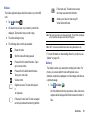
The Downloads application allows you to manage all of your
downloads (Internet and Other).
1.
From the Home screen, tap
➔ Downloads
.
All of your downloads are listed.
2.
Tap the Internet downloads tab to see all of the downloads
you have made from the Browser.
3.
Tap the Other downloads tab to see all other downloads.
4.
Tap
➔ Sort by size to see your downloads sorted in
size order.
5.
Tap
➔ Sort by time to see your downloads sorted in
time order.
Gallery
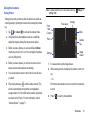
The Gallery is where you view photos and play back videos. For
photos, you can also perform basic editing tasks, view a
slideshow, set photos as wallpaper or contact image, and share as
a picture message. For more information, refer to “Gallery” on
page 68.
139
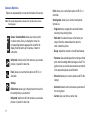
Gmail is a web-based email service. Depending on your
synchronization settings, Gmail can automatically synchronize
with your Gmail account on the web. For more information, refer to
“Using Gmail” on page 88.
Google Search
Google Search is a web-based search engine that uses text-based
queries to search for content on web pages. For more information,
refer to “Google Search Bar” on page 26.
Kies air
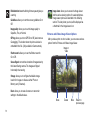
Kies air allows you to sync your Windows PC wirelessly with your
phone provided they are both on the same Wi-Fi network. You can
view call logs, videos, photos, bookmarks, IMs, and even send
SMS messages from your home computer. For more information,
refer to “Kies Air” on page 130.
Latitude
Google Latitude allows you and your friends share locations and
status messages with each other. It also lets you send instant
messages and emails, make phone calls, and get directions to
your friends’ locations.