1
RIM Confidential and Proprietary Information - Approved Third Parties
Memory and media cards
How to: Memory and media cards
About media cards
Depending on your BlackBerry® smartphone model, you can insert a microSD media card into your smartphone to take videos
and extend the storage space that is available on your smartphone for storing media files such as songs, ring tones, videos, or
pictures. For more information about inserting a media card into your BlackBerry smartphone, see the printed documentation
that came with your smartphone.
Supported media cards
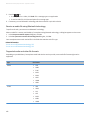
Your BlackBerry® smartphone supports media card sizes up to 32 GB. Only microSD media cards are supported.
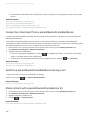
Turn off media card support
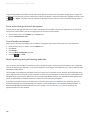
When you turn off media card support, your BlackBerry® smartphone can't access the files that are on your media card.
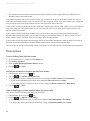
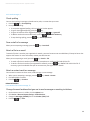
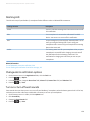
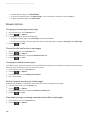
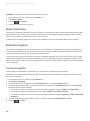
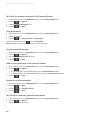
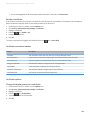
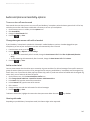
1. On the Home screen or in a folder, click the Options icon.
2. Click Device.
3. Click Storage.
4. Clear the Media Card Support checkbox.
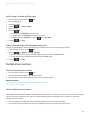
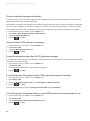
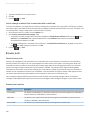
5. Press the
key > Save.
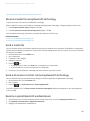
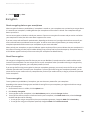
Back up smartphone data to your media card
To perform this task you must have a media card inserted in your BlackBerry® smartphone, and mass storage mode must be
turned off.
If your email account uses a BlackBerry® Enterprise Server, depending on the options that your administrator sets, you might
not be able to perform this task. For more information, contact your administrator.
CAUTION: If you perform this task, any existing data on your media card is deleted and replaced with your smartphone data.
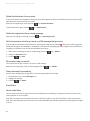
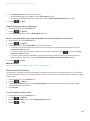
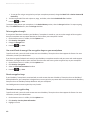
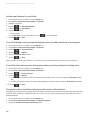
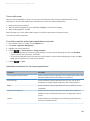
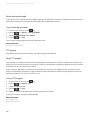
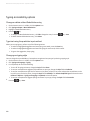
1. On the Home screen, click the Setup icon.
2. In the Setup section, click Device Switch > Using a Media Card > Save Data.
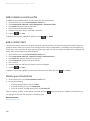
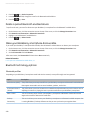
• To back up smartphone data including email, select the Save emails option.
• To back up smartphone data excluding email, select the Don't save emails option.
3. Click Continue.
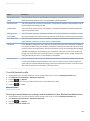
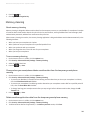
4. To set a password for your data, in the Password field, enter a password.
5. In the Confirm field, re-enter the password.
266