1
ComicBase 11 User Guide
Printing and Reports
Printing Title Reports
You can use ComicBase’s title reports to create a hard-copy record of the
comics you own and their totaled worth.
To print title reports:
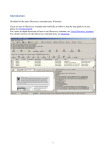
1. Choose Title Report from the Report menu. Or, go to the File
menu to select the Print command and click on the Title
Report icon in the dialog box to select it
2. Check off what you’d like the report to include in the Report
Items box. If you check Issues of each title, the report will list all
the issues of all the titles you’re including. If you check Missing
Issues, the report will list issues you don’t own.
Include information from your custom fields by checking the
field names in the Custom Fields to include box. Adding these
fields will add an extra line to the report for each issue (even for
issues which don’t have custom field information).
3. To include every title in ComicBase, check the All radio button.
To create a report that only includes a title, or certain titles,
click the Selected Titles radio button.
You can also create a selection that’s the result of a search by
clicking the Find button while selecting titles.
Narrow the list to just the titles you own by clicking Titles
in Stock. Hold down the Ctrl key to select more than one
title. (Moving between parts of the list will not deselect your
selections). Click OK when you’ve selected all the titles you
want to include.
4. Title reports, by default, will list each issue individually, so you
can mark them off. If you prefer a shorter report, you can list a
contiguous range of issues as a group (e.g. Action Comics #488490, 493-497, 501) by checking the Group Issue Numbers
Together box.
5. Click the Print button to print your Title report.
35