1
D:\NORM'S JOB\SONY HA\SO0046\STR-DA3500ES\U VERSION\US\4144907111\01USSTRDA3500ESUC\090OTH.fm
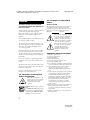
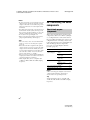
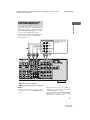
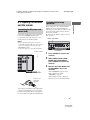
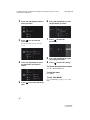
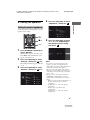
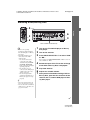
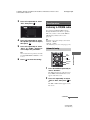
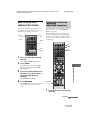
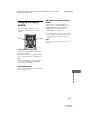
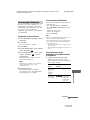
Recording onto a recording
media
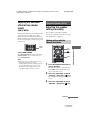
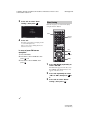
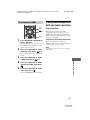
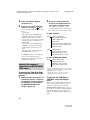
1
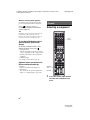
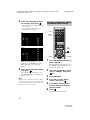
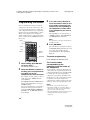
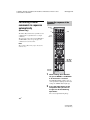
Press the input button of the
playback component.
You can also use INPUT SELECTOR on
the receiver.
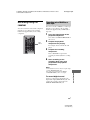
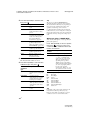
2
3
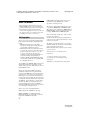
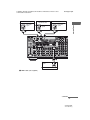
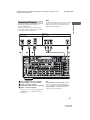
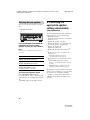
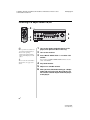
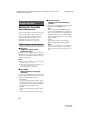
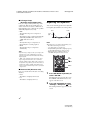
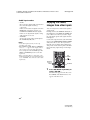
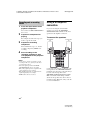
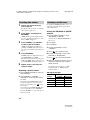
Using a bi-amplifier
connection
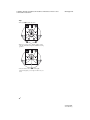
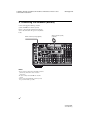
If you are not using the surround back
speakers, you can use the SPEAKERS
SURROUND BACK terminals for the front
speakers in a bi-amplifier connection.
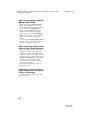
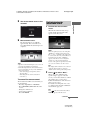
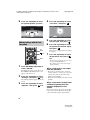
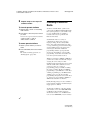
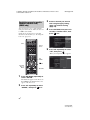
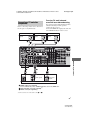
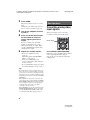
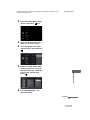
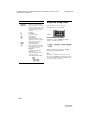
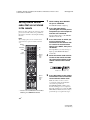
Prepare the component for
playing.
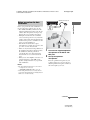
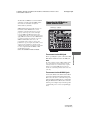
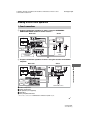
To connect the speakers
For example, insert the video tape you
want to copy into the VCR.
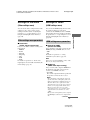
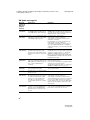
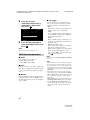
Front speaker
(R)
Front speaker
(L)
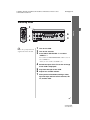
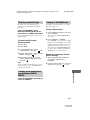
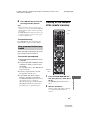
Prepare the recording
component.
Insert a blank video tape, etc., into the
recording component (VIDEO 1) for
recording.
4
masterpage: Left
Hi
Hi
Lo
Lo
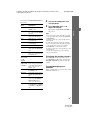
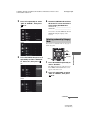
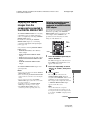
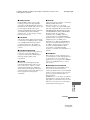
Start recording on the
recording component, then
start playback on the playback
component.
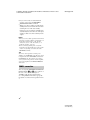
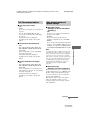
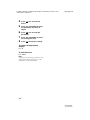
Notes
• Some sources contain copy guards to prevent
recording. In this case, you may not be able to
record from the sources.
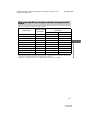
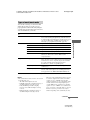
• The audio input signals from the MULTI
CHANNEL INPUT jacks are not output.
• Only analog input signals are output from the
analog output jack (for recording).
• Only digital input signals are output from the
digital output jack (for recording).
• HDMI sound cannot be recorded.
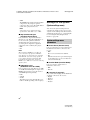
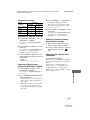
Connect the jacks on the Lo (or Hi) side of the
front speakers to the SPEAKERS FRONT A
terminals, and connect the jacks on the Hi (or
Lo) side of the front speakers to the
SPEAKERS SURROUND BACK terminals.
Make sure that the metal fittings of Hi/Lo
attached to the speakers have been removed
from the speakers. Otherwise, it may cause the
receiver to malfunction.
110US
STR-DA3500ES
4-144-907-11(1)