1
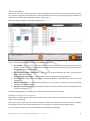
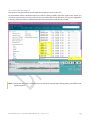
The workspace
The toolbar
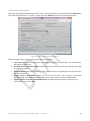
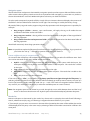
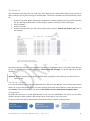
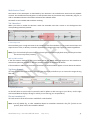
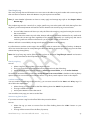
Placed at the top of the workspace, the toolbar provides access to the application's main commands.
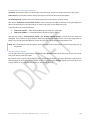
The available commands are:
Options – Opens the “Options” window.
About – View the information about the application such as: version, activation status and more.
Activate – If the application does not have a valid license or is in trial mode opens the activation dialog.
Back – Go a step back in application history.
Explorer here – Opens a Windows Explorer window (Windows® Explorer) placing it in the folder where you
are right now.
Play All – Starts the playback of every media shown in the file list, one after another.
Widgets – Gives you access to the “Layered player” and “Tap pad” windows.
View – Opens the submenu that allows you to choose the layout of the navigation panes, in the section
“Navigation panels” we illustrate in detail the various options available here.
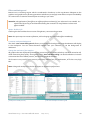
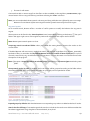
At the center you’ll find the search bar where you can enter one or more search terms. We will talk
extensively of this search bar in chapter “3 - Search Functionality”.
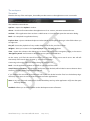
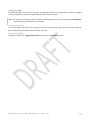
Continuing to the right, there are buttons that give you access to:
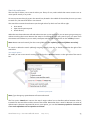
Dock – Yet the application window to the left or right edge of the screen.
Auto hide [on/off button] – If pressed the workspace (when docked) will be hided as soon as Breezer loses
the focus, or when another application is selected.
If you disable the auto-hide feature Breezer will make the docked window fixed on the desktop edge.
Obviously more space is consumed at the expense of other applications.
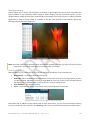
Note: In any case, when the workspace is docked the desktop and any other application will fit into the space
leaved by Breezer.
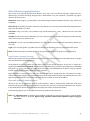
Feedback: Allows you to send feedback to the development team of Breezer.
Revel Brezer 2013 – User manualGuida utente
2014-10-17
21