1
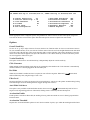
Use UPPER case key to increase/turn on, LOWER case key to decrease/turn off
G
V
C
D
F
K
Overall Sensitivity
Vertical Sensitivity
Click Generator
Dot Mode
Filter Level
Save Configuration
.50
1.18
ON
ON
0
S
M
T
A
E
X
Auto Mode Switchover
OFF
Acceleration Enable
OFF
Acceleration Threshold
0
Acceleration Exponent .00
Automatic Exposure
OFF
Manual Exposure
1.00
?
Hit the appropriate letter to adjust the option, using UPPER case letter to increase or turn on the option, using lower
case letter to decrease or turn off the option. Note that some options can not be adjusted on some models.
Options
Overall Sensitivity
Use the "G" or "g" key to adjust. Decrease for users who have lot of motion and/or sit close to screen/camera. Increase
for users with little motion, or for users who are far from camera. Have the user look straight ahead then turn their head
left so they look at the left edge of the screen, then turn right to see the right edge. The pointer should move across the
whole screen and reach the opposite side just at the same time as The "ideal" sensitivity is achieved when the pointer
on screen appears to follow user’s gaze.
Vertical Sensitivity
This option works relative to Overall Sensitivity, it independently adjust the vertical sensitivity.
Click Generator
When enabled, left mouse button single click can be generated by short shallow nod. Click Generator is automatically
disabled when there is button plugged into the left button jack.
Dot Mode
When ON, Dot Mode is enabled and user is required to wear reflective target dot. When OFF,
motion without any dots, using the image of user’s face.
tracks head
Filter Level
Increasing the filter level will reject progressively more head tremor, and also give the pointer smooth tracking feeling.
Note that at higher levels the tracking becomes sluggish (though still accurate).
Auto Mode Switchover
This option is only available on the Dot/Dotless model, when set to ON,
will automatically look for face or
target to track, target taking preference. When OFF, tracking mode is selected by the Dot Mode option.
Acceleration Enable
Enable pointer acceleration. When OFF, the tracking is linear, pointer movement on screen is directly proportional to
head movement.
Acceleration Threshold
Requires the Acceleration Enable option to be ON. Set it to number of pixels, up to which the tracking should be linear.