1
Chapter 5
5.1 Troubleshooting
1. Is an interference signal appearing on the LCD normal when shutting down the computer?
In rare cases, interference may appear on the monitor. This may be caused by signal rate of VGA card and is considered
normal. The image quality can be improved by adjusting the phase or pixel rate automatically or manually.
2. The membrane power light is not lit?
Press the power On / Off on LCD membrane to check if the monitor is in the ON mode.
Check the power cord is properly connected to the LCD keyboard drawer and power outlet.
3. Screen image is not centered or sized properly
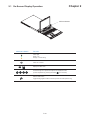
Press the
button for two seconds to automatically adjust the image.
Adjust the H-position and V-position settings via On-screen menu.
4. Is the LCD keyboard drawer hot-pluggable?
The LCD keyboard drawer is hot-pluggable, but components of connected devices, such as the servers and KVMs, may
not be hot-pluggable. We suggest turning off the power to all devices before connecting them. Apply power to connected
devices again only after the LCD keyboard receives power.
For ERD Series
1. How do I adjust the resolution?
To change monitor resolution, click Start -> Control Panel -> Display. Select Setting tab to adjust the monitor resolution in
Desktop Area. The available resolutions, "640 x 480", "800 x 600", "1024 x 768", "1152 x 864", "1280 x 1024", are determined by the display card in your computer.
For ERDS Series
1. How can I adjust the monitor resolution to 1152 x 900 for SUN Micro systems ?
The ERDS LCD keyboard drawer will automatically detect the 1152 x 900 resolution, so no user configuration should
be necessary.
2. How do I adjust the resolution in MS Windows operating system?
To change monitor resolution, click Start -> Control Panel -> Display. Select Setting tab to adjust the monitor resolution in
Desktop Area. The available resolutions, "640 x 480", "800 x 600", "1024 x 768", "1152 x 864", "1280 x 1024", are determined by the display card in your computer.
3. The Stop-A hot key is not working in Trusted Solaris
The keyboard combination Stop-A (L1-A) is not available in Trusted Solaris by default. The security administrator can
change this.
P.22