1
Quick Start Guide
EasyCoder® 3400
and 3600 Printer
Corporate Headquarters
6001 36th Avenue West
Everett, Washington 98203
U.S.A.
tel 425.348.2600
fax 425.355.9551
www.intermec.com
EasyCoder 3400 and 3600 Printer Quick Start Guide
*064678-005*
*064678-005*
Intermec Τechnologies Corporation
6001 36th Avenue West
Everett, WA 98203
3
A
U.S. technical and service support: 1-800-755-5505
U.S. media supplies ordering information: 1-800-227-9947
4
B
Po
we
r
Al
er
t
Em
pt
y/
Pa
us
e
Canadian technical and service support: 1-800-668-7043
Canadian media supplies ordering information: 1-800-268-6936
Outside U.S.A. and Canada: Contact your local Intermec service supplier.
The information contained herein is proprietary and is provided solely for the purpose of allowing customers to
operate and/or service Intermec manufactured equipment and is not to be released, reproduced, or used for any
other purpose without written permission of Intermec.
Information and specifications in this manual are subject to change without notice.
©2003 by Intermec Technologies Corporation
All Rights Reserved
The word Intermec, the Intermec logo, INCA (under license), MobileLAN, JANUS, IRL, Trakker Antares,
EZBuilder, TE 2000, Data Collection Browser, dcBrowser, Data Collection PC, Universal Access Point, UAP,
Duratherm, EasyCoder, Precision Print, PrintSet, Virtual Wedge, and CrossBar are either trademarks or registered
trademarks of Intermec.
Throughout this manual, trademarked names may be used. Rather than put a trademark (™) symbol in every
occurrence of a trademarked name, we state that we are using the names only in an editorial fashion, and to the
benefit of the trademark owner, with no intention of infringement.
The software contained in the printer and the accompanying materials are copyrighted. Unauthorized copying of
the software, including software that has been modified, merged, or included with other software, or the written
materials is expressly forbidden without the prior written consent of Intermec. All right, title, and interest in all
copies of this software are and shall at all times remain the sole and exclusive property of Intermec. Customer
may be held legally responsible for any copyright infringement that is caused or encouraged by its failure to abide
by these terms.
3440G.032
3440G.022
To compensate for uneven print quality, turn the bias
adjust screw as shown.
A
If printing is light on right side of label, turn the
bias adjust screw counterclockwise.
B
If printing is light on the left side of label, turn
the bias adjust screw clockwise.
Replace the media cover.
Adjusting the Print Darkness
Use the darkness adjust control to fine-tune the darkness of print on your labels. The fine adjustments
compensate for variations in the media, the printhead, or the printer. Set the darkness adjust control after
you enter the media sensitivity number.
A
B
1 2 3 4 5 6 7 8
There are U.S. and foreign patents pending.
au
se
RA
OR
LW
*E
AR
RO
WL
E*
Fe
ed
/P
1 2 3 4 5 6 7 8
Kimdura is a registered trademark of Kimberly Clark.
I
The name Centronics is wholly owned by GENICOM Corporation.
1 2 3 4 5 6 7 8
IBM is a registered trademark of International Business Machines Corporation.
O
1 2 3 4 5 6 7 8
Kapton is a registered trademark of Dupont.
3440G.055
A Locate the darkness adjust control on the back of the printer.
B Use a small straight-slot screwdriver to adjust the print darkness:
• To increase the print darkness, turn the control clockwise.
• To decrease the print darkness, turn the control counterclockwise.
27
Contents
8
7
Unpacking the Printer 5
➤
Understanding the Printer Front Panel 6
Po
we
r
Al
er
t
Em
Connecting the Printer to a Power Supply 7
pt
y/
Pa
us
e
Fe
ed
/P
au
se
Loading a Roll of Media 8
Loading Thermal Transfer Ribbon 10
3440G.021
3440G.022
Engage the printhead by rotating the head lift lever counterclockwise until it locks in place.
Testing Printer Operation 12
Connecting the Printer to Your System 13
Connecting the Printer to a PC 13
Connecting the Printer to a Network 15
Verifying Printer Communications With Your System 16
Replace the media cover.
Correcting Uneven Print Quality
Configuring the Serial Port for Communications 18
DIP Switch Settings 19
You may experience problems in print quality (ribbon wrinkling or light print on one side of your label) if the
printhead is not making even contact with the label stock. You need a straight-slot screwdriver to turn the bias
adjust screw.
Communicating With the Printer 20
Using the PrintSet Software 20
Using Third-Party Software 20
Using the Intermec Printer Language (IPL) Command Set 20
Note: To achieve the best print quality, adjust the bias adjust screw each time you use media of a
different width.
Setting the Media Sensitivity Number 22
2
1
Troubleshooting the Printer 21
Cleaning the Printhead 24
Correcting Uneven Print Quality 26
Adjusting the Print Darkness 27
Pow
er
Ale
Po
rt
we
r
Al
er
Em
pty
/Pa
use
t
Em
pty
Fe
/P
au
Fe
se
ed/
Pa
use
Inte
ed
/P
au
rmec
se
3440G.043
3440G.006
Remove the media cover.
26
Locate the bias screw.
iii
2
1 2 3 4 5 6 7 8
1
1 2 3 4 5 6 7 8
I
Po
we
r
Al
er
t
Em
pty
O
Fe
ed
/P
/P
au
au
se
se
3440G.006
3440G.044
Turn the on/off switch to the off (O) position and
remove the power cord.
Remove the media cover.
4
3
wer
t
y/
Pa
use
➤
Pa
use
Inte
rme
c
3440G.045
3440G.038
Rotate the head lift lever clockwise to release the printhead.
This raises the printhead so that you can clean it.
Remove the media and ribbon if necessary.
6
5
Po
we
r
Ale
rt
Em
pty
/P
au
se
Fe
ed
/P
au
se
Inte
A
Lit
rme
ton
Co
mp
c
an
y
34
00
Po
wer
/D
Ale
ata
rt
Em
pt
y/
Pau
se
Fee
d/
Pau
se
Inte
rme
c
34
40
3440G.046
3440G.034
Use a lint-free cloth moistened with alcohol to remove any
dirt, adhesive, or debris from the print surface on the
bottom of the printhead.
Replace the media and ribbon.
Wait 5 to 10 seconds for the print surface to dry.
2
25
3400 and 3600 Printer Thermal Transfer Media and Ribbon Sensitivity Settings
Sensitivity
Setting
Thermal Transfer Media and Ribbon
(Media/Ribbon Stock)
800 Series High Sensitivity (Paper)
864
854
834
European Uncoated/Standard 1
Duratran TTR Paper Labels/Standard 1
Duratran TTR Paper Tags/Standard 1
600 Series Medium Sensitivity (Plastic)
687
683
677
673
637
633
627
623
Duratran TTR Polyester 1/Premium 3/6/7
Duratran TTR Polyester 1/Premium
Duratran Syntran/Premium 3/6/7
Duratran Syntran/Premium
European Polyester/Premium
European Polyethelene/Premium
Duratran Kimdura/Premium 3/6/7
Duratran Kimdura/Premium
Approximate Sensitivity Rating
567
563
557
553
537
533
527
523
517
513
Duratran II-1/Premium 3/6/7
Duratran II-1/Premium
Duratran II Tag-5 mil/Premium 3/6/7
Duratran II Tag-5 mil/Premium
European Tag/Premium 3/6/7
European Tag/Premium
Duratran II Tag-7 mil/Premium 3/6/7
Duratran II Tag-7 mil/Premium
European Coated/Premium 3/6/7
European Coated/Premium
369
366
Super Prem. Poly./Super Prem.-3
Super Prem. Poly./Super Prem.-7
Remove the accessories, packing material, and the printer from the shipping container. Save the shipping
container and packing materials in case you need to move or ship your printer. Verify the contents of the
shipping container against the list below:
Po
we
r
Ale
rt
Em
pty
/P
au
se
1
Fe
ed
/P
au
se
7
6
4
5
ui
ck
St
ar
2
an sy
d Co
36 d
00 er®
Pr 34
in 00
te
r
Q
3
Ea
300 Series Low Sensitivity (Plastic)
tG
ui
de
500 Series Medium Sensitivity (Paper)
Unpacking the Printer
3440G.001
8
Cleaning the Printhead
In order for the printhead to provide good print quality, it must maintain close contact with the media.
Therefore, cleaning media debris from the printhead is very important. You should clean the printhead after
every roll, or 152 m (6,000 inches), of media have been printed. Clean more often if necessary.
Caution
Do not use sharp objects such as knives or screwdrivers to scrape the printhead
clean. Cleaning with sharp objects will damage the printhead. Clean with only a
cotton swab, a clean, lint-free cloth, or a tissue damp with isopropyl alcohol.
Conseil
N’utilisez pas d’objets pointus tels que couteaux ou tournevis pour nettoyer la tête
d’imprimante. Nettoyer avec des objets pointus endommagera la tête d’imprimante.
Nettoyez-la seulement avec de la ouate ou avec un linge propre et libre de peluches,
humecté avec de l’alcool d’isopropyl.
1
Intermec printer
5
Quick start guide
2
AC power cord
6
Media support (not shipped with 3600 printer)
3
Printer Companion CD
7
Media envelope
4
Cardboard ribbon core
8
Core locking brackets for plastic ribbon cores (2)
Note: Make sure you remove all packing material from the printer before you proceed.
Note: If you are using plastic ribbon cores, you need to install the core locking brackets for the plastic
ribbon cores. For help, see the printer user’s manual.
You can also order these related manuals:
• EasyCoder Printer 3400 and 3600 User’s Manual (P/N 065145)
• IPL Programming Reference Manual (P/N 066396)
The Intermec web site at www.intermec.com provides many of our current manuals in PDF format for you to
download.
24
5
The sensitivity number on each roll of thermal transfer media or ribbon has an asterisk (*) in place of one of
the digits. To optimize the sensitivity number for thermal transfer media, you combine the digits as in this
example.
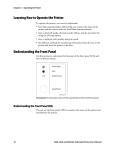
Understanding the Printer Front Panel
On the front panel of your printer, you will find one button and three light emitting diodes (LEDs). Use the
front panel LEDs to monitor the status of the printer:
LED
Power
Power
Green LED
Orange LED
State
Off
Flashing
On
Indication
Power off
Receiving data
Power on
Alert
Off
Flashing
On
Printing or idle
Over-temperature
System fault
Empty/Pause
Off
Flashing
On
Printing or idle
Paused
Media fault
Alert
Yellow LED
Empty/Pause
Feed/Pause
3440G.002
The Feed/Pause button performs the following functions depending on the status of the printer:
Printer Mode
You Want To
What To Do
Idle
Feed out one label or a
minimum specifed amount
of media.
Press and release the Feed/Pause button.
Continuously feed media.
Press and hold the Feed/Pause button. When
you release the button, the media stops feeding.
Printing
Powered on for
the first time
6
Description
Thermal transfer media
56*
The asterisk for the third digit is
reserved to identify the ribbon’s
sensitivity number.
Thermal transfer ribbon
5*7
The asterisk for the second digit is
reserved to identify the media’s
sensitivity number.
567
optimum sensitivity rating
To set the sensitivity rating for direct thermal media, use the three-digit sensitivity rating located on the roll of
media or listed in the 3400 and 3600 Printer Direct Thermal Media Sensitivity Settings table below.
To use DOS to set the media sensitivity number on a PC
1. At the DOS prompt, type the following command and press Enter:
MODE COM1 96,E,7,1,N
2. Type the following command lines and press Enter:
<STX><SI>g1,567<ETX>^Z
Press the Feed/Pause button twice. Press the
button again to bring the printer online.
Pause the printer.
Press and release the Feed/Pause button. Press
and release the button again to resume printing.
Print the hardware
configuration test label.
Sensitivity Rating
COPY CON COM1
Take the printer offline.
Cancel the current print job.
Media or Ribbon
Press and hold the Feed/Pause button until the
printer stops printing.
Press and hold the Feed/Pause button. See
“Testing Printer Operation” later in this
guide for more information.
where:
<SI>g1,567 sets the media sensitivity number to 567.
Note: If you receive a write fault error, your cabling may be incorrect. See “Connecting the Printer to
Your System” earlier in this guide for more information.
3400 and 3600 Printer Direct Thermal Media Sensitivity Settings
Sensitivity
Setting
Direct Thermal Media
700 Series High Sensitivity
740
720
Duratherm Lightning Plus 1
Duratherm Lightning Plus 2
400 Series Medium Sensitivity
460
450
440
420
European IR
Duratherm Lightning IR Labels 1
European Thermal
Duratherm Lightning Labels 1
100 Series Low Sensitivity
190
180
170
160
140
130
120
Duratherm Buff Tag
Duratherm II-1
European Tag
Duratherm II Tag
European Top
Duratherm II-2 Labels
European Thermal Economy Tag
Approximate Sensitivity Rating
23
Setting the Media Sensitivity Number
Connecting the Printer to a Power Supply
1
2
1 2 3 4 5 6 7 8
1
Media sensitivity is important, because you use it to optimize print quality and print speed. The
three-digit sensitivity number specifies the amount of heat required by the printhead to image a
label. The amount of heat that each roll of media or ribbon requires is unique due to different
chemistries and manufacturing processes.
2
3
Intermec has developed heating schedules (the amount of heat required to image a label) to produce
the highest possible print quality for Intermec media and ribbon combinations on Intermec printers.
Look for the three digit media sensitivity number on:
4
O
I
5
6
7
8
1 2 3 4 5 6 7 8
1
1 2 3 4 5 6 7 8
• The side of the media roll. Use the last three digits (140 in the example) of the 15 digit number
stamped on the roll for the media sensitivity number.
2
3
I
4
I
O
5
• A small label attached to the roll of media.
6
O
7
• A small label attached to the plastic bag of your ribbon roll.
I
8
O
3440G.004
3440G.003
120066102605140
Turn the On/Off (|/O) switch on the back of the printer to the
off (O) position.
SENSITIVITY NUMBER
Make sure the DIP switches are set to their default settings.
Top Bank
5✩7
Set switch 1 on (|). Set switches 2
through 8 off (O).
Note: The 3400 does not use switch 8
on the top bank.
3
Set switches 1 through 8 off.
1 2 3 4 5 6 7 8
5
1 2 3 4 5 6 7 8
120066102605140
Bottom Bank
3440G.052
Use this three-digit number to optimize print quality and print speed on your printer. You can
achieve the best print quality on the printer by using Intermec ribbon and media products.
The default printer setting for direct thermal media sensitivity is 420. For thermal transfer media,
the default setting is 567. Use the information on the packaging that you saved when loading media
and ribbon to determine the correct sensitivity number.
Use PrintSet, your third-party software, or the Intermec printer language (IPL) command set to
change the media sensitivity number. For help on how to set the media sensitivity number using the
printer command set, see the DOS example on the following page.
I
I
O
4
O
3440G.005
3440G.007
Plug the AC power cord into the receptacle at the rear of the
printer.
Turn the On/Off switch to the
on (|) position.
Plug the other end of the
power cord into a grounded
wall outlet or surge protector.
When you power on the printer, the green LED on the front panel lights, the yellow and orange LEDs flash, and the
platen roller advances. The yellow LED then stays on until you load media.
22
7
Loading a Roll of Media
Troubleshooting the Printer
This procedure explains how to load a roll of direct thermal or thermal transfer media.
If your labels are not printing properly, check the following table to locate the symptom and correct the
problem.
2
1
Symptom
Possible Causes
Solution
Blotches on labels.
Printhead is dirty.
Clean the printhead. For help, see “Cleaning the
Printhead” later in this guide.
Poor quality label or
ribbon stock.
Replace stock with Intermec label and/or ribbon
stock. See “Setting the Media Sensitivity Number”
later in this guide to set the correct media sensitivity
numbers for Intermec media and ribbon stock.
Incorrect media
sensitivity setting.
Change sensitivity setting to match the type of
media you are using. For help, see “Setting the
Media Sensitivity Number” later in this guide.
Sensitivity command is
incorrectly set.
Change sensitivity setting to match the type of
media you are using. For help, see “Setting the
Media Sensitivity Number” later in this guide.
Printhead is dirty.
Clean the printhead. For help, see “Cleaning the
Printhead” later in this guide.
Printing is not
on the label.
Printer is misfeeding.
Make sure the media is installed properly along the
entire media path. For help, see “Loading a Roll of
Media” earlier in this guide.
Print quality is poor.
sensitivity.
Incorrect media
Change the sensitivity setting to match the type of
media you are using. For help, see “Setting the
Media Sensitivity Number” later in this guide.
Printhead is dirty.
Clean the printhead. For help, see “Cleaning the
Printhead” later in this guide
Uneven print contrast
(density).
Adjust the bias adjust screw. For help, see
“Correcting Uneven Print Quality” later in this guide.
You are using incorrect
label or ribbon stock to
print labels.
Use only Intermec label and ribbon stock to ensure
superior print quality and product performance. See
“Setting the Media Sensitivity Number” later on in this
guide to set the correct media sensitivity numbers for
Intermec media and ribbon stock.
Ribbon wrinkling.
Check to make sure that you installed the ribbon
correctly. For help, see “Loading Thermal Transfer
Ribbon” earlier in this guide.
Po
we
r
Al
er
t
Em
pty
/P
au
se
Fe
ed
/P
au
se
➤
➤
3440g050.eps
3440G.009
Use your right hand to pull the bottom of the media cover
away from the base of the printer.
A
Turn the supply roll retainer counterclockwise to
release it.
Use your left hand to lift the front of the media cover upward.
B
Slide it to the outer end of the supply roll post.
Turn the supply roll retainer clockwise to lock it.
Lift the media cover away from the top of the printer.
4
3
Printing is too light
or dark.
120066102605140
120066102605140
➤
3440G.008
Raise the printhead by rotating the head lift lever
clockwise.
5
3440G.014
Save the small label attached to your roll of media or the
label with a 15 digit number stamped on it. You will need it
to set the correct media sensitivity number. See “Setting the
Media Sensitivity Number” later in this guide for help.
➤
6
➤
Adjust the bias adjust screw. For help, see
“Correcting Uneven Print Quality” later in this guide.
3440G.010
3440G.012
Place the roll of media on the supply roll post.
Note: If you are using a narrow roll of media
(less than 3 inches), insert the media support
between the roll of media and the supply roll
retainer before securing it in place.
8
A
Turn the supply roll retainer counterclockwise
and slide it up to the edge of the roll of media.
B
Turn the supply roll retainer clockwise to lock it
in place. If you installed the media support, it should
move freely.
Direct thermal/
thermal transfer
switch set in the
wrong position.
Set the DIP switch for the type of media you are
using. For help, see “Configuring the Serial Port
for Communications” earlier in this guide.
21
Communicating With the Printer
8
7
➤
You are now ready to print labels by downloading data from the host to your printer. Downloading is the
universal term used to describe the transfer of information from the host to any connected peripheral device,
such as your printer. When you transfer data from your printer to the host, you are performing a process
called uploading.
You can use several methods to download information in your data collection system. The next
sections describe different ways to communicate with the printer.
Using the PrintSet Software
Use PrintSet to quickly and easily configure the printer. You can upload the current configuration settings,
modify them, and then download them to your printer. Other features of PrintSet include the ability to
3440G.013
3440G.011
Unscrew the edge guide on the lower media guide.
A
Slide the edge guide to the outer edge of the lower
media guide and screw it in place.
B
Pull down on the lower media guide to allow easy
access to the media path.
• download graphics and fonts (including TrueType).
• print test labels.
• allocate memory.
• download configuration files.
9
For help using PrintSet, refer to the online help portion of the application software. PrintSet can be installed
from the Printer Companion CD included with the printer or it can be downloaded from the Intermec web site
at www.intermec.com.
10
Using Third-Party Software
You can use third-party software to set many of the printer parameters. You can configure the parameters that
your software does not set by using the IPL command set or the printer’s DIP switches.
Use your third-party software to create label formats and convert graphics into a user-defined character
(UDC) format that your printer can interpret. Refer to your third-party documentation, for more information.
3440G.015
3440G.011
Using the Intermec Printer Language (IPL) Command Set
You can also create labels by downloading formats (designs) and data you create with the printer command
set. For help, see the IPL Programming Reference Manual (P/N 066396) available from the Intermec web
site at www.intermec.com. You can use the printer command set to perform any function or activate any
feature of your printer except for those features or functions that are set with the DIP switches.
Unroll several inches of media and route it through the
printer mechanism.
Release the lower media guide. Unscrew the edge guide and
slide it in to the edge of the media. Screw the edge guide in
place.
12
11
Pow
er
➤
Ale
rt
Em
pty
/Pa
use
Fee
d/P
aus
e
Power
Alert
Empty/Pause
3440G.022
Feed/Pause
EasyCoder
3440
3440G.020
3440G.021
Rotate the head lift lever counterclockwise until it locks.
Press the Feed/Pause button to advance one label through
the printer.
Replace the media cover.
20
9
Loading Thermal Transfer Ribbon
DIP Switch Settings
If you plan to print in thermal transfer mode, you must install a thermal transfer ribbon on the ribbon supply
hub after you install the thermal transfer media.
Note: If you are using plastic ribbon cores, you need to install the core locking brackets for the plastic
ribbon cores before you load thermal transfer ribbon. For help, see the printer user’s manual.
2
1
O = OFF
1 = ON
ON
➤
Baud Rate Selection
19,200
9,600*
4,800
2,400
1,200
38,400
57,600
reserved
OFF
1
O
1
O
1
O
1
O
1
2
O
O
1
1
O
O
1
1
3
4
5
6
7
8
O
O
O
O
1
1
1
1
SENSITIVITY NUMBER
Parity Selection
Even*
Odd
None
None
5✩7
Po
we
r
Al
er
t
Em
pty
/P
au
se
O O
1 O
O 1
1 1
Fe
ed
/P
au
se
3440G.039
Number of Data Bits
7 Bit*
8 Bit
O
1
Reserved
3440G.033
3440g050.eps
Open the media cover.
Make sure the printhead is raised. If not, turn the head lift
lever clockwise until the printhead releases.
3
3440G.033
Save the plastic bag that your media came in. Attached to
the bag is a label with a three-digit sensitivity number
printed on it. You need this number to set the correct media
sensitivity number. For help, see “Setting the Media
Sensitivity Number” later in this guide.
Bottom Bank Switch Number
Top Bank Switch Number
OFF
Default settings are noted with an
O O
*
O = OFF
1 = ON
ON
Multi-drop Address Selection
*A
B
C
D
E
F
G
H
I
J
K
L
M
N
O
P
Q
R
S
T
U
V
W
X
Y
Z
0
1
2
3
4
5
Protocol Selection
XON/XOFF*
Intermec Protocols
3
4
5
O
1
O
1
O
1
O
1
O
1
O
1
O
1
O
1
O
1
O
1
O
1
O
1
O
1
O
1
O
1
O
1
O
O
1
1
O
O
1
1
O
O
1
1
O
O
1
1
O
O
1
1
O
O
1
1
O
O
1
1
O
O
1
1
O
O
O
O
1
1
1
1
O
O
O
O
1
1
1
1
O
O
O
O
1
1
1
1
O
O
O
O
1
1
1
1
O
O
O
O
O
O
O
O
1
1
1
1
1
1
1
1
O
O
O
O
O
O
O
O
1
1
1
1
1
1
1
1
O
O
O
O
O
O
O
O
O
O
O
O
O
O
O
O
1
1
1
1
1
1
1
1
1
1
1
1
1
1
1
1
6
7
8
O
1
DT/TTR
Direct Thermal*
Thermal Transfer Ribbon
Default settings are noted with an
2
O
1
XON/XOFF Selection
No Status Response*
With Status Response
4
1
O
1
*
3440G.027
Po
wer
Ale
rt
Em
pt
y/
Pau
se
Pow
er
Ale
rt
Fee
Em
d/
Pau
pt
y/
se
Pau
se
Inte
rme
c
Fee
d/
Pau
se
Inte
3440G.030
rme
c
3440G.016
A
B
Slide the empty ribbon core that comes with the
printer onto the ribbon rewind hub.
Slide the roll of thermal transfer ribbon onto the ribbon
supply hub with the ribbon roller unwinding clockwise.
Detach the leader from the thermal transfer ribbon roll
and unwind approximately 20 cm (8 in) of ribbon.
6
5
➤
➤
➤
➤
➤
➤
3440G.017
Route the ribbon leader through the printer mechanism.
10
3440G.018
Attach the ribbon leader to the empty ribbon core using the
adhesive strip on the leader edge.
19
Configuring the Serial Port for Communications
Parameter
Setting
Baud rate
9600
Parity
Even
Word length selection
7-bit word
Protocol
XON/XOFF no status response
Device address
A
Media type
Direct thermal
8
7
➤
The serial port settings of your printer should match those of your PC or network controlling device. The
default settings of the printer are:
➤
3440G.0
3440G.040
Turn the ribbon rewind hub clockwise until the ribbon runs
smoothly through the printhead mechanism.
Determine which parameters you need to change and which DIP switches you need to set. Use the DIP switch
table on the following page.
9
Lower the printhead by turning the head lift lever counterclockwise until it locks.
1
10
2
3
The following table provides the maximum baud rates for the printers.
4
I
O
5
3400B
19,200
3400C
38,400
3600
19,200
7
Maximum Baud Rate
6
Printer
Po
we
r
Al
er
t
8
Em
pt
y/
Pa
us
e
1
1 2 3 4 5 6 7 8
Fe
ed
/P
au
se
2
3
1 2 3 4 5 6 7 8
4
I
5
O
6
7
8
3440G.022
3440G-019
I
1
2
O
Enable thermal transfer printing by setting DIP switch 8 on
the bottom bank of switches to the on (|) position. Turn the
printer power off and then on to activate the new setting.
1
Close the media cover.
2
3
11
4
I
O
5
6
Alert
7
I
8
I
Empty/Pause
1
2
O
3
O
4
5
I
O
Feed/Pause
6
3440G.041
7
3440G.042
8
3440G-035
EasyCoder
3440
Use a small straight-slot screwdriver to set the appropriate DIP
switches on or off.
For example, if you want to change the media type to thermal
transfer, set DIP switch 8 on the bottom bank of switches to the
on (|) position.
3440G.020
Turn the printer power off and then on again.
Press the Feed/Pause button to advance the ribbon through the
printer.
Note: When replacing the thermal transfer ribbon roll in the future, use the empty thermal transfer
ribbon core as the new rewinder core.
18
11
Testing Printer Operation
Note: An example using DOS to verify printer communications follows this procedure. If this
procedure does not work, check to make sure that the DIP switches are set to the default configuration
and that the printer cable is securely plugged into the correct port of your system.
Print a hardware configuration test label to make sure your printer is operating correctly.
2
1
To use DOS to verify printer communications
I
O
Power
Alert
3440G.041
Empty/Pause
1. On a PC with Windows 95 or earlier, at the DOS prompt, type the following command and press Enter to
configure the serial port:
MODE COM1 96,E,7,1,N
I
2. Type the following command lines and press Enter:
O
Feed/Pause
COPY CON COM1
EasyCoder
3440
ABCDEF^Z
3440G.042
3440G.024
Turn the printer On/Off switch to the off (O) position.
Press and hold the Feed/Pause button.
Turn the On/Off switch to the on (|) position.
3
Alert
Feed/Pause
EasyCoder
3440
Memory Instal
Storage RAM
Image RAM
: 120 kilobytes
: 134 kilobytes
Mileage
Inches Processed
Inches Burned
Labels Cut
: 600
: 221
:0
Printhead
Width
Dot Size
Burn Pot Setting
: 1792 dots
: 2.5 mil
:0
Firmware Checksum
ROM0 (U9)
ROM1 (U8)
: 7BB9
: 2148
Program
Version
:
:
Note: If you are using a different platform to communicate with your printer, please refer to your
system user’s manual and the IPL Programming Reference Manual (P/N 066396) for information on
downloading commands.
3440G.023
3440G.026
The Alert and Empty/Pause LEDs blink during the
printer self-test.
ABCDEF are random characters typed at the host.
The printer prints the characters (see step 4 on previous page for example).
3400 Hardware Configuration
Empty/Pause
COPY CON COM1 tells the PC to copy the next line of information to communications port
COM1.
^Z (Ctrl-Z) Enter sends the information to the printer.
4
Power
where:
Note: If you receive a write fault error, your cabling may be incorrect. See “Connecting the Printer to
Your System” earlier in this guide for more information.
The printer feeds out one or two blank labels and then prints the
hardware configuration test label.
Release the Feed/Pause button when the media
starts moving.
Note: The example label printed above is from the 3400 printer.
The values on your hardware configuration test label may be
different.
5
I
I
O
O
3440G.042
3440G.041
Turn the On/Off switch to the off (O) position and then to the
on (|) position to return to normal printer operation.
12
17
Verifying Printer Communications With Your System
Connecting the Printer to Your System
Once you have the printer connected to your system, you need to verify that the printer communicates with
your system. The easiest way to test communications is to set the printer to Data Line Print mode and send
down a character string from your system.
You can connect your printer to a PC, a local area network, an AS/400 (or other midrange system), or a
mainframe. Use this section to connect the printer to your system.
If you have just printed a hardware configuration test label, start with Step 4.
Connecting the Printer to a PC
1
You can connect your printer to either a serial port or a parallel port (if you have the parallel option installed)
on your PC. You must provide the correct cables to connect the printer. Contact your Intermec representative
for ordering assistance if you do not have the appropriate cables.
2
I
Power
Use the following table to determine the correct Intermec cable for your application. Cable schematics for the
PC serial cables appear on the following pages.
O
Alert
I
3440G.041
Empty/Pause
O
Feed/Pause
3440G.042
EasyCoder
3440
3440G.020
Turn the On/Off switch to the off (O) position.
For Connecting To
Use Intermec Cable
PC serial port
25F-25M, null modem, 9-wire
9F-25M, null modem, 7-wire
048668
048693
PC parallel port
Parallel port cable
051211
Press and hold the Feed/Pause button. Turn the
On/Off switch to the on (|) position.
3
Note: If you are connecting the printer to a serial port on your PC, you may need to change the
serial port configuration of your PC to match the printer. See “Configuring the Serial Port for
Communications” later in this guide for the default printer configuration settings.
4
Power
Alert
Empty/Pause
2
1
Feed/Pause
EasyCoder
3440
1 2 3 4 5 6 7 8
3440G.029
1 2 3 4 5 6 7 8
3440G.026
I
Release the Feed/Pause button after the hardware configuration test label prints.
5
Send down some characters from your system.
At this point the printer does not attempt to interpret any
printer commands. It simply prints each character with its
hexadecimal equivalent underneath.
O
I
O
3440G.042
3440G.025
I
I
Turn the On/Off switch to the off (O) position.
O
O
3440G.041
3440G.042
Plug the 25-pin connector into the serial (A) or parallel (B)
communications port on the rear of the printer.
Plug the other end of the cable into a serial (COM port) or
parallel port on your PC.
Turn the printer power off and then on again.
16
13
RS-232 Null Modem Cable for 25-pin PC (P/N 048668)
Connecting the Printer to a Network
Shield
25-Pin (Socket) D-Sub
Metal Backshell
25-Pin (Plug) D-Sub
Metal Backshell
Chassis Ground
1
1
Chassis Ground
Transmitted Data
2
3
Received Data
Received Data
3
2
Transmitted Data
Request to Send
4
Clear to Send
5
8
Data Set Ready
6
20 Data Terminal Ready
Ground
7
7
Ground
Data Terminal Ready 20
6
Data Set Ready
Carrier Detect
8
Clear to Send
5
PC
For Connecting To
10BaseT Networks
You Need
Part Number
One of these interface adapters:
• External EasyLAN™ 10i2 Ethernet adapter
072885
(attaches to the parallel port if you have one
installed in the optional port location)
Carrier Detect
4
3440G.053
You can connect your printer to 10BaseT networks, such as Novell NetWare, Token Ring, or TCP/IP. You
can also connect the printer to an AS/400 (or other midrange system) or an IBM mainframe.
• Internal EasyLAN 10i2 Ethernet adapter
072894
AS/400
Twinax adapter card
067879 (cable included)
Mainframe
Coax adapter card
067880 (cable included)
Printer
Note: The metal backshell is connected directly to the shield to achieve electrostatic discharge (ESD)
immunity.
If the controlling device is an Intermec product, refer to the following manuals for instructions and
information on the necessary cabling and connections.
• DCS 300 User’s Manual (P/N 067296)
• Intermec Ethernet Adapter User’s Manual (P/N 068749)
RS-232 Null Modem Cable for 9-pin PC (P/N 048693)
• Intermec Ethernet Adapter Setup Guide (P/N 068748)
Shield
9-Pin (Socket) D-Sub
Metal Backshell
25-Pin (Plug) D-Sub
Metal Backshell
1
Chassis Ground
Received Data
2
2
Transmitted Data
Transmitted Data
3
3
Received Data
Clear to Send
8
8
Carrier Detect
Request to Send
7
Data Terminal Ready
4
6
Data Set Ready
Data Set Ready
6
20 Data Terminal Ready
Carrier Detect
1
5
Clear to Send
4
Request to Send
7
Ground
Ground
5
3440G.054
AT
• Coax/Twinax Interface Card User’s Manual (P/N 067867)
• Data Communications Reference Manual (P/N 044737)
You can visit the Intermec web site at www.intermec.com for a list of available manuals or to access many of
our current manuals in PDF format. To order printed Intermec manuals, contact your local Intermec
representative or distributor.
Printer
Note: The metal backshell is connected directly to the shield to achieve electrostatic discharge (ESD)
immunity.
14
15