1
59
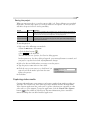
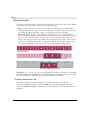
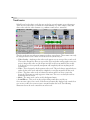
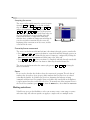
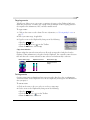
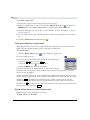
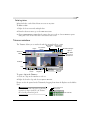
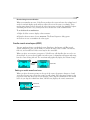
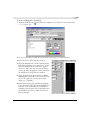
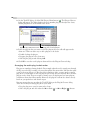
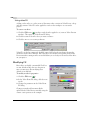
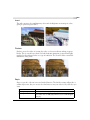
3. When you get to the place where you want the edit to start (Mark In), press the
or the
[
4. When you get to the place where you want the clip to end (Mark Out), press the
key or the
key
I
key.
]
O
key.
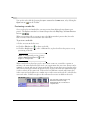
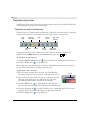
Once your clip has been trimmed in the Trimmer, you can insert it into your project in a
couple of ways.
• Drag-and-drop it to the timeline.
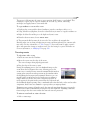
• Click the Add Media From Cursor (A) button to insert the event after the
cursor or click the Add Media Up To Cursor (SHIFT+A) button to insert the
event before the cursor.
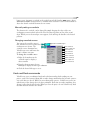
Adding regions and markers to a media file
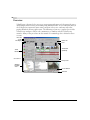
The Trimmer allows you to add markers and regions to a media file the same way you add
them to your project. However, these markers and regions are different from project markers
and regions, which was described earlier in this manual. The difference between the two is
simply that project markers and regions affect the project, while media file markers and
regions are embedded in the media file.
When you add a marker or region to a media file, VideoFactory does not add the markers to
the project. Markers and regions that are added from within the Trimmer are only
temporary. You must save them if you want to use them again after you close the project.
After the markers and regions are added and saved to the media file, they will be available
when you open the media file in a sound editor program or in the VideoFactory Trimmer.
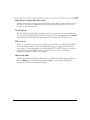
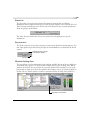
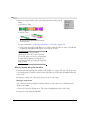
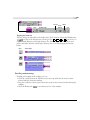
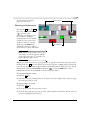
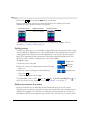
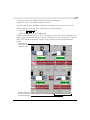
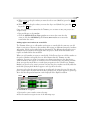
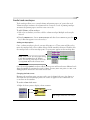
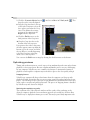
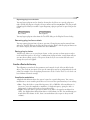
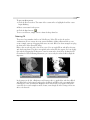
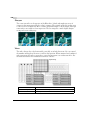
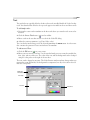
Markers are placed at the cursor’s position. You may also place a marker on-the-fly while the
media file is playing back. Markers appear as red tags above the ruler.
A region is placed at the cursor’s position or at either end of a time selection. You may also
place a region on-the-fly while the media file is playing back. A region appears as green tags
above the ruler. Region information can be displayed in the Explorer window.
Marker
Region
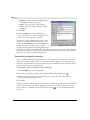
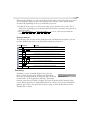
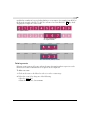
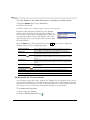
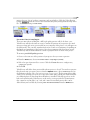
To add markers or regions:
1. Position the cursor or make a time selection.
2. Place the marker or region in one of the following ways:
CHP. 4
ADVANCED EDITING TECHNIQUES