1
TerraMobilis - Software for Symbian S60
Page 1 of 9
USER MANUAL
SCREENSNAPS60 FOR 3d EDITION
Contents
0. General description
1. Starting up ScreenSnapS60
2. Taking a screenshot
3. Saving a screenshot
4. Viewing a screenshot
5. Sending a screenshot
6. Screenshot format and quality
7. Multiple and continuous screenshots
8. Other options menu items
9. Settings
10. Notifications
11. Differences between ScreenSnapS60 for 2nd Edition
and ScreenSnapS60 for 3d edition
12. Other remarks
0. General description
ScreenSnapS60 allows you to take screenshots in different
capture modes (single shot, multiple or continuous shots)
and save them in a variety of file formats (JPEG, BMP,
PNG, MBM) and qualities (true color, 8 bits).
It is possible to set delay and interval times, customize the
notification message (visual message and/or tone), define
the number of shots, configure the shortcut keys and
specify memory location, directory name and file name of
the saved shot.
ScreenSnapS60 for 3d Edition works on all Symbian S60
3d edition smartphones.
http://www.terramobilis.com/ScreenSnapS60/3dEdition/UserManualWeb3dEditionPDF.h... 12/07/2006
TerraMobilis - Software for Symbian S60
Page 2 of 9
1. Starting up ScreenSnapS60
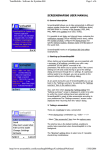
When starting up ScreenSnapS60, you are presented with
a summary of all settings, providing you with a very
convenient "at one glance" overview of all
parameters.This allows you to quickly verify if the current
settings are OK and avoids having to go to the settings
dialogue and browse through the 11 settings. If a
particular setting needs to be changed, you can go quickly
to the relevant setting item in the settings dialogue.
At any point during the use of ScreenSnapS60 you can go
back to the "Settings summary" by selecting the "Settings
summary" item in the options menu.
Also, each time when closing the "settings dialogue" the
"Settings summary" screen is displayed in order to be able
to verify the correct settings have been selected and
ScreenSnapS60 is ready to take screenshots according to
your preferences.The "Settings summary" screen is also
displayed when returning from the "about" dialogue.
2. Taking a screenshot
There are 2 methods to take a screenshot:
- Press a shortcut key combination e.g. <Edit> + <*>
- Select the "Take screenshot" item from the options
menu
The shortcut keys are the default method, enabling to
quickly take screenshots when ScreenSnapS60 is switched
to the backgound. The "Shortcut" setting allows to select
one of 3 possible shortcut key combinations:
<Edit> + <*> (default setting)
<Edit> + <0>
<Edit> + <OK> (useful with N80, keypad not needed)
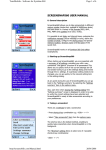
The <Edit> key is the key with the "pen" symbol (see
picture on the left). First press the <Edit> key, then while
keeping it pressed, press the <*> ,<0> or <OK>key.
IMPORTANT!
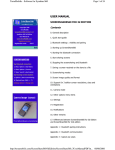
The E61 smartphone does not have an <Edit> key.
It is replaced by the <Shift> key located at the
bottom right of the keypad next to the <Ctrl> key.
See picture on the left!
http://www.terramobilis.com/ScreenSnapS60/3dEdition/UserManualWeb3dEditionPDF.h... 12/07/2006
TerraMobilis - Software for Symbian S60
Page 3 of 9
The method using the options menu item has to be used
in combination with the setting "Delay first shot", allowing
to switch to the screen of which a shot has to be taken
after selecting the "Take screenshot" menu item
(Otherwise you end up taking a screenshot of
ScreenSnapS60 itself!). This method avoids the usage of
shortcut keys, which may be appropriate for one
handed operation or when all shortcut key combinations
are already in use by other applications.
The user is notified when a screenshot is taken (and
saved). The notification can take the form of a visual
message, a tone (camera click sound) or both. It is also
possible to deactivate all notifications.
The "Notification" setting allows to select one of the
following :
- Visual note + tone (default setting)
- Visual note
- Tone
- None
3. Saving a screenshot
When a screenshot is taken, it is always automatically
saved to a file on your smartphone. It is possible to
specify exactly where and under which name the
screenshot is saved.
The "Filename" setting allows you to specify the filename.
The "Location" setting is a toggle function allowing to
select either the phone memory or the memory card
(default setting).
The "Directory" setting prompts you for a
directory name. If the directory (path) does not already
exist, it is automatically created for you.
IMPORTANT!
The directory specified by you is created under the
"images" directory in the root directory of the memory
card ( E:\Images for Nokia phones!) when you choose the
memory card as location and under the default phone
memory "images" directory ( C:\Data\Images for Nokia
phones!) when you select the phone memory as
location.This is done as S60 phones only provide access
http://www.terramobilis.com/ScreenSnapS60/3dEdition/UserManualWeb3dEditionPDF.h... 12/07/2006
TerraMobilis - Software for Symbian S60
Page 4 of 9
through the default file manager to certain directories in
order to prevent access and possible irreparable damage
to system files. So, when using the default file manager
you will see a directory "Images" both on the memory
card and on the phone memory. When using the freeware
SExplorer filemanager you can see the full directory paths.
A 4 digit serial number is appended at the end of the
filename in order never to overwrite previously saved
screenshots e.g. Screenshot0025. The filename number
displayed on the Settings summary screen is the number
of the file of the next screenshot to be taken.
Finally the extension of the file is appended according to
the selected file format (see point 6.Screenshot format
and quality). The complete specification of location,
directory and file name of the last screenshot taken is
saved for future reference (see next point).
4. Viewing a screenshot
After taking a screenshot it is automatically displayed on
the main screen of ScreenSnapS60 (and thereby replacing
the settings summary screen). The original bitmap is
displayed, not the saved file format.
At any point during the use of ScreenSnapS60 it is
possible to view the last screenshot taken/saved by
selecting the "View last saved shot" menu item. This is
possible, even after exiting and restarting ScreenSnapS60,
as the location, directory and filename of the last saved
screenshot are saved when exiting the application. When
the file in which the last screenshot was saved has been
deleted in the meantime, the "View last saved shot" menu
item will not be displayed.
This feature is important as it allows to verify - by
switching back to ScreenSnapS60 - that the screenshot
has been correctly taken, at the right quality, making the
use of ScreenSnapS60 more efficient.
It is possible to display the screenshot in full screen mode
by toggling the "Full screen mode / Normal screen mode"
options menu item. When switching to full screen
immediately after taking a screenshot, the screenshot
image is no longer displayed. It can be viewed again by
selecting "Options | View last saved shot".
http://www.terramobilis.com/ScreenSnapS60/3dEdition/UserManualWeb3dEditionPDF.h... 12/07/2006
TerraMobilis - Software for Symbian S60
Page 5 of 9
5. Sending a screenshot
As soon as a screenshot has been taken, it can be sent to
a PC or another phone by selecting "Options | Send".
A screenshot can be sent for free to a nearby phone or
PC via bluetooth or infrared (if supported by your phone).
After selecting the "Via Bluetooth" menu item, the
standard "Searching for devices" screen is displayed.
Select one of the devices found and the file will be sent.
Alternatively screenshots can be sent to remote
devices via multimedia (MMS) or e-mail making use of
your operator's network data services (check data rates).
The multimedia sending process is based on the standard
S60 screens.
This "Send" feature is very useful as it allows "one stop"
processing: taking, saving and sending a screenshot in
one movement instead of having to use the file manager
or gallery on the phone, searching for the right file
and transfering it to a computer via PC suite.
6. Screenshot format and quality
An important benefit of ScreenSnapS60 is the wide range
of supported file formats and the flexibility to define the
quality (and hence the size) of the saved screenshot file.
Available file formats:
- JPEG (compressed, ideal for photos) (default setting)
- BMP (bitmap, non-compressed format)
- PNG (compressed, ideal for text based screenshots)
- MBM (Symbian multi-bitmap format for developers)
True color (actual number of bits per pixel depending on
the phone model) and 8 bits per pixel can be selected for
BMP, PNG and MBM formats. A screenshot file taken in
PNG 8 bits format can be as small as 5 kbyte and still
offers good quality for text based screens.
http://www.terramobilis.com/ScreenSnapS60/3dEdition/UserManualWeb3dEditionPDF.h... 12/07/2006
TerraMobilis - Software for Symbian S60
Page 6 of 9
For the JPEG format, the quality can be chosen on a
continuous scale from 0 to 100, allowing fine tuning of the
JPEG quality, compared to the traditional
high/medium/low quality scale.
7. Multiple and continuous screenshots
ScreenSnapS60 offers 3 different capture modes:
- Single shot (default setting)
- Multiple shots
- Continuous shots
In "Multiple shots" capture mode, a predefined number of
shots are taken as specified in the "Number of shots"
setting.
The time between shots can be specified in the "Delay
between shots" setting from 1 sec to 60 sec.
After the last screenshot in a "Multiple shots" session has
been taken, a "Multiple shots ended" note is displayed.
In "Continuous shots" capture mode, shots are taken until
the sequence is stopped by pressing the shortcut keys
again. Indeed, in multiple or continuous mode the
shortcut keys operate in toggle mode alternatively starting
and stopping screenshot sessions.
It is also possible to select the "Stop taking shots" options
menu item to stop a multiple or continuous screenshot
session, though this requires switching back to
ScreenSnapS60.
In both "multiple shots" and "continuous shots" capture
mode, only tone notifications are available in order to
avoid that the visual notification messages are
displayed over the screenshots. If a notification setting
includes notes they will be ignored.
8. Other options menu items
Two settings are accessible via the options menu - and
not via the settings dialog - as they have to be readily
accessible from the main screen and typically are
only switched on during brief periods:
http://www.terramobilis.com/ScreenSnapS60/3dEdition/UserManualWeb3dEditionPDF.h... 12/07/2006
TerraMobilis - Software for Symbian S60
Page 7 of 9
"activated / deactivated mode"
"normal / full screen mode"
The "deactivate" function is a toggle menu function
between deactivating and activating the shortcut
keys used to take screenshots.Typically this would be
used to allow other applications to use a shortcut
combination in case of conflict. Remark however that
there is a choice of 3 different shortcuts in order to avoid
this kind of conflicts.
The "full screen mode" function is a toggle menu function
between full screen and normal screen mode. It can be
used to view a taken or saved screenshot in full screen
mode. Watching a screenshot in full screen mode can be
quite confusing as it may make you belief you're looking
at a genuine S60 screen with soft menu buttons, status
indicators,...
None of these settings are stored when exiting
ScreenSnapS60. When starting up the default settings are
"activated" and "normal screen mode".
The options menu also features an about screen with
essential information about ScreenSnapS60.
You will notice the options menu is a dynamic menu.
During a "multiple shots" or "Continuous shots" session
the options menu only displays the "Stop taking shots"
menu items.
Finally the "exit" menu item closes ScreenSnapS60.
The soft "back" button at the right sends ScreenSnapS60
to the background, ready to take screenshots using the
shortcut keys.
9. Settings
The settings dialogue comprises 11 settings as outlined
above. They are saved when exiting ScreenSnapS60.
As described above the "Settings summary" screen
provides an overview of all settings, including the
"Deactivate" and "Full screen mode" settings available via
the options menu.
http://www.terramobilis.com/ScreenSnapS60/3dEdition/UserManualWeb3dEditionPDF.h... 12/07/2006
TerraMobilis - Software for Symbian S60
Page 8 of 9
10. Notifications
At many moments, notification messages are displayed.
Below an overview of all messages:
"Screenshot saved in xxx"
"Busy, try again later"
"ScreenSnapS60 stopped"
"Multiple shots ended"
"Memory full! ScreenSnapS60 stopped!Delete data before
trying again!"
"ScreenSnapS60 activated"
"ScreenSnapS60 deactivated"
"FullScreen mode activated"
"NormalScreen mode activated"
11. Differences between ScreenSnapS60 for 2nd
Edition and ScreenSnapS60 for 3d edition
ScreenSnapS60 for 3d Edition is similar to ScreenSnapS60
2d Edition. The following main changes and improvements
have been implemented:
Shortcut keys
It is now possible to stop a multiple or continuous mode
screenshot session by pressing the shortcut keys. Indeed,
in multiple or continuous mode the shortcut keys operate
in toggle mode alternatively starting and stopping
screenshot sessions. It is hence no longer necessary to go
back to the Options Menu of ScreenSnapS60 to stop a
screenshot session.
Full screen mode
Full screen mode is now only available while not taking
screenshots (Idle mode). When switching to full screen
after taking a screenshot the screenshot image is no
longer displayed. It can be viewed again by selecting
"Options | View last saved shot" .In full screen mode the
"Settings summary screen" is now also displayed in full
screen.
http://www.terramobilis.com/ScreenSnapS60/3dEdition/UserManualWeb3dEditionPDF.h... 12/07/2006
TerraMobilis - Software for Symbian S60
Page 9 of 9
Image file location
The image file locations have been modified for S60 3d
Edition and are made device independent. No hidden
paths are displayed in the confirmation messages.
Other changes
The "View last saved shot" menu item is only displayed
when the last screenshot exists (after taking at least 1
screenshot which has not been deleted).
ScreenSnapS60 for 2nd Edition is available in English and
French whereas ScreenSnapS60 for 3d Edition is available
in English, French, German and Dutch.
A number of minor changes have been implemented to
improve performance.
12. Other remarks
Settings are not saved when upgrading.
The precision of the delays and intervals (especially when
they are smaller than 2 seconds) will depend on the
following factors:
- speed of phone
- file format/size
- memory (phone memory quicker than memory card)
ScreenSnapS60 for 3d Edition is available in English,
French, German and Dutch.
http://www.terramobilis.com/ScreenSnapS60/3dEdition/UserManualWeb3dEditionPDF.h... 12/07/2006