1
TerraMobilis - Software for Symbian S60
Page 1 of 24
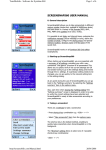
USER MANUAL
SCREENSHARES60 FOR 3d EDITION
Contents
0. General description
1. Quick start guide
2. Bluetooth settings : visibility and pairing
3. Starting up ScreenShareS60
4. Starting the bluetooth connection
5. Start sharing screens
6. Stopping the screensharing and bluetooth
7. Saving a screen received on the slave to a file
8. Screensharing modes
9. Screen image quality and format
10. Support for 3 edition screen resolutions, sizes and
orientations
11. Camera mode
12. Other options menu items
13. Settings
14. Registration
15. Notifications
16. Other remarks
17. Differences between ScreenShareS60 for 3d Edition
and ScreenShareS60 for 2nd edition
Appendix 1 : bluetooth pairing instructions
Appendix 2 : bluetooth communication
Appendix 3 : typical use cases
http://terramobilis.com/ScreenShareS60/3dEdition/ScreenShareS60_3UserManualPDF.ht... 08/08/2006
TerraMobilis - Software for Symbian S60
Page 2 of 24
0. General description
ScreenShareS60 for 3d edition works on all S60 3d edition
phones. Download and install ScreenShareS60 for 2nd
edition when using one or more 2nd edition phones.
ScreenShareS60 for 2nd and 3d edition are compatible.
You can connect a 3d edition phone with a 2nd edition
phone and share screens.
ScreenShareS60 is a tool which allows you to share the
screen of your phone with other users who can connect to
your phone via bluetooth and receive on their phone a
copy of the screen image of your phone.
ScreenShareS60 is ideal for sharing pictures or showing a
demo of the latest S60 software application you installed
on your phone. You can draw the attention to a particular
detail by moving a special arrow pointer to it!
When enabling camera mode ScreenShareS60 allows you
to take and share pictures of documents, objects, your
computer screen... or turns your phone into a genuine
phonecam taking and displaying moving images remotely
on a second phone.
It is possible to send screens in different sharing modes
(continuous, interval or single mode) and in a variety
of qualities and formats (High, Text, Pictures and Low),
set delay and interval times, customize the notification
message (visual message and/or tone), configure the
shortcut keys and specify memory location, directory
name and file name when saving a screen.
http://terramobilis.com/ScreenShareS60/3dEdition/ScreenShareS60_3UserManualPDF.ht... 08/08/2006
TerraMobilis - Software for Symbian S60
Page 3 of 24
1. Quick start guide
ScreenShareS60 is easy to use. This "Quick start guide"
will get you up and running. Go to the next chapters for
more detailed and/or reference information. In order to
avoid any confusion, the following terminology will be
used in the remainder of this manual:
Master : phone sending screens to 2nd phone (slave)
Slave : phone receiving screen images from the master
ScreenShareS60 for 3d edition has to be installed on both
the master and the slave on which it respectively
behaves as a "server" (master) and a "client" (slave).
When sharing screens between a 3d edition phone and a
second edition phone, make sure you install
ScreenShareS60 for 2nd edition on the 2nd edition
phone.
a. Install & launch ScreenShareS60 on master & slave
b. On both phones: switch bluetooth on
c. On the slave: set bluetooth visibility to "Shown to all"
d. On the master: select Options | Start Bluetooth
e. On the slave: select Options | Connect
f. On the slave: select master on the "Devices found" list
g. On the master: select Options | Start screensharing
h. On the master: navigate to screen to share
i. On the master: press shortcut key combination (*) to
pause screensharing
j. On the master: move arrow pointer with the joystick
k. On the slave: image of the screen of the master and
the arrow pointer are shown
l. On the master: select Options| Resume scrnsharing to
continue screensharing
(*) Shortcut key combinations (default: <Edit> + <*> )
allow you to start and stop screensharing when
ScreenShareS60 is switched to the background. The
<Edit> key is the key with the "pen" symbol (see
picture on the left). First press the <Edit> key, then while
keeping it pressed, press the <*> key.
http://terramobilis.com/ScreenShareS60/3dEdition/ScreenShareS60_3UserManualPDF.ht... 08/08/2006
TerraMobilis - Software for Symbian S60
Page 4 of 24
IMPORTANT!
The E61 smartphone does not have an <Edit> key.
It is replaced by the <Shift> key located at the
bottom right of the keypad next to the <Ctrl> key.
See picture on the left! A second shift key is
located at the bottom left (next to the function
key).
To go to camera mode select Options | Go to camera
mode before connecting the phones via bluetooth. Select
JPEG with quality 50.
The default settings allow you to use ScreenShareS60 in
"Continuous mode" and "Text" quality. Select Options |
Change settings to choose different settings.
2. Bluetooth settings : visibility and pairing
ScreenShareS60 is a bluetooth application sending
information between two phones connected with each
other via bluetooth, a short range wireless communication
method. Before any bluetooth connection can be active,
the bluetooth settings on both phones have to be correct.
For increased ease of use it is recommended to "pair" the
phones with each other in order for bluetooth connections
to take place automatically without confirmation. Also, all
information sent over the bluetooth link is encrypted and
will only be able to reach devices that are authorized to do
so by the pairing process. Although pairing phones is a
standard procedure (which is clearly described in any
phone user manual), it is also described in detail in
Appendix 1. If you are familiar with bluetooth settings and
pairing, go to chapter 2.
The bluetooth settings screen can be opened as follows:
a. Press the menu key to open the menu
b. Open the "Connectivity" folder
c. Click the bluetooth icon
In order for ScreenShareS60 to work, the following
minimum bluetooth settings are required:
http://terramobilis.com/ScreenShareS60/3dEdition/ScreenShareS60_3UserManualPDF.ht... 08/08/2006
TerraMobilis - Software for Symbian S60
Page 5 of 24
ON YOUR PHONE (MASTER)
a. "Bluetooth" setting item set to "On"
b. "My phone's visibility" setting item set to "Shown to all"
ON THE OTHER PHONE (SLAVE)
a. "Bluetooth" setting item set to "On"
Remark: when the "Bluetooth" setting item on the slave is
set to "Off", the phone will prompt you to switch it to "On"
when trying to connect by displaying the message:
"Bluetooth is currently switched off. Switch on?"
It is also important to know that Symbian phones may be
limited to one active bluetooth connection at any one
time. So the connection will fail if the phone is e.g.
already connected to your PC for use with PC Suite. You
will have to disconnect the phone before you can use
ScreenShareS60.
3. Starting up ScreenShareS60
When starting up ScreenShareS60, you are presented with
a start-up screen providing you with a summary
of instructions to use ScreenShareS60:
- start the bluetooth connection
- start sharing screens.
4. Starting the bluetooth connection
The procedure to connect the master phone with the slave
phone via bluetooth consists of 2 phases:
a. Master : start bluetooth
The master is started by selecting Options | Start
Bluetooth.
A waiting dialog " Waiting For Connection" is displayed
indicating that the master phone is now waiting for the
slave phone to connect.
http://terramobilis.com/ScreenShareS60/3dEdition/ScreenShareS60_3UserManualPDF.ht... 08/08/2006
TerraMobilis - Software for Symbian S60
Page 6 of 24
b. Slave : connect
The slave is connected to the master by selecting Options
| Connect on the slave phone.
If previously bluetooth devices have been found they are
displayed (Last devices found) and can be selected for
connection. This speeds up the connection process as it
avoids having to go through the bluetooth search process.
If the phone with which a connection has to be
established is not listed, select "More devices" to start a
new bluetooth search process.
If previously no search process has taken place or no
devices have been found, the bluetooth search process
starts immediately after selecting the "Connect" menu
item.
Wait until the right device has been found. You can stop
the bluetooth search process by pressing the right
selection key (Stop) as soon as your device has been
found. This avoids having to wait untill all bluetooth
devices have been found which potentially can take a long
time.
Select your device and press OK.
A "Searching for service" dialog is displayed.
When the master phone has not been properly set up, a
"Service not found" error message is displayed.
If the master and slave are paired and the bluetooth
connection of the master is "set as authorised" the
bluetooth connection is established automatically and the
message "Slave connected" is displayed (see below).
http://terramobilis.com/ScreenShareS60/3dEdition/ScreenShareS60_3UserManualPDF.ht... 08/08/2006
TerraMobilis - Software for Symbian S60
Page 7 of 24
When the master and slave are not paired with each other
(see Appendix 1) or when they are paired but the
bluetooth connection is set as unauthorised, the
connection will have to be manually accepted by the
master.
In some cases (e.g. when 2 devices are connected for the
first time) pairing will be required (if it has not yet been
established) and a passcode will have to be entered on
both the master and the slave. The device will appear in
the list of "paired devices".
When the confirmation dialog "Slave connected" is
displayed on both the master and the slave, the slave is
connected to the master and is ready to receive screen
images.
5. Start sharing screens
Starting the screensharing can only be done on the
master which completely controls all screensharing
aspects.
There are 2 methods to start sharing screens:
- Press a shortcut key combination e.g. <Edit> + <*>
- Select the "Start screensharing" item on the options
menu
The shortcut key is the default method, enabling
to conveniently start (or stop) screensharing using the
phone while ScreenShareS60 is switched to the
background.
The "Shortcut" setting allows to select one of 3 possible
shortcut key combinations:
<Edit> + <*>
<Edit> + <0>
<Edit> + <OK>
http://terramobilis.com/ScreenShareS60/3dEdition/ScreenShareS60_3UserManualPDF.ht... 08/08/2006
TerraMobilis - Software for Symbian S60
Page 8 of 24
The shortcut keys are toggle keys allowing to
consecutively start and stop screensharing by repeatedly
pressing the shortcut key combination.The selected
shortcut key combination is displayed on the start-up
screen for easy reference.
The behaviour of ScreenShareS60 following the start-up
of screensharing depends on the mode. In screen mode
ScreenShareS60 is automatically switched to the
background. In camera mode ScreenShareS60 is
automatically switched to the foreground in order to
display the camera viewfinder.
The method using the options menu item can be used in
combination with the setting "Delay first screen", allowing
time to switch to the screens you want to share after
selecting the "Start screensharing" menu item.
In single shot camera mode, setting "Delay first screen"
allows to keep the camera still while the picture is taken.
The master is notified when screensharing has started (or
stopped). The notification can take the form of a visual
message, a tone (camera click sound) or both. It is also
possible to deactivate all notifications (see
the"Notification" setting item).
6. Stopping the screensharing and bluetooth
Similarly to starting the screensharing, the screensharing
can be stopped using either the shortcut keys or the "Stop
screensharing" menu item of the Options menu on the
master. A notification message is displayed when
screensharing has stopped. Stopping the screensharing is
only applicable in continuous or interval mode, not in
single mode.
Immediately following the stopping of screensharing both in screen mode and in camera mode ScreenShareS60 is automatically switched to the
foreground and the last screen image sent to the slave is
displayed.
An arrow pointer is also displayed on the master which
can be moved around using the joystick to point to a
specific part of the screen. This arrow pointer is sent to
and displayed on the slave (the pointer only becomes
visible on the slave after having been moved on the
master, hence not disturbing the slave screen image when
no use is made of it).
This feature makes it possible to see the screen
image exactly as it has been received by the slave
http://terramobilis.com/ScreenShareS60/3dEdition/ScreenShareS60_3UserManualPDF.ht... 08/08/2006
TerraMobilis - Software for Symbian S60
Page 9 of 24
(allowing to check the quality and if needed adjust the
quality settings, avoiding having to verify the slave
phone!) and allows to use the arrow pointer while
discussing the screen image. This feature is also available
in single mode, each screen image taken being
displayed together with the arrow pointer. When stopping
ScreenShareS60 in screen mode via the Options menu
item, the last sent screen image is NOT displayed.
Screensharing can be resumed by selecting Options |
Resume scrnsharing. Alternatively, "Back to normal view"
can be selected to go back to the default instructions or
camera viewfinder screen.
This feature is also accessible via the "View last sent scrn"
Options menu item. The "View last sent scrn" menu item
is only available when the bluetooth connection is active
and no screensharing is taking place. The arrow pointer is
only available when the last sent screen is still being
displayed on the slave. When no screen image is available
to view (e.g. after start up, before any screen images
have been sent to the slave), a "No screen image
available" error message will be displayed.
After the screensharing has been stopped, the bluetooth
connection is still active. To stop the bluetooth connection
select Options | Stop bluetooth. The slave will be
disconnected from the master and a "Disconnected!"
message will be displayed on the slave. Stopping the
bluetooth connection can be useful to connect to another
device, as only one bluetooth connection can be
active. The image on the slave is cleared when bluetooth
is stopped.
7. Saving a screen received on the slave to a file
At any moment the slave can save a screen image to a file
for future reference by selecting Options | Save screen to
file.
It is possible to specify exactly where and under which
name the screen image is saved.
The "Filename" setting allows you to specify the filename.
The "Location" setting is a toggle function allowing to
select either the phone memory or the memory card.
The "Directory setting" prompts you for a
directory name. If the directory (path) does not already
exist, it is automatically created for you.
http://terramobilis.com/ScreenShareS60/3dEdition/ScreenShareS60_3UserManualPDF.ht... 08/08/2006
TerraMobilis - Software for Symbian S60
Page 10 of 24
A notification message is displayed when the file is saved,
showing the complete path under which the image file is
saved.
Screen images can be saved while screensharing is taking
place. When no screen image is available to save (e.g.
after start up, before any screen images have been sent
to the slave), the "No screen image available" error
message will be displayed.
IMPORTANT!
The directory specified by you is created under the
"images" directory in the root directory of the memory
card ( E:\Images for Nokia phones!) when you choose the
memory card as location and under the default phone
memory "images" directory ( C:\Data\Images for Nokia
phones!) when you select the phone memory as
location.This is done as S60 phones only provide access
through the default file manager to certain directories in
order to prevent access and possible irreparable damage
to system files. So, when using the default file manager
you will see a directory "Images" both on the memory
card and on the phone memory. When using any of
the freeware file managers e.g. SExplorer you can see the
full directory paths.
File and directory names cannot contain special
characters. An error message will be displayed when
attempting to use special characters.
A 4 digit serial number is appended at the end of the
filename (e.g. Screen0025) in order never to overscribe
previously saved screen images .
The file is saved with the correct extension according to
the selected screen quality/format setting on the master.
When insufficient memory is available on the phone
memory, the screen will not be saved and a notification
message will be displayed.
8. Screensharing modes
ScreenShareS60 offers 3 different screensharing modes:
- Continuous mode
- Interval mode
- Single mode
http://terramobilis.com/ScreenShareS60/3dEdition/ScreenShareS60_3UserManualPDF.ht... 08/08/2006
TerraMobilis - Software for Symbian S60
Page 11 of 24
Continuous mode is the default sharing mode whereby
screen images are taken repeatedly on the master and
sent to the slave as fast as possible. Due to the limitations
of bluetooth transmission speeds, sending speeds will not
be much higher than about one screen per second, still
enough to comfortably following on the slave phone what
is happening on the master phone.
In Interval mode the time between the sending of
successive screen images can be specified in the "Interval
delay" setting from 1 sec to 60 sec.
In Single mode individual screens are taken and sent at
demand, one at a time. This can be useful to draw
attention to specific information on certain screens (freeze
mode). In this mode the shortcut keys do not work in
toggle mode. Each consecutive shortcut key press will
result in the sending of one screen image.
9. Screen image quality and format
ScreenShareS60 supports a wide range of image
qualities/formats which can be chosen based on
requirements of image quality and sending speed / refresh
rate.
Available qualities / formats:
- High (BMP true color: bitmap, non-compressed format)
- Text (PNG true color: compressed, for text based
screens)
- Pictures (JPEG : compressed, ideal for photos)
- Low (PNG 8 bits)
The actual number of bits per pixel for true color depends
on the phone model. A screen image in PNG 8 bit format
can be as small as 5 kbyte and still offers good quality for
text based screens while allowing a high sending speed.
For the JPEG format, the quality can be chossen on a
continuous scale from 0 to 100, allowing fine tuning of the
JPEG quality, compared to the traditional
high/medium/low quality scale.
For normal use in continuous mode it is recommended to
use Text quality (PNG true color) as this is the best
compromise between quality and speed (approximately
one screen per second).
http://terramobilis.com/ScreenShareS60/3dEdition/ScreenShareS60_3UserManualPDF.ht... 08/08/2006
TerraMobilis - Software for Symbian S60
Page 12 of 24
When using Picture quality (JPEG), a JPEG quality of 85 is
recommended which results in a picture quality which is
not noticeable lower than the original image while still
maintaing good response speeds (one image per second).
When sending single screens (e.g. when showing
individual pictures) High quality (BMP) can be used,
however with sending speeds going down to one image
about every 5 seconds.
When the sending speed is very important (e.g. when
showing a demo of an application with primarily text
based screens) Low quality (PNG 8 bits) can be chosen.
10. Support for 3d edition screen resolutions, sizes
and orientations
From S60 2nd edition FP3 (Nokia N90) a large range of
screen sizes and orientations are supported, but it is only
in S60 3d edition that this variety is fully exploited. Some
devices can even adopt several different orientations
(N80, E70).
The follwing screen resolutions are currently available:
- 176 x 352 (N91, 3250)
- 240 x 320 (N71, N73, N93, E50)
- 320 x 240 (E61, N92)
- 352 x 416 (N80, E60, E70)
- 416 x 352 (E70)
Two issues arise:
- How to send screens between devices with different
resolutions and/or orientations
- How to cope with the much higher files sizes and hence
lower sending speeds of high resolution phone screen
images.
These issues are solved by a combination of scaling and
rotating, so as to offer the slave device an image which it
can display correctly. Scaling is only done when the
master phone has a higher resolution than the slave
phone. The slave phone may have to be turned 90
degrees to view a rotated screen e.g. landscape screens
sent from a E61 to a N80 have to be viewed by holding
the N80 sideways in landscape mode.
http://terramobilis.com/ScreenShareS60/3dEdition/ScreenShareS60_3UserManualPDF.ht... 08/08/2006
TerraMobilis - Software for Symbian S60
Page 13 of 24
When used in screen mode, screen images are always
displayed in full screen. When necessary images will be
stretched to fill the screen when there is a difference in
aspect ratio between the two phones e.g. Nokia N80
(aspect ratio 1.18) and Nokia E61 (aspect ratio 1.33). This
may cause a slight distortion of the image but has the
advantage of using the full screen space available.
When screen images are sent at high resolution (e.g.
between 2 high resolutions phones), always use a
compressed image format (PNG or JPEG) as the BMP
format results in very high image file sizes (400 kbyte)
and would take very long to send (maybe BMP could be
used occasionally when sending a single screen image).
Scaling down images causes important quality loss, hence
using ScreenShareS60 between a high resolution phone
(master) and a low resolution phone (slave) results in
suboptimal operation. When a high resolution phone used
as a slave receives low resolution images from a low
resolution master, screen images are scaled up before
they are displayed. This results in good quality display,
though at low resolution.
Limitation:
ScreenShareS60 will only work correctly as a slave when
the orientation of the device is not changed after starting
ScreenShareS60 e.g. on the Nokia E70.
11. Camera mode
Select Options | Go to camera mode to activate camera
mode. This menu item is a toggle function between
camera mode and screen mode.
This meu item is not displayed when the phone does not
have a camera e.g. the Nokia E61 and Nokia E60.
Camera mode needs to be selected before connecting the
phones via bluetooth (the camera mode menu item is not
visible once the phones are connected).
After selecting camera mode, two additional options menu
items are available: "first camera"/"second camera" and
"low resolution"/"high resolution".
The "first camera"/"second camera" menu itemis a toggle
function between the first and the second phone camera.
This option is only available when the phone has two
camera's e.g. Nokia N80. The first camera is the default
high resolution camera at the back of the device. The
second camera is the low resolution camera at the front of
the device for use as a video phone.
http://terramobilis.com/ScreenShareS60/3dEdition/ScreenShareS60_3UserManualPDF.ht... 08/08/2006
TerraMobilis - Software for Symbian S60
Page 14 of 24
The "low resolution"/"high resolution"is a toggle function
between sending low resolution camera images and
sending high resolution camera images. Low resolution
camera images are shot at a size of 160 x 120. When the
high resolution setting is selected, camera images are shot
at the highest resolution supported by the screen of the
slave phone e.g. camera images are shot at a size of 320
x 160 when sent to a slave phone with a screen size of
352 x 416 e.g. Nokia N80.
Select Options | Go to screen mode to go back to screen
mode.
As soon as camera mode is selected , camera viewfinding
is started. Use the up and down keys of the joystick to
respectively zoom in or out. Zoom levels may vary
between phones (from 4 times to 20 times).
Use the procedure described above to connect via
bluetooth and start screensharing with another phone. A
replica of the viewfinder image will be displayed on the
slave phone.
Camera mode can be used either as a remote "phonecam"
or to take and sent individual pictures.
In camera mode, information is displayed about the status
of the screensharing (above the camera image) and about
the next menu item to choose (below the camera image).
All functions and settings are available when in camera
mode, however the recommended settings for
optimum camera/phonecam use are mentioned below.
REMOTE PHONECAM
- Quality/format : Pictures(JPG)
- JPG Quality : 50
- Sharing mode : continuous
http://terramobilis.com/ScreenShareS60/3dEdition/ScreenShareS60_3UserManualPDF.ht... 08/08/2006
TerraMobilis - Software for Symbian S60
Page 15 of 24
These settings result in the rendering of moving images
with an acceptable quality. Even better rendering of
moving images can be achieved with a JPG quality of 30,
however with a lower quality.
High(BMP) quality in combination with Interval sharing
mode can be used to watch high quality snapshots at
regular intervals.
INDIVIDUAL PICTURES
- Quality/format : Pictures(JPG)
- JPG Quality : 85
- Sharing mode : single
High(BMP) quality can be used for images with a lot
of detail.
When in camera mode an additional toggle menu item
is available to switch between normal and night exposure
mode. Night exposure allows to use the camera mode
when the light conditions are not optimal, which is often
the case when using a phone camera indoor. However,
there is an additional delay to take pictures in night mode,
resulting in less fluent rendering of moving images. Both
the camera and bluetooth are quickly draining the battery,
so for extended use leave the master phone connected to
the charger.
Typical use of ScreenShareS60 as a phonecam application
involves leaving the screensharing session active in the
background and regularly switching ScreenShareS60 to
the foreground to check the camera images. Switching
ScreenShareS60 to the background also enables the
standard screen light time out function (Screen light stays
on during screensharing when ScreenShareS60 is in the
foreground, see chapter 17). So don't leave
ScreenShareS60 in the foreground while not using the
phone in order to save battery time.
12. Other options menu items
Another setting is accessible via the options menu - and
not via the settings dialog - as it has to be readily
accessible from the main screen and typically is
only switched on during brief periods:
"activated / deactivated mode" for shortcut keys
The "Deactivate shortcuts" function is a toggle menu
http://terramobilis.com/ScreenShareS60/3dEdition/ScreenShareS60_3UserManualPDF.ht... 08/08/2006
TerraMobilis - Software for Symbian S60
Page 16 of 24
function between deactivating and activating the shortcut
keys used to start/stop screensharing.Typically this would
be used to allow other applications to use a shortcut
combination in case of conflict. Remark however that
there is a choice of 3 different shortcuts in order to avoid
this kind of conflicts.
This setting is not stored when exiting ScreenShareS60.
When starting up the default setting is "Activated".
The options menu also features an "About" screen with
essential information about ScreenShareS60 and
registration information.
You will notice the options menu is a dynamic menu.
Menu items are only displayed when they are relevant and
logical e.g. Connect and Start bluetooth menu items
are not visible after the bluetooth connection is active,
the Start screensharing menu item is only visible after the
bluetooth connection is active, the Change settings menu
item is not visible while screensharing is ongoing...
The soft "back" button at the right sends ScreenShareS60
to the background, ready to start / stop
screensharing using the shortcut keys. Finally the "exit"
menu item closes ScreenShareS60.
13. Settings
The settings dialog comprises 10 settings as outlined
above. Settings can be changed by selecting Options |
Change settings. All settings are saved when exiting
ScreenShareS60.
Settings applying to the use of ScreenShareS60 as master:
- Shortcut
- Quality(Format)
- JPG Quality 0 ...100
- Sharing mode
- Delay first screen
- Interval delay
- Notification
Settings applying to the use of ScreenShareS60 as slave:
- Filename / Location / Directory
http://terramobilis.com/ScreenShareS60/3dEdition/ScreenShareS60_3UserManualPDF.ht... 08/08/2006
TerraMobilis - Software for Symbian S60
Page 17 of 24
14. Registration
The trial version of ScreenShareS60 is available as a free
download. All functions and features are enabled without
time limit. However, the screen image quality is fixed at
JPEG with quality factor 15 (quality/format settings are
disabled). To unlock ScreenShareS60 a registration code
needs to be purchased.
When purchasing ScreenShareS60 at Handangoa 5 digit
registration code is made available. During the on-line
purchasing process, the IMEI-number (a unique 15 digit
phone identification number) has to be provided. For your
convenience, The IMEI number of your phone is displayed
at the bottom of the "About" screen (Options | About),
under the "Trial version" label.
The registration dialog is launched by selecting Options |
Register.
To register ScreenShareS60, you simply enter the 5 digit
registration code in the input box.
When the correct registration code has been entered a
confirmation dialog is displayed and ScreenShareS60 is
registered. Once registered the registration code is
displayed under the "Registered version" label at the
bottom of the "About" screen, replacing the IMEI-number.
An "invalid registration code" message will be displayed
when entering a wrong code.
Registration has to be done only once. The registration
code is saved by ScreenShareS60. Only when reinstalling
ScreenShareS60 on your phone, you will need to re-enter
the registration code.
It is important to realise that ScreenShareS60 only needs
to be registered when used as a master. A registered
version of ScreenShareS60 on a master can share screens
with any slave on which a trial version of ScreenShareS60
is installed.
It may be useful to store the ScreenShareS60 .sis
installation file on your phone in order to be able
to transfer it to other phones with which you want to
share screens, allowing quick installation and set-up of
ScreenShareS60. Unfortunately forwarding of .sis files
from one Nokia phone to another via bluetooth is blocked
on some phones, so you will have to swap memory cards
to install ScreenShareS60 on the other phone.
http://terramobilis.com/ScreenShareS60/3dEdition/ScreenShareS60_3UserManualPDF.ht... 08/08/2006
TerraMobilis - Software for Symbian S60
Page 18 of 24
15. Notifications
At many moments, notification messages are displayed.
Below an overview of all messages:
"Screen saved in xxx"
"Screensharing stopped" / "Screensharing started"
"Phone memory full! Screen not saved! Delete data before
trying again!"
"ScreenShareS60 activated"/"ScreenShareS60
deactivated"
"Screen sent"
"Invalid registration code"
"ScreenShareS60 registered"
"No screen image available"
"Name
cannot contain the special characters < > \ / \" | :
* ? : please enter a valid name!"
Bluetooth connection notifications:
"Service not found"
"Slave connected"
"Waiting for connection"
"Disconnected"
"Connection lost"
"Could not connect"
"Unknown error"
Camera mode notifications
"Camera mode activated" / "Screen mode activated"
"Camera in use by another application"
"Please register ScreenShareS60 to enable camera mode"
http://terramobilis.com/ScreenShareS60/3dEdition/ScreenShareS60_3UserManualPDF.ht... 08/08/2006
TerraMobilis - Software for Symbian S60
Page 19 of 24
16. Other remarks
ScreenShareS60 for 3d edition is compatible with
ScreenShareS60 for 2nd edition. In some cases there may
be a positioning mismatch of the cursor.
The display orientation of the phone should not be
changed after starting up of ScreenShareS60 when used
as a slave (e.g. E70).
Each time a screen is received by the slave the light timeout is reset in order to automatically keep the screen light
on during screensharing avoiding to repeatedly have to
press a key to switch the screen light back on. This
feature is only active when ScreenShareS60 is in the
foreground. When switching ScreenShareS60 to the
background by pressing the back key, the light time out
will function as normal again. So don't leave
ScreenShareS60 in the foreground while not using the
phone in order to save battery time.
Settings are not saved when upgrading.
The actual time it takes to take and send a screen image
has to be added to the interval time in order to know the
total interval time.
When frequently using ScreenShareS60, it may be a good
idea to configure it as one of the 5 standby applications
(only on some phones) or even have it assigned to the left
or right selection key.
17. Differences between ScreenShareS60 for 3d
Edition and ScreenShareS60 for 2nd edition
The following changes have been implemented in
ScreenShareS60 for 3d edition phones compared to the
previous version:
- ScreenShareS60 starts up in full screen mode displaying
a summary of user instructions, it also remains in full
screen mode when switching to camera mode
- It is now possible to choose which camera to use in
camera mode in case the phone has two camera's (default
camera at the back of the device, second camera at the
front e.g. N80)
- A menu selection item is availabe to use the camera in
low or in high resolution mode
- Screens are always sent in the highest possible
resolution supported by the slave phone (the general
"screen resolution" setting item has disappeared)
http://terramobilis.com/ScreenShareS60/3dEdition/ScreenShareS60_3UserManualPDF.ht... 08/08/2006
TerraMobilis - Software for Symbian S60
Page 20 of 24
- In camera mode, information is displayed on the status
of the screensharing (above the camera image) and on
the next menu item to choose (below the camera image)
- Camera mode is also available in the trial version,
though at low quality settings
Appendix 1 : bluetooth pairing instructions
Make sure the bluetooth setting items " Bluetooth" and
"My Phone's visibility" are respectively set to "On" and
"Shown to all" on the phone with which you want to pair.
a. Browse to the right tab on the bluetooth settings screen
b. Select Options | New paired device
c. Wait while phone is searching for other phones
d. Select desired phone when devices are found
e. Enter pass code (any 4 digit code)
f. Enter the same pass code on the other phone
http://terramobilis.com/ScreenShareS60/3dEdition/ScreenShareS60_3UserManualPDF.ht... 08/08/2006
TerraMobilis - Software for Symbian S60
Page 21 of 24
g. Message : "Pairing with <name other
phone> complete"
h. The other phone now appears in the "Paired devices"
list
i. Select the other phone in the "Paired devices" list and
select Options | Set as authorised in order for connections
to take place automatically without confirmation which
greatly simplifies the use of ScreenShareS60
j. Repeat i. on the other phone
Remarks
The pairing process can be initiated from either phone.
For security reasons the "Set as authorised" settings in
Steps i. and j. should only be used when the other phone
is a trusted device.
Pairing only has to be done once, it remains valid after
switching the phone off and on (the pass code does not
have to be remembered).
As mentioned above, it is possible to use ScreenShareS60
without pairing the phones, but each time you try to
connect, the master will be prompted to manually accept
the bluetooth connection ("Accept connection request
from ...?").
http://terramobilis.com/ScreenShareS60/3dEdition/ScreenShareS60_3UserManualPDF.ht... 08/08/2006
TerraMobilis - Software for Symbian S60
Page 22 of 24
Appendix 2 : bluetooth communication
Some technical details on bluetooth, file sizes and speeds:
The theoretical speed of bluetooth is 721 kbps (kilobits
per second), but in reality it is more likely to be around
200 kbps (= 25 kbyte per second) , of course dependent
on the phone, more recent phones featuring higher
speeds (Bluetooth 2.0).
Image file sizes for an average 176 x 208 screen image:
- Bmp true color : 107 kbyte (fixed size , no compression)
- PNG true color: 5 to 15 kbyte depending on image
- JPEG with quality 85 : 20 kbyte depending on image
- PNG 8 bit : less than 5 kbyte
When taking into account the bluetooth speed and the
delays caused by internal processing of files within
ScreenShareS60, it becomes clear that sending speeds will
at best be around one screen per second, which is
however sufficient for the purpose of sharing your phone
screen with others.
Different generations of bluetooth:
- Bluetooth 1.2 (e.g. Nokia N91)
- Bluetooth 2.0 (e.g. Nokia N73)
The speed of bluetooth 2.0 can be up to 100 % higher
than bluetooth 1.2 which unfortunately does not fully
compensate for the 4 fold increase of screen image size
(352 x 416) of high resolution screens (e.g. E60).
http://terramobilis.com/ScreenShareS60/3dEdition/ScreenShareS60_3UserManualPDF.ht... 08/08/2006
TerraMobilis - Software for Symbian S60
Page 23 of 24
Appendix 3 : typical use cases
USE CASE 1 CONTINUOUS SCREEN MODE TEXT
In this mode the screen images of the master are sent
repeatedly to the slave, as fast as possible (in practice
about 1 screen image every second).
Application: software demo
Start: "Start screensharing" Options menu item
Stop: shortcut keys (sent screen view / arrow pointer)
Settings: Text (PNG 24 true color / 8 bit), continuous
mode
USE CASE 2 CONTINUOUS SCREEN MODE
PICTURES
In this mode the screen images of the master are sent
repeatedly to the slave, as fast as possible (in practice
about 1 screen image every second).
Application: share pictures
Start: "Start screensharing" Options menu item
Stop: shortcut keys (sent screen view / arrow pointer)
Settings: JPG with quality 85, continuous mode
USE CASE 3 SINGLE SCREEN MODE
In this mode individually selected screen images of the
master are sent to the slave.
Application: share specific information , slave not allowed
to see certain information (confidentiality)
Start/Stop: shortcut keys (sent screen view / arrow
pointer)
Settings: high quality (BMP, PNG true color), single mode
http://terramobilis.com/ScreenShareS60/3dEdition/ScreenShareS60_3UserManualPDF.ht... 08/08/2006
TerraMobilis - Software for Symbian S60
Page 24 of 24
USE CASE 4 SINGLE CAMERA MODE
In this mode individual camera pictures are taken and
sent to the slave.
Application: share pictures of documents, objects,
persons,...
Start/Stop: "Start screensharing" Options menu item in
combination with "Delay first screen" (sent screen view /
arrow pointer)
Settings: JPG with quality 85 or BMP, single mode, delay
first screen
USE CASE 5 CONTINUOUS CAMERA MODE
In this mode camera pictures are taken and
sent repeatedly to the slave, as fast as possible.
Application: phonecam for moving images (monitoring)
Start: "Start screensharing" Options menu item
Stop: "Stop screensharing" Options menu item (sent
screen view / arrow pointer)
Settings: JPG with quality 50, continuous mode
USE CASE 6 INTERVAL CAMERA MODE
In this mode high quality individual camera pictures
are taken and sent to the slave at regular time intervals.
Application: phonecam for still images (monitoring)
Start: "Start screensharing" Options menu item
Stop: "Stop screensharing" Options menu item (sent
screen view / arrow pointer)
Settings: JPG with quality 85 or BMP, single mode, interval
delay
http://terramobilis.com/ScreenShareS60/3dEdition/ScreenShareS60_3UserManualPDF.ht... 08/08/2006