1
22
MFG/PRO Installation Guide — QAD Desktop
than QAD Desktop, but forces the Desktop client to use the QADprovided version. For specific information, see “Use QAD Desktop
Supplied Java Plugin” on page 209.
Client Browser Settings
With a few exceptions, Desktop assumes that default browser settings are
in use.
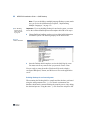
Note To reset default browser settings, choose Tools|Internet
Options|Advanced; then click Restore Defaults, followed by OK. This
may affect other applications on the client machine.
The following is a list of non-default browser settings required:
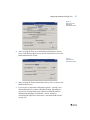
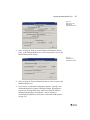
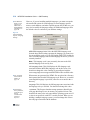
• Temporary internet files should be set to check for newer versions of
stored pages automatically.
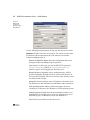
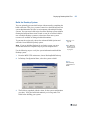
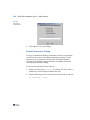
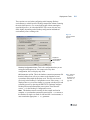
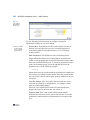
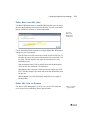
To change this setting, select Tools|Internet Options|Temporary
internet files|Settings. In the Setting window, select Automatic and
click OK to make the change.
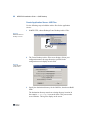
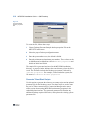
• Set disk space for temporary internet files to at least 100 MB.
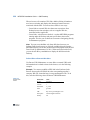
To change this setting, select Tools|Internet Options|General, then
click Settings in the Temporary Internet Files frame.
• When using a proxy server, disable access to the proxy for internal IP
addresses. The Desktop connects to the proxy server using the
settings defined for your browser.
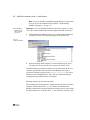
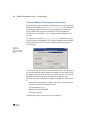
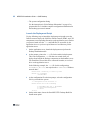
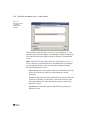
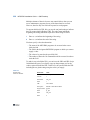
The following is a partial list of required security defaults:
• You must have Run ActiveX controls and plug-ins enabled.
• Both cookie options must be enabled:
• Allow cookies that are stored on your computer
• Allow per-session cookies (not stored)
• In the miscellaneous security options, submit non-encrypted form
data must be enabled. This is used for submitting search strings.
• All three scripting options must be enabled: active scripting, allow
paste operations via script, scripting of Java applets.