1
TouchScreen
Arm
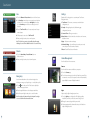
Settings
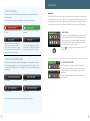
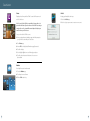
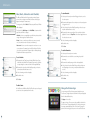
1. Touch the Disarmed - Press to Arm button on the Home Screen.
Displays a list of setting options to customize your TouchScreen.
Categories include:
2. Select Arm Stay to arm the sensors on your doors and windows
only with a 30-second exit delay, or Arm Night with no delay.
Or select Arm Away to arm all sensors including the motion
detectors.
3. Press the Turn Zone Off button for any security zones that you
want to bypass.
4. Follow prompt to enter code to Turn Zone Off.
5. Enter your 4-digit security code to arm the system.
Note: The TouchScreen generates short, audible alerts while arming,
indicating 60 seconds for exit. Audible alerts last for 30 seconds for entry.
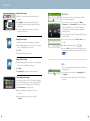
1. T
ouchScreen – Clean screen, screensaver, sound and button
configurations, etc.
2. Security – Manage keypad codes, default arming app
configuration, alarm test.
3. Sensors & Zones – Change zone order, etc.
4. Home Devices – Add, edit and delete devices that control cameras,
key fobs and more.
5. Apps – Add, remove and reorder apps.
6. Advanced Settings – Account information, security secret word,
connectivity and TouchScreen reboot features.
Disarm
7. About – Detailed TouchScreen information.
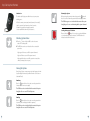
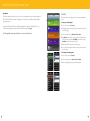
1. T ouch the Armed Away - Press to Disarm button on
the Home Screen.
2. Enter your 4-digit security code to disarm the system.
Home Management
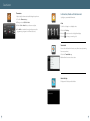
View live video from in-home cameras.
Cameras
View live video from cameras installed on your system.
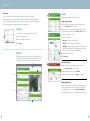
1. Touch the Cameras app.
Emergency
Sends an immediate alarm to the central monitoring station,
indicating an emergency of a specific type — medical, fire or police.
2. Touch the camera image to view live video from that camera. If only
one camera is connected to the system, live video will automatically
appear. Multiple cameras will display thumbnails.
1. Touch
on the bottom of the TouchScreen to display the
individual emergency buttons.
2. Press the applicable button to alert the proper authorities.
Lights
3. Note: Enter your 4-digit security code to cancel the alarm.
Adjust settings for lights throughout your home.
Note: Pressing the police button will sound a silent panic. Pressing the
screen a second time will sound an audible alarm.
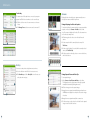
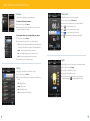
1. Touch the Lights app to display a list of the lighting modules
installed in your home, as well as the current setting of each.
2. Change the current setting with the power switch.
3. For lamps equipped with a dimmer function, use the slider bar to
adjust the brightness level.
3
4