1
5.0
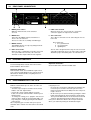
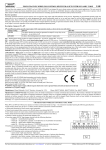
REAR PANEL CONNECTORS
Mains input
Serial Link
Outputs
12
11
10
9
8
7
6
5
4
3
2
1
IN
!
W ARNING : THIS UNIT MUST BE EARTHED.
HIGH VOLTAGE INSIDE
DISCONNECT MAINS INPUT BEFORE REMOVING COVER.
Power
AC input voltage :
OUT
90 - 240 V
50 - 60 Hz
TS-120 Cue light master station
serialnumber
Fuse :
Intercom
T 630 mA
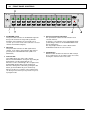
1
MAINS power switch
With this switch the unit can be switched
on or off.
5
LINK connector OUT
When the unit is one of more units in a system this
connector supplies the output to the next unit.
2
MAINS Fuse
This part of the MAINS entrance hold the fuse.
There is also an extra fuse.
The fuse needs to be a 1,25Amp slow blow type.
6
XLR connectors
These XLR-3 connectors are for connecting the TS-10’s
to the unit.
3
MAINS entrance
This MAINS entrance accepts any voltage from 90 240 Vac at 50-60 Hz.
4
LINK connector IN
When the unit is controlled by a TS-99 or it is a part
of a system with more TS-120’s, this connector
should be used as input to link the units together.
6.0
Pin assignments:
1. 0 V / ground shield
2. +30 V power wire
3. signalling line
The TS-120 is designed to have only one TS-10 on each
output XLR. More than one TS-10 connected to a line will
disturb the proper functioning of the TS-120 and TS-10.
INTERNAL CONTROLS
The internal dipswitch, located on the far left of the
bottom PCB has two functions:
Dipswitch numbered 8
Clear function works on ATTN and GO status
Dipswitch numbered 7
Demonstration mode, the unit will not require TS-10
to be connected and will ignore any connected TS-10.
All Channels will function like everything has been
connected to TS-10.
7.0
PROGRAMMING WITH THE TS-99
With the TS-99 unit the presets of the TS-120’s can
be programmed.
- Select the requested preset number on the TS-99
with the “left” and “right” buttons.
- Preview the current settings with the “preview”
button, all selected channels will be shown in green
flashing LED’s
- To change the setting, press “program”. All selected
channels will be shown in green flashing LED’s, you
may change the setting by pushing the GO buttons
of the TS-120.
After completing your selection of the preset push
and hold “Store” until the TS-120 returns to its normal
state.
User Manual TS 120 / Issue 1
Using the presets:
- the active preset number is indicated by the blinking dot
next to the preset number. An active preset must be
finished (sent ATTN and sent GO) before the next preset
maybe selected.
- On the active preset activate ATTN by pushing the ATTN
button. All programmed channels will go to ATTN mode.
- Then push the GO button on the desired moment and all
channels will switch from ATTN to GO (red to green).
Now you are allowed to switch to the next preset number
where you start from pushing the ATTN button again.
2000 ASL Intercom, Utrecht, Holland.
5