1
18.2. ACCESS A DATA FILE
18.2.3
89
Load point data
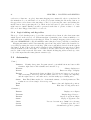
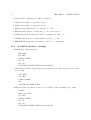
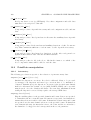
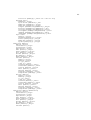
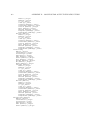
Loading point data when using the widget is based on stars or groups of stars. Note that loading
all data at once might lead to excessive memory requirements. When loading the data for stars,
you will be presented a widget listing all observed stars. Click on the one whose data you need.
Under IDL, press the <control> key when selecting the stars with the left mouse button. This
way, the previous selections will not be undone. Alternatively, you can drag the mouse over
the list and highlight a group of stars. After selecting the stars, click on Load and the loading
commences. The data will overwrite any point data currently loaded. The widget will stay
active. The way to proceed is to fully reduce the data for one or more stars at a time (editing,
dispersion correction, and averaging). The averaged data are stored in a structure which is
allocated the first time you average data and which is sized so that it will eventually hold all
the scan data of the night.
18.2.4
Load scan data
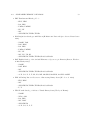
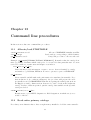
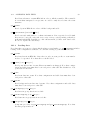
CHAMELEON can read its own output file. Use Access|Load|INTERFEROMETRY if
you need to re-start CHAMELEON to work on averaged data. This will read all relevant
objects in a .cha file, get a startable for the observed stars and compute derived quantities
(Calibrate|Astrometry|Calc). Configuration items can also be read separately using buttons Access|Load|SysConfig.
18.2.5
Load metrology data
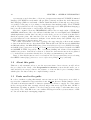
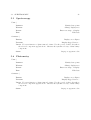
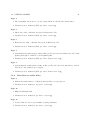
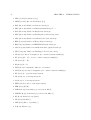
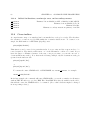
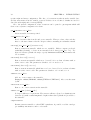
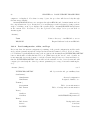
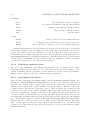
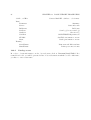
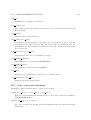
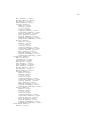
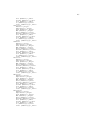
This button is used to load metrology data processed by INCHWORM. These files have the
.inch extension.
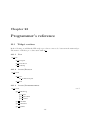
Access | Load |
METROLOGY
18.2.6
cont’d
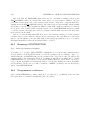
Display widget for selection of metrology data to load. .inch file
Write data
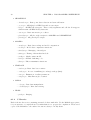
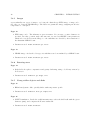
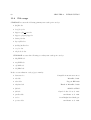
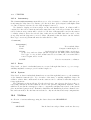
After reducing and calibrating the data, scan data should be written to an output HDS file.
The filename is derived from the input filename, except that the extension is now .cha. The
input .con file is closed automatically before opening the ouput file. Note that if the file already
exists, objects are replaced with the new ones.
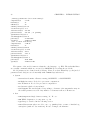
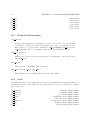
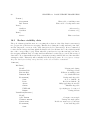
Data can also be written to a multi-source FITS file. It is the scans.complexvis data being
written; calculate it after the calibration using Calibrate|Visibility|SetComplex.
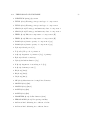
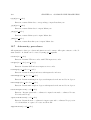
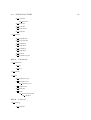
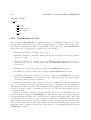
Access | Write |
cont’d
HDS
Write all objects to HDS file
FITS
Write multi-source FITS file
SysConfig |
GeoParms
GenConfig
Write earth parameters
Write general configuration