1
www.aja.com
Published: 9/21/12
Installation and Operation
Guide
1
B e c a u s e
i t
m a t t e r s .
1
ii
Trademarks
AJA®, KONA®, Ki Pro®, KUMO®, and XENA® and are registered trademarks of AJA Video, Inc,
Io Express™, Io HD™, Io™, T-TAP™ and Because It Matters™ are trademarks of AJA Video, Inc.
Apple, the Apple logo, AppleShare, AppleTalk, FireWire and Macintosh are registered
trademarks of Apple Computer, Inc. Final Cut Pro, QuickTime and the QuickTime Logo are
trademarks of Apple Computer, Inc. TASCAM is a registered trademark of TEAC Corporation.
All other trademarks are the property of their respective holders.
Notice
Copyright © 2012 AJA Video, Inc. All rights reserved. All information in this manual is subject
to change without notice. No part of the document may be reproduced or transmitted in
any form, or by any means, electronic or mechanical, including photocopying or recording,
without the express written permission of AJA Inc.
Contacting Support
To contact AJA Video for sales or support, use any of the following methods:
180 Litton Drive, Grass Valley, CA. 95945 USA
Telephone: 800.251.4224 or 530.274.2048
Fax: 530.274.9442
Web: http://www.aja.com
Support Email: [email protected]
Sales Email: [email protected]
When calling for support, first read the Chapter on Troubleshooting at the back of this
manual. You can often save time and effort by looking there first for simple remedies and
information on how to get support from AJA and Apple Computer Inc.
Limited Warranty
AJA Video warrants that this product will be free from defects in materials and
workmanship for a period of three years from the date of purchase. If a product proves to be
defective during this warranty period, AJA Video, at its option, will either repair the
defective product without charge for parts and labor, or will provide a replacement in
exchange for the defective product.
In order to obtain service under this warranty, you the Customer, must notify AJA Video of
the defect before the expiration of the warranty period and make suitable arrangements for
the performance of service. The Customer shall be responsible for packaging and shipping
the defective product to a designated service center nominated by AJA Video, with
shipping charges prepaid. AJA Video shall pay for the return of the product to the Customer
if the shipment is to a location within the country in which the AJA Video service center is
located. Customer shall be responsible for paying all shipping charges, insurance, duties,
taxes, and any other charges for products returned to any other locations.
T-TAP Installation and Operation Guide — Limited Warranty
This warranty shall not apply to any defect, failure or damage caused by improper use
or improper or inadequate maintenance and care. AJA Video shall not be obligated to
furnish service under this warranty a) to repair damage resulting from attempts by
personnel other than AJA Video representatives to install, repair or service the product,
b) to repair damage resulting from improper use or connection to incompatible
equipment, c) to repair any damage or malfunction caused by the use of non-AJA Video
parts or supplies, or d) to service a product that has been modified or integrated with
other products when the effect of such a modification or integration increases the time
or difficulty of servicing the product.
THIS WARRANTY IS GIVEN BY AJA VIDEO IN LIEU OF ANY OTHER WARRANTIES, EXPRESS
OR IMPLIED. AJA VIDEO AND ITS VENDORS DISCLAIM ANY IMPLIED WARRANTIES OF
MERCHANTABILITY OR FITNESS FOR A PARTICULAR PURPOSE. AJA VIDEO’S
RESPONSIBILITY TO REPAIR OR REPLACE DEFECTIVE PRODUCTS IS THE WHOLE AND
1
EXCLUSIVE REMEDY PROVIDED TO THE CUSTOMER FOR ANY INDIRECT, SPECIAL,
INCIDENTAL OR CONSEQUENTIAL DAMAGES IRRESPECTIVE OF WHETHER AJA VIDEO OR
THE VENDOR HAS ADVANCE NOTICE OF THE POSSIBILITY OF SUCH DAMAGES.
iii
iv
T-TAP Installation and Operation Guide — Contents
Contents
Trademarks . . . . . . . . . . . . . . . . . . . . . . . . . . . . . . . . . . . . . . . . . . . . . . . . . . . . . . . . . . . . . . . . . . . . . . . . . . . . . . . . . . . . . . . . . . . .
Notice . . . . . . . . . . . . . . . . . . . . . . . . . . . . . . . . . . . . . . . . . . . . . . . . . . . . . . . . . . . . . . . . . . . . . . . . . . . . . . . . . . . . . . . . . . . . . . . . .
Contacting Support . . . . . . . . . . . . . . . . . . . . . . . . . . . . . . . . . . . . . . . . . . . . . . . . . . . . . . . . . . . . . . . . . . . . . . . . . . . . . . . . . . . .
Limited Warranty . . . . . . . . . . . . . . . . . . . . . . . . . . . . . . . . . . . . . . . . . . . . . . . . . . . . . . . . . . . . . . . . . . . . . . . . . . . . . . . . . . . . . .
ii
ii
ii
ii
Chapter 1: Introduction
Overview . . . . . . . . . . . . . . . . . . . . . . . . . . . . . . . . . . . . . . . . . . . . . . . . . . . . . . . . . . . . . . . . . . . . . . . . . . . . . . . . . . . . . . . . . . . . . . 1
Features: . . . . . . . . . . . . . . . . . . . . . . . . . . . . . . . . . . . . . . . . . . . . . . . . . . . . . . . . . . . . . . . . . . . . . . . . . . . . . . . . . . . . . . . . . . 1
Video Signal Formats . . . . . . . . . . . . . . . . . . . . . . . . . . . . . . . . . . . . . . . . . . . . . . . . . . . . . . . . . . . . . . . . . . . . . . . . . . . . . . 2
T-TAP Audio . . . . . . . . . . . . . . . . . . . . . . . . . . . . . . . . . . . . . . . . . . . . . . . . . . . . . . . . . . . . . . . . . . . . . . . . . . . . . . .1. . . . . . . . 2
T-TAP Software . . . . . . . . . . . . . . . . . . . . . . . . . . . . . . . . . . . . . . . . . . . . . . . . . . . . . . . . . . . . . . . . . . . . . . . . . . . . . . . . . . . . 2
Unpacking T-TAP . . . . . . . . . . . . . . . . . . . . . . . . . . . . . . . . . . . . . . . . . . . . . . . . . . . . . . . . . . . . . . . . . . . . . . . . . . . . . . . . . . . . . . 3
System Requirements . . . . . . . . . . . . . . . . . . . . . . . . . . . . . . . . . . . . . . . . . . . . . . . . . . . . . . . . . . . . . . . . . . . . . . . . . . . . . . . . . . 3
AJA System Test and AJA DataCalc Application . . . . . . . . . . . . . . . . . . . . . . . . . . . . . . . . . . . . . . . . . . . . . . . . . . . . . 3
Cable Connections . . . . . . . . . . . . . . . . . . . . . . . . . . . . . . . . . . . . . . . . . . . . . . . . . . . . . . . . . . . . . . . . . . . . . . . . . . . . . . . . . . . . 4
Thunderbolt . . . . . . . . . . . . . . . . . . . . . . . . . . . . . . . . . . . . . . . . . . . . . . . . . . . . . . . . . . . . . . . . . . . . . . . . . . . . . . . . . . . . . . . 4
HD/SD SDI Output . . . . . . . . . . . . . . . . . . . . . . . . . . . . . . . . . . . . . . . . . . . . . . . . . . . . . . . . . . . . . . . . . . . . . . . . . . . . . . . . . 4
HDMI Output . . . . . . . . . . . . . . . . . . . . . . . . . . . . . . . . . . . . . . . . . . . . . . . . . . . . . . . . . . . . . . . . . . . . . . . . . . . . . . . . . . . . . . 4
In This Manual . . . . . . . . . . . . . . . . . . . . . . . . . . . . . . . . . . . . . . . . . . . . . . . . . . . . . . . . . . . . . . . . . . . . . . . . . . . . . . . . . . . . . . . . . 4
Chapter 2: Installation
Installation Overview . . . . . . . . . . . . . . . . . . . . . . . . . . . . . . . . . . . . . . . . . . . . . . . . . . . . . . . . . . . . . . . . . . . . . . . . . . . . . . . . . . 5
Connecting to your Computer . . . . . . . . . . . . . . . . . . . . . . . . . . . . . . . . . . . . . . . . . . . . . . . . . . . . . . . . . . . . . . . . . . . . . . . . . 5
Installing T-TAP Software . . . . . . . . . . . . . . . . . . . . . . . . . . . . . . . . . . . . . . . . . . . . . . . . . . . . . . . . . . . . . . . . . . . . . . . . . . . . . . 6
Macintosh Software Installation . . . . . . . . . . . . . . . . . . . . . . . . . . . . . . . . . . . . . . . . . . . . . . . . . . . . . . . . . . . . . . . . . . . . 7
Updating T-TAP Firmware . . . . . . . . . . . . . . . . . . . . . . . . . . . . . . . . . . . . . . . . . . . . . . . . . . . . . . . . . . . . . . . . . . . . . . . . . . . . . 12
Other Software from AJA . . . . . . . . . . . . . . . . . . . . . . . . . . . . . . . . . . . . . . . . . . . . . . . . . . . . . . . . . . . . . . . . . . . . . . . . . . . . . 13
Chapter 3: Operation
Using T-TAP with Professional Video /Audio Software . . . . . . . . . . . . . . . . . . . . . . . . . . . . . . . . . . . . . . . . . . . . . . . . . . 15
AJA Control Panel Overview . . . . . . . . . . . . . . . . . . . . . . . . . . . . . . . . . . . . . . . . . . . . . . . . . . . . . . . . . . . . . . . . . . . . . . . . . . 15
Control Panel Operation . . . . . . . . . . . . . . . . . . . . . . . . . . . . . . . . . . . . . . . . . . . . . . . . . . . . . . . . . . . . . . . . . . . . . . . . . . . . . . 18
Control Screen Settings . . . . . . . . . . . . . . . . . . . . . . . . . . . . . . . . . . . . . . . . . . . . . . . . . . . . . . . . . . . . . . . . . . . . . . . . . . . 18
Format Screen . . . . . . . . . . . . . . . . . . . . . . . . . . . . . . . . . . . . . . . . . . . . . . . . . . . . . . . . . . . . . . . . . . . . . . . . . . . . . . . . . . . . 19
HDMI Output Screen . . . . . . . . . . . . . . . . . . . . . . . . . . . . . . . . . . . . . . . . . . . . . . . . . . . . . . . . . . . . . . . . . . . . . . . . . . . . . . 20
Video Setup Screen . . . . . . . . . . . . . . . . . . . . . . . . . . . . . . . . . . . . . . . . . . . . . . . . . . . . . . . . . . . . . . . . . . . . . . . . . . . . . . . 21
Conversion Screen . . . . . . . . . . . . . . . . . . . . . . . . . . . . . . . . . . . . . . . . . . . . . . . . . . . . . . . . . . . . . . . . . . . . . . . . . . . . . . . . 22
Timecode Screen . . . . . . . . . . . . . . . . . . . . . . . . . . . . . . . . . . . . . . . . . . . . . . . . . . . . . . . . . . . . . . . . . . . . . . . . . . . . . . . . . 23
Presets Screen . . . . . . . . . . . . . . . . . . . . . . . . . . . . . . . . . . . . . . . . . . . . . . . . . . . . . . . . . . . . . . . . . . . . . . . . . . . . . . . . . . . . 24
Firmware Screen . . . . . . . . . . . . . . . . . . . . . . . . . . . . . . . . . . . . . . . . . . . . . . . . . . . . . . . . . . . . . . . . . . . . . . . . . . . . . . . . . . 25
Info Screen . . . . . . . . . . . . . . . . . . . . . . . . . . . . . . . . . . . . . . . . . . . . . . . . . . . . . . . . . . . . . . . . . . . . . . . . . . . . . . . . . . . . . . . 26
Appendix A: Specifications
Video Formats . . . . . . . . . . . . . . . . . . . . . . . . . . . . . . . . . . . . . . . . . . . . . . . . . . . . . . . . . . . . . . . . . . . . . . . . . . . . . . . . . . . . . . . . 27
Host Computer Connection . . . . . . . . . . . . . . . . . . . . . . . . . . . . . . . . . . . . . . . . . . . . . . . . . . . . . . . . . . . . . . . . . . . . . . . . . . . 27
Video Output . . . . . . . . . . . . . . . . . . . . . . . . . . . . . . . . . . . . . . . . . . . . . . . . . . . . . . . . . . . . . . . . . . . . . . . . . . . . . . . . . . . . . . . . . 27
Audio Support . . . . . . . . . . . . . . . . . . . . . . . . . . . . . . . . . . . . . . . . . . . . . . . . . . . . . . . . . . . . . . . . . . . . . . . . . . . . . . . . . . . . . . . . 27
Physical . . . . . . . . . . . . . . . . . . . . . . . . . . . . . . . . . . . . . . . . . . . . . . . . . . . . . . . . . . . . . . . . . . . . . . . . . . . . . . . . . . . . . . . . . . . . . . 27
1
2
Appendix B: Safety & Compliance
Federal Communications Commission (FCC) Compliance Notices . . . . . . . . . . . . . . . . . . . . . . . . . . . . . . . . . . . . . . 29
Class B Interference Statement . . . . . . . . . . . . . . . . . . . . . . . . . . . . . . . . . . . . . . . . . . . . . . . . . . . . . . . . . . . . . . . . . . . . 29
FCC Caution . . . . . . . . . . . . . . . . . . . . . . . . . . . . . . . . . . . . . . . . . . . . . . . . . . . . . . . . . . . . . . . . . . . . . . . . . . . . . . . . . . . . . . 29
Canadian ICES Statement . . . . . . . . . . . . . . . . . . . . . . . . . . . . . . . . . . . . . . . . . . . . . . . . . . . . . . . . . . . . . . . . . . . . . . . . . . . . . 29
European Union and European Free Trade Association (EFTA) Regulatory Compliance . . . . . . . . . . . . . . . . . . 30
Declaration of Conformity . . . . . . . . . . . . . . . . . . . . . . . . . . . . . . . . . . . . . . . . . . . . . . . . . . . . . . . . . . . . . . . . . . . . . . . . . 30
Korean Compliance Statement . . . . . . . . . . . . . . . . . . . . . . . . . . . . . . . . . . . . . . . . . . . . . . . . . . . . . . . . . . . . . . . . . . . . . . . . 31
Taiwan Compliance Statement . . . . . . . . . . . . . . . . . . . . . . . . . . . . . . . . . . . . . . . . . . . . . . . . . . . . . . . . . . . . . . . . . . . . . . . . 31
Translated caution statements, warning conventions and warning messages . . . . . . . . . . . . . . . . . . . . . . . . . . . 31
Before operating your AJA unit, read the instructions in this document . . . . . . . . . . . . . . . . . . . . . . . . . . . . . . . . . 32
Index . . . . . . . . . . . . . . . . . . . . . . . . . . . . . . . . . . . . . . . . . . . . . . . . . . . . . . . . . . . . . . . . . . . . . . . . . . . . . . . . . . . . . . . . . . . . . . . . 35
Chapter 1: Introduction
Edge Shot Photo Here
Overview
AJA’s T-TAP™ provides video professionals with an inexpensive, extremely compact device
that utilizes the power of Thunderbolt™ to deliver high-quality 10-bit SD, HD and 2K video and
embedded audio output from any compatible computer.
Small and simple to use, T-TAP connects to your computer via the blazing-fast Thunderbolt™
connection which provides the bandwidth necessary for full broadcast-quality video and
audio output. Based on the same architecture as AJA’s KONA cards, T-TAP offers full 10-bit
broadcast-quality output.
HD/SD SDI and HDMI outputs are available, with support for 3D HDMI output. The SDI output
can be used to feed professional monitors or recording gear, while the HDMI output is able to
feed directly into consumer HDMI monitors. Both HDMI and SDI are active simultaneously
allowing you to work with professional and consumer gear at the same time. 3D support
enables T-TAP to output directly to 3D HDMI monitors for realtime stereoscopic review, with
no need for additional hardware.
T-TAP’s professional audio functionality supports full 8-channel embedded audio for multichannel playback such as 5.1 or 7.1 mixes.
T-TAP is powered via the Thunderbolt™ connection with no need for an additional power
supply, minimizing cabling and maximizing portability.
Features:
• One Thunderbolt port
• One 1.5G SD-SDI, and HD-SDI output
• One HDMI v1.3 Output (supports compressed 3D output)
• DVCProHD hardware scaling to full raster
• HDV hardware scaling to full raster
• 8-Channel embedded audio support
• Rugged compact size
• Power via Thunderbolt
1
1
1
2
About Primary & Secondary Video Formats
In T-TAP operation, the Primary Format is the media format written to disk and used in your
project.
Note: The Secondary format is for format conversion settings supported by other AJA
KONA/Io products but not used by T-TAP.
The Primary Format menu allows you to select the video format used in your current
project.
Video Signal
Formats
The Video Signal Formats supported by T-TAP are listed in Appendix A: Specifications (see
“Video Formats” on page 27).
T-TAP Audio
T-TAP provides up to 8 channels of SDI and HDMI embedded audio output.
T-TAP Software
AJA’s T-TAP software and hardware were developed for powerful integrated video/audio
editing and monitoring when used with a variety of 3rd-party software. With a T-TAP and
Thunderbolt-enabled computer, you have the ultimate system for standard and high
definition video editing, production and DI work. AJA software and documentation is
available for download at the AJA website.
• AJA QuickTime™ drivers for tightly integrated hardware/software operation.
• AJA Control Panel for controlling T-TAP within Mac OS. AJA Control Panel uses a block
diagram to show visually what is happening inside T-TAP.
• Supports popular 3rd-party Professional Video Applications from Apple, Adobe, Avid,
and more.
T-TAP Installation and Operation Manual — Unpacking T-TAP
Unpacking T-TAP
As you unpack T-TAP, carefully examine the unit to ensure that nothing was damaged
during shipment. If you find any damage, immediately notify the shipping service and
supply them with a complete description of the damage. AJA will repair or replace
damaged units. If you find shipping damage, contact your AJA dealer or distributor for
details on how to have your T-TAP repaired or replaced.
Save packing materials and the shipping box. If you ever require service or move your
system—use the packaging materials and box for safe shipment.
After you unpack your T-TAP, go to the AJA website to download the latest software
package and updated documentation. You will need to secure a Thunderbolt cable to
connect to your computer. T-TAP is powered through the cable.
1
The AJA website link for software and documentation is:
http://www.aja.com/en/support/downloads/
System Requirements
AJA System Test
and AJA DataCalc
Application
To guarantee maximum system performance, use AJA System Test and the AJA DataCalc
application to evaluate your workstation capabilities. They are available on the AJA
website at the following URL:
http://www.aja.com/en/products/software/
AJA System Test
AJA System Test is a utility for measuring system performance with AJA Video Capture
devices. The application includes disk drive speed tests and video data copy (DMA)
speeds. The disk speed tests differ from standard disk I/O performance applications in
that they specifically test the system under conditions typically encountered with video
capture, playback, and editing.
Note: Most of the disk performance tests are generic and don’t require an AJA KONA
Video Capture card. The DMA performance tests do require a KONA card and AJA
KONA Driver software to operate.
We suggest the best test is to fill your storage disk to 80% and then test capture at the
highest data rate you will use.
AJA DataCalc Application
This software application calculates data rates and storage requirements for a given video
size, format, and frame rate. It's great for T-TAP users as a resource for configuring systems
and determining storage requirements.
3
4
Cable Connections
T-TAP connections are made directly to the unit’s front and rear connector channels.
T-TAP Connectors
Thunderbolt
Thunderbolt cabling carries two channels on the same connector with 10 Gbps of
throughput in two directions. The high speed of Thunderbolt allows connection to
peripheral devices while achieving PCI Express performance. Thunderbolt also provides
power to peripherals eliminating the need for external power supplies.
HD/SD SDI Output
A BNC connector is provided on T-TAP for one HD/SD-SDI output. This output supports
video and embedded 24-bit digital audio. Use SDI wherever possible for the best quality 10bit uncompressed video output. If your peripheral equipment has a variety of inputs, look
to see if it has SDI I/O, and use it where possible. Most high-end professional broadcast
equipment supports SDI (VTRs, cameras, media storage servers, etc.).
HDMI Output
An HDMI connector on the T-TAP provides output of HDMI compatible video and multichannel embedded audio. The HDMI v1.3a capability at 30 bits per pixel allows full support
of the latest 10-bit monitors.
HDCP is not supported on the output. The HDMI output supports standard HDMI cables
only.
The AJA Control Panel allows selection and adjustment of some HDMI parameters; please
see Chapter 3—for more information on Control Panel operation.
In This Manual
Chapter 1 is the introduction you’re reading, listing features, box contents, and system
requirements.
Chapter 2 provides complete instructions for installing and configuring the AJA T-TAP. The
user is guided through unpacking, cabling the T-TAP, installing T-TAP driver software, then
getting it up and running.
Chapter 3 discusses operational aspects of T-TAP, the AJA Control Panel interface, and how
to work with 3rd-party software.
Appendix A presents a list of technical specifications for the product.
Appendix B contains relevant Safety & Compliance information.
Chapter 2: Installation & Configuration
Installation Overview
The installation and setup of T-TAP is very
simple. The steps of installation and
configuration are discussed here and
summarized as follows:
1. Unpack the shipping box (see “Unpacking T-TAP” on page 3.)
2. If not previously installed on your Thunderbolt equipped computer, ensure that
appropriate application software such as Adobe Premiere Pro is installed as detailed in
its user documentation.
3. Cable T-TAP Thunderbolt port, SDI and HDMI outputs as required for your workflow.
4. Install AJA T-TAP software on your computer from the latest AJA website download.
Start by installing the T-TAP driver package with AJA Control Panel and then finally
install any AJA plug-ins for 3rd-party software.
Installers for the T-TAP driver software and for the AJA Control Panel are found on the
AJA website—here you will get the most current software and documentation.
5. When you run the AJA Control Panel, you’ll notice that the T-TAP is auto-discovered as
long as it is properly cabled and powered up.
Each of these steps are explained in greater detail on the remaining pages of this chapter.
Connecting to your Computer
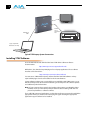
Your system may differ depending on VTRs, audio monitoring, and video monitoring.
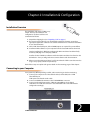
1. Connect your computer via a Thunderbolt cable (not included) to the T-TAP
Thunderbolt port.
T-TAP power is delivered via this cable.
2. Connect an HDMI Video Monitor to the T-TAP HDMI Out connector.
3. Connect an SDI cable between the T-TAP SDI output BNC and your digital
VTR SDI In. The T-TAP SDI connections has embedded audio so the VTR must be
configured accordingly.
2
1
T-TAP Connectors
1
6
HDMI Monitor
HD/SD-SDI
Video I/O
with Embedded
Audio
Thunderbolt
Cable
VTR with SDI Inputs/Outputs
Lap-top computer with
Thunderbolt connectivity
Typical T-TAP Laptop System Connections
Installing T-TAP Software
Go to the AJA website and download the latest T-TAP driver software and latest
documentation:
http://www.aja.com/en/support/downloads/
While there, also download any AJA plug-ins for 3rd-party applications. These software
installers can be found here:
http://www.aja.com/en/products/software/
You cannot use T-TAP with third-party software until the AJA T-TAP software and any
required AJA plug-ins have been installed on the host workstation.
System software updates may occasionally become available to AJA T-TAP owners on our
website (www.aja.com). We recommend checking occasionally for both software updates
and additional product information.
Note: If your computer has previously had another video capture or multimedia device
installed, ensure you uninstall any related software before installing T-TAP This will
prevent any hardware or software conflicts.
If you add T-TAP supported applications at a later date and have not previously installed the
appropriate drivers, you must run the install program again selecting the appropriate
application support software to be installed.
T-TAP Installation and Operation Guide — Installing T-TAP Software
Macintosh Software
Installation
Note: Before installing T-TAP software, turn off any virus protection and security
software that you may have installed on your computer.
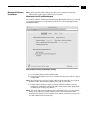
Mountain Lion OS and Gatekeeper
Also, with the addition of Gatekeeper functionality in Mac OS Mountain Lion, you should
go to System Preferences>Security & Privacy and choose to allow “Mac App Store and
identified developers.”
1
Mac Security & Privacy Gatekeeper Setting
1. Locate T-TAP software downloaded from AJA.
2. Locate the package files; they have an icon that looks like a box and has a “.pkg” or
“.mpkg” suffix.
Note: Files ending in the “.pkg” and “.mpkg” suffix are OS X installer files. These launch
the OS X installer and tell it where and what to install on your system.
3. Double-click the package to log on and begin software installation. Start by
installing the T-TAP driver package with AJA Control Panel and then finally install
any AJA plug-ins for 3rd-party software.
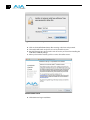
Note: The system will respond by asking you to authenticate who you are as currently
defined on your OS X user profile. Enter the proper name and password at the
Authenticate prompt; if you have multiple users defined, ensure that you log on as a
user with administrator-level authority.
7
8
Log On Authenticate Prompt
4. Click on the Install Software button after entering a valid user and password.
5. The installer will launch and you’ll see a series of installer screens.
6. On the following pages, we show the series of screens you’ll see when installing the
T-TAP driver software package.
7. When you launch the installer, you’ll see a series of installer screens.
Initial Installer Screen
8. Click Continue to begin installation.
T-TAP Installation and Operation Guide — Installing T-TAP Software
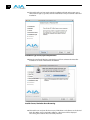
9. The next screen lets you know that the installer will check your Mac to ensure it has the
hardware and software resources required (see “System Requirements” on page 3). Click
Continue to proceed.
1
System Check Installer Screen
10.Read and click Continue, then click the Agree button to accept the Software License
Agreement.
T-TAP Software License Agreement Screen
9
10
11.The installer tells you how much room the installation will take and prompts you to
click Install to begin (or go back). Click the Install button and proceed with a Standard
installation.
Installation Type Screen, Space Requirements
12.Next, the installer will display a reminder that you’ll have to Restart the Mac after
installation concludes. Click Continue Installation.
Installer Screen, Reminder about Restarting
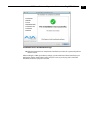
13.The installer runs and puts all the necessary T-TAP drivers and software on the desired
hard drive. When it has completed installation, a final screen will be displayed
announcing that “software was successfully installed.”
T-TAP Installation and Operation Guide — Installing T-TAP Software
1
Installation Success and Restart Message
14.Click the Restart button to complete the installation procedure. The system will perform
software restart.
After installing the T-TAP system driver package, open the AJA Control Panel (installed in your
Applications folder). Verify T-TAP is active. It may be necessary to un-plug and re-install the
Thunderbolt cable to cycle power to T-TAP.
11
12
Updating T-TAP Firmware
When you update your T-TAP software by downloading new versions from the aja.com
website, it is possible that some versions may also require a firmware update to update the
software stored in non-volatile memory. Always carefully read the release notes that
accompany each version to be installed. The release notes will spell out all required software
and hardware necessary to ensure a successful update of your T-TAP.
Follow these instructions when a firmware update is required:
1. First install the new version of T-TAP software.
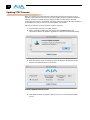
2. After successfully installing the new software, the AJA KONA Updater will
automatically launch. (The updater application is located in the AJA Utilities folder.)
3. When the updater starts, the following screen will display indicating the current
firmware and update firmware creation date.
Firmware Update Welcome Screen
4. Click Update Firmware to begin the update process. Do not interrupt the update
process
T-TAP Installation and Operation Guide — Other Software from AJA
1
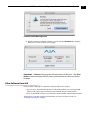
Firmware Update Warning Screen
5. After the firmware installation completes, you’ll be asked to Shut Down the computer,
wait for two seconds, and then start up again.
Firmware Update Success Screen
Important: A Restart of the computer will not load the new firmware—click Shut
Down to initiate a complete ON/OFF power cycle to load the new firmware into the
hardware.
Other Software from AJA
Finally, install any AJA plug-ins required for 3rd-party software. For example:
• If you use the T-TAP with Adobe Premiere or Adobe After Effects, you would go the AJA
website T-TAP support page and download the “AJA Mac Plug-ins for Adobe CS6”.
• If you use Avid Media Composer, you will need to download AJA’s Open I/O Plug-in for Avid.
These plug-ins come with complete documentation on how to use them. For links, see
“Installing T-TAP Software” on page 6.
13
14
Chapter 3: Operation
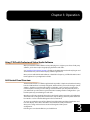
Using T-TAP with Professional Video /Audio Software
After you install the T-TAP software and any AJA plug-ins to support your choice of 3rd-party
software, you’re then ready to begin playing back video and audio.
See “Installing T-TAP Software” on page 6 for links to the AJA website to download plug-ins and
documentation for your favorite 3rd-party software applications:
Once you’ve installed all the AJA software as detailed in Chapter 2, you’ll find the AJA Control
Panel application in your Applications folder.
AJA Control Panel Overview
The AJA Control Panel is a software application that provides a simple visual window showing
how the T-TAP interface is currently configured, and that allows you to make changes. Current
settings—both those you changed and those you didn’t—can be saved as a snapshot for
recall at anytime. This lets you save settings associated with all your frequent tasks; then as
you switch tasks you don’t have to spend extra time resetting interface configurations—just
load the previously saved settings for each task.
One thing you’ll notice instantly about the Control Panel is that it represents a block diagram
of how the unit is configured. The current status, output settings, and many other details can
be viewed as a color-coded block diagram in the Control Panel.
To ensure you make the most of the software, launch the AJA Control Panel application and
look at its display. Then refer to the “Basics” described here to fully understand
what you’re seeing and learn how to view and change the T-TAP system
1
configuration.
Following are some basic definitions you should know.
3
1
16
Block Diagram Screen—The top area of the Control Panel shows
a visual picture representing the processing (if any) that’s
currently occurring, including outputs, and system status.
Lines between the framebuffer, and outputs show a video
path. Where there are no lines, it shows there is no
connection; this can be because an appropriate output isn’t
selected (such as PsF for HDMI).
Icon objects on the block diagram screen (output icons,
frame buffer, etc.—also called “widgets”—indicate their
status by color (explained later) and can be clicked for
context-sensitive information and choices. (These same
choices can also be made from the Control Panel screens.)
Right-Clicking
an Icon Produces
a Context-sensitive
Menu
Framebuffer
Format
Currently selected
Configuration
Screen
Outputs:
SDI and HDMI
Configuration Screen Navigation Links – Click One to Edit/View a Topic
AJA Control Panel, Block Diagram
Framebuffer—The framebuffer is the “engine” in T-TAP where active video operations take
place using your 3rd-party applications, or even T-TAP itself. The framebuffer has a
format (called the “Primary Format” and color space that it follows, as defined in the
Configuration Screens or via external application software. It is important to realize
that inside the host computer, many applications can use the T-TAP (as you switch
from window to window) and it may not always be obvious which application
currently controls it.
The upper-right corner of the Control Panel
displays the name of the application controlling
the T-TAP. In some cases, applications may not
always properly “let go” of the Output interface
as another takes over—you’ll be able to tell by
looking at the Control Panel.
T-TAP Installation and Operation Guide — AJA Control Panel Overview
Primary Format—The video format currently assigned to T-TAP. This is the format that
the framebuffer will use and is shown in the Control Panel using the color blue. All
icons in blue are the same as the Primary Format used by the framebuffer. Also any
text descriptions in the block diagram that appear in blue also indicate that
something is in the primary format.
Output Icons—The output icons are triangles that together with their color show the
outputs and their status (selected, not selected, signal present or not, format, etc.). A
complete video path is shown when outputs are connected with lines going from
the framebuffer.
Output Icon
1
Color Meanings—All items in the T-TAP Control Panel block diagram are color-coded to
show what is happening in realtime. This applies to both icons and text. These colors have
the following corresponding meanings:
Blue: video is same format as the Primary Format (framebuffer)
Red: the selected operation cannot be performed
Control Panel Configuration Screen links—The left side area of the T-TAP Control Panel
provides navigation links to the various Screens categorized by topics. Clicking on a
topic—or alternatively, a block diagram element—displays an information screen
corresponding to that topic. Screens that can be selected are:
Control: configures T-TAP operation and output timing.
Format: select the framebuffer primary video format of outputs
HDMI: configure the HDMI Output
Video Setup: configures Video such as Progressive Format and QuickTime Video
Output Filter.
Conversion: used to select codec options such as whether paused video appears as a
full frame or a single field (jitter shown or not shown) and 24 to 30 fps padding
patterns.
Timecode: monitor RP-188 timecode and configure timecode window burn output
(Note: SMPTE 12M-2 is the updated name and specification for what was
RP-188)
Presets: add or delete saved preset configurations (handy for setting up the T-TAP
for certain workflows and then saving it as a canned configuration for easy later
recall)
Firmware: enables installation of AJA card firmware.
Info: displays status information and firmware version # of the T-TAP and how it is
installed in the host computer. This information is generally intended for
troubleshooting/support.
Block Diagram Screen – the top area of the AJA Control Panel shows a visual picture
representing the processing (if any) that's currently occurring, including outputs, and
system status. Lines between the framebuffer, and outputs, show a video path.
Where there are no lines, it shows there is no connection; this can be either because
an output isn't selected or because no video is present.
Icon objects on the block diagram screen (output icons, frame buffer, etc.—also
called “widgets”—indicate their status by color and can be clicked for contextsensitive information and choices. (These same choices can also be made from the
Control panel screens.)
Note: You can use the Up/Down arrows on your keyboard to navigate link selections.
17
18
Control Panel Operation
The T-TAP can be controlled by various software applications running on a host computer.
The Control Screen is where you select how the T-TAP directs video and is used by
application software.
At the right-top of the block diagram it will show the current Default Output and the
application currently controlling the T-TAP.
AJA Control Panel, Control Screen
Control Screen
Settings
Default Output—this is where you select what T-TAP will output as a default when no
application has control of the board, such as when the Finder is active. Since T-TAP can be
controlled by multiple software applications and its own control panel, the output can
change dynamically. When you select many video applications, they will grab control of the
T-TAP outputs. These settings determine what happens when an application that doesn't
grab the T-TAP outputs is active.
Default Output Choices and their meanings:
Video Output: this selection directs T-TAP to output
either a selected Test Pattern or Hold the Last Application
output, whenever an application isn't controlling T-Tap.
Hold Last Application directs T-TAP to hold and output
the last frame of video from the last application to control T-TAP. This can be helpful
when operating in an environment where you're switching back and forth between
multiple application windows.
Test Pattern: this selection determines the particular Test Pattern for output when no
other application is using the T-TAP and Test Pattern is selected for the Video Output.
You can choose from:
Black, Color bars (75% or 100%), Ramp, Multiburst, Line Sweep, Multi Pattern, or Flat Field.
While in Test Pattern mode, you can select YUV 10-bit or 8-bit output via a pulldown
menu.
T-TAP Installation and Operation Guide — Control Panel Operation
Format Screen
19
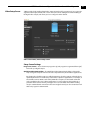
The Format screen shows the video format currently in use by the T-TAP framebuffer (called the
Primary Format) and allows you to change it. Throughout the Control Panel, choices are always
presented based on what T-TAP can do with the signals available and the outputs selected.
1
AJA Control Panel, Formats Screen
Format Screen Settings
Video Format (Primary)—these pull-down menus show the currently selected formats. If you
select an alternate value in the Primary Format using the pull-down, it will change the
format used by T-TAP's framebuffer. When a change is made via the Video Format pulldown or by clicking an icon (widget) and selecting a new format via a contextual menu, the
block diagram will change to reflect the new format.
The RGB Range pulldown menu allows you to select either Full range (0-1023) or SMPTE
range (typically 64-940) for RGB color output.
A checkbox labeled VANC, when checked, allows Vertical Ancillary Data to be included in
the output signal.
For a complete list of video formats supported by T-TAP, see “Video Formats” on page 27.
Note: The AJA Control Panel software uses the abbreviation “sf” instead of “psf” when referring
to “progressive segmented frame” formats. In the manual and in other literature you may
see either of these acronyms used interchangeably. Visually it is easier to discern at a glance
if you are working with progressively segmented frame formats (sf in the AJA Control Panel)
as compared to progressive frame formats which will show only “p.”
20
HDMI Output
Screen
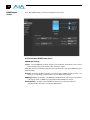
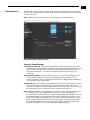
The T-TAP’s HDMI output is shown and configured in this screen.
AJA Control Panel, HDMI Output Screen
HDMI Output Settings
Source— (used for KONA/Io products only) the Source pulldown menu allows you to choose
between the primary and secondary video format for output.
Pulldowns are also provided for configuring the video Protocol, Color Space, RGB Range, and
Audio Channels:
Protocol—the Protocol pulldown allows you to choose either “HDMI” or “DVI” protocol—use
DVI if you’re outputting to a DVI monitor using an HDMI to DVI adapter.
RGB Range (SMPTE or Full levels)—the RGB Range pulldown menu allows you to select either
Full range (0-1023) or SMPTE range (typically 64-940) for RGB color output.
Audio Channels—an Audio Channel pulldown allows you to select the number of
embedded audio channels (2 or 8) for the HDMI output.
T-TAP Installation and Operation Guide — Control Panel Operation
Video Setup Screen
T-TAP provides a high-quality digital video output in interlaced (i), progressive (p), or progressive
segmented frame (psf ) formats. This screen shows the current settings for frame formatting of
the digital video output, and allows you to re-configure it when desired.
1
AJA Control Panel, Video Setup Screen
Setup Screen Settings
Progressive Format—Choose between progressive (p) and progressive segmented frame (psf)
format for your digital output.
QuickTime Video Output Filter—The QuickTime Video Output Display Filter is designed to
help manage the comprehensive list of video outputs that may be available to applications.
By selecting the checkbox next to specified parameters, the video outputs related to these
specified parameters are enabled as possible video outputs for applications. For example, if
the checkbox next to 25/50 is unchecked, 50Hz video outputs are deselected and would
not be available to the user’s editing application. To avoid confusion when working in a
particular editorial environment, you might choose to leave 50Hz unchecked if working
solely in a 60Hz editorial environment. The same might be true if you do not intend to work
with true progressive 1080 material.
21
22
Conversion Screen
This screen offers controls that determine how the card behaves with 3rd-party applications.
AJA Control Panel, Conversion Screen
Pause On—these two choices determine what happens when the editing application is
paused in stop mode:
Full Frame: both fields are displayed resulting in some jitter while paused.
Single Field: a single field is displayed, showing no flicker (useful when color
correcting or whenever the flickering would be a distraction).
Software Conversion—the value selected in this pulldown is used whenever, due to format
selection, you’ve chosen to do 24 frames-per-second to 30 conversion where extra fields
will be added to pad the existing ones. Depending on video content, selection of
different field patterns may be useful in reducing jitter due to the content of adjacent
fields. The numbers in the pattern choices specify the frequency with which inserted
fields will be repeated. For example, “2:3:2:3” means duplicate a field twice, then the next
field three times, then the next twice, and then back to three times.
3-2 Pulldown Offset—select a frame offset value from 0 to 4.
T-TAP Installation and Operation Guide — Control Panel Operation
Timecode Screen
The timecode is used for both monitoring the RP-188 timecode embedded in the digital data
stream and for selecting a timecode offset (if required) for the attached VTR—and sent during
assemble-edit mode.
Note: SMPTE 12M-2 is the updated name and specification for what was RP-188.
1
AJA Control Panel, Timecode Screen
Timecode Screen Settings
Use QuickTime Timecode—when checked, this directs T-TAP to output timecode from the
QuickTime timecode track. When not checked, T-TAP uses the Output Timecode Offset value
plus the number of frames into the movie. Note: not all QuickTime applications use or
support timecode tracks—so sometimes the QuickTime timecode is missing or not
meaningful.
Output Timecode Offset (entry field and FPS pull-down)—this text entry field allows you to
specify a timecode offset for use with your editing application that supports usercontrolled timecode offsets. Use that same value here as the “Output Timecode Offset” to
ensure the timecode is synchronized.
Timecode Burn-in—this pulldown selects whether the timecode value is “burned-in” on video
output from T-TAP. If set to “OFF”, timecode will not be keyed over the video. If set to
“timecode”, then the timecode value will be keyed over the output video. This can be useful
for synchronizing, choosing edit points, dailies, and many other purposes.
Note: SMPTE RP 188 defines a standard for the transmission of time code and control code in
the ancillary data space of a digital television data stream. Time code information is
transmitted in the ancillary data space as defined in ANSI/SMPTE 291M. Multiple codes can
be transmitted within a single digital video data stream. Other time information, such as
real time clock, DTTR tape timer information, and other user-defined information, may also
be carried in the ancillary time code packet instead of time code. The actual information
transmitted through the interface is identified by the coding of a distributed binary bit.
Equipment manufacturers can use the meta data for different purposes.
23
24
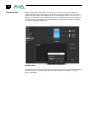
Presets Screen
After configuring the AJA Control Panel screens, you can then save all your settings as a
snapshot for later recall—called a preset. In this way, you can organize presets for all your
typical tasks, eliminating time-robbing manual re-configuration each time. To save a preset,
simply go to the Presets screen and click “Save Preset”. A dialog will be presented asking you
for a name; enter a meaningful name and click “OK”. Thereafter the preset will be available
under the Control Panel “Presets” list.
Presets Screen
From the Presets screen you can manage your collection of presets easily. To Load or Delete a
stored preset, just select it with your mouse and then click the “Load Preset” or “Delete”
button respectively.
T-TAP Installation and Operation Guide — Control Panel Operation
Firmware Screen
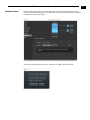
Use the Firmware Screen to access the firmware install screen. Click install to erase current
firmware and load the firmware version contained in your current driver installation. Note the
Installation message shown below.
1
Firmware Update
You will be required to power-cycle your computer and T-TAP to finish the update.
Update Completed
25
26
Info Screen
This screen shows the T-TAP software files that have been installed on your system. This
information may be needed if you talk to an AJA Customer Service representative to
determine if files are missing or need updating.
Information Screen
Appendix A: Specifications
Video Formats
• 525i 29.97
• 625i 25
• 720P 50,59.94,60
• 1080i 25, 29.97, 30
• 1080PsF 23.98, 24, 25, 29.97, 30
• 1080p 23.98, 24, 25, 29.97, 30
• 2K (4:2:2)
• 2K 1080p 23.98, 24, 25
• 2K 1080PsF 23.98, 24, 25
Host Computer Connection
• 1x Thunderbolt™ input
Video Output
• 1x SDI output
• 1x HDMI v1.3 output (Compressed 3D support)
• Supported Video Formats
Audio Support
• 24-bit SDI embedded audio, 8-channel, 48kHz
• 24-bit HDMI embedded audio, 8-channel, 48kHz
Physical
• Height: 2.28" (5.8cm)
• Width: 2.95" (7.5cm)
• Depth: 1.18" (3cm)
A
1
1
28
Appendix B: Safety & Compliance
Federal Communications Commission (FCC) Compliance Notices
Class B Interference
Statement
This equipment has been tested and found to comply with the limits for a Class B digital
device, pursuant to Part 15, Subpart B of the FCC Rules. These limits are designed to provide
reasonable protection against harmful interference in a residential installation. This
equipment generates, uses, and can radiate radio frequency energy and, if not installed and
used in accordance with the instructions, may cause harmful interference to radio
communications. However, there is no guarantee that interference will not occur in a
particular installation. If this equipment does cause harmful interference to radio or television
reception, which can be determined by turning the equipment off and on, the user is
encouraged to try to correct the interference by one or more of the following measures:
• Reorient or relocate the receiving antenna.
• Increase the separation between the equipment and receiver.
• Connect the equipment into an outlet on a circuit different from that to which the
receiver is connected.
• Consult the dealer or an experienced radio/TV technician for help.
FCC Caution
This device complies with Part 15 of the FCC Rules. Operation is subject to the following two
conditions: (1) This device may not cause harmful interference, and (2) this device must accept
any interference received, including interference that may cause undesired operation.
Canadian ICES Statement
Canadian Department of Communications Radio Interference Regulations
This digital apparatus does not exceed the Class B limits for radio-noise emissions from a
digital apparatus as set out in the Radio Interference Regulations of the Canadian Department
of Communications. This Class B digital apparatus complies with Canadian ICES-003.
Règlement sur le brouillage radioélectrique du ministère des Communications
Cet appareil numérique respecte les limites de bruits radioélectriques visant les appareils
numériques de classe B prescrites dans le Règlement sur le brouillage radioélectrique du
ministère des Communications du Canada. Cet appareil numérique de la Classe B est
conforme à la norme NMB-003 du Canada.
B
1
1
30
European Union and European Free Trade Association (EFTA) Regulatory Compliance
This equipment may be operated in the countries that comprise the member countries of
the European Union and the European Free Trade Association. These countries, listed in the
following paragraph, are referred to as The European Community throughout this
document:
AUSTRIA, BELGIUM, BULGARIA, CYPRUS, CZECH REPUBLIC, DENMARK, ESTONIA, FINLAND,
FRANCE, GERMANY, GREECE, HUNGARY, IRELAND, ITALY, LATVIA, LITHUANIA, LUXEMBOURG,
MALTA, NETHERLANDS, POLAND, PORTUGAL, ROMANIA, SLOVAKIA, SLOVENIA, SPAIN,
SWEDEN, UNITED KINGDOM, ICELAND, LICHTENSTEIN, NORWAY, SWITZERLAND
Declaration of
Conformity
Marking by this symbol indicates compliance with the Essential Requirements of the EMC
Directive of the European Union 2004/108/EC.
This equipment meets the following conformance standards:
Safety:
CB- IEC 60065:2001 + A1:2005
NRTL - UL 60065:2003 R11.06, CSA C22.2 NO. 60065:2003 + A1:06
GS - EN 60065:2002 + A1
Additional licenses issued for specific countries available on request.
Emissions:
EN 55103-1: 2009
EN61000-3-2:2006, EN61000-3-3:1995 +A1:2001 +A2:2005
CISPR 22: 2006
Immunity:
EN 55103-2: 2009
EN61000-4-2:1995 + A1:1999 + A2:2001, EN61000-4-3:2006, EN61000-4-4:2004,
EN 61000-4-5: 2005, EN 610004-6:2007, EN61000-4-11:2004
The product is also licensed for additional country specific standards as required for
the International Marketplace.
Warning!
This is a Class B product. In a domestic environment, this product may cause
radio interference, in which case, the user may be required to take appropriate
measures.
Achtung! Dieses ist ein Gerät der Funkstörgrenzwertklasse B. In Wohnbereichen können
bei Betrieb dieses Gerätes Rundfunkstörungen auftreten, in welchen Fällen der Benutzer für
entsprechende Gegenmaßnahmen verantwortlich ist.
Attention! Ceci est un produit de Classe B. Dans un environnement domestique, ce produit
risque de créer des interférences radioélectriques, il appartiendra alors à l’utilisateur de
prendre les mesures spécifiques appropriées.
T-TAP Installation and Operation Manual — Korean Compliance Statement
Korean Compliance Statement
1
Taiwan Compliance Statement
This is a Class A product based on the standard of the Bureau of Standards, Metrology and
Inspection (BSMI) CNS 13438, Class A.
Translated caution statements, warning conventions and warning messages
The following caution statements, warning conventions, and warning messages apply to this
product and manual.
Warning Symbol
Hazard Warning
Caution Symbol
31
32
Before operating your AJA unit, read the instructions in this document
Warning!
Read and follow all warning notices and instructions marked on the product or
included in the documentation.
Avertissement ! Lisez et conformez-vous à tous les avis et instructions
d'avertissement indiqués sur le produit ou dans la documentation.
Warnung! Lesen und befolgen Sie die Warnhinweise und Anweisungen, die auf dem Produkt
angebracht oder in der Dokumentation enthalten sind.
¡Advertencia! Lea y siga todas las instrucciones y advertencias marcadas en el producto o
incluidas en la documentación.
Aviso! Leia e siga todos os avisos e instruções assinalados no produto ou incluídos na
documentação.
Avviso! Leggere e seguire tutti gli avvisi e le istruzioni presenti sul prodotto o inclusi nella
documentazione.
Warning!
Do not use this device near water and clean only with a dry cloth.
Avertissement! N'utilisez pas cet appareil près de l'eau et nettoyez-le seulement
avec un tissu sec..
Warnung! Das Gerät nicht in der Nähe von Wasser verwenden und nur mit einem trockenen
Tuch säubern.
¡Advertencia! No utilice este dispositivo cerca del agua y límpielo solamente con un paño
seco.
Aviso! Não utilize este dispositivo perto da água e limpe-o somente com um pano seco.
Avviso! Non utilizzare questo dispositivo vicino all'acqua e pulirlo soltanto con un panno
asciutto.
Warning!
Do not block any ventilation openings. Install in accordance with the
manufacturer's instructions.
Avertissement ! Ne bloquez aucune ouverture de ventilation. Suivez les instructions du
fabricant lors de l'installation.
Warnung! Die Lüftungsöffnungen dürfen nicht blockiert werden. Nur gemäß den
Anweisungen des Herstellers installieren.
¡Advertencia! No bloquee ninguna de las aberturas de la ventilación. Instale de acuerdo con
las instrucciones del fabricante.
Aviso! Não obstrua nenhuma das aberturas de ventilação. Instale de acordo com as
instruções do fabricante.
Avviso! Non ostruire le aperture di ventilazione. Installare in conformità con le istruzioni del
fornitore.
T-TAP Installation and Operation Manual — Before operating your AJA unit,
Warning!
Do not install near any heat sources such as radiators, heat registers, stoves, or other
apparatus (including amplifiers) that produce heat.
Avertissement ! N'installez pas l'appareil près d'une source de chaleur telle que des radiateurs,
des bouches d'air de chauffage, des fourneaux ou d'autres appareils (amplificateurs compris)
qui produisent de la chaleur.
Warnung! Nicht in der Nähe von Wärmequellen wie Heizkörpern, Heizregistern, Öfen oder
anderen Wärme erzeugenden Geräten (einschließlich Verstärkern) aufstellen.
¡Advertencia! No instale cerca de fuentes de calor tales como radiadores, registros de calor,
estufas u otros aparatos (incluidos amplificadores) que generan calor.
1
Aviso! Não instale perto de nenhuma fonte de calor tal como radiadores, saídas de calor, fogões
ou outros aparelhos (incluindo amplificadores) que produzam calor.
Avviso! Non installare vicino a fonti di calore come termosifoni, diffusori di aria calda, stufe o
altri apparecchi (amplificatori compresi) che emettono calore.
Warning!
Refer all servicing to qualified service personnel. Servicing is required when the
device has been damaged in any way, such as power-supply cord or plug is
damaged, liquid has been spilled or objects have fallen into the device, the device
has been exposed to rain or moisture, does not operate normally, or has been
dropped.
Avertissement ! Référez-vous au personnel de service qualifié pour tout entretien. L'entretien
est exigé quand l'appareil a été endommagé de quelque manière que ce soit, par exemple
lorsque le cordon d'alimentation ou la prise sont endommagés, que du liquide a été versé ou
des objets sont tombés dans l'appareil, que l'appareil a été exposé à la pluie ou à l'humidité, ne
fonctionne pas normalement ou est tombé.
Warnung! Das Gerät sollte nur von qualifizierten Fachkräften gewartet werden. Eine Wartung
ist fällig, wenn das Gerät in irgendeiner Weise beschädigt wurde, wie bei beschädigtem
Netzkabel oder Netzstecker, falls Flüssigkeiten oder Objekte in das Gerät gelangen, das Gerät
Regen oder Feuchtigkeit ausgesetzt wurde, nicht ordnungsgemäß funktioniert oder fallen
gelassen wurde.
¡Advertencia! Consulte al personal calificado por cuestiones de reparación. El servicio de
reparación se requiere cuando el dispositivo ha recibido cualquier tipo de daño, por ejemplo
cable o espigas dañadas, se ha derramado líquido o se han caído objetos dentro del dispositivo,
el dispositivo ha sido expuesto a la lluvia o humedad, o no funciona de modo normal, o se ha
caído.
Aviso! Remeta todos os serviços de manutenção para o pessoal de assistência qualificado. A
prestação de serviços de manutenção é exigida quando o dispositivo foi danificado mediante
qualquer forma, como um cabo de alimentação ou ficha que se encontra danificado/a, quando
foi derramado líquido ou caíram objectos sobre o dispositivo, quando o dispositivo foi exposto à
chuva ou à humidade, quando não funciona normalmente ou quando foi deixado cair.
Avviso! Fare riferimento al personale qualificato per tutti gli interventi di assistenza. L'assistenza
è necessaria quando il dispositivo è stato danneggiato in qualche modo, ad esempio se il cavo di
alimentazione o la spina sono danneggiati, è stato rovesciato del liquido è stato rovesciato o
qualche oggetto è caduto nel dispositivo, il dispositivo è stato esposto a pioggia o umidità, non
funziona correttamente o è caduto.
33
34
Warning!
Only use attachments and accessories specified and/or sold by the manufacturer.
Avertissement ! Utilisez seulement les attaches et accessoires spécifiés et/ou
vendus par le fabricant.
Warnung! Verwenden Sie nur Zusatzgeräte und Zubehör angegeben und / oder verkauft
wurde durch den Hersteller.
¡Advertencia! Utilice solamente los accesorios y conexiones especificados y/o vendidos por
el fabricante.
Aviso! Utilize apenas equipamentos/acessórios especificados e/ou vendidos pelo fabricante.
Avviso! Utilizzare soltanto i collegamenti e gli accessori specificati e/o venduti dal produttore.
Warning!
Unplug this device during lightning storms or when unused for long periods of
time.
Avertissement ! Débranchez cet appareil pendant les orages avec éclairsou s'il est inutilisé
pendant de longues périodes.
Warnung! Das Gerät ist bei Gewitterstürmen oder wenn es über lange Zeiträume ungenutzt
bleibt vom Netz zu trennen.
¡Advertencia! Desenchufe este dispositivo durante tormentas eléctricas o cuando no se lo
utilice por largos periodos del tiempo.
Aviso! Desconecte este dispositivo da tomada durante trovoadas ou quando não é utilizado
durante longos períodos de tempo.
Avviso! Utilizzare soltanto i collegamenti e gli accessori specificati e/o venduti dal produttore,
quali il treppiedi e l'esoscheletro.
Warning!
Do not open the chassis. There are no user-serviceable parts inside. Opening the
chassis will void the warranty unless performed by an AJA service center or
licensed facility.
Avertissementþ! Ne pas ouvrir le châssis. Aucun élément à l’intérieur du châssis ne peut être
réparé par l’utilisateur. La garantie sera annulée si le châssis est ouvert par toute autre
personne qu’un technicien d’un centre de service ou d’un établissement agréé AJA.
Warnung! Öffnen Sie das Gehäuse nicht. Keine der Geräteteile können vom Benutzer
gewartet werden. Durch das Öffnen des Gehäuses wird die Garantie hinfällig, es sei denn,
solche Wartungsarbeiten werden in einem AJA-Service-Center oder einem lizenzierten
Betrieb vorgenommen.
¡Advertencia! No abra el chasis. El interior no contiene piezas reparables por el usuario. El
abrir el chasis anulará la garantía a menos que se lo haga en un centro de servicio AJA o en un
local autorizado.
Advertência! Não abra o chassi. Não há internamente nenhuma peça que permita
manutenção pelo usuário. Abrir o chassi anula a garantia, a menos que a abertura seja
realizada por uma central de serviços da AJA ou por um local autorizado.
Avvertenza! Non aprire lo chassis. All’interno non ci sono parti riparabili dall’utente.
L’apertura dello chassis invaliderà la garanzia se non viene effettuata da un centro ufficiale o
autorizzato AJA.
T-TAP Installation and Operation Guide — Index
Index
Symbols
.pkg 7
Numerics
2:3:2:3 22
24 fps to 30 fps conversion 22
25/50 21
3rd-party software 13
A
Adobe Premiere 13
AJA Control Panel 11, 15
AJA website 6
Audio 2
B
Black output 18
block diagram 15
block diagram element 17
Block Diagram Screen 17
Blue 17
C
Cable Connections 4
Color Meanings, Control Panel 17
context-sensitive icons 17
Control Panel, AJA Software 2
Control Panel, Function Screens 17
Control Screen 23
Control Screen Settings 18
controlling application 16
Conversion Icons, Control Panel 17
D
data rate calculation 3
Default Output 18
Default Video Output 18
download 6
E
embedded audio 4
F
Features, T-TAP software 2
Format Screen 19
Format Screen Settings 19
Framebuffer 16
Full Frame 22
G
Gatekeeper 7
H
HDCP 4
1
35
36
HDMI audio output 20
HDMI output 20
HDMI v1.3a 4
I
icons 17
Icons, Control Panel 17
Info Screen 26
Input/Output 17
Installation Overview 5
installed software files 26
Installer Screen 8
Installing Io Software 6
L
Log On Authenticate Prompt 8
M
Manual 4
Mountain Lion 7
O
Open I/O Plug-in for Avid 13
OS X installer files 7
output video black 18
P
plug-ins 6
Plug-ins for Adobe CS6 13
Presets 24
previously installed software 6
Primary Format 16
primary formats 2
progressive frame 19
progressive segmented frame 19
psf 19
Q
QuickTime Video Output Display Filter 21
QuickTime™ Drivers 2
QuickTime™ drivers 2
R
Red 17
Requirements, System 3
RP 188 definition 23
RP-188 23
S
SDI cables 5
set up 5
shipping 3
Single Field 22
SMPTE RP 188 23
T-TAP Installation and Operation Guide — Index
snapshot, Control Panel settings 24
Software 2
software and documentation link 3
software files installed 26
software installers 6
Software License Agreement Screen 9
software, 3rd-party 15
support page 13
system configuration, Control Panel 15
System Connections 6
System software 6
system test 3
T
Test Pattern 18
third-party software 6
Thunderbolt cabling 4
Timecode Offset 23
Timecode Screen 23
Timecode Screen Settings 23
T-TAP
connections 4
driver software 5, 6
Formats 19
power 5
software download 7
U
uninstall 6
unpack 3
Up/Down arrows 17
url 3
user and password 8
V
Video Format 19
Video Input 27
Video Monitor 5
video path 17
Video+Key 20
VTR 5
1
37