1
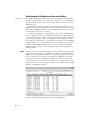
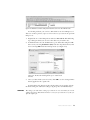
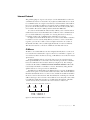
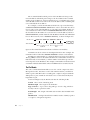
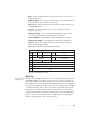
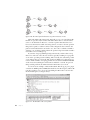
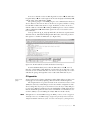
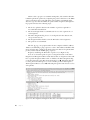
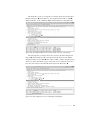
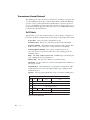
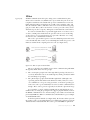
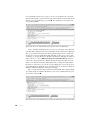
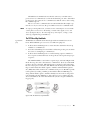
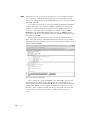
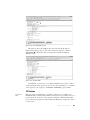
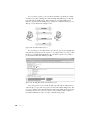
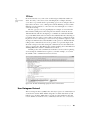
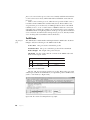
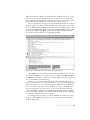
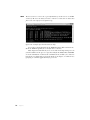
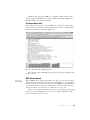
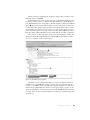
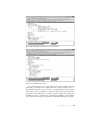
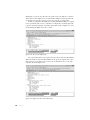
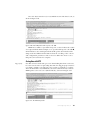
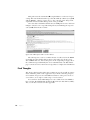
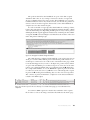
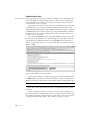
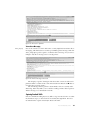
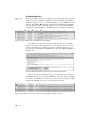
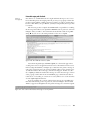
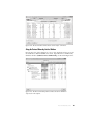
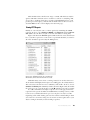
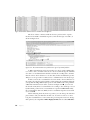
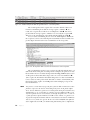
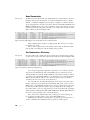
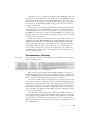
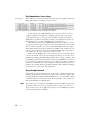
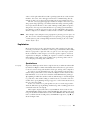
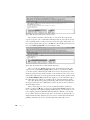
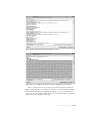
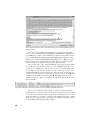
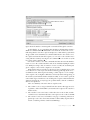
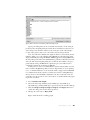
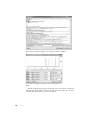
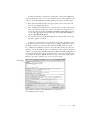
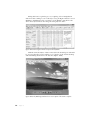
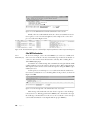
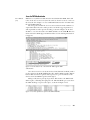
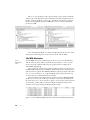
Along with all of the wireless information this command provides, such as the wireless extended service set ID (ESSID) and frequency, notice that the second line under Eth1 shows that the mode is currently set to managed. This is what we want to change. In order to change the Eth1 interface to monitor mode, you must be logged in as the root user, either directly or via the switch user (su) command, as shown here. $ su Password: <enter root password here> Once you’re root, you can type commands to configure the wireless interface options. To configure Eth1 to operate in monitor mode, type this: # iwconfig eth1 mode monitor Once the NIC is in monitor mode, running the iwconfig command again should reflect your changes. Now ensure that the Eth1 interface is operational by typing the following: # iwconfig eth1 up We’ll also use the iwconfig command to change the channel we are listening on. Change the channel of the Eth1 interface to channel 3 by typing this: # iwconfig eth1 channel 3 NOTE You can change channels on the fly as you are capturing packets, so don’t hesitate to do this at will. This iwconfig command can also be scripted to make the process easier. When you have completed these configurations, start Wireshark and begin your packet capture. 802.11 Packet Structure 80211beacon .pcap The primary difference between wireless and wired packets is the addition of the 802.11 header. This is a layer 2 header that contains extra information about the packet and the medium on which it is transmitted. There are three types of 802.11 packets: Management These packets are used to establish connectivity between hosts at layer 2. Some important subtypes of management packets include authentication, association, and beacon packets. Control Control packets allow for delivery of management and data packets and are concerned with congestion management. Common subtypes include request-to-send and clear-to-send packets. Wireless P a ck et Analysis 223