1
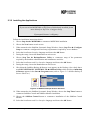
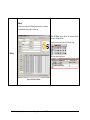
Generating a Statistics Report
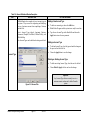
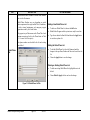
Comprehensive reports are generated according to
statistical information for either valid or disabled
accounts.
•
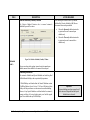
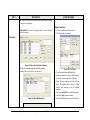
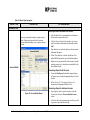
Select the period required in the Selected Period section
(dates are pre-set for the last seven days)
•
Select the required grouping from the Group Information
By pull down menu
•
Select the check box/es for the type of information that you
wish to include in the report
•
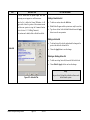
All valid accounts appear in the Account Number section
•
Select the Show Disabled Accounts check box if you wish
to generate a report for disabled accounts
•
Select the Choose Individual Account check box if you
wish to generate a report on a specific account and choose
the account number from the list
•
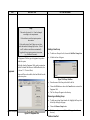
If choosing an individual account, choose the Add button
and the account will appear in the Selected Items viewer
(any number of accounts can be added)
•
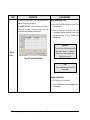
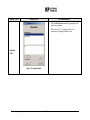
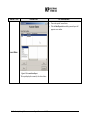
Choose the Activate check boxes on any of the Received
Event fields and select a field within each one
Statistics
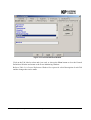
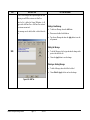
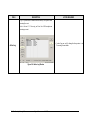
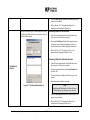
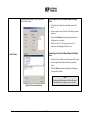
Figure 5-14: Statistics Report
Help:
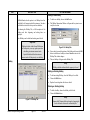
By choosing the Clear button, all selected items are
deleted and you may commence a new selection.
SaMSon Security Monitoring Software
Page 143
24/12/03