1
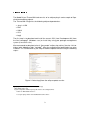
1. Click on “Help/Software Updates”
2. Click on “Available Software”
3. Click on “Add Site”
4. Add the URL: “http://www.OpenArchitectureWare.org/updatesite/milestone/site.xml”
5. The new update site is added to the overview.
6. Select the combobox of the OpenArchitectureWare and click on install.
7. Restart eclipse.
You can now import the provided OpenArchitectureWare projects into your workspace.
The classpath of these project have to be set manually. Right-click on each project
and select the “Properties” option. Go to the “Java Build Path” window and remove all
entries listed in the “Library” tab, except the J< RE.
If you have removed the JRE entry as well add it again by clicking on “Add Library” and
chose there “JRE System Library” and click on the “Next” button.
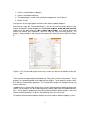
The next step is to add all necessary libraries and plugins. The files can be found in
the plugin folder of the current eclipse installation. Click on the “External Jars” button,
brows to the plugin folder of your eclipse installation and select the following jar files
(only the prefix is listed):
• org.eclipse.emf.common
• org.eclipse.uml2.uml
• org.eclipse.emf.ecore
• org.openarchitectureware.core.workflow
• org.apache.commons.cli
• org.apache.commons.logging
• org.openarchitectureware.core.xpand2
• org.openarchitectureware.core.expressions
• org.openarchitectureware.core.emftools
• org.eclipse.emf.ecore.xmi
• org.openarchitectureware.uml2.adapter
• org.eclipse.emf.mapping.ecore2xml
• org.eclipse.uml2.uml.resources
• org.antlr
• org.eclipse.uml2.common
5