1
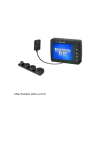
迷你便攜式 MPEG-4 錄影機 使用說明書 User Manual 安全說明 Security Instruction This product is used to control micro-computer chip. At you before using this product, please carefully read the instructions it will let you enjoy various features of the machine, For you to provide more convenient use. If the low battery Recording audio and video or transfer files may cause serious system errors, resulting in data loss! Don't open the machine cover! Otherwise there will be an electric shock hazard! Touch-DC converter components May lead to electric shock In order to prevent the use of DC converter operation when questions, please read the [Manual] Note: Avoid the use of this product contact with water or other liquids, or else there will be an electric shock or fire danger! Your safety, please use the Product to provide power converters (for the use of non-provided converter damage caused by products, manufacturers takes no responsibility for), please note I would like to use with the converter in line with the socket, otherwise there will be an electric shock or fire danger to DC converter plug is firmly inserted into a power outlet. Security Instruction Do not use a damaged battery or charger -use, please fully charge the battery. -charge in order to ensure its longer life, At short-term use after the battery will shorten battery life, in this case, repeatedly for the battery is fully charged and then fully discharged several times, so you can use the battery a longer period of time tery short time, replace the new rechargeable batteries. time. DC converter or a rechargeable battery side short-circuit, or may cause electric shock or fire : Product features ● storage full over write automatically ● implementation of emergency fast video switch ● realize the remote control switch machine ● audio-visual real-time video, real-time video time display ● 960 * 240 high-definition 2.5-inch LCD screen ● built-in high sensitivity microphone recording ● support 8GB TF memory card ● Video resolution: 640 * 480/320 * 240 optional ● video frames 10-30 frames / second optional ● High-speed USB2.0 interface. ● audio and video input / output; ● configuration removable high-capacity lithium battery, 5 hours of continuous playback, video recording up to 3 hours standby Parts Introduction 1. Power Switch 2. Record 3. button Select Key 4. Select 5. ESC Key button 9. Built-in 10. microphone Video / audio input 11. Charging Indicator 12. Recording 13. Video Indicator LED / audio output 6. Enter button 14. USB port 7. TF card slot 15. Mode switching key 8. Loudspeakers Remote controller Introduction 1. Antenna 4. Power OFF 2. LED Indicator 5.key ring 3. Power ON User Guide Hold the Power On/Off button for 3 Seconds to turn On/Off the Device. Interface Diagram: Mode selection ● Video Record - Video Recording Mode ● video playback - the video file playback mode ● Audio recording – Audio recording mode ● audio playback - the audio file playback mode ● System Setting - System Settings The use of model selection ■ Video Record Mode -■ At the main menu select [video Record] icon to enter the video mode 1. Into the (video Record) mode. Screen appears to the camera collected images, 2. By [OK] button to enter the [Record Settings], then [Menu] key to exit. (Note: this function should not operate simultaneously at the next video). This feature please refer to[Record Settings] Operational Guidelines. 3. According to [●] key to record the audio and video camera images, the left video lantern light. Press ESC button to quit recording. Quit recording after recording the file will be automatically stored in the (video playback) file folder. Man-in memory, the recording will automatically stop and automatically stored in the (video playback) file folder. Mode Selection ■ Recorder Video Playback Mode - Select [ Playback] Icon in the Main Menu Operational Guidelines: 1. To enter the menu (video playback) mode. Screen appears all the fragments of the screen recording, use the button to select the necessary watch footage recorded by the OK key to watch. 2. Such as to delete files, press the [●] key and then select [Delete] and press [OK] button to confirm. 3. Such as to copy files, press the [●] key and then select [Copy ways] and [OK] button to confirm. Mode Selection ■ Audio Recording mode - Select [ Audio Record ] Icon in the Main Menu Operational Guidelines: . The main menu to enter the (Audio recording) mode appears when the screen interface to record instructions. By recording [●] button to record the local built-in microphone / external active high-sensitivity microphone to receive all the audio. In the recording studio when the left pulse of flashing lights. (Built-in microphone / external active high-sensitivity microphone selection) this feature please refer to [Record Settings] – mic select. Press [ESC] key to stop recording. Quit recording after recording the file will be automatically stored in the (audio playback) file folder. Man-in memory, the recording will automatically stop and automatically stored in the (audio playback) file folder. Mode Selection ■ Audio playback mode - at the main menu select [sound recording playback] icon to enter the recording mode 图片要换成英文的 Operational Guidelines: 1. To enter the (Audio playback) mode, the screen appears all the good information has been recorded, use the buttons necessary to enter the selection mode then select the required recording playback for playback. 2. Such as to delete files, press the [●] key and then select [Delete] and press [OK] button. 3. Such as to copy files, press the [●] key and then select [Copy ways] and [OK] button. Mode Selection ■ System Configuration Mode - At the main menu select [Settings] icon to enter the system settings mode Operational Guidelines: Use keys to select and then click [OK] to enter sub-menu. 1. Storage select - set the video store directory - Memory - SD Card 2. Storage info - has been used to check the memory status - Memory - SD Card 3. Formatting - set storage format - Memory - SD Card (One was confirmed that all data will be deleted.) 4. System Time settings - set the system date and time (recommended prior to first use the set) 5. Display settings - set AV Output - LCD output - TV_PAL output - TV_ NTSC output 6. Brightness – Setting for the system Brightness Button to reduce the brightness or increase the brightness. 7. Language settings - set the system language - Chinese / 中文 - English /英文 (In the updated version will be more language selection) 1. 8. Default – Setting for reset the factory original setting - Yes - No ■ Video settings - in the [video] mode, press [OK] button to enter the [Video Settings] menu, press [Esc] key to exit. Operational Guidelines: Use keys to select and then click [OK] to enter sub-menu. 1. Video Resolution - Set the video resolution (Video information screen size and great little noodle file settings depending on the resolution) - 640 x 480 - 320 x 240 2. DIP switch settings - set DIP switch-Q position - Lock and Standby In this mode selection: In the case of shutdown when the Slide Switches Q assigned to the location of the shortcut to start the machine automatically to enter the video mode, the screen appears to the camera images collected at the same time display backlight lamp clearance out, open the lock button function. (DIP switch back position N, the machine back the video mode, all functions return to normal) At any boot mode DIP switch assigned to put the location of Q: The display's backlight to turn off lights, open the lock button function. (N Slide Switches back position, the screen backlight lights opened out, key lock feature off, return the original model.) - Lock,Standby and Record Video Selection in this mode: Regardless of the machine in any status under the DIP switch assigned to the location of Q, the faster boot drive (shock oscillation time) and enter the video mode to record audio and video camera images of the left video lantern light, while the screen backlight to turn off lights, open the lock button function. (DIP switch back position N, the machine (a vibrator vibration twice) the left side of the video after the lights went out save by recording just the audio and video camera data to the screen (video playback) file folder and then shutdown . - Lock,Standby and Record Audio Selection in this mode: Regardless of the machine in any status under the DIP switch assigned to the location of Q, the faster boot drive (shock oscillation time) and enter the recording mode to record the local built-in microphone / external active high sensitive microphone to receive all the audio, the left recording pulse of flashing lights. At the same time, the backlight display lights are switched off, open the lock button function. (DIP switch back position N, the machine (a vibrator vibration twice) just after the preservation of audio data to recording (audio playback) file folder and then shutdown. 注:在 Q 的模式時不可以同時連接 USB 到電腦 3. Recording settings - settings used when recording microphone - Internal mice - External mic (Note: must use the following DC-5V active high-sensitivity microphone professional. If you have any questions may consult the local vendors) 4. Timestamp - set the video information is incidental to the time display - On - Off 5. Framerate - set the video frame rate when the data information (Video data quality and file sizes depend on the quality of frame rate settings) - 10FPS - 20FPS - 30FPS 6. Remote Control Settings - Set the remote control function - Remote control OFF Selection in this mode: the machine from the controller to control - Boot and Record video Selection in this mode: the machine status at shutdown by remote control under the B button, the machine faster boot (vibrator vibration once) and enter the video mode to record audio and video camera images, the left video lantern light At the same time, the screen's backlight to turn off lights, open the lock button function. A button by remote control, the machine (a vibrator vibration twice) the left side of the video after the lights went out save by recording just the audio and video camera data to the screen (video playback) file folder and then shutdown -Boot and record audio Selection in this mode: the machine status at shutdown by remote control under the B button, the machine faster boot (vibrator vibration time) to enter the recording mode to record the local built-in microphone / external active high-sensitivity microphone to receive all the audio , at the left side of recording when recording pulse of flashing lights. At the same time, the backlight display lights are switched off, open the lock button function. A button by remote control, the machine (a vibrator vibration twice) just after the preservation of audio data to recording (audio playback) file folder and then shutdown. Note: not at Slide Switches Slide Switches Q appropriated for state use. 7. Standby video - standby time video settings - 10 second - 20 second - Never Note: This function only at the status N Slide Switches can be achieved. Note: not at Slide Switches Slide Switches Q appropriated for state use. 8.Overwrite Enable - storage replication function to automatically set - ON ON mode selection: the system default local storage is set to automatic replication, when the memory storage of video data at the remaining space 1MB, the machine will delete the earliest days of video information, then continue to the video storage, preservation the latest video information. Note: This function must be careful to use to open the automatic replication feature will be automatically deleted when the first video information! - OFF Turn off selection mode: the local system will be at the remaining storage space 0MB, stop recording, then the screen shows the storage space is full tips, issued a vibrator storage space is full signal: (signals: Indirect non-stop vibration) █ Fittings Come Ks-650 Digital Video Recorder 1. KS-650 Mobile Video Recorder * 1PCS 2. DC5V 2A charger * 1PCS 3. User Guide * 1PCS 4. USB PC Line * 1PCS 5. AV Line * 1PCS 6. Headset * 1PCS 7. Lithium electric 1800MA * 1PCS