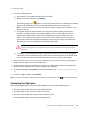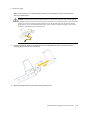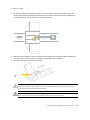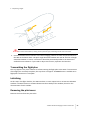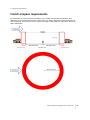
1
USER GUIDE
TRIMBLE UX5 AERIAL
IMAGING SOLUTION
1
Version 1.10
Revision A
October 2013
Legal Information
Trimble Navigation Limited
935 Stewart Drive
Sunnyvale, California 94085
U.S.A.
www.trimble.com
Copyright and Trademarks
© 2013, Trimble Navigation Limited. All rights reserved.
Trimble and the Globe and Triangle logo are trademarks of Trimble
Navigation Limited, registered in the United States and in other
countries. Access is a trademark of Trimble Navigation Limited.
Microsoft and Windows are either registered trademarks or trademarks
of Microsoft Corporation in the United States and/or other countries.
All other trademarks are the property of their respective owners.
COCOM Limits
The U.S. Department of Commerce requires that all exportable GPS
products contain performance limitations so that they cannot be used in
a manner that could threaten the security of the United States. The
following limitations are implemented on this product:
– Immediate access to satellite measurements and navigation results is
disabled when the receiver velocity is computed to be greater than
1,000 knots, or its altitude is computed to be above 18,000 meters. The
receiver GPS subsystem resets until the COCOM situation clears. As a
result, all logging and stream configurations stop until the GPS
subsystem is cleared.
Notices
United States
Certification number: FCC ID HSW-DNT2400P.
This equipment has been tested and found to comply with the limits for
a Class A digital device, pursuant to part 15 of the FCC Rules. These limits
are designed to provide reasonable protection against harmful
interference when the equipment is operated in a commercial
environment. This equipment generates, uses, and can radiate radio
frequency energy and, if not installed and used in accordance with the
instruction manual, may cause harmful interference to radio
communications. Operation of this equipment in a residential area is
likely to cause harmful interference in which case the user will be
required to correct the interference at his own expense.
Changes and modifications not expressly approved by the manufacturer
or registrant of this equipment can void your authority to operate this
equipment under Federal Communications Commission rules.
Canada
Under Industry Canada regulations, this radio transmitter may only
operate using an antenna of a type and maximum (or lesser) gain
approved for the transmitter by Industry Canada.
To reduce potential radio interference to other users, the antenna type
and its gain should be so chosen that the equivalent isotropically
radiated power (e.i.r.p.) is not more than that necessary for successful
communication.
This device complies with Industry Canada licence-exempt RSS standard
(s). Operation is subject to the following two conditions:
(1) this device may not cause interference, and
(2) this device must accept any interference, including interference that
may cause undesired operation of the device.
This class A digital apparatus complies with Canadian ICES-003.
Certification number IC: 4492A-DNT2400P.
This apparatus complies with Canadian RSS-210.
Conformément à la réglementation d'Industrie Canada, le présent
émetteur radio peut fonctionner avec une antenne d'un type et d'un
gain maximal (ou inférieur) approuvé pour l'émetteur par Industrie
Canada.
Dans le but de réduire les risques de brouillage radioélectrique à
l'intention des autres utilisateurs, il faut choisir le type d'antenne et son
gain de sorte que la puissance isotrope rayonnée équivalente (p.i.r.e.)
ne dépasse pas l'intensité nécessaire à l'établissement d'une
communication satisfaisante.
Le présent appareil est conforme aux CNR d'Industrie Canada applicables
aux appareils radioexempts de licence. L'exploitation est autorisée aux
deux conditions suivantes:
(1) l'appareil ne doit pas produire de brouillage, et
(2) l'utilisateur de l'appareil doit accepter tout brouillage radioélectrique
subi, même si le brouillage est susceptible d'en compromettre le
fonctionnement.
Cet appareil numérique de la classe A est conforme à la norme NMB-003
du Canada.
Numérique de certification IC: 4492A-DNT2400P.
Cet appareil est conforme à la norme CNR-210 du Canada.
Europe
The product covered by this guide are intended to be used in all EU
member countries, Norway, and Switzerland.
This equipment is classified as group 1, class A equipment according to
EN 55011. Group 1 is applicable for all equipment within the scope of EN
55011 that is not classified as group 2 equipment, which contains all ISM
RF equipment. Class A equipment is equipment suitable for use in all
establishments other than domestic. Using Class A equipment in
domestic environments may cause difficulties ensuring electromagnetic
compatibility.
CE Declaration of Conformity
Hereby, Trimble Navigation, declares that this product is
in compliance with the essential requirements and other
relevant provisions of:
– EMC Directive (2004/108/EC)
– Machine Directive (2006/42/EC)
– R&TTE Directive (1999/5/EC)
– RoHS Directive (2011/65/EU)
Note– Deviation from Machine directive 2006/42/EC: The CE
marking for the UX5 system is placed on the Trimble UX5 eBox and is
only visible when the eBox is removed from the Trimble UX5 wing.
Japan
Certification numbers for the DNT2400P RFM radio module :
007WWCUL0739 and 003UVA110681
Australia and New Zealand
This product conforms with the regulatory requirements of
the Australian Communications and Media Authority
(ACMA) EMC framework, thus satisfying the requirements
for C-Tick Marking and sale within Australia and New
Zealand.
Taiwan – Battery Recycling Requirements
The product contains a removable Lithium polymer battery. Taiwanese
regulations require that waste batteries are recycled.
廢電池請回收
Waste Electrical and Electronic Equipment (WEEE)
For product recycling instructions and more information,
please go to www.trimble.com/ev.shtml.
Recycling in Europe: To recycle Trimble WEEE (Waste
Electrical and Electronic Equipment, products that run on
electrical power), call +31 497 53 24 30, and ask for the
“WEEE Associate”. Or, mail a request for recycling instructions to:
Trimble Europe BV
c/o Menlo Worldwide Logistics
Meerheide 45
5521 DZ Eersel, NL
Trimble UX5 Aerial Imaging Solution User Guide
2
FCC Declaration of Conformity
We, Trimble Navigation Limited.
935 Stewart Drive
PO Box 3642
Sunnyvale, CA 94088-3642
United States
+1-408-481-8000
Declare under sole responsibility that DoC products comply
with Part 15 of FCC Rules.
Operation is subject to the following two conditions:
(1) This device may not cause harmful interference, and
(2) This device must accept any interference received,
including interference that may cause undesired operation
Environmental hazards
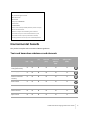
The product complies with international RoHS regulations.
Toxic and hazardous substances and elements
Part name
Lead Mercury Cadmium
(Cd)
(Pb)
(Hg)
Hexavalent
Chromium
(Cr6+)
Polybrominated
biphenyls
(PBB)
Poly-brominated
diphenyl ethers
(PBDE)
Lithium polymer
rechargeable battery
X
O
O
O
O
O
Power supply
X
O
O
O
O
O
Printed circuit board
assembly
X
O
O
O
O
O
Radio module
X
O
O
O
O
O
Chassis
O
O
O
O
O
O
Plastic enclosure
O
O
O
O
O
O
Paper manual
O
O
O
O
O
O
Trimble UX5 Aerial Imaging Solution User Guide
3
Contents
Environmental hazards
3
1 Introduction
6
The UX5 aerial imaging rover
Parts of the UX5 aerial imaging rover
Solution components
Flight case contents
Inserting the eBox and camera
Installing the Aerial Imaging software
Missions and flights
Mission phases
The Aerial Imaging screen
7
8
10
11
12
13
15
15
16
2 Planning a Mission
19
Creating a mission
Preparing the mission map
Defining mission parameters
Exporting the mission from the Aerial Imaging Desktop software
Checking flight permissions and conditions
3 Preparing Equipment
20
20
22
24
25
29
Checking the launcher
Checking the UX5 aerial imaging rover
Charging the UX5 batteries
Charging the Tablet batteries
Charging the camera batteries
Checking the camera
Pairing the transmitter with the tracking receiver
Locating your equipment
4 Completing a Flight
30
30
32
35
36
37
39
40
41
Visit the site to check for obstacles
Dealing with sudden weather changes
Importing the mission
Defining the flight area
Setting the flight parameters
Completing the flight checklist
Monitoring the flight
Landing the UX5
Completing the post-flight checklist
Exporting the mission
Disassembling the launcher
42
45
45
46
48
50
62
70
72
73
73
Trimble UX5 Aerial Imaging Solution User Guide
4
Contents
5 Analysis and Export
75
Transferring the images
Importing the mission to the Aerial Imaging Desktop software
Exporting flight data for processing
6 Troubleshooting
76
76
76
78
Errors and warnings
Landing issues
Aerial Imaging software issues
eBox LED status
Technical support
79
81
82
83
84
7 Specifications and Settings
85
UX5 specifications
Camera specifications
Camera settings
Battery charger settings
86
87
88
94
A Regulatory Requirements
95
French airspace requirements
96
Glossary
97
Trimble UX5 Aerial Imaging Solution User Guide
5
CHA P TE R
1
Introduction
n
The UX5 aerial imaging rover n
Parts of the UX5 aerial imaging rover n
Solution components
n
Flight case contents
n
Inserting the eBox and camera
n
Installing the Aerial Imaging software
n
Missions and flights
n
Mission phases
n
The Aerial Imaging screen
The Trimble UX5 Aerial Imaging Solution User
Guide provides detailed information about
operating the components of the Trimble®
UX5 aerial imaging solution.
Even if you have used other unmanned aviation
systems before, please read this user guide
carefully to familiarize yourself with the
UX5 aerial imaging solution.
Trimble UX5 Aerial Imaging Solution User Guide
6
1 Introduction
The UX5 aerial imaging rover The Trimble UX5 aerial imaging rover is an unmanned aircraft (UA). An unmanned aircraft is a
generic term, and refers to an aircraft that is operated with no pilot on board. Such an aircraft is
commonly also referred to as a remotely-piloted aircraft (RPA). The UX5 aerial imaging rover follows
a pre-programmed path where takeoff, flight, and landing require minimal human intervention. If
required, the crew operating the aircraft from the ground can intervene to change the flight path or
to land. In some cases, such as communications failure or loss of GPS signal, a pre-programmed
intervention is automatically activated to re-establish signal loss or to terminate the flight early and
complete a safe landing.
The UX5 aerial imaging rover holds a camera that takes aerial images over the defined area. During
the flight, all pictures are acquired at a specified height, along parallel lines with specified overlap
between the image exposures. At the same time, position information of the pictures is recorded for
further processing in image processing software such as Trimble Business Center software.
Typical applications
Image acquisition can be used for:
l
Orthophoto creation
l
Digital Elevation Model (DEM) or Digital Surface Model (DSM)
l
Photogrammetry
The resulting data is useful for a range of applications, including:
l
Topographical surveying, particularly in remote or difficult to access areas, typical in the mining
and dredging industries
l
Vegetation monitoring
l
Infrastructure mapping
ISA conditions
All operating specifications provided in this guide for the UX5 aerial imaging rover are determined
using International Standard Atmosphere (ISA) conditions. The ISA conditions used to determine
the specifications for the UX5 aerial imaging rover are:
Specification
Value
Humidity
0%
Air pressure
1013.25 hPa (760 mm Hg)
Temperature
15 °C (59 °F)
Air density
1.225 kg/m³ (0.076 lb/ft³)
Trimble UX5 Aerial Imaging Solution User Guide
7
1 Introduction
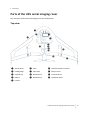
Parts of the UX5 aerial imaging rover The main parts of the UX5 aerial imaging rover are shown below.
Top view
❶
❹
❸
❷
❺
❻
❼
❽
❾
❿
⓫
⓬
⓭
❶ Aircraft body
❻ eBox
❿ Download cable connector
❷ Leading edge
❼ Pitot tube
⓫ Elevon servos
❸ Payload bay
❽ GPS antenna
⓬ Inboard elevon
❹ Battery
❾ Mode button
⓭ Outboard elevon
❺ Camera
Trimble UX5 Aerial Imaging Solution User Guide
8
1 Introduction
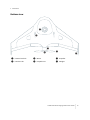
Bottom view
❶
❷
❸
❹
❺
❻
❶ Camera lens hole
❸ Motor
❺ Propeller
❷ Launcher slat
❹ Propeller nut
❻ Winglet
Trimble UX5 Aerial Imaging Solution User Guide
9
1 Introduction
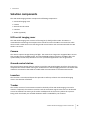
Solution components
The UX5 aerial imaging solution comprises the following components:
l
UX5 aerial imaging rover
l
Camera
l
Ground control station
l
Launcher
l
Tracker (optional)
UX5 aerial imaging rover
The UX5 aerial imaging rover consists of the wing kit (or body) and the eBox. The eBox is a
removable box containing the computer that controls the UX5. The eBox is connected to a GPS
antenna and a radio antenna so that the ground control station can communicate with the UX5
while it is in the air.
Camera
The camera captures images during the flight. The camera has a large 16.1 megapixel APS-C sensor
that provides sharp, detailed images. The standard RGB solution includes a UV HAZE 1 filter. The
optional NIR (near infrared) solution is for use in specialized applications such as agriculture.
Ground control station
The ground control station (GCS) is used to control the UX5 aerial imaging rover from the ground. It
comprises the Trimble Tablet running the Trimble Access™ Aerial Imaging software. The Trimble UX5
modem is connected to the Tablet to enable radio communication to the unmanned aircraft.
Launcher
The launcher is a mechanical device that provides a safe way to launch the UX5 aerial imaging
rover in the direction of takeoff.
Tracker
The tracker consists of a transmitter inserted in the body of the UX5 aerial imaging rover and a
receiver. If required, the receiver is used to track the transmitter signal so the UX5 can be located
once it has landed. The exact type of tracker used depends on the country where the system is
being used. Check with your Trimble distributor what is available for your location.
Trimble UX5 Aerial Imaging Solution User Guide
10
1 Introduction
Flight case contents
When you receive your solution components, unpack them and store them in the dedicated
cavities in the flight case.
Check off the components against the illustration below to ensure that you have all of the
components you need for a successful flight:
❶
❷
❸
❷
❻
❹
❼
❺
❾
❽
❿
⓫
❶ Tablet, Tablet charger, modem and RF
antenna, download cable
❼ UX5 battery charger and charge cable
❷ UX5 battery
❽ Spare camera battery and camera
battery charger
❸ Tracker transmitter and receiver
❾ Lens cleaning paper
❹ Power strip and power cable
❿ Pre-moistened lens cloth
❺ UX5 body, with camera, eBox and top cover
⓫ Pitot cover, tools and optional spare
parts
❻ Extra parts such as winglets, propellers
Note – Some components are small parts that are easily lost. To avoid this, as soon as you unpack them:
— insert the camera battery and SD card into the camera.
— attach the GPS and RF antennas to the eBox. See Inserting the eBox and camera, page 12.
Trimble UX5 Aerial Imaging Solution User Guide
11
1 Introduction
Note – According to ICAO/IATA regulations, Lithium polymer batteries must be carried in hand luggage when
transporting the system by air.
Note – The following parts of the Trimble UX5 aerial imaging solution are considered dual-use: the eBox,
Trimble Tablet and launcher. Dual-use goods are products and technologies normally used for civilian
purposes but which may have military applications. Under EU regulations, controlled items may not leave the
EU customs territory without an export authorization Additional restrictions are also in place concerning the
provision of brokering services with regard to dual-use items and concerning the transit of such items through
the EU. The same is true when exporting goods from any country outside the EU to any other country outside
the EU.
Inserting the eBox and camera
The eBox and camera are stored inside the UX5 body in the flight case.
1. Unpack the UX5 body, the eBox, GPS antenna, RF antenna, and camera.
2. Attach the RF antenna to the underside of the eBox.
3. Attach the GPS antenna to the top side of the eBox.
4. Insert the eBox into the eBox cavity of the UX5 body, sliding the bottom end into the cavity and
then pressing down so that the connector on the rear plugs into the connector in the UX5
body.
Trimble UX5 Aerial Imaging Solution User Guide
12
1 Introduction
WARNING – Always disconnect the battery from the aircraft before inserting or removing the eBox from
the UX5 body. If the battery is still connected, you risk damaging the electronics inside the UX5 body. For
information on disconnecting the battery, see Removing the battery, page 33.
5. Insert the screw into the hole of the eBox and screw the eBox into place using a T10 Torx
screwdriver.
6. Insert the camera into the payload cavity of the UX5 body.
Installing the Aerial Imaging software
Use the Aerial Imaging software to plan, manage, and monitor your flights.
The Aerial Imaging Desktop software is installed on an office computer. The field version of the Aerial
Imaging software is installed on the Tablet. The field software provides all of the functionality
included in the office software. In addition, you can use the field software to monitor the aircraft
during flight.
Note – Flight planning and the flight checklist are available on the desktop for demonstration purposes. When
exporting to the Tablet it does not save the flight settings. You must repeat the flight planning steps and the
flight checklist on the Tablet in the field.
Aerial Imaging Desktop installation
1. To install the Aerial Imaging Desktop software, use the Trimble Access Installation Manager. If
you have:
l
l
not installed the Trimble Access Installation Manager before, go to www.trimble.com/taim
for installation information. Make sure you download and install the TAIM Online version.
previously installed the Trimble Access Installation Manager, you do not need to reinstall it
because it updates itself automatically.
2. Make sure you do not have a Tablet or other Trimble controller connected to the office
computer.
3. Select Start / All Programs / Trimble Access Installation Manager to start the Installation
Manager.
4. Select the Additional applications tab.
5. Select the Aerial Imaging Desktop check box.
6. Click Create license.
7. The Trimble Access Installation Manager switches to the Licensed applications tab and shows
the now licensed Aerial Imaging Desktop software.
8. Click Install.
Trimble UX5 Aerial Imaging Solution User Guide
13
1 Introduction
For further information on updating the software, refer to the Help file in the Trimble Access
Installation Manager. To view the Help file, select the Trimble icon in the top left, and then select
Help.
Aerial Imaging Tablet installation
When you first turn on the Tablet, you must install the Windows® 7 operating system. To do this
you must set a user name and password for the Tablet. The installation of Windows 7 takes about 5
minutes.
1. To install the Aerial Imaging software on the Tablet, use the Trimble Access Installation
Manager. If you have:
l
l
not installed the Trimble Access Installation Manager before, go to www.trimble.com/taim
for installation information.
previously installed the Trimble Access Installation Manager, you do not need to reinstall it
because it updates itself automatically.
2. Select Start / All Programs / Trimble Access Installation Manager to start the Installation
Manager.
3. In the Licensed applications tab, select the Aerial Imaging check box and then click Install.
For further information on how to install or update your software and license file, refer to the Help
file in the Trimble Access Installation Manager. To view the Help file, select the Trimble icon in the
top left, and then select Help.
Updating the eBox firmware
The Aerial Imaging software automatically checks that the eBox firmware is up to date when the
connection between the GCS and the UX5 is established during the flight checklist procedure. If
firmware updates are available you are prompted to perform an update. It takes about 30 minutes
to update the eBox firmware.
To manually initiate a firmware update, tap Update in the Settings screen.
Note – Manually initiating a firmware update does not prompt a version check, so even if the latest firmware
is installed, the Update firmware checklist appears.
1. When the Update firmware checklist appears, do one of the following:
l
To dismiss the update checklist and continue with the flight checklist, tap No.
l
To start the firmware update, tap Yes. The update checklist appears.
2. When prompted, attach the modem. Tap Next to update the modem firmware.
3. When prompted, connect the download cable. Tap Next to update the eBox firmware.
4. The eBox firmware update consists of several automatic steps. When the firmware has finished
updating, disconnect the download cable from the eBox and the modem.
The software returns to the Flight Planning screen.
Trimble UX5 Aerial Imaging Solution User Guide
14
1 Introduction
Missions and flights
A mission consists of one or more flights within the mission area. Mission planning is usually done
in the office. The number of flights per mission is estimated by the software and depends on the size
of the mission area.
A flight is a single flight within the mission area. Flight planning is done in the field.
Mission phases
The typical phases of a mission are:
l
l
l
l
l
Mission planning: In the office you can define the mission area, adding background maps, and
avoidance zones if required. The software estimates the number of flights needed to cover the
mission area, depending on the size of the mission area. Checks for flight permissions, weather,
and site suitability are completed and the flight is scheduled. Before heading to the site, all
equipment is checked for any damage from previous flights and all batteries are fully charged.
Flight planning: The flight is planned and the wind direction, takeoff and landing locations are
specified. The flight checklist is completed to ensure that the system is ready for the flight.
Flight operation: After launching the UX5 aerial imaging rover, the flight is monitored using the
ground control station. After the UX5 lands, the post-flight checklist is completed to transfer
the flight data to the Tablet.
Analysis and export: The flight and captured images are analyzed to make sure they are
synchronized and the data is exported in the appropriate file format for image processing.
Image processing: The data collected during the flight is processed using image processing
software such as Trimble Business Center software.
Trimble UX5 Aerial Imaging Solution User Guide
15
1 Introduction
The Aerial Imaging screen
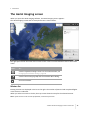
When you open the Aerial Imaging software, the Aerial Imaging screen appears.
The Aerial Imaging screen with an example mission is shown below:
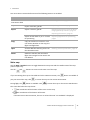
The right panel shows the name of the current screen. There are several buttons next to the screen
name:
Click...
To...
view the Software Settings screen. For more information, see
Changing the software settings, page 18.
view the Aerial Imaging Help and the software About dialog.
close the software.
Mission list
Existing missions are displayed in the list to the right. The number of planned and completed flights
in the mission is indicated.
When you select a mission in the list, the map screen shows the map for the selected mission.
Note – If the mission is new and not yet planned, a world map is shown.
Trimble UX5 Aerial Imaging Solution User Guide
16
1 Introduction
You must select a mission before most of the following buttons are enabled:
Click...
To...
For more information, see...
Inside the Create
new mission field
create a new mission.
Creating a mission, page 20
Import
import a mission .gwt file.
Importing the mission, page 45
Export
export a mission .gwt file
Exporting the mission from the Aerial
Imaging Desktop software, page 24
Exporting the mission, page 73
export mission data as .jxl or .csv files
for processing.
Exporting flight data for processing,
page 1
Copy
copy the contents of a mission. You
can choose whether to also copy the
flights and flight data.
Open
view the Mission Planning screen for
the selected mission.
Delete
delete the mission and associated
flight data. Images for the mission are
not deleted.
Defining mission parameters, page 22
Main map
Use the Map / Satellite button to toggle between the map view and the satellite view of the map
(online maps only).
Use the
and
buttons to zoom in and zoom out of the map.
If you are viewing the map on the Tablet and it has a GPS connection, the
you pan around the map, click
During flight, the
button is available. If
to center the map on the current GCS location.
button is available. Click
to center the map on the current UX5 location.
The status bar below the map shows:
l
GPS coordinates of the location of the cursor on the map.
l
GPS coordinates of the location of the GCS.
If the GCS has no GPS connection, this icon is red and the text "not available" is displayed.
Trimble UX5 Aerial Imaging Solution User Guide
17
1 Introduction
l
l
GPS coordinates of the location of the UX5 and the current ground speed. If the UX5 has no
GPS connection, this icon is not displayed.
If you are viewing the map on the Tablet, the battery level of the Tablet is shown.
Changing the software settings
To change settings for the Aerial Imaging software, click the Settings button
Imaging screen.
in the Aerial
The following settings are available:
l
The source for online maps.
l
Preferred units for speed, distance, and height.
l
Proxy settings for the Internet connection.
Select the check box to enable proxy settings for the Internet connection and then enter the
settings to use. If you change these settings, you are prompted to restart the Aerial Imaging
software.
Note – You may need to configure the Internet proxy settings before you can view online maps. For the
correct settings to use, consult your network administrator.
l
Communication timeout settings.
Enter a value between 20 seconds and 1800 seconds (30 minutes). The default value is 120
seconds (2 minutes).
Note – The country you are operating in may have regulations prescribing the minimum communication
timeout setting that you must use. Make sure you are aware of these and that you use the regulated
minimum setting for your location.
Trimble UX5 Aerial Imaging Solution User Guide
18
CHA P TE R
2
Planning a Mission
n
Creating a mission
n
Preparing the mission map
n
Defining mission parameters
n
n
This chapter describes how to plan a mission.
Exporting the mission from the Aerial
Imaging Desktop software
Checking flight permissions and
conditions
Trimble UX5 Aerial Imaging Solution User Guide
19
2 Planning a Mission
Creating a mission
To create a new mission, in the Aerial Imaging screen enter the name of the new mission in the
Create new mission field and then click .
Note – The mission name can contain the following characters: A-Z, a-z, 0-9, dash (-), space ( ), period (.) and
underscore (_).
The new mission is listed in the Aerial Imaging screen and indicates 0 flights.
To plan the mission, select it and then click Open. The Map tab of the Mission Planning screen
appears.
Preparing the mission map
1. In the Mission Planning screen, make sure the Map tab is selected.
2. To use an online map:
a. Enter the location of interest in the Search for location field and then click . The map
shows the area around the location using your preferred online map provider (see
Changing the software settings, page 18).
b. Zoom in or out, or pan until you view the preferred map area.
c. Click Download. This ensures that you will be able to view the map background during the
flight, if you do not have an Internet connection in the field.
The current map, including a buffer around the edge, is downloaded as an offline map. The
largest area you can download is approximately 15 km x 10 km (9.3 miles x 6.2 miles).
When you download the map, the online map layer is automatically hidden and the offline
map is shown. The downloaded map overwrites any existing offline map, including any
GeoTiff file that you have imported. The downloaded map works like any other offline map
– you can zoom into the map to view more detail.
Note – You must have an Internet connection to use an online map. If you do not have an Internet
connection, add a locally available GeoTiff file to ensure you have useful background data on the
map.
3. To use your own map, add a GeoTiff file that you have prepared earlier using software such as
Trimble Business Center software. To do this, click Import. Navigate to the location of the file,
select it, and then click Open. The map shows the contents of the file you selected.
4. To add more information to the map, click Add layer. You can add the following types of files as
layers:
l
A KML file that you have previously downloaded from Google Maps.
l
Ground control points (GCPs) contained in a .csv file.
Trimble UX5 Aerial Imaging Solution User Guide
20
2 Planning a Mission
The format for the .csv file is: Identifier, Latitude, Longitude, Altitude. The coordinates
must be in the WGS84 coordinate system and the altitude in meters. There should be no
header.
Note – To return to the Aerial Imaging screen at any time, click the back arrow
next to Mission Planning.
Managing map layers
The map has two default layers: "Online map" and "Grid lines".
Layers are displayed on the map in the following order, with the grid at the top:
l
l
Grid lines
Mission and flight information, including mission area in yellow, avoidance zones in red, and
completed flights in green
l
Ground control point (GCP) layer
l
KML
l
Online map
l
Offline map (either a downloaded version of the online map, or an imported GeoTiff file)
The online map layer is automatically hidden if the offline map layer is shown.
To hide a layer, click the icon next to the layer name. You can only hide an online map layer if you
have an offline map layer.
To show a hidden layer, click the icon next to the layer name.
To remove a layer that is no longer required, click the Delete icon
next to the layer name. You
cannot delete the "Grid lines" or "Online map" layers, or delete the completed flights from the map.
Trimble UX5 Aerial Imaging Solution User Guide
21
2 Planning a Mission
Defining mission parameters
1. In the Mission Planning screen, select the Mission tab.
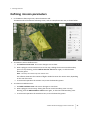
The Mission tab of the Mission Planning screen, with an example mission area, is shown below:
2. To create the area to be flown over:
a. Click Define mission area. The cursor changes to cross hairs.
b. Draw a polygon over the mission area on the map, clicking the mouse at each boundary
point. To stop drawing, click the Define mission area button again, or click the initial
boundary point.
Note – The map can contain only one mission area.
The software estimates the number of flights needed to cover the mission area, depending
on the size of the area.
c. To resize and reposition the mission area, move the boundary points.
3. To create an avoidance zone:
a. Click Add avoidance zone. The cursor changes to cross hairs.
b. Draw a polygon over the map, clicking the mouse at each boundary point. To stop
drawing, click the Add avoidance zone button again, or click the initial boundary point.
c. To resize and reposition the avoidance zone, move the boundary points.
Trimble UX5 Aerial Imaging Solution User Guide
22
2 Planning a Mission
d. Repeat steps a, b, and c to add as many avoidance zones as required.
Note – The mission area and the +/- 200 m (+/- 656 ft) required for turns should not overlap any
avoidance zones on the map. If the mission area is orange, you must move the area out of the
avoidance zone.
Tip – To delete the mission area or an avoidance zone, select the appropriate polygon on the map and
then click Delete selection.
4. Set the ground sample distance (GSD). The default value is 3.2 cm (1.3 "), which is obtained by
flying at a height of 100 m (328 ft). For more information, see GSD and height, page 23.
5. Enter the image forward and side overlap. The default value is 80%. For more information, see
Image forward and side overlap, page 24.
6. The Estimated flights field indicates the number of flights required to cover the mission area.
Use the number indicated to plan the number of flights, time, and resources needed to
complete the mission. During flight planning you can define the area to be covered in a specific
flight.
7. If you are doing the mission planning:
l
in the Desktop software, click Flight to plan the flight for demonstration purposes.
l
on the Tablet, tap Flight to plan the flight in the field.
For more information, see Defining the flight area, page 46.
Note – To return to the Aerial Imaging screen at any time, click the back arrow
next to Mission Planning.
GSD and height
The GSD (ground sample distance) field in the Mission tab specifies the distance on the ground
represented by each pixel. The default resolution is 3.2 cm (1.3 ").
The smaller the value in the GSD field, the more detailed the images. You should always specify a
value equal to or smaller than the resolution required in the final orthophotos, after the images are
processed. If the value in the GSD field is larger than the final resolution required, then the images
acquired during the flight will not be detailed enough and the image processing software will need to
interpolate additional pixels. This will result in images that do not have the expected resolution.
The GSD field in the Mission tab and the height at which the UX5 aerial imaging rover flies are linked.
The higher the unmanned aircraft flies, the larger the distance on the ground represented by each
pixel in the images acquired during the flight:
Height
GSD
Minimum: 75 m (246 ft)
2.4 cm (0.9 ")
100 m (328 ft)
3.2 cm (1.3 ")
150 m (492 ft)
4.8 cm (1.9 ")
Maximum: 750 m (2460 ft)
23.9 cm (9.4 ")
Trimble UX5 Aerial Imaging Solution User Guide
23
2 Planning a Mission
The value in the GSD field determines the default height used for flights within that mission. For
example, if you enter 4.8 cm in the GSD field, the unmanned aircraft will fly at 150 m (492 ft). During
flight planning you can adjust the height for each flight, taking into account the specific obstacles
and scan area of the flight.
Image forward and side overlap
The default value of the overlap between images is 80%. Image overlap can range from 60% to 90%.
By default the forward and side overlap values are linked, so that when one value changes, the
other value changes accordingly. Click the Link overlap icon
to "break" the link so that the
overlap values can be set independently. If you click the Link overlap icon
link, the side overlap takes its value from the forward overlap value.
to re-establish the
A higher overlap results in:
l
better accuracy
l
a higher density of flight lines on the mission area
l
a higher number of images to process
l
longer processing times for images
l
longer flight duration for the same area
Select the overlap value for your mission based on the accuracy, flight duration, and the number of
images you require.
Exporting the mission from the Aerial Imaging
Desktop software
Note – This step is required if you did the mission planning in the Aerial Imaging Desktop software. You must
complete this step so that you can import the mission into the Aerial Imaging software on the Tablet.
1. In the Aerial Imaging screen, make sure the correct mission is selected.
2. Click Export. The Export wizard appears.
3. Select the GWT output format. Click Next.
4. Navigate to the folder where you want to save the mission, enter the file name and then click
Save.
The exported mission is saved as a .gwt file in the folder you selected.
5. Click Finish to close the Export wizard.
6. If the folder you exported the mission to is not a network folder that the Tablet can access,
transfer the exported mission to a USB stick and then transfer it to the Tablet.
Trimble UX5 Aerial Imaging Solution User Guide
24
2 Planning a Mission
7. To import the mission to the Aerial Imaging software on the Tablet, see Importing the mission,
page 45.
Checking flight permissions and conditions
In the days before the flight, complete the following checks to make sure the flight can proceed.
Note – The use of unmanned aircraft in any national airspace system is regulated by the applicable National
Aviation Authority. The regulations for flying unmanned aircraft are subject to change, sometimes without
warning. It is the user’s responsibility to know and adhere to the current laws for operating in the national
airspace system. Trimble is not obligated to inform users of changes to unmanned aircraft laws.
Trimble and Authorized Distribution Partners provide comprehensive training for the unmanned aircraft
system which includes recommended procedures to ensure the safety for the remote crew members as well as
the surrounding environment. It is the user’s responsibility to ensure safe operations and adhere to safety and
security measures required by the National Aviation Authority. Trimble is not responsible for ensuring safe and
secure operation of unmanned aircraft by the user.
Checking flight permission
l
Check if you need a permit to operate an unmanned aircraft in the airspace above the site.
l
Make sure you understand the legal context for safe operation of an unmanned aircraft.
l
Check for existing rules and standards with your local Civil Aviation Authorities (CAA).
l
Make sure you have permission from the landowner.
l
Make sure you have all other relevant permissions required for photography flights using
unmanned aircraft. In some countries you need permission from defense organizations, the
police, or a national geography institute to take pictures.
Checking weather
l
l
l
l
In the days before the flight, check the TV weather broadcast or weather websites. This gives
you a good general idea of the weather for the next three to four days.
For more accurate weather forecasts, consult and interpret aviation weather data through
various weather websites. You can also contact the national meteorological office or a local
meteorology office at an airport nearby.
On the day of the flight, consult the Terminal Aerodrome Forecast (TAF) and METAR reports.
These are meteorological reports used in aviation.
Make sure the weather conditions are within the operating and image acquisition limitations.
See Operation limitations, page 26 and Image acquisition limitations, page 27.
Trimble UX5 Aerial Imaging Solution User Guide
25
2 Planning a Mission
The table below shows the wind speed expressed in different units:
Bft
km/h
m/s
kn
SM
1
1-5
0.3-1.5
1-3
1-3
2
6-11
1.6-3.3
4-6
4-7
3
12-19
3.4-5.4
7-10
8-12
4
20-28
5.5-7.9
11-16
13-18
5
29-38
8.0-10.7
17-21
19-24
6
39-49
10.8-13.8
22-27
25-31
7
50-61
13.9-17.1
28-33
32-38
Operation limitations
The UX5 aerial imaging rover cannot safely fly in all weather conditions. The following table shows
the acceptable range for different conditions.
CAUTION – If any condition does not meet the acceptable range stated, the pilot should abort the mission. Flying
outside the acceptable range of conditions will void your Trimble warranty.
Condition
Acceptable range
Time
Between sunrise and sunset
Distance from clouds
Clear of clouds and always within line of sight
Flight visibility
5000 m (16,400 ft)
Operator-UAS visibility
Visual line of sight
Weather limitations
Light rain is acceptable. Avoid hail, snow, and heavy
showers
Head wind
Maximum 65 kph (40 mph)
Trimble UX5 Aerial Imaging Solution User Guide
26
2 Planning a Mission
Condition
Acceptable range
Cross wind
Maximum 65 kph (40 mph)
Gusts
Maximum 15 kph (9 mph)
Turbulence
Avoid turbulence at all times
Temperature
-25 °C to +55 °C (-13 °F to 131 °F) (excluding launcher)
Maximum launch altitude (AMSL)
4250 m (13,493 ft)
Maximum operational ceiling (AMSL)
5000 m (16,400 ft)
Note – UX5 not tested above 2500 m (8202 ft).
Endurance
50 mins
Image acquisition limitations
Although the UX5 aerial imaging rover itself can cope with heavy weather conditions, the main issue
besides safety is the quality of the pictures acquired during the flight. The following table shows the
maximum values for different weather conditions.
CAUTION – If any condition does not meet the acceptable maximum value stated, the pilot should abort the
mission. Trimble does not guarantee good picture quality when flying in conditions beyond these limits.
Condition
Acceptable maximum
Precipitation
Light rain
Wind
50 kph (31 mph)
Checking the site
Note – When checking the site you should refer to the relevant AIP and NOTAM documents for your region.
l
l
Identify the airspace and geographic environment of the site.
Check the relevant aviation charts and make sure the flight area is not near any of the following
areas:
l
Forbidden airspace
l
Airports, airfields (except with prior permission)
l
Power plants (except with prior permission)
Trimble UX5 Aerial Imaging Solution User Guide
27
2 Planning a Mission
l
l
Check the relevant aviation charts and take special care around:
l
Parachute and parasailing jumping areas
l
Winch areas
l
High-pressure gas-releasing units (documented in AIPs or NOTAMs)
l
Congested areas (for example, towns)
Check if there are other aerial or ground activities planned, for example major public events.
Checking the pilot
l
l
Make sure the pilot is certified to operate the UX5.
Check if the pilot needs any additional permits, such as a remote pilot license, a radio certificate
for use of the 2-way radio for communication with air traffic control, and so on.
l
Be aware that the pilot has final responsibility for the operation of the UX5 and its components.
l
Make sure the pilot is in good condition, both physical and mental.
l
Keep log files of the pilot hours and equipment used for each flight.
Know your safe operating envelope
l
Trimble recommends having a crew of two people that will control the UX5: the pilot and the
observer. They must be able to communicate at all times. Check your CAA regulations to see if a
two-person crew is mandatory.
l
Make sure the crew understands the purpose and the phases of this particular mission.
l
Make sure the crew understands all aspects of safe operation of the UX5. This includes:
l
l
l
Understanding all safety precautions described in the Trimble UX5 Aerial Imaging Rover
Safety Guide.
Understanding how to handle emergencies during flight.
Understanding the particular requirements of the project and site, including avoidance
zones.
Trimble UX5 Aerial Imaging Solution User Guide
28
CHA P TE R
3
Preparing Equipment
n
Checking the launcher
n
Checking the UX5 aerial imaging rover
n
Charging the UX5 batteries
n
Charging the Tablet batteries
n
Charging the camera batteries
n
Checking the camera
n
n
As part of your flight preparation, make sure all
equipment is in good condition and
well-prepared.
Pairing the transmitter with the tracking
receiver
Locating your equipment
Trimble UX5 Aerial Imaging Solution User Guide
29
3 Preparing Equipment
Checking the launcher
1. Make sure the launch slider is in good condition, and moves freely. If it is damaged, contact
your Trimble distributor.
2. Check the launcher cord is not worn, and make sure there is enough elastic in the cord when it
is stretched tight. If the cord must be replaced, refer to the Trimble UX5 Aerial Imaging Solution
Maintenance Guide.
3. Make sure the launch dock is in good condition. If it is damaged, contact your Trimble
distributor.
4. Make sure the launch dock wheels are in good condition and move freely. If they are worn and
must be replaced, refer to the Trimble UX5 Aerial Imaging Solution Maintenance Guide.
Checking the UX5 aerial imaging rover
Check the body
The body of the UX5 must be clean for flight. Dirt and gravel on the body decreases the lift and
increases the drag during flight.
1. Clean the body with a damp cloth.
CAUTION – Do not use high water pressure or a steel brush to clean the body of the rover. This can damage
the surface of the UX5 and affect the aerodynamics of the aircraft. Avoid the use of solvents to clean the
surface of the UX5 as they can negatively affect the materials. Always use lukewarm water and a soft
brush.
2. Check the body for cracks. If the body requires repair, refer to the Trimble UX5 Aerial Imaging
Solution Maintenance Guide. When in doubt, contact your Trimble distributor.
3. Make sure there are no scratches on the camera filter. If the camera filter is damaged, refer to
the Trimble UX5 Aerial Imaging Solution Maintenance Guide.
4. Make sure that the camera filter is tightly screwed into the body. If not, gently tighten it, taking
care not to over-tighten it.
5. Using first the wet camera wipes and then the dry camera wipes, thoroughly clean the camera
filter. Make sure there are no specks of moisture or dust, as these will affect the image quality.
Note – Only use wipes that are specifically intended for cleaning camera lenses.
Trimble UX5 Aerial Imaging Solution User Guide
30
3 Preparing Equipment
Check the pitot tube
The pitot tube must be in perfect condition as it is used to measure the total air pressure during
flight.
1. Remove the pitot tube from the eBox.
2. Make sure the tube is not bent or broken.
3. Blow into the tube to make sure nothing is blocking it.
CAUTION – Only blow into the pitot tube after you have removed it from the eBox. Do not blow into the
pitot tube when it is connected to the eBox because this will damage the barometric sensors.
4. If the pitot tube is blocked or damaged, refer to the Trimble UX5 Aerial Imaging Solution
Maintenance Guide. When in doubt, contact your Trimble distributor.
Check the winglets
To prevent roll stability issues, the winglets must be firmly attached to the UX5 body.
1. Make sure the winglets are intact.
2. Make sure each winglet is firmly attached with two screws.
3. If the winglets are damaged, refer to the Trimble UX5 Aerial Imaging Solution Maintenance
Guide. When in doubt, contact your Trimble distributor.
Check the propellers
1. Make sure the propeller blades are intact.
2. Make sure the propeller blades are well-positioned.
Trimble UX5 Aerial Imaging Solution User Guide
31
3 Preparing Equipment
3. Make sure each propeller blade is firmly attached.
4. If a propeller blade is damaged or not well-positioned, refer to the Trimble UX5 Aerial Imaging
Solution Maintenance Guide. When in doubt, contact your Trimble distributor.
Charging the UX5 batteries
WARNING – Lithium polymer batteries are volatile. Failure to read and follow these instructions may result in
fire, personal injury, and damage to property if charged or used incorrectly.
To prevent injury or damage:
– Use only the charger specified to charge the battery.
– If at any time you witness a battery starting to balloon or swell up, discontinue the charging process
immediately. Disconnect the battery and place it in a safe observation area for approximately 15 minutes.
Continuing to charge a battery that has begun to swell will result in fire.
– Charge in an isolated area, away from flammable materials.
– Never leave charging batteries unattended. When charging the batteries you should always remain in constant
observation to monitor the charging process and react to potential problems that may occur.
WARNING – Always check that the settings on the charger are correct before charging the battery. Incorrect
charger settings may result in damage to the battery, severe burning, and fire hazards.
Note – Read the user documentation provided for the battery charger carefully before using the charger for
the first time.
Trimble UX5 Aerial Imaging Solution User Guide
32
3 Preparing Equipment
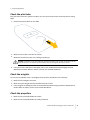
Removing the battery
1. Remove the top cover from the UX5 body.
2. Disconnect the main power connector of the battery from the aircraft:
3. Remove the battery from the battery compartment of the UX5.
Connecting and charging the battery
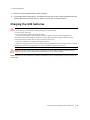
1. Connect the Graupner Ultramat 14 plus charger to one of the following:
l
12 V vehicle battery
l
100–240 VAC power supply
The charger powers on and displays the following parameters for the UX5 battery:
l
LiPo manual
l
C:5.0A 6000mAh
Note – If the charger does not display the default parameters, you must change the settings. For more
information, see Battery charger settings, page 94.
WARNING – The maximum charging current for the UX5 battery is limited to 5 A. This value must be lower
than the maximum permissible current (6 A) for the battery. Incorrect battery charging parameters can
destroy your battery and cause it to catch fire or explode.
Trimble UX5 Aerial Imaging Solution User Guide
33
3 Preparing Equipment
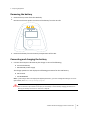
2. Connect the charge cable to the charger:
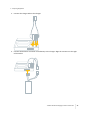
3. Connect the balancer connector of the battery to the charger. Align the connector to the right
of the socket:
Trimble UX5 Aerial Imaging Solution User Guide
34
3 Preparing Equipment
4. Connect the charger cable of the charger to the power connector on the battery:
5. On the charger, press and hold the Enter/Start key for two seconds. The battery starts
charging.
When a battery is fully charged, the charger produces an audible signal and stops charging
automatically. The charger displays "END". At typical room temperature it takes approximately
2 hours to charge a fully depleted battery. Charging time will vary depending on remaining
battery life and ambient temperature.
Note – Make sure you charge both UX5 batteries before leaving the office for a flight. Trimble
recommends always having a spare, fully-charged battery on hand.
Disconnecting the battery
1. On the charger, press the Enter/Start key to put the charger in standby mode.
2. Disconnect the charger cable of the charger from the power connector on the battery.
3. Disconnect the balancer connector of the battery from the charger.
Charging the Tablet batteries
Install the Tablet battery packs and charge the batteries according to the instructions provided in
the Trimble Tablet Rugged PC User's Manual.
Note – Make sure you fully charge the Tablet batteries before leaving the office for a flight.
Trimble UX5 Aerial Imaging Solution User Guide
35
3 Preparing Equipment
Charging the camera batteries
WARNING – Charge and use the rechargeable Lithium-ion battery only in strict accordance with the instructions.
Charging or using the battery in unauthorized equipment can cause an explosion or fire, and can result in personal
injury and/or equipment damage.
To prevent injury or damage:
– Do not charge or use the battery if it appears to be damaged or leaking.
– Charge the Lithium-ion battery only in the product that is specified to charge it. Be sure to follow all instructions
that are provided with the battery charger.
– Never leave charging batteries unattended. Discontinue charging a battery that gives off extreme heat or a
burning odor.
– Use the battery only in the equipment that is specified to use it.
– Use the battery only for its intended use and according to the instructions in the product documentation.
– Do not use or charge the battery if it appears to be damaged. Signs of damage include, but are not limited to,
discoloration, warping, and leaking battery fluid.
– Do not expose the battery to fire, high temperature, or direct sunlight.
– Do not immerse the battery in water.
– Do not use or store the battery inside a vehicle during hot weather.
– Do not drop or puncture the battery.
1. Make sure the camera is turned off.
2. Slide the battery compartment latch to open it and remove the battery.
3. Insert the battery into the battery charger.
4. Connect the battery charger to a power source.
The charger light turns on, indicating the battery is charging. Charging a fully depleted battery
pack at a temperature of 25 °C (77 °F) takes approximately 280 minutes. Charging time will vary
depending on remaining battery life and ambient temperature.
If the charger light flashes slowly, the battery temperature is outside the normal operating
range. The charger automatically stops charging until the temperature returns to the normal
range. When the temperature returns to normal, the charger resumes charging.
5. If the charger light flashes quickly, this indicates an error. Turn off the power source and then
remove the battery from the charger. Reinsert the battery in the charger and then turn on the
power source.
6. When the charger light turns off, the battery is fully charged. Disconnect the charger from the
power source and then remove the battery from the charger.
7. Insert the battery into the battery compartment of the camera.
Note – Make sure you charge both camera batteries before leaving the office for a flight. Trimble
recommends always having a spare, fully-charged battery on hand.
For battery care and storage information, refer to the user documentation for the Sony NEX-5R
camera.
Trimble UX5 Aerial Imaging Solution User Guide
36
3 Preparing Equipment
Checking the camera
1. Make sure there are no scratches on the camera lens. If the camera lens is damaged, contact
your Trimble distributor.
2. Your camera arrives with the appropriate settings required to obtain good aerial images set by
Trimble. However, before each flight, check the camera screen to make sure it displays the
following icons.
Note – The following image does not show all of the icons that appear on the camera screen. It shows
the main icons to check to ensure that your camera settings are correct and you will successfully capture
images during the flight. If any of these icons are not shown, or if you believe other camera settings have
been changed, adjust the settings back to the settings recommended by Trimble. For a list of all
applicable camera settings, see Camera settings, page 88.
Icon
and
Description
Shoot mode is set to shutter priority.
SD card is inserted.
Aspect ratio is set to 3:2; image size is set to 16M;
image quality is set to Fine.
Recording mode of movies is set to 50i FH (the
default).
Steady shot is set to Off.
Battery icon shows 100%.
Trimble UX5 Aerial Imaging Solution User Guide
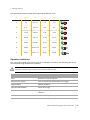
37
3 Preparing Equipment
Icon
Description
Touch operation is set to Off.
Drive mode icon is shown.
Metering mode is set to Multi (the default).
Focus mode is set to Manual.
Face detection is set to Off.
White balance is set to AWB.
Note – When using the NIR camera, select custom white
balance or incandescent.
Soft skin detection is set to Off (the default).
Brightness correction is set to automatic (the default).
Creative style is set to Standard (the default).
Smile detection is set to Off.
Picture effect is set to Off (the default).
Shutter speed is set to 1/1000 or above.
Exposure compensation is set to +/-0.0.
ISO is set to Auto.
Trimble UX5 Aerial Imaging Solution User Guide
38
3 Preparing Equipment
Pairing the transmitter with the tracking receiver
Note – You must complete this step only once, before using the UX5 aerial imaging rover for the first time.
To track down the UX5 aerial imaging rover fitted with a transmitter, the transmitter ID must first be
stored in the memory of the receiver.
1. Press and hold the Power key for three seconds to turn on the receiver.
2. Press the MENU/OK key to enter the menu.
3. Use the navigation keys to select TRANSMITTER. Press the MENU/OK key to confirm.
4. Use the navigation keys to select ADD. Press the MENU/OK key to confirm.
5. Use the navigation keys to enter the missing digits of the frequency of the transmitter. Confirm
each digit using the MENU/OK key.
6. Follow the steps on the screen of the receiver to calibrate the transmitter.
7. Once the calibration is done, you are prompted to enter a name for the transmitter.
8. Use the navigation keys to enter the name you want to use for the transmitter. Confirm each
letter using the MENU/OK key.
The receiver is now able to communicate with the transmitter.
Trimble UX5 Aerial Imaging Solution User Guide
39
3 Preparing Equipment
Locating your equipment
Before you head out to the field:
1. Make sure the flight case contains all of the required items. For more information, see Flight
case contents, page 11.
2. If you will be doing several flights before returning to the office, make sure you have one of the
following:
l
an external storage device such as a laptop for transferring images to after each flight
l
a USB to SD card reader for transferring images to the Tablet after each flight
l
an SD card for each flight
Note – Trimble recommends using a
SanDisk Extreme SDHC UHS-I card with a
write speed of 45 MB/ and minimum
capacity of 16 GB.
3. Make sure the launcher bag contains the
following items:
l
safety pin
l
launch dock with lock pin
l
V-support
l
crank
l
launch slide with elastics
l
Trimble UX5 Launcher Quick Start Guide
Trimble UX5 Aerial Imaging Solution User Guide
40
CHA P TE R
4
Completing a Flight
n
Visit the site to check for obstacles
n
Dealing with sudden weather changes
n
Importing the mission
n
Defining the flight area
n
Setting the flight parameters
n
Completing the flight checklist
n
Monitoring the flight
n
Landing the UX5 n
Completing the post-flight checklist
n
Exporting the mission
n
Disassembling the launcher
This chapter describes the tasks required in the
field to complete a successful flight with good
image data.
Trimble UX5 Aerial Imaging Solution User Guide
41
4 Completing a Flight
Visit the site to check for obstacles
A few days before the flight, visit the flight area to:
l
l
l
Define a good takeoff and landing location.
Check for obstacles in the flight area. Obstacles are objects such as trees, buildings, antennas,
power lines, and water that the UX5 could fly into or land on.
Make sure you will be able to maintain a visual line of sight to the UX5 throughout the flight.
Note – Pay special attention during takeoff and landing. Most issues occur during these phases of the flight.
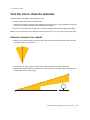
Obstacle clearances for takeoff
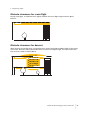
l
Within the first 50 m (164 ft), there must be a clear area free of obstacles within 30° to the left
and right of the launch direction.
50m
30°
30°
0m
l
l
No obstacles at all must appear within the first 50 m (164 ft) of the launch direction.
Within 280 m (919 ft) of the launch direction, obstacles must not appear above the safety line
determined by a 15° safety angle.
15°
30°
0m
50m
+
− 280m
Trimble UX5 Aerial Imaging Solution User Guide
42
4 Completing a Flight
Obstacle clearances for cruise flight
Cruise height
During cruise flight, no obstacles must appear between the cruise flight height and 25 m (82 ft)
below it:
25m
Obstacle clearances for descent
When entering the landing orbit, no obstacles must appear with a 300 m (984 ft) radius of the center
of the orbit. Once the UX5 has descended 25 m from the cruise flight height, the required obstaclefree area has a radius of 150 m (462 ft).
Cruise height
300m
25m
150m
25m
75m
Trimble UX5 Aerial Imaging Solution User Guide
43
4 Completing a Flight
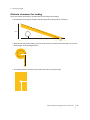
Obstacle clearances for landing
Once you confirm the landing, the UX5 starts the final leg of the landing.
l
No obstacles must appear between the final leg of the landing and 15 m below it.
75m
12°
-300m
l
-25m
0m
+25m
Along the final leg of the landing, there must be a clear area free of obstacles within 15 m to the
left and right of the landing direction.
150m
-15m 0m +15m
l
The landing location must be a 50 m x 30 m area clear of any obstacles.
15m
25m
Trimble UX5 Aerial Imaging Solution User Guide
44
4 Completing a Flight
Dealing with sudden weather changes
On the day of the flight, check that the current weather conditions are suitable for flight. Pay
particular attention to the prevailing wind direction and speed.
If there are sudden weather changes before or during the flight, you must act quickly. Different
weather changes and the recommended action are described below.
Weather change
Action
The wind direction changes while you are completing the
flight checklist, but before launch.
If required, reposition the launcher
and update the takeoff wind direction
and the landing direction in the flight
plan.
One of the following weather phenomena occurs before
or during the flight:
Cancel the flight. If the UX5 is in the
air, land as quickly as possible.
l
Strong wind
l
Heavy rain, hail
l
Hurricane, tornado, or any kind of whirlwind
l
Thunder and lightening
l
Snow
Importing the mission
Note – This step is required if you did the mission planning in the Aerial Imaging Desktop software and then
exported the mission so that you can view it on the Tablet.
1. In the Aerial Imaging screen on the Tablet, tap Import.
2. Navigate to the location of the .gwt file you exported from the Aerial Imaging Desktop software
(see Exporting the mission from the Aerial Imaging Desktop software, page 24), select it and
then tap Open.
The mission you imported appears in the mission list and the mission map appears.
3. Select the mission and then tap Open.
4. Review the mission plan and make any changes to the mission plan, if required.
5. In the Mission tab of the Mission Planning screen, tap Flight to start planning the flight. For
more information, see Defining the flight area, page 46.
Trimble UX5 Aerial Imaging Solution User Guide
45
4 Completing a Flight
Defining the flight area
The Area tab of the Flight Planning screen enables you to select the flight you will complete.
The software estimates the total flight time needed to cover the mission area. The estimated flight
time does not include the time to get to and from the takeoff and landing locations, because these
are not yet defined. The map shows the mission area in yellow, and the flight(s) required to cover
the mission area appear as a blue rectangle. Any completed flights are shown in green.
The red flight lines over the scan area indicate the direction the UX5 will fly across the scan area. The
unmanned aircraft always flies perpendicular to the prevailing wind direction. By default, the
prevailing wind direction is a northerly wind. North is located at the top of the map.
Note – To return to the Mission Planning screen at any time, click the back arrow
next to Flight Planning.
The Area tab of the Flight Planning screen, for an example flight, is shown below:
Tip – Use the Hide/Show button on the map to hide or show map layers. The button is not available if
you did not enable any layers during mission planning.
1. To select a flight, tap the flight in the flight list or on the map. The selected flight is highlighted.
2. Update the prevailing wind direction to match the current conditions:
a. Tap the wind direction arrows for the selected flight and drag them so that they indicate
the current direction of the wind at the site. The scan area and the flight lines rotate
accordingly.
Trimble UX5 Aerial Imaging Solution User Guide
46
4 Completing a Flight
Note – To ensure smooth turns and limited headwind and tailwind during flight, it is important to
correctly indicate the prevailing wind direction.
b. If the scan area changes to orange, it indicates that the scan area or the additional +/- 200
m (+/- 656 ft) required for turns overlaps an avoidance zone. If the scan area is orange,
resize the scan area by clicking and dragging the corners, or move it away from the
avoidance zone.
3. Check the estimated flight duration for the selected flight. If the flight duration is shown in red,
resize the flight area on the map until the estimated flight duration is 50 minutes or less.
4. The GSD and Height fields show the values entered for the mission. If required, edit the height
for image acquisition for the flight, taking into account specific obstacles in the scan area.
Images are not acquired until the unmanned aircraft climbs to the specified height.
The value you enter in the Height field affects the GSD obtained for the images. For more
information, see GSD and height, page 23.
5. When you have finished making your changes, tap the Parameters tab.
Tips for managing completed flights:
l
To repeat a completed flight, select the flight in the list and then tap the Redo icon
.
Redoing a flight does not overwrite the flight data from the previous flight instance. You can see
and select each set of flight data in the Export wizard when you export the data for processing.
l
l
To delete a completed flight, select the flight in the list and then tap the Delete icon . This
removes the flight data stored on the Tablet for this flight, but not the images for the flight.
If you have not downloaded the log file for a flight, tap the Download Log File icon
post-flight checklist appears.
. The
Trimble UX5 Aerial Imaging Solution User Guide
47
4 Completing a Flight
Setting the flight parameters
The Parameters tab of the Flight Planning screen enables you to define the takeoff and landing
parameters for the flight you selected in the Area tab of the Flight Planning screen.
The Parameters tab of the Flight Planning screen, for an example flight, is shown below:
1. To use the last used takeoff and landing locations, tap Previous locations and then go to step 4
below. Otherwise, go to step 2.
Note – To set the takeoff and landing coordinates in the Aerial Imaging Desktop software, click Takeoff
or Landing and then click on the map to set the location. These coordinates are not saved when you
export the mission to the Tablet, and must be reset in the Aerial Imaging field software.
2. To set the takeoff location:
a. Physically go to the takeoff location with your Tablet.
b. When you reach the location, tap Takeoff.
The takeoff location pin
appears on the map. The arrow next to it indicates the takeoff
direction. By default this is into the prevailing wind direction set in the Area tab.
Note – Always try to takeoff into the wind. This prevents a higher launch speed and a higher risk of
launch failures.
c. If required, tap the arrow and rotate it to change the takeoff direction and avoid any
obstacles.
Trimble UX5 Aerial Imaging Solution User Guide
48
4 Completing a Flight
3. To set the landing location:
a. Physically go to the landing location with your Tablet.
b. When you reach the location, tap Landing.
The landing location pin
appears on the map. The arrow next to it indicates the landing
direction. By default this is into the prevailing wind direction set in the Area tab.
Note – Always try to land into the wind. This prevents a higher landing speed and a higher risk of
damage to the UX5.
c. If required, tap the arrow and rotate it to change the landing heading and avoid any
obstacles. To help you define the landing heading, zoom in on the map to the most
detailed zoom level and then walk into the heading with the GCS for about 20 to 30
meters. You will see the GCS location move on the screen. Now rotate the arrow and
position the red line (the final leg of the landing circuit) over the center of the black dot.
Alternatively, enter the heading in the Landing heading field.
WARNING – Always take care to select a landing location and heading free of obstacles. In windy
conditions, large obstacles in the approach line can result in undershoots close to the edge of the
safety zone.
d. If required, set the Landing zone offset. Valid values are from -25 m to +25 m. A negative
value means that the landing location is lower than the takeoff location. The default value
is 0 m, which means that the takeoff and landing locations are at the same height.
4. Set the First line entry to use a left turn or a right turn to enter the scan area. This setting also
defines the first waypoint that the UX5 will fly to.
5. Set the Landing entry to use a left turn or a right turn, depending on which turning direction
provides better visibility and is furthest away from any obstacles.
6. To simulate the flight, tap Simulate. For more information, see Simulating the flight plan, page
49.
7. To start the flight checklist, tap Checklist.
Note – To return to the Mission Planning screen at any time, click the back arrow
next to Flight Planning.
Simulating the flight plan
After creating a flight plan, you can simulate the flight plan to check the following items:
l
The unmanned aircraft uses the correct takeoff direction.
l
The flight height, route, and turns used are all correct.
l
The unmanned aircraft does not enter any avoidance zones.
l
The unmanned aircraft uses the correct landing circuit.
Trimble UX5 Aerial Imaging Solution User Guide
49
4 Completing a Flight
Note – The red flight lines over the scan area indicate the direction the UX5 will fly across the scan area. The
actual flight path is not limited to these flight lines, because of the takeoff route, turns in cruise flight, and the
landing circuit.
Completing the flight checklist
1. In the Parameters tab of the Flight Planning screen, tap Checklist. The flight checklist opens.
2. Use each step of the flight checklist to prepare the equipment for flight.
The flight checklist guides you through each step.
Note – More information about the steps that require special care is given in the following sections. Read
these sections carefully until you are familiar with all of the tasks required to perform these steps.
l
Connecting the GCS, page 51
l
Connecting the battery, page 51
l
Preparing the camera, page 51
l
Inserting the tracker transmitter, page 52
l
Attaching the top cover, page 52
l
Covering the pitot tube, page 52
l
Checking the elevon trim, page 52
l
Checking the elevon response, page 53
l
Putting the aircraft on the launcher, page 53
l
Transmitting the flight plan, page 58
l
Initializing, page 58
l
Removing the pitot cover, page 58
l
Checking the airspeed response, page 59
l
Positioning the propellers, page 59
l
Removing the safety pin
l
Arming the system, page 60
l
Launching the UX5, page 61
Trimble UX5 Aerial Imaging Solution User Guide
50
4 Completing a Flight
Connecting the GCS
When you reach this step in the flight checklist, the software automatically checks to see if the
modem is already connected.
If the modem is not connected, the message "Attach the modem and antenna on the ground
control station" is displayed. Do the following:
1. Attach the antenna to the modem.
2. Attach the modem and antenna to the back of the Tablet, under the handstrap.
3. Insert the modem cable into the USB port on the Tablet.
4. Tap Next to prompt the software to check if the modem is connected.
When the connection to the modem is established, the software automatically moves to the next
step in the flight checklist.
Connecting the battery
If you have not yet connected the battery:
1. Insert a fully charged battery into the battery compartment of the unmanned aircraft.
2. Connect the main power connector on the battery to the power connector in the aircraft. Once
the battery is connected, the eBox goes from Off mode to On mode (see eBox LED status, page
83).
When the eBox starts booting up, the Next button is enabled.
Note – If after this step you are prompted to update the eBox firmware, see Updating the eBox firmware,
page 14.
Preparing the camera
1. Using first the wet camera wipes and then the dry camera wipes, thoroughly clean the camera
lens. Make sure there are no specks of moisture or dust, as these will affect the image quality.
Note – Only use wipes that are specifically intended for cleaning camera lenses.
2. Make sure the camera filter in the UX5 body is also clean and that the camera filter is tightly
screwed into the body. If not, gently tighten it, taking care not to over-tighten it.
3. Turn on the camera and check the camera screen to make sure it displays the icons described in
Checking the camera, page 37.
Trimble UX5 Aerial Imaging Solution User Guide
51
4 Completing a Flight
4. Make sure the lens settings are appropriate for the weather conditions:
Weather
ISO
Auto
Auto
Auto
Aperture
ring
f/4.5
f/4.5
f/4.5
Shutter
speed
1/2000 to 1/4000
1/1000 to 1/2000
1/1600 to 1/2000
Focus ring
The focus ring should always be set to 3+ m.
This is set and calibrated by the manufacturer and must not change. For your
reference, this position corresponds with the white dot appearing below the
right edge of the red 0 in the 10 ft mark.
Note – Always take a picture before the flight to ensure that the picture is not over- or underexposed. If
the picture does not look right, adjust the shutter speed first and then the aperture setting.
5. Insert the camera into the payload bay of the unmanned aircraft.
6. In the Aerial Imaging software, tap the Take picture button. Make sure that you hear the
trigger sound from the camera.
Inserting the tracker transmitter
1. Turn on the tracker transmitter.
2. Make sure that you can hear the transmitter using the tracker receiver.
3. Insert the tracker transmitter into the body of the unmanned aircraft.
Attaching the top cover
Attach the top cover to the unmanned aircraft and make sure it is secure.
Covering the pitot tube
Put the pitot tube cover on the pitot tube. Check the value in the black arrow at the left of the
artificial horizon in the status panel of the Aerial Imaging software and make sure the current
airspeed is below 20 kph (12.4 mph).
Checking the elevon trim
Make sure that the outboard elevons are leveled with the inboard elevons (the inboard elevons are
fixed). The accuracy should be about 1 mm.
Trimble UX5 Aerial Imaging Solution User Guide
52
4 Completing a Flight
WARNING – When handling the UX5, make sure that the elevons can move freely and are not obstructed in any
way. Impaired movement of the elevons can cause the servo motor to burn up.
Checking the elevon response
Tap the Move/Stop elevon button in the Aerial Imaging software and watch the elevons on the
unmanned aircraft. Make sure the elevons move in response to the button commands.
WARNING – When handling the UX5, make sure that the elevons can move freely and are not obstructed in any
way. Impaired movement of the elevons can cause the servo motor to burn up.
Putting the aircraft on the launcher
Step 1: Assemble the launcher
1. Unfold the launch slide.
CAUTION – Take care when unfolding the launch slide as there are sharp edges that can cause finger cuts.
2. Secure each section of the launch slide by lifting the appropriate handle and hooking it into the
next section of the launch slide. Close the handles.
Trimble UX5 Aerial Imaging Solution User Guide
53
4 Completing a Flight
3. Unfold and secure the V-support with the lock pin.
4. To attach the V-support to the launch slide, make sure the knob is pointing to the left and then
insert the V-support pins in the reserved holes, situated approximately 2/3 of the length of the
launch slide. Turn the knob to the right to tighten.
Step 2: Attach launcher cord and launch dock
1. Pull the ends of the launcher cord out of the launch slide so that the cord lies on top of the
launcher slide.
Trimble UX5 Aerial Imaging Solution User Guide
54
4 Completing a Flight
Note – If the launcher cord is blocked while the elastics are not tightened, pull the release handles
upward to unblock them.
CAUTION – Never push the release handles when there is tension on the launcher cord. You will damage
the elastics. If there is tension on the cord, insert the crank onto the nut located toward the front end of the
launcher and use the crank to very gently release the force. At the same time, pull the release handles
gently upward. This is safest done with two people, with one person carefully winding the crank counterclockwise to counteract the force on the elastics.
2. Position the launch dock on the end of the launch slide with the tabs on the launch dock
pointing toward the direction of launch.
3. Slide the launch dock over the ends of the launcher cord.
Trimble UX5 Aerial Imaging Solution User Guide
55
4 Completing a Flight
4. To attach the ends of the launcher cord to the launch dock, remove the lock pin from the
launch dock and then slide the lock pin through the holes in the launch dock, attaching the
ends of the launch cord as you do so. Secure the lock pin.
5. Slide the launch dock over the launch hook at the beginning of the launch slide, making sure
the launch dock clicks into position. Make sure the trigger is not blocked.
6. Insert the safety pin into the launch dock.
WARNING – Always keep the safety pin inserted in the launch dock. Remove the safety pin only just before
launch. Early removal of the launch pin can result in accidental release of the launcher, causing serious
personal injury and damage to the UX5 or launcher.
CAUTION – Never launch without the UX5 sitting on the dock as it will damage the launch dock. The design
of the launcher takes into account the weight of the UX5 sitting on the launch dock.
Trimble UX5 Aerial Imaging Solution User Guide
56
4 Completing a Flight
Step 3: Tighten the launcher cord elastics
1. Position the launcher at the planned takeoff location, with the launch direction pointing into
the takeoff direction you have indicated in the software.
2. Make sure the takeoff location is free of obstacles. For more information, see Obstacle
clearances for takeoff, page 42.
3. Insert the crank onto the nut located toward the front end of the launch slide.
4. Stretch the launcher cord using the crank. In normal circumstances, the node between the cord
and elastic should be in the middle of the hole numbered "4" on the launcher.
CAUTION – The launcher cord stretches with every launch. When you can easily reach the last hole when
tightening the cord, replace the launcher cord to prevent unsuccessful launches and damage to the launcher
or the UX5. For more information, refer to the Trimble UX5 Aerial Imaging Solution Maintenance Guide.
5. Remove the crank.
Step 4: Place the UX5 onto the launcher
1. Position the UX5 at the front of the launch dock and use your finger tips to guide the launcher
slats on the underside of the UX5 onto the lips of the launch dock.
Trimble UX5 Aerial Imaging Solution User Guide
57
4 Completing a Flight
WARNING – Take care to ensure the UX5 is correctly positioned on the launch dock. An incorrect position
can result in launch failure, causing serious personal injury and damage to the rover or launcher.
2. Use the artificial horizon indicator in the Aerial Imaging software to check the pitch and roll of
the UX5 on the launch dock. The pitch angle should be between 20° and 30° and the roll angle
should be between -5° and 5°. The horizon should be positioned parallel to the UX5 on the
artificial horizon indicator. If you need to adjust the horizon, reposition the launcher.
Transmitting the flight plan
This step appears only if the software is still transmitting the flight plan to the eBox. If transmission
of the flight plan is already complete, this step does not appear. The Next button is available once
flight plan transmission is complete.
Initializing
At this step in the flight checklist, the eBox initializes. It must acquire lock on at least 4 usable GPS
satellites. The GPS receiver in the eBox determines the usability of the satellites, based on the
characteristics of each satellite.
Removing the pitot cover
Remove the cover from the pitot tube.
Trimble UX5 Aerial Imaging Solution User Guide
58
4 Completing a Flight
Checking the airspeed response
Press and hold the pitot tube for no more than 5 seconds. Make sure that the value in the black
arrow at the left of the artificial horizon in the status panel of the Aerial Imaging software changes.
Positioning the propellers
1. Check the position of the propellers on the unmanned aircraft and make sure they are pointing
backward as shown in the Aerial Imaging software.
2. If the propellers are not positioned correctly, carefully adjust them.
WARNING – Always take care when touching the propeller blades. If the unmanned aircraft receives a sudden
shock while armed, the motor can unexpectedly start causing the propeller blades to move. Contact with moving
propeller blades can result in serious personal injury.
Removing the safety pin
To remove the safety pin, position yourself behind the launcher, reach carefully under the UX5 and
then pull out the safety pin.
WARNING – Always take care to avoid contact with the propeller blades. If the UX5 receives a sudden shock
while armed, the motor can unexpectedly start causing the propeller blades to move. Contact with moving
propeller blades can result in serious personal injury.
Trimble UX5 Aerial Imaging Solution User Guide
59
4 Completing a Flight
Arming the system
This step of the flight checklist shows a summary of the system status.
To arm the system, tap Arm.
A warning appears if:
l
the UX5 battery life is less than 75%. If the battery level is low, the battery level line is red.
l
the Tablet battery life is less than 90 minutes.
If the launch angle is not correct, the Launch angle line is red and a red border is shown around the
artificial horizon.
The system will not allow you to launch the UX5 if the following errors are reported:
l
The eBox is not in the correct state.
l
GPS signal is not OK.
l
Takeoff sensor is not OK (this means that the yaw, pitch, and roll values are not yet stabilized).
l
Datalogging has not started.
Trimble UX5 Aerial Imaging Solution User Guide
60
4 Completing a Flight
Launching the UX5
Once you have armed the system, the software prompts you to launch the aircraft.
1. Just before launch, perform the following safety checks:
a. Make sure there are no aerial objects inside the zone of operation.
b. Make sure you have a clear line of sight to the UX5.
c. Make sure there are no obstacles or people near the front of the launcher.
WARNING – Make sure you complete each of the safety checks listed at this step. Failure to do so could
result in serious personal injury and damage to the UX5 or launcher.
2. When you have made sure that everything is clear in front of, above, and behind the launcher,
stand behind the launcher and press the launch handle to launch the UX5.
CAUTION – Never launch without the UX5 sitting on the dock as it will damage the launch dock. The design
of the launcher takes into account the weight of the UX5 sitting on the launch dock.
3. If an obstacle such as a person or animal suddenly appears in the obstacle clearance zone
during takeoff, tap the FTS button in the Aerial Imaging software. The UX5 immediately
powers down and returns to the ground. For more information, see Emergency software
commands, page 67.
After launch, the UX5 flies to the first waypoint, which is highlighted in yellow in the Flight
screen. If the UX5 is not yet at the flight height when it reaches this point, it climbs in circles of
100 m radius until it reaches the desired height.
4. After launch, release the tension on the launcher cord. Leaving tension on the launcher cord for
extended periods can damage the elastics.
Trimble UX5 Aerial Imaging Solution User Guide
61
4 Completing a Flight
To release the tension, release the force with the crank very gently while pulling the release
handles in the front of the launcher upward. This is safest done with two people, with one
person carefully winding the crank counter-clockwise to counteract the force on the elastics.
Monitoring the flight
CAUTION – It is your responsibility to take action during flight when the safety of the UX5 aerial imaging rover or
its surroundings is compromised. To do this you must:
– Have visual contact with the unmanned aircraft at all times.
– Observe the zone of operation for the unmanned aircraft and look out for other aerial objects.
– Ensure obstacle clearance.
– Keep an eye on changing weather conditions.
– Locate the unmanned aircraft on the Tablet screen.
– Monitor the flight telemetry on the Tablet screen.
For information on the appropriate action to take if you see an oncoming aerial object at any point
during the flight, see Handling emergencies during flight, page 65.
After takeoff, the UX5 aerial imaging rover climbs to the specified cruise height.
Once the unmanned aircraft has passed its first waypoint, the second waypoint is initiated. From
this point, the unmanned aircraft follows the preprogrammed flight path.
The Flight screen with an example flight is shown below:
Trimble UX5 Aerial Imaging Solution User Guide
62
4 Completing a Flight
You must use the Aerial Imaging software on the Tablet to monitor the unmanned aircraft during
the entire flight:
l
The trajectory of the unmanned aircraft on the map must be close to the programmed flight
path.
l
Monitor the strength of the communication link
l
Monitor the number of usable satellites
l
l
l
l
l
No signal: No GPS lock (0–3 satellites)
l
1 signal line: 4–6 satellites
l
2 signal lines: 7 or more satellites
.
.
Monitor the level of power in the UX5 battery. In the battery status bar
, the value is
expressed as a percentage. In the Battery left field, the value is expressed as time remaining in
minutes and seconds.
Compare the actual flight height with the desired flight height set during mission and flight
planning.
Compare the actual airspeed with the desired airspeed, which is 80 kph (49 mph) during cruise
flight. The actual airspeed can be higher than the desired speed when the UX5 is coping with a
high head wind. The maximum airspeed is 90 kph (56 mph).
Monitor the throttle. The throttle should be around 30% during cruise flight in normal
conditions.
Trimble UX5 Aerial Imaging Solution User Guide
63
4 Completing a Flight
l
l
Monitor the software for in-flight warnings and errors such as loss of GPS lock and loss of
communication link. For more information on these warnings and the appropriate action to
take, see Failsafes during flight, page 64 and Errors and warnings, page 79.
Monitor the number of flight lines flown against the total number of flight lines (displayed in
the status line below the map).
Failsafes during flight
The following failsafe mechanisms activate when a technical issue occurs that reduces the safe
behavior of the unmanned aircraft:
l
Loss of GPS lock during flight
l
Loss of communication link during flight
l
Overspeed protection
Loss of GPS lock during flight
If the unmanned aircraft does not receive GPS communications for a period of 4 seconds, then a
notification appears on the Tablet, and the following automatic failsafe mechanism is activated:
1. The unmanned aircraft banks at an angle of 25° while orbiting at its current location for 20
seconds. If the unmanned aircraft successfully reacquires GPS lock, then it flies to the specified
landing location and begins a normal landing sequence.
2. If the unmanned aircraft is unable to reacquire GPS lock, then it activates the Flight Termination
System (FTS). During FTS:
a. The motor powers down and the speed lowers to 70 kph (43 mph).
b. The unmanned aircraft orbits down in 200 m (656 ft) diameter circles until it reaches a
height of 7 m (23 ft).
Note – During FTS without GPS lock, the unmanned aircraft attempts to circle but the outcome is
elliptical circles as the unmanned aircraft is subject to wind drift.
c. The unmanned aircraft levels its wings, slows, and glides to the ground.
Loss of communication link during flight
If the unmanned aircraft does not receive a communication packet for the time specified in the
Communication timeout field in the Settings screen, or if the communication link is poor and
communication packets are being received intermittently, then a notification appears on the Tablet
and the unmanned aircraft flies to the specified landing location and begins a normal landing
sequence.
Unlike a normal landing, you are not prompted to confirm landing before the final leg of the landing.
An audible sound indicates that the UX5 is about to land.
If communication resumes during this automatic failsafe mechanism, the unmanned aircraft
continues the landing sequence.
Trimble UX5 Aerial Imaging Solution User Guide
64
4 Completing a Flight
Overspeed protection
If the unmanned aircraft detects a steep and fast decline, it will maximize drag to minimize the
impact on the ground. The aircraft will descend in a "flat-spin"-like flight trajectory.
Handling emergencies during flight
This topic describes typical emergency scenarios that may occur when the UX5 is in flight. For all
scenarios, you must assess the situation before taking action. Take into account your location (that
is, the location of the GCS) and the current location, course, and speed of the UX5.
Note – If the situation is too critical (for example, fast moving aircraft) tap the FTS button and when
prompted confirm Flight Termination System (FTS) activation to immediately abort the flight and put the UX5
in an orbit toward the ground.
An approaching aircraft
The most common emergencies involve another aircraft entering the vicinity at approximately the
same height as the UX5.
Scenario
Action
When the other aircraft
has left the vicinity...
The approaching aircraft
will not cross the flight
path of the UX5.
1. Assess the situation.
The flight path of the
approaching aircraft and
the UX5 are converging.
1. Assess the situation.
The flight path of the
approaching aircraft is
diverging from the flight
path of the UX5.
1. Assess the situation.
The flight path of the
approaching aircraft is
intercepting the flight
path of the UX5.
1. Assess the situation.
The approaching aircraft
is approaching the UX5
head-on.
1. Assess the situation.
2. Tap Hold, Here, Right, or Fly to to
move the UX5 to a safe position.
2. Tap Fly to to move the UX5 to a safe
position.
2. Tap Fly to, Right, or Hold to move
the UX5 to a safe position.
2. Tap Fly to to move the UX5 to the
left. (An aircraft intending to
overtake an aircraft in front of them
overtakes that plane on the right
side.)
2. Tap Right to move the UX5 to a safe
position.
Tap Resume to continue
mapping.
Tap Resume to continue
mapping.
Tap Resume to continue
mapping.
Tap Resume to continue
mapping.
Tap Resume to continue
mapping.
Trimble UX5 Aerial Imaging Solution User Guide
65
4 Completing a Flight
Scenario
Action
When the other aircraft
has left the vicinity...
The approaching aircraft
intends to land.
A landing aircraft has priority over an UX5
at all times. Never assume that the
aircraft has noticed the UX5. Take the
necessary safety measures depending on
the situation.
Tap Resume to continue
mapping.
Occasionally other objects such as birds enter the zone of operation. Assess the situation and try to
avoid collisions using the methods described above. If a collision does occur, immediately tap the
FTS button in the Aerial Imaging software and if prompted, confirm FTS activation to abort the
flight. Once the UX5 has landed, carefully check equipment for damage.
Other types of emergency
In case of other types of emergency, take the recommended action.
Engine failure
Engine failure is rare but may occur. The following parameters in the Aerial Imaging software indicate
engine failure:
l
Altimeter decreases
l
Battery voltage increases
l
Throttle percentage increases until 100%
Action: Assess the situation and tap the FTS button to immediately terminate the flight. If no
button is tapped, the UX5 glides downward, following the flight plan.
Aerial Imaging software freeze
Action:
If the Aerial Imaging software on the GCS freezes or crashes when the UX5 is in the air, you must
immediately restart the software. If you are unable to, restart the GCS and then restart the Aerial
Imaging software.
After restarting the software:
1. Open the mission for the flight in progress.
2. In the Flight Planning screen, select the Parameters tab.
3. Tap Previous locations to set the takeoff and landing location.
4. Tap Flight to go to the flight checklist.
When connecting to the autopilot, a message asks if the aircraft is already in the air.
5. Tap Yes.
Trimble UX5 Aerial Imaging Solution User Guide
66
4 Completing a Flight
The Aerial Imaging software downloads the existing flight plan from the eBox and enables you
to continue the flight.
Emergency software commands
The Monitor Flight screen of the Aerial Imaging software provides several buttons that enable you
to manually interrupt the pre-programmed flight plan while the unmanned aircraft is in the air. Use
these commands to take evasive action if required.
Note – Tapping any button in this screen overrides any previous command.
Note – The only button available when the UX5 is below 50 m (164 ft) during takeoff is the FTS button.
Land
Use the Land button when the flight must be terminated and there is time and space for a preplanned landing.
When you tap Land, the unmanned aircraft immediately terminates its flight plan and initiates a
normal landing sequence. It flies at cruise height to the entry point which is located 300 m (984 ft)
from the landing location. It starts circling downward in 200 m (656 ft) diameter circles until it
reaches a height of 75 m (246 ft).
To release the Land command, tap Resume. The unmanned aircraft returns to the start of the flight
line it was on when the flight plan was interrupted, and resumes mapping when it reaches the point
that mapping paused.
To complete the landing, tap Confirm. The unmanned aircraft finishes its current circle until it
reaches the point where it first started circling and then it starts the final leg of the landing.
Fly to
Use the Fly to button to move the unmanned aircraft from its current position to a location you
choose.
To enable the Fly to button, tap the location on the map that you want the unmanned aircraft to
move to. Tap Fly to. The unmanned aircraft flies to the specified location and then orbits there at
the cruise flight height in 200 m (656 ft) diameter circles. Mapping is paused.
When in the Fly to pattern, you can adjust the unmanned aircraft's height by 10 m (32 ft) up or
down, if required. The software does not allow the height to be set lower than 75 m (246 ft) or higher
than 750 m (2460 ft).
To release the Fly to command, tap Resume. The unmanned aircraft returns to the height it was at
before the Fly to pattern began. It flies to the previous waypoint and resumes mapping when it
reaches the point that mapping paused.
Note – If you tap the map again while the unmanned aircraft is in the Fly to pattern, the Resume button
changes back to Fly to. You must tap Fly to again and the UX5 will fly to the new location on the map.
Trimble UX5 Aerial Imaging Solution User Guide
67
4 Completing a Flight
Hold
Use the Hold button when another aircraft in the vicinity is observed.
When you tap Hold, the unmanned aircraft begins orbiting its current location at the cruise flight
height in 200 m (656 ft) diameter circles. Mapping is paused.
When in the Hold pattern, you can adjust the unmanned aircraft's height by 10 m (32 ft) up or
down, if required. The software does not allow the height to be set lower than 75 m (246 ft) or higher
than 750 m (2460 ft).
To release Hold, tap Resume. The unmanned aircraft returns to the height it was at before the Hold
pattern began. It flies to the previous waypoint and resumes mapping when it reaches the point
that mapping paused.
Here
Use the Here button when the unmanned aircraft must be removed from the general area of
mapping and you want to have it within close sight.
When you tap Here, the unmanned aircraft immediately flies to the location of the ground control
station (GCS) or the last known location and orbits there at the cruise flight height in 200 m (656 ft)
diameter circles. Mapping is paused.
When in the Here pattern, you can adjust the unmanned aircraft's height by 10 m (32 ft) up or
down, if required. The software does not allow the height to be set lower than 75 m (246 ft) or higher
than 750 m (2460 ft).
To release Here, tap Resume. The unmanned aircraft returns to the height it was at before the Here
pattern began. It flies to the previous waypoint and resumes mapping when it reaches the point
that mapping paused.
Right
Use the Right button when you want to move the unmanned aircraft away from its current position
but have it close to its current location.
When you tap Right, the unmanned aircraft flies 300 m (984 ft) to the right of the current heading
and then orbits there at the cruise flight height in 200 m (656 ft) diameter circles. Mapping is paused.
When in the Right pattern, you can adjust the unmanned aircraft's height by 10 m (32 ft) up or
down, if required. The software does not allow the height to be set lower than 75 m (246 ft) or higher
than 750 m (2460 ft). .
To release the Right command, tap Resume. The unmanned aircraft returns to the height it was at
before the Right pattern began. It flies to the previous waypoint and resumes mapping when it
reaches the point that mapping paused.
FTS
Activate the Flight Termination System (FTS) when the UX5 must be removed from the air as quickly
as possible. The FTS button can be used during takeoff, cruise flight, and landing.
To activate the FTS, tap FTS and if prompted, confirm FTS activation.
Note – Confirmation is always required, except during takeoff when the UX5 is still below 25 m (82 ft).
Trimble UX5 Aerial Imaging Solution User Guide
68
4 Completing a Flight
The unmanned aircraft immediately aborts the flight. During cruise flight, this involves:
1. The motor powers down and the speed lowers to 70 kph (43 mph).
2. The unmanned aircraft orbits down in 200 m (656 ft) diameter circles until it reaches a height of
7 m (23 ft).
3. The unmanned aircraft levels its wings, slows, and glides to the ground.
If you activate FTS when the unmanned aircraft is at a height of less than 25 m (82 ft) – that is, during
takeoff or landing – then the unmanned aircraft slows to 60 kph (37 mph) and flies downward in a
straight line at the current heading until it glides to the ground.
Abort
Note – The Abort button is available only during the final leg of the landing when the aircraft is more than 15
m (49 ft) above ground. When using Abort, the same obstacle clearances as for takeoff should be considered.
Use the Abort button to abort the landing.
When you tap Abort, the unmanned aircraft climbs to 75 m (246 ft) in the direction of the landing
heading and then turns to the landing entry point to start the landing circuit again.
To land you must tap Confirm again.
Dealing with a crash
A crash is an accident associated with the operation of an aircraft in which:
l
a person is fatally or seriously injured
l
the aircraft sustains damage or structural failure
l
the aircraft is missing or completely inaccessible
Note – A landing on the intended landing site that causes damage to the aircraft due to the landing surface
cannot be seen as a crash.
1. If a crash occurs which causes injuries or death, you must:
a. Contact the emergency services.
b. Help where necessary, without risking your own life.
c. Make a perimeter around the accident. Make sure no evidence disappears.
d. Notify your civil aviation authority (CAA).
2. If a crash occurs which causes damage to another object:
a. Contact the emergency services when necessary (for example, if gas, electricity, or water
supplies are affected).
b. Contact the owners of the object that is hit.
c. Notify your civil aviation authority.
Trimble UX5 Aerial Imaging Solution User Guide
69
4 Completing a Flight
3. Take pictures of the crash site. Download the data files from the GCS and send all data and
pictures to your Trimble distributor.
Landing the UX5 CAUTION – It is your responsibility to ensure the safety of the unmanned aircraft during landing. To do this you
must:
– Have visual contact with the unmanned aircraft at all times.
– Observe the zone of operation for the unmanned aircraft and look out for other aerial objects.
– Ensure obstacle clearance.
– Locate the unmanned aircraft on the Tablet screen.
WARNING – Make sure there are no people or obstacles near the landing zone. Failure to do so could result in
serious personal injury and damage to the rover.
After passing the last waypoint on the scan lines, the UX5 terminates its flight plan and initiates a
normal landing sequence. It flies at cruise height to the entry point which is located 300 m (984 ft)
from the landing location. It starts circling downward in 200 m (656 ft) diameter circles until it
reaches a height of 75 m (246 ft). It keeps circling in left or right circles, depending on the direction
specified in the Aerial Imaging software, until you tap Confirm.
To complete the landing, tap Confirm. The UX5 finishes its current circle until it reaches the
intersection with the landing direction and then it starts the final leg of the landing.
Trimble UX5 Aerial Imaging Solution User Guide
70
4 Completing a Flight
The image below shows the landing circuit using a landing orientation set to right turns.
75 m
m
200
300
m
Locating the UX5 after landing
If the UX5 has landed somewhere in the field and you are not able to visually locate it, you can track
it using the tracking system receiver.
1. On the receiver, press and hold the On/Off key for three seconds to power on the receiver.
2. Press the Menu/OK key to enter the menu.
3. Select the transmitter you want to track down using the Scan key and then press the Menu/OK
key to confirm.
4. Fold out the four antennas on the receiver and then place the receiver on the palm of your
hand, taking care not to touch any of the antennas.
5. Increase the gain as much as possible using the Increase key.
6. To pick up the first signal pulses, hold the receiver in front of you at high level and slowly turn
360°, scanning the horizon with the antenna.
Tip – Make sure the internal antenna is selected. The range of the receiver is wider if you track
from an elevation. Always hold the receiver in front of you so that the receiver can distinguish
between incoming signals from the front and the back.
Trimble UX5 Aerial Imaging Solution User Guide
71
4 Completing a Flight
Each received signal pulse and its strength are shown on the transmitter bar/received signal
strength indicator and indicated with an audible signal.
7. Scan the area to determine the direction with the highest signal strength. If the signal strength
is the same in all directions, reduce the gain using the Decrease key until the received signal
strength is half the transmitter bar and then repeat the scan.
8. Follow the determined direction. Repeat the scan at intervals to verify the direction you need
to head in to locate the UX5.
Note – If you experience difficulties finding the rover following one direction, try doing the scan from a
different location and locating the cross-section between the new and previously found direction.
For more information on using the tracker system, refer to the user documentation for the
tracker transmitter and receiver.
Completing the post-flight checklist
1. After the UX5 has successfully landed, tap Finish flight.
2. A message warns that the UX5 should be on the ground. Do one of the following:
l
l
If the UX5 is not on the ground, tap No. You will return to the flight monitoring screen.
If the UX5 is on the ground, tap Yes. The UX5 goes into standby mode and the post-flight
checklist appears.
3. Remove the download port cap from the eBox and then attach the download cable to the eBox
and the modem.
4. Click Next.
The software detects the cable connection and automatically starts downloading the log files
from the eBox to the Tablet.
Note – If there is an issue with the cable connection, the post-flight checklist returns to the previous
screen. Detach and then reattach the cable and then click Next.
5. When prompted, disconnect the download cable and then reattach the download port cap to
the eBox.
6. When prompted, remove the camera from the unmanned aircraft. Delete the test images
taken on the ground from the SD card. Verify that the number of images taken during the flight
are equal to the amount of shutter commands recorded in the flight log.
Note – If you have images from more than one flight on the camera, you may need to remove the SD
card from the camera, insert it into the Tablet, and then use Windows Explorer to navigate to the correct
folder on the SD card to view the number of images taken for the flight. To do this you will need a USB to
SD card reader or an external storage device. For more information, see Locating your equipment, page
40.
7. Tap Finish to close the post-flight checklist and return to the Mission Planning screen.
Trimble UX5 Aerial Imaging Solution User Guide
72
4 Completing a Flight
Exporting the mission
Although you can use the Aerial Imaging software on the Trimble Tablet to analyze and export the
flight for processing, it will typically be done in the office using the Aerial Imaging Desktop software.
To be able to do this you must export the mission from the Aerial Imaging software on the Tablet.
1. In the Aerial Imaging screen, make sure the correct mission is selected.
2. Click Export. The Export wizard appears.
3. Select the GWT format. Click Next.
4. Navigate to the folder where you want to save the mission. If the Tablet cannot access a
network folder, then insert a USB stick and then navigate to a folder on the USB stick.
5. Enter the file name and then click Save.
The exported mission is saved as a .gwt file in the folder you selected.
6. Click Finish to close the Export wizard.
Disassembling the launcher
1. If you have not yet released the tension on the launcher cord, then do so now.
To release the tension, release the force with the crank very gently while pulling the release
handles in the front of the launcher upward. This is safest done with two people, with one
person carefully winding the crank counter-clockwise to counteract the force on the elastics.
2. Remove the lock pin on the launch dock and detach the launcher cord.
3. Using the crank, tighten the launcher cord so that most of the cord is in the launch slide but the
end remains out. Remove the crank.
4. Slide the launch dock off the front of the launch slide.
Trimble UX5 Aerial Imaging Solution User Guide
73
4 Completing a Flight
5. To detach the V-support, turn the knob upward and then slide the pins out of the holes in the
launch slide. Remove the lock pin on the V-support to fold the legs and then reinsert the lock
pin.
CAUTION – Take care when folding the V-support legs not to jam or cut fingers.
6. Open the handle fixes on the launch slide and fold the launch slide.
7. Return the following items to the launcher bag:
l
safety pin
l
launch dock with lock pin
l
V-support
l
crank
l
launch slide with elastics
For more information, see Locating your equipment, page 40.
Trimble UX5 Aerial Imaging Solution User Guide
74
CHA P TE R
5
Analysis and Export
n
n
n
Transferring the images
Importing the mission to the Aerial
Imaging Desktop software
Exporting flight data for processing
Trimble UX5 Aerial Imaging Solution User Guide
75
5 Analysis and Export
Transferring the images
Note – If you already transferred the images from the camera to an external storage device in the field, then
transfer the images from that device to a location on the computer running the Aerial Imaging Desktop
software, or to a network location.
If you have not already transferred the images from the camera:
1. When you return to the office, remove the SD card from the camera.
2. Insert the SD card into an office computer and then transfer the images from the SD card to a
location on the computer or a network location.
3. Delete the images from the SD card.
4. Replace the SD card in the camera.
Note – Because the camera has no electronic communication with the external lens, the image properties
(exif data) show a 0 value for the properties linked to the lens. These properties are: F-stop, focal length and
max. aperture.
Importing the mission to the Aerial Imaging Desktop
software
1. Start the Aerial Imaging Desktop software.
2. In the Aerial Imaging screen, tap Import.
3. Navigate to the location of the .gwt file, select it and then tap Open.
The mission you imported and the flights in that mission are listed and the mission map
appears.
Exporting flight data for processing
Note – You can export flight data from the Aerial Imaging Desktop software, or from the Aerial Imaging
software on the Trimble Tablet, if you have copied the images to the Tablet.
1. In the Aerial Imaging screen, make sure the correct mission is selected.
2. Click Export. The Export wizard appears.
3. Select the format to export to:
l
To process the flight data using Trimble Business Center software, select the .jxl option.
l
To process the flight data using other processing software, select the .csv option.
4. Click Next.
5. Select the flight to export and then select the folder where you have stored the images for that
Trimble UX5 Aerial Imaging Solution User Guide
76
5 Analysis and Export
flight.
The summary at the bottom of the window shows you the number of camera triggers in the
flight log file and the number of images in the selected image folder.
If these numbers do not correspond, you have the option to correct it using the Aerial Imaging
software. For each scan line the software matches the shutter commands with the number of
images.
Note – The files must be corrected before exporting to Trimble Business Center.
If there are:
l
too many images, first check the image folder and make sure it does not contain images
from a different flight. Then select the option to automatically correct the files.
For scan lines that have more images than shutter commands, the extra images are
dropped at the end of the scan line, regardless of where in the scan line the extra images
occurred.
l
not enough images, you may need to repeat the flight. If the number of missing or
additional images is not large, select the option to automatically correct the files.
For scan lines that have more shutter commands than images, the extra shutter
commands are dropped at the end of the scan line, regardless of where in the scan line the
extra shutter commands occurred.
Note – If there are more than three images missing, Trimble recommends performing the flight
again. If the missing images are not due to obvious reasons such as a depleted camera battery
during flight, an SD card with incorrect specifications (see Locating your equipment, page 40), or
incorrect camera settings, contact your Trimble distributor.
A message appears, showing the correction results.
6. Click Next.
7. Enter a file name for the exported flight data and then click Save.
By default the exported file is stored in the same folder as the images for the flight. This is
required for processing .jxl files using Trimble Business Center.
8. Click Finish to close the Export wizard.
Trimble UX5 Aerial Imaging Solution User Guide
77
CHA P TE R
6
Troubleshooting
n
Errors and warnings
n
Landing issues
n
Aerial Imaging software issues
n
eBox LED status
n
Technical support
Trimble UX5 Aerial Imaging Solution User Guide
78
6 Troubleshooting
Errors and warnings
This topic describes error messages or warnings that may appear. Use the table below the message
to take appropriate action. If the problem persists, contact your Trimble distributor.
Low battery level
If the message appears
Then...
Pre-flight, before ARM
Replace the battery with a fully charged battery and then redo the
flight checklist.
Pre-flight, after ARM
1. Disarm the UX5 via software. If that does not work, disarm the
UX5 by pressing the Mode button once (one flash) taking care
to avoid the propellers.
2. Replace the battery with a fully charged battery and then redo
the flight checklist.
In-flight
If the landing location is not too far from the location of the UX5 and
the battery level is not too low, tap Land. Otherwise, tap FTS.
Loss of GPS lock
If the message appears
Then...
Pre-flight, before ARM
You will not be able to ARM the UX5.
1. Press the Mode button once (one flash) to restart the eBox.
2. Redo the checklist.
Pre-flight, after ARM
1. Disarm the UX5 via software. If that does not work, disarm the
UX5 by pressing the Mode button once (one flash) taking care
to avoid the propellers.
2. Press the Mode button once (one flash) to restart the eBox.
3. Redo the checklist.
In-flight
The automatic failsafe mechanism is activated. See Failsafes during
flight, page 64.
Trimble UX5 Aerial Imaging Solution User Guide
79
6 Troubleshooting
Communication loss
If the message appears
Then...
Pre-flight, before ARM
You will not be able to ARM the UX5.
1. Press the Mode button once (one flash) to restart the eBox.
2. Redo the checklist.
1. Disarm the UX5 via software. If that does not work, disarm the
UX5 by pressing the Mode button once (one flash) taking care
to avoid the propellers.
Pre-flight, after ARM
2. Press the Mode button once (one flash) to restart the eBox.
3. Redo the checklist.
In-flight
The automatic failsafe mechanism is activated. See Failsafes during
flight, page 64.
eBox errors
There are two types of eBox errors that can occur:
l
Autopilot errors
l
Miscellaneous eBox errors
Autopilot errors
Any autopilot errors, including:
l
Autopilot error 2: airspeed disconnected
l
Autopilot error 3: old params
l
Autopilot error 4: params uninit
l
Autopilot error 8: altimeter zero
l
Autopilot error 9: pitch range
l
Autopilot error 10: pitch zero
l
Autopilot error 12: roll zero
l
Autopilot error 14: Yaw zero
l
Autopilot error 15: AGL range
l
Autopilot error 16: inconsistent params
l
Autopilot error 17: flight invalid command
Trimble UX5 Aerial Imaging Solution User Guide
80
6 Troubleshooting
l
Autopilot error 23: accelerometer failure
l
Autopilot error 72: multiple errors
l
Autopilot error 255: battery error
If the message appears
Then...
Pre-flight, before ARM
You will not be able to ARM the UX5.
1. Press the Mode button once (one flash) to restart the eBox.
2. Redo the checklist.
Pre-flight, after ARM
1. Disarm the UX5 via software. If that does not work, disarm the
UX5 by pressing the Mode button once (one flash) taking care
to avoid the propellers.
2. Press the Mode button once (one flash) to restart the eBox.
3. Redo the checklist.
In-flight
If the landing location is not too far from the location of the UX5 and
the battery level is not too low, tap Land. Otherwise, tap FTS.
Miscellaneous eBox errors
Miscellaneous eBox errors include eBox altitude pressure sensor errors.
If the message appears
Then...
Pre-flight, before ARM
You will not be able to ARM the UX5.
1. Press the Mode button once (one flash) to restart the eBox.
2. Redo the checklist.
Pre-flight, after ARM
1. Disarm the UX5 via software. If that does not work, disarm the
UX5 by pressing the Mode button once (one flash) taking care
to avoid the propellers.
2. Disconnect and then reconnect the battery to restart the eBox.
3. Redo the checklist.
In-flight
Always use FTS.
Landing issues
If the unmanned aircraft does not automatically power off the motor after landing, Trimble
recommends manually powering off the motor as soon as possible to avoid motor damage. To
Trimble UX5 Aerial Imaging Solution User Guide
81
6 Troubleshooting
manually power off the UX5, tap the FTS button in the Aerial Imaging software. If that does not
work, press and hold the Mode button on the eBox until the LED flashes three times.
WARNING – Always take care to avoid contact with the propeller blades. Contact with moving propeller blades
can result in serious personal injury.
Aerial Imaging software issues
If the Aerial Imaging software on the GCS freezes or crashes when the UX5 is in the air, see Aerial
Imaging software freeze, page 66.
If the software crashes, a crash dump file is automatically created. You are prompted to select the
crash dump location and you can then send the file to Trimble Technical Support.
Trimble UX5 Aerial Imaging Solution User Guide
82
6 Troubleshooting
eBox LED status
The diagram below shows the status of the LEDs on the eBox.
OFF
DOWNLOAD
disconnect battery
connect battery
3 flashes
STANDBY
3 flashes
2 flashes
1 flash
POWER CYCLE
3 flashes
ON
1 flash
DISARM
2 flashes
ARMED
Trimble UX5 Aerial Imaging Solution User Guide
83
6 Troubleshooting
Technical support
If you have an issue and cannot find the information you need in the product documentation,
contact your Trimble distributor.
Trimble UX5 Aerial Imaging Solution User Guide
84
CHA P TE R
7
Specifications and Settings
n
UX5 specifications
n
Camera specifications
n
Camera settings
n
Battery charger settings
Trimble UX5 Aerial Imaging Solution User Guide
85
7 Specifications and Settings
UX5 specifications
The UX5 aerial imaging rover has the following specifications:
Power/battery
Feature
Specification
Battery type
Lithium polymer
Nominal energy capacity
6000 mAh
Nominal voltage
14.8 V
Battery charger settings for
charging:
– Maximum current
– Voltage
6A
16.8 V +/- 0.03 V
Battery charger settings for
discharging:
– Maximum current
– Cut-off voltage
Battery charging time
40 A
9V
Maximum 2 hours if fully
discharged.
Height
Feature
Specification
Minimum flight height
75 m (246 ft)
Maximum flight height
750 m (2460 ft)
Maximum operational ceiling
(recommended)
5000 m (16,400 ft)
Note – UX5 not tested above 2500 m
(8202 ft).
Trimble UX5 Aerial Imaging Solution User Guide
86
7 Specifications and Settings
Dimensions
Feature
Specification
Maximum takeoff weight (MTOW)
2.5 kg (5.5 lbs)
Wing span
100 cm (39.3 ")
Length
65 cm (25.6 ")
Height
10.5 cm (4.1 ")
CAUTION – Any deviation leading to a different maximum takeoff weight (MTOW) must be approved by Trimble.
Camera specifications
The Sony NEX-5R camera has the following specifications:
Feature
Specification
Effective pixels
16.1 megapixels
Image sensor
APS-C 23.5 x 15.6 mm (0.93 x 0.61")
CMOS
Focal length
F-aperture
4.5 - 22
Shutter speed
1/4000 – 30
ISO sensitivity
ISO 100 – 25600 equivalent
Display
7.5 cm (3")
Dimensions
(width x height x depth)
110.8 x 58.8 x 32.5 mm
(4.36 x 2.31 x 1.28 ")
Weight
218 g (0.48 lb) body only
Battery charging time
Approximately 280 minutes when
fully discharged
Trimble UX5 Aerial Imaging Solution User Guide
87
7 Specifications and Settings
Camera settings
The camera arrives with the appropriate settings required to obtain good aerial images set by
Trimble. These settings are listed below.
Note the following:
l
l
l
Settings that are greyed out in the camera menus cannot be selected and so are not listed here.
A value of "–" in the tables below indicates that the value for that setting is not set and is not
required.
A value of "N/A" in the tables below indicates that the setting is available for selection but the
value is not applicable.
Lens settings
Setting
Value
Aperture ring
f/4.5
Focus ring
3+ m
Note – This is set and calibrated by the
manufacturer and must not change. For your
reference, this position corresponds with the white
dot appearing below the right edge of the red 0 in
the 10 ft mark.
Menu settings
Shoot Mode
Setting
Value
Shoot Mode
S (Shutter priority)
1/1000 or above
Camera
Setting
Value
Drive Mode
Remote Cdr.
Flash Mode
–
Trimble UX5 Aerial Imaging Solution User Guide
88
7 Specifications and Settings
Setting
Value
AF/MF Select
–
Autofocus Area
–
Autofocus Mode
–
Touch Shutter
–
Object Tracking /
Tracking Focus
–
Zoom
–
Face Detection
Off
Face Registration
–
Smile Shutter
Off
Auto Port Framing
Off
Soft Skin Effect
Off
Shooting Tip List
–
LCD Display
Display All Info
DISP Button
Enable the following:
l
Display All Info
l
Big Font Size Disp
l
Histogram
Image Size
Setting
Value
Image Size
16M L:16M
Aspect Ratio
3:2
Quality
Fine
Movie File Format
N/A
Movie Record Setting
NEX 5R: N/A
NEX 5T: 25p 17M (FH)
Trimble UX5 Aerial Imaging Solution User Guide
89
7 Specifications and Settings
Brightness/Color
Setting
Value
Exposure Compensation ± 0.0
ISO
Auto
White Balance
AWB
Note – When using the NIR camera, select custom
white balance or incandescent.
Metering Mode
Multi
DRO/Auto HDR
D-Range Optimizer
Picture Effect
Off
Creative Style
Standard
Playback
There are no relevant settings set in the Playback menu.
Application
There are no relevant settings set in the Application menu.
Setup
Shooting settings
Setting
Value
AEL with shutter
On
AF Illuminator
Off
Live View Display
Setting Effect On
Auto Review
Off
Grid Line
Off
Peaking Level
Mid
Peaking Color
Red
Trimble UX5 Aerial Imaging Solution User Guide
90
7 Specifications and Settings
Setting
Value
Clear Image Zoom
Off
Digital Zoom
Off
Self-portrait Self-timer
Off
MF Assist
On
MF Assist Time
2 Sec
Color Space
sRGB
Release without Lens
Enable
Front Curtain Shutter
Off
Long Exposure NR
Off
High ISO NR
Normal
Lens Comp.:Shading
Auto
Lens Comp.: Chromatic
Aberation
Auto
Lens Comp.: Distortion
Auto
Auto Slow Shutter
Off
Movie Audio Rec.
On
Wind Noise Reduction
On
AF Micro Adjustment
–
Main settings
Setting
Value
Menu Start
NEX 5R: Top
NEX 5T: Previous
Function Menu Settings
–
MOVIE Button
Off
Custom Key Settings
–
Trimble UX5 Aerial Imaging Solution User Guide
91
7 Specifications and Settings
Setting
Value
Touch Operation
Off
One-touch (NFC) (NEX 5T only)
–
Beep
Off
Language
English
Date/Time Setup
Set the correct date and time for your
location and the format used by your
organization.
Area Setting
Set the correct area for your location.
Help Guide Display
Off
Power Save
Standard
Power Saving Start Time
30 min
LCD Brightness
Manual
Display Color
White
Wide Image
Normal
Playback Display
Manual Rotate
HDMI Resolution
Auto
CTRL for HDMI
On
USB Connection
Auto
Cleaning Mode
–
(Click to clean the sensor.)
Version
–
(Click to see the camera and lens
version.)
Initialize
–
(Click to reset settings.)
Trimble UX5 Aerial Imaging Solution User Guide
92
7 Specifications and Settings
Memory card tool
Setting
Value
Format
–
(Click to format a card.)
File Number
Series
Folder Name
Date Form
New Folder
–
(Click to create a folder.)
Recover Image DB
–
(Click to recover the image database.)
Display Card Space
–
Click to view card space usage.)
Network settings
Setting
Value
WPS Push
–
(Click to connect using WPS Push.)
Access Point Settings
–
Edit Device Name
–
Display MAC Address
–
(Click to view the MAC address.)
Reset View on Smartphone /
SSID/PW Reset
–
NEX 5R: (Click to reset the remote view.)
NEX 5T: (Click to execute smartphone
connection SSID and password reset.)
Reset Network Settings
–
(Click to reset the network settings.)
Airplane Mode (NEX 5T only)
On
Trimble UX5 Aerial Imaging Solution User Guide
93
7 Specifications and Settings
Battery charger settings
When the charger power on, it displays the following parameters for the battery:
l
LiPo manual
l
C:5.0A 6000mAh
WARNING – Always check that the settings on the charger are correct before charging the battery. Incorrect
charger settings may result in damage to the battery, severe burning and fire hazards.
If the settings are incorrect, correct them using the steps below:
1. To change the battery type, press and hold the Prog/Mode key for two seconds. Repeat the
button press until the charger screen shows “LiPo manual” or “LiIo manual” or “LiFe manual”.
2. Briefly press the Prog/Mode key (for less than two seconds).
3. To change the lithium type, press the DEC or INC key until the lithium type is set to “LiPo”.
4. To change the voltage per cell, press the Enter/Start key and then press the DEC or INC key
until the voltage is set to “4.20V/C”.
5. Briefly press the Prog/Mode key (for less than two seconds).
6. In the main screen, the “C:x.xA” entry is blinking. Press the DEC or INC key until it shows "5.0".
7. To change the battery capacity, press the Enter/Start key aUX5nd then press the DEC or INC
key until the battery capacity is set to "6000mAh".
Your charger is now set and should show:
l
LiPo manual
l
C:5.0A 6000mAh
Trimble UX5 Aerial Imaging Solution User Guide
94
AP P EN DIX
A
Regulatory Requirements
n
French airspace requirements
Trimble UX5 Aerial Imaging Solution User Guide
95
A Regulatory Requirements
French airspace requirements
For operations in French airspace according to S2+, Trimble recommends a protection zone
additional to the Trimble UX5 operation zone within any radius. Regardless of the wind direction
and wind speed, the protection zone is 250 m at a height of 150 m AGL. For 100 m AGL: 200 m, for
200 m AGL: 300 m.
Trimble UX5 Aerial Imaging Solution User Guide
96
Glossary
Glossary
aerial imaging rover
The UX5 aerial imaging rover is a type of unmanned aircraft specifically
designed for aerial photogrammetry.
aerial photo station
An aerial photo station is created each time an aerial photo is taken
during a flight. It defines a point and includes raw sensor values
(orientation and tilt), coordinate data, and an image.
aeronautical
information
publication
A manual containing thorough details of regulations, procedures and
other information pertinent to flying aircraft in the particular country to
which it relates. It is usually issued by or on behalf of the respective civil
aviation administration.
AIP
See aeronautical information publication.
avoidance zone
Avoidance zones are used in the mission map to indicate areas that the
unmanned aircraft must not fly over, such as airports and forbidden
airspace.
CAA
Civil Aviation Authority.
cross wind
A wind that blows from a sideways direction.
elevon
The movable flap on the back edge of each wing. The elevons move up
and down to create uneven lift, which controls the aircraft's rolling and
banking movement.
flight
Contained within a mission, a flight covers a single polygonal area on the
earth’s surface. A flight is defined by a flight plan.
In aviation terms, a flight starts as soon as the aircraft starts to move
under its own power or by additional equipment that is part of the
system until the moment it comes to rest.
flight plan
A set of parameters that defines the proper flight path the unmanned
aircraft must follow during a single flight. Parameters include the desired
altitude of the side image overlap. A mission can include one or more
flights, each of which is defined by a flight plan.
GCP
See ground control point.
GCS
See ground control station.
georeference
The act of positioning an object at its true location (using two or more
coordinates) in 2D or 3D space. Georeferencing is used, for example, to
position an aerial photograph accurately in relation to other objects in a
project.
Trimble UX5 Aerial Imaging Solution User Guide
97
Glossary
georeferenced image
A photo taken from a ground- or aerial-based station that includes
overlaid point coordinate data. See also georeference.
ground control point
An accurately surveyed coordinate location for a physical feature that
can be identified on the ground and is used to georeference images.
ground control
station
The ground control station (GCS) is used to control the unmanned
aircraft from the ground. It comprises the Trimble Tablet running the
Trimble Aerial Imaging software. A modem is connected to the Tablet to
enable radio communication to the aerial imaging rover. Although the
unmanned aircraft flies following a preprogrammed flight plan, you need
the GCS to manage the unmanned aircraft before, during, and after the
flight.
ground sample
distance
In the Aerial Imaging software, the ground sample distance (GSD) is the
distance on the ground represented by each pixel. The GSD and the
height at which the aircraft flies are linked. The higher the unmanned
aircraft flies, the larger the distance on the ground represented by each
pixel in the images acquired during the flight.
GSD
See ground sample distance.
head wind
A wind that blows from the direction that the aircraft is flying toward.
height
The height above the ground that the unmanned aircraft flies. The rover
does not begin taking photographs until it reaches the height specified
for the flight.
IATA
International Air Transport Association
ICAO
International Civil Aviation Authority
launch
The process of releasing the rover from the launcher. Launch
immediately preceeds takeoff.
launch dock
The platform that rests on the launcher. The unmanned aircraft sits on
the launch dock. The launch dock moves forward along the launcher at
speed when the unmanned aircraft is launched.
launcher
The launcher is a mechanical device that provides a safe way to launch
the unmanned aircraft in the direction of takeoff.
METAR
A routine aviation weather report issued at hourly or half-hourly
intervals. It is a description of the meteorological elements observed at
an airport at a specific time.
mission
An interconnected series of aerial photo station images recorded with an
unmanned aircraft system (UAS) that are intended to be processed as a
single unit and used for surveying purposes. A mission can include one
or more flights that cover a single polygonal area.
Trimble UX5 Aerial Imaging Solution User Guide
98
Glossary
mission area
A single polygonal area that defines the geographical area to be
photographed during one or more flights.
NOTAM
A notice filed with an aviation authority to alert aircraft pilots of potential
hazards along a flight route or at a location that could affect the safety of
the flight. The term NOTAM is commonly used rather than the more
formal term Notice to Airmen.
photogrammetry
The use of photography in surveying and mapping to make
measurements between objects.
pitot tube
The sensor used by the aircraft to detect airspeed. It must be kept clean
and free of obstructions to operate correctly.
remote pilot station
The station at which the remote pilot manages the flight of an
unmanned aircraft.
remotely-piloted
Control of an aircraft from a pilot station which is not on board the
aircraft.
remotely-piloted
aircraft
An aircraft where the flying pilot is not on board the aircraft. This is a
subcategory of unmanned aircraft.
remotely-piloted
aircraft system
A set of configurable elements consisting of a remotely-piloted aircraft,
its associated remote pilot station(s), the required command and control
links and any other system elements as may be required at any point
during flight operation.
RPA
See remotely-piloted aircraft.
RPA system
A remote crew member who, by visual observation of the remotelypiloted aircraft, assists the remote pilot in the safe conduct of the flight.
RPAS
See remotely-piloted aircraft system.
segregated airspace
Airspace of specified dimensions allocated for exclusive use to a specific
user(s).
TAF
See terminal aerodrome forecast.
tail wind
A wind that blows from the opposite direction to the direction that the
aircraft is flying toward.
takeoff
The initial ascent of the unmanned aircraft. Takeoff immediately follows
launch.
terminal aerodrome
forecast
A terminal aerodrome forecast (TAF) is a concise statement of the
expected meteorological conditions at an airport during a specified
period (usually 24 or 30 hours).
tracker
The tracker consists of a transmitter inserted in the body of the
Trimble UX5 Aerial Imaging Solution User Guide
99
Glossary
unmanned aircraft and a receiver. If required, the receiver is used to
track the transmitter signal so the unmanned aircraft can be located
once it has landed.
UA
See unmanned aerial vehicle.
UAS
See unmanned aircraft system.
unmanned aircraft
An aircraft which is intended to operate with no pilot on board. See also
unmanned aircraft system (UAS).
unmanned aircraft
system
An aircraft and its associated elements which are operated with no pilot
on board.
visual line-of-sight
operation
An operation in which the remote crew maintains direct visual contact
with the aircraft to manage its flight.
waypoint
A waypoint is a point between major points on a route, as along a track.
In terms of the Aerial Imaging software, a waypoint is located at the
beginning and end of each flight line in the scan area.
winglet
The extreme edge of the wing.
Trimble UX5 Aerial Imaging Solution User Guide
100