1
1 Introduction
For further information on updating the software, refer to the Help file in the Trimble Access
Installation Manager. To view the Help file, select the Trimble icon in the top left, and then select
Help.
Aerial Imaging Tablet installation
When you first turn on the Tablet, you must install the Windows® 7 operating system. To do this
you must set a user name and password for the Tablet. The installation of Windows 7 takes about 5
minutes.
1. To install the Aerial Imaging software on the Tablet, use the Trimble Access Installation
Manager. If you have:
l
l
not installed the Trimble Access Installation Manager before, go to www.trimble.com/taim
for installation information.
previously installed the Trimble Access Installation Manager, you do not need to reinstall it
because it updates itself automatically.
2. Select Start / All Programs / Trimble Access Installation Manager to start the Installation
Manager.
3. In the Licensed applications tab, select the Aerial Imaging check box and then click Install.
For further information on how to install or update your software and license file, refer to the Help
file in the Trimble Access Installation Manager. To view the Help file, select the Trimble icon in the
top left, and then select Help.
Updating the eBox firmware
The Aerial Imaging software automatically checks that the eBox firmware is up to date when the
connection between the GCS and the UX5 is established during the flight checklist procedure. If
firmware updates are available you are prompted to perform an update. It takes about 30 minutes
to update the eBox firmware.
To manually initiate a firmware update, tap Update in the Settings screen.
Note – Manually initiating a firmware update does not prompt a version check, so even if the latest firmware
is installed, the Update firmware checklist appears.
1. When the Update firmware checklist appears, do one of the following:
l
To dismiss the update checklist and continue with the flight checklist, tap No.
l
To start the firmware update, tap Yes. The update checklist appears.
2. When prompted, attach the modem. Tap Next to update the modem firmware.
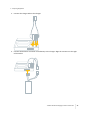
3. When prompted, connect the download cable. Tap Next to update the eBox firmware.
4. The eBox firmware update consists of several automatic steps. When the firmware has finished
updating, disconnect the download cable from the eBox and the modem.
The software returns to the Flight Planning screen.
Trimble UX5 Aerial Imaging Solution User Guide
14