1
Scotty Cowling, WA2DFI
PO Box 26843, Tempe, AZ 85285; [email protected]
Hands-On-SDR
You’ve been hearing about it, you’ve even read about DSP techniques, now it’s time
to actually put your hands on some hardware and install some software!
I often find that the fascination with
something that works comes first, and the
understanding of exactly how it works
comes later. “I can actually pull music from
out of the air with that little glass bead! How
does that crystal set work, anyhow?”
In this new QEX column, I will show you
how to combine off-the-shelf hardware and
software components to make a working
software defined radio (SDR). Our focus
won’t be as much on how it works as how do
I make it work. The digital signal processing
(DSP) heavy lifting, complex mathematical
functions and data transport (the Ethernet
interface, for example) have already been
implemented by others. We will hook up
existing hardware and software blocks in
order to build a working SDR. While I won’t
delve into the internal workings of each
block (at least not too much), I will show you
how to get on the air with as little pain and
confusion as possible.
The main focus will be on the software, or
user interface (UI). The UI acts as a “virtual”
front panel (in other words, generated by
software) of our SDR. We will control the
operation of the radio from this virtual front
panel. The UI that we will be using is called
HDSDR, short for High Definition Software
Defined Radio. Even though we will focus
on the software, we still need some hardware
to pull signals from the ether.
In this first installment of the column,
I will describe how to set up and use
three different sets of commonly available
hardware with the HDSDR software. You
will want to select one of these radios to
follow along.
The first option I will describe uses the
SDRstickTM HF1 boards that I described in
the July/August 2014 issue of QEX.1, 2 The
second option will be to set up an SDR-IQTM
receiver from RFSpace.3 Last, we will install
and configure a Softrock RX Ensemble II
receiver, available from Five Dash Inc.4 The
end result of each lash-up will be a working
SDR receiver.
You might ask, “Why set up three
different radios, when I only have two
ears?” There are several reasons. Each of
these receivers connects to the computer
in a different way (Ethernet, USB, or PC
sound card); each has its own capabilities
(display bandwidth, frequency range); and
the price range is wide (from a $67 kit to a
$525 assembled unit). By showing different
connection methods, you will be more
prepared to hook up any SDR than if we
just showed one example. Taken together,
these three radios are representative of
the majority of SDRs that you are likely
to encounter in the amateur marketplace.
By looking at different capabilities, you
will become familiar with the features of
more than one SDR and learn the relative
importance of these features. Lastly, you are
more likely to have access to the hardware if
we show three examples; if SDR hardware
is not in your budget right now, you might
be able to borrow some from one of your
buddies in the local club. Beware! This is a
fun part of amateur radio. After playing with
your SDR Elmer’s borrowed hardware, you
might just have to go out and get your own!
Is this for me?
With the limited space available within
1
each column, I must assume some technical
knowledge on the reader’s part. In general,
what do you, as the reader, need to know?
What equipment do you need to have
available? Keep in mind that many of the
procedures are the same or similar for all
SDRs. Even if you do not have the hardware,
you may pick up some tricks by following
along with the text. Note that things like
programming knowledge, advanced
math skills and RF design experience are
conspicuously absent. We are assembling an
SDR, not designing one.
A “Good” Windows PC
While the Marines need a few good men,
we need one good PC. If you are a Linux or a
MAC guy, you can still play with SDRs, but
the experiments here require a Windows PC,
running XP, 7, 8 or later. What is a “good”
PC? I am not trying to be evasive, but the
answer is, “it depends.” Generally any midgrade PC built within the last few years will
do, but here are some guidelines:
• At least two cores at 2.0 GHz or faster.
• 8 GB of memory.
• At least 10 GB of free disk space.
• Gigabit Ethernet port (minimum 100
Mb Ethernet is required).
• Minimum display resolution of 1024 ×
768 (the bigger the better).
• One free USB 2.0 port.
• Sound system with line input and
speakers.
The ultimate test of a computer’s
suitability is simply to try it. Just be prepared
to upgrade if you are using an old workhorse
PC; it is likely not up to the task.
Notes appear on page 37.
QEX – September/October 2014
31
Operating System Knowledge
I assume that you know your way around
the operating system, and can perform the
following tasks, as a minimum. There are
many on-line references to help you if you
need to learn or just to brush up on the finer
points of your particular operating system.
• Install applications.
• Check system information and update
hardware drivers.
• Enable/disable both wired and wireless
network ports.
• Change PC IP address and network
mask.
• Enable and disable PC DHCP client.
• Use Windows Command Shell to check
IP addresses and ping network devices.
• Check/set environment variables using
the system properties dialog box.
• Navigate the PC file system to copy,
move and unzip files.
You will need a signal source. This could
be a resonant amateur band antenna or nonresonant wire (to gather interesting signals)
or a signal generator (not so interesting, but
good for testing). Attenuators and high-pass
filters are helpful too, especially if you live
next door to a high-powered MW broadcast
station. (More on this later.) We will list the
specific hardware you need for each project
before we show you how to put it all together
to make an SDR.
Today’s Project: Let’s Make a
Receiver!
The SDRs we will put together today
are receivers that cover some or all of the
medium wave band (300 kHz to 3 MHz)
and all of the shortwave band (3 MHz to
30 MHz). We will use HDSDR software
for our user interface for each receiver, and
connect each SDR to the PC in a different
way. In spite of the simplicity of some of the
hardware, all of these receivers perform well.
What You Need: Hardware and
Software
We will work with three different receiver
hardware configurations. We will show you
how to set up the software for all three of
these and become an expert at assembling
different SDR systems. When you run
the HDSDR software, you will select the
hardware that you want to use. Note that
the three configurations were not chosen at
random; each setup connects to the PC in a
different way. The three different connection
methods are the three most commonly used
by modern SDRs. If you can make these
three different setups work, you can hook up
just about any SDR! See table 1 for a quick
comparison of the three receivers we will
set up.
In addition to your Windows PC, here
is the hardware you will need for the
SDRstickTM receiver:
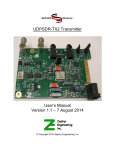
• BeMicroSDK development board and
a UDPSDR-HF1 receiver board (Figure 1).
• 5 V DC, 500 mA power supply.
• Short Cat5 Ethernet cable.
• SMA adapter to your antenna feed.
Here is the hardware you will need for the
SDR-IQTM receiver:
• RFSpace SDR-IQTM receiver (Figure
2).
• USB type A to type B cable (typical
USB printer cable).
• BNC adapter to your antenna feed.
Here is the hardware you will need for the
Softrock RX Ensemble II receiver:
• Softrock RX Ensemble II receiver
(Figure 3).
• USB type A to type B cable (typical
USB printer cable).
• Audio patch cord, 3.5 mm stereo maleto-male.
• 12 V DC, 500 mA power supply.
• Enclosure (optional).
• BNC adapter to your antenna feed.
There are six pieces of software you need
to make these receivers operate with HDSDR.
We will cover software downloading and
installation in the next section.
• HDSDR application for all receivers.
• FTDI USB driver for SDR-IQTM.
• LibUSB driver for Softrock receiver.
• ExtIO_SDRSTICK.dll file for
SDRstickTM receiver.
• ExtIO_SDRIQ.dll file for SDR-IQTM
receiver.
• ExtIO_Si570.dll file for Softrock
receiver.
Software Download and Installation
Installing the software is by far the most
complicated and time-consuming task of the
project. Here we will show you where to get
each piece of the software and show you
some tips for download and installation that
will save you some time.
For all receivers, we need the HDSDR
User Interface
Download the HDSDR installer by
going to www.hdsdr.de and clicking the
Download button at the bottom of the page.
Table 1
Feature Comparison of the Three SDR Receivers
SDRstickTM HF1
Receiver type
DDC
PC Connectivity
Ethernet
Freq Coverage
100 kHz to 30 MHz
Display Bandwidth 1.25 MHz
A/D Converter
14 bit @ 80 Msps
Case
no
Power
USB or external 5V
Cost
$243 assembled
SDR-IQTM
DDC
USB
100 Hz to 30 MHz
190 kHz
14 bit @ 67 Msps
included
USB only
$525 assembled
Figure 1 — The BeMicroSDK data engine together with the HF1 RF front-end board.
32
QEX – September/October 2014
Softrock RX Ensemble II
QSD mixer
Soundcard + USB
1.8 MHz to 30 MHz
96 kHz
soundcard
$20 option
external 12V
$67 kit/$92 assembled
Figure 2 — The SDR-IQ receiver from RFSpace.
Figure 3 — The Softrock RX Ensemble II Receiver from Five Dash Inc.
Save the software to a folder of your choice.
Next, run the installer by using Windows
Explorer to navigate to the folder where
you saved the program, and double-click
on HDSDR_install.exe. You will have to
accept the license agreement (click on the
“I accept the agreement” button). You will
also have to select the Destination Location,
the Start Menu Folder and the icons that you
want. (I suggest that you accept the defaults
on all of these choices.) You will then be
shown a summary of all of the selections that
you have made. At this step, write down the
Destination Location, because you will need
to know it later.
Finally, click the Install button to install
the HDSDR user interface software. The final
dialog box gives you the option to Launch
HDSDR. Uncheck this box, since we have
a few more things to do before we are ready
to run the software. Click the Finish button
to complete the installation. We will use this
software to operate all three radios, but we
are not quite there yet.
In order for HDSDR to recognize and
“talk” to our receiver hardware, we need
one more file. This file is generically called
an ExtIO.dll file, and we need a different
one for each kind of hardware that we want
to use. This means that there are three of
these ExtIO.dll files that we will need, one
for each receiver. (Take a look at the list of
software, above, for the three file names.)
Think of the ExtIO.dll files as “translators”
that sit between the HDSDR software and
our hardware. The “translators” convert the
data from our hardware (in three different
formats, a different one for each receiver)
into the single native format that HDSDR
understands.
For the SDRstick TM HF1 receiver,
download the file ExtIO_SDRSTICK.dll
from svn.sdrstick.com in the /sdrstickrelease/software/extio section. Place this
file in the HDSDR install directory. (You did
write down the Destination Location during
the install, didn’t you? Just in case you didn’t,
the default destination location for Windows
QEX – September/October 2014
33
XP is C:\Program Files\HDSDR, and for
Windows 7 it is C:\Program Files (x86)\
HDSDR).
For the SDR-IQTM receiver, download
the USB driver from rfspace.com/support_
files/SDR14IQUSBdriver.zip and save it to
a folder of your choice. Unzip the archive to
either the same folder or a subfolder. Note the
location of this folder, because we will need it
to install the USB driver when we first plug in
the SDR-IQTM receiver. Next, download the
zip archive from www.hdsdr.de/download/
ExtIO/ExtIO_SDRIQ14_Bonito.zip and
save it to a folder of your choice. The archive
contains two files; unzip it and copy the
ExtIO_SDRIQ.dll file into the HDSDR
install directory.
The Softrock procedure is a bit different.
We need the LibUSB driver to talk to the
Softrock USB port. Download the driver
installer from pe0fko.nl/SR-V9-Si570/
PE0FKO-USB-Driver-installer.exe. Save
this installer to a folder of your choice and
run it. The Driver Setup wizard will guide
you through the steps necessary to install
the LibUSB driver. Use the defaults for
Destination Location and Start Menu Folder
and click Next after each selection. If you
are prompted to install the certificate, click
Install Cert. Click Install to run the Device
Driver wizard, then Next and Finish to
complete the LibUSB driver installation.
Finally, click Finish to exit the Driver Setup
wizard. If it seems like you are stepping
through two installation wizards, it is
because you are! The first (Driver Setup)
wizard checks for the ROOT certificate and
prompts you to install it if needed. This
certificate is used to validate the driver. After
the certificate is installed, the second (Device
Driver) wizard installs the LibUSB driver
itself.
The ExtIO_Si570.dll file that we need
is part of an install package that includes
the CFGSR.exe configuration utility (which
we do not actually need). To get both of
these, download the setup program from
pe0fko.nl/CFGSR/setup.exe and save it to
a folder of your choice. Run this program,
and it will automatically download and run
the correct Windows installer version for
your operating system. You will need to
click the Next button to get to the Select
Installation Folder dialog box. Accept the
defaults and click Next, then confirm that
you want to install by clicking Next yet
again before installation will commence.
After installation is complete, click Close
to complete the setup. Now navigate to
the CFGSR installation folder and find the
subfolder ExtIO_Si570. (If you didn’t make
a note of it, the default installation folder for
Windows XP is C:\Program Files\CFGSR,
and for Windows 7 it is C:\Program Files
(x86)\CFGSR). Look in this subfolder to
find the file ExtIO_Si570.dll; copy this file
into the HDSDR install directory.
Now that the software and its three
ExtIO.dll “translators” are installed, we are
ready to hook up the hardware.
Hardware Programming
If you purchased your SDRstick TM
BeMicroSDK and HF1 from iQuadLabs,
the BeMicroSDK is already programmed,
and no hardware programming is needed.
If you purchased your boards from Arrow
(www.arrownac.com/solutions/bemicrosdk/), you must program the BeMicroSDK
yourself before it will work. The procedure is
outlined in the HF1 user’s manual, so we will
not cover it here.5 No hardware programming
is required for the SDR-IQTM or Softrock RX
Ensemble II receivers.
Hardware setup
To set up the HF1 receiver, first plug the
HF1 front-end board onto the BeMicroSDK,
making sure to line up the pin 1 marks. See
the HF1 users’ manual for details. Plug the
5 V DC power supply into the J3 connector on
the HF1 board.6 Alternatively, you can plug
the BeMicroSDK/HF1 combination into a
Figure 4 — Screen shot of the HDSDR user interface application.
34
QEX – September/October 2014
USB port on your PC. Windows will not be
able to power the receiver without the Altera
USB Blaster driver, however. Again refer
to the HF1 users’ manual for instructions if
you want to power your receiver this way.
When the receiver is correctly powered up,
LED V701 lights on the BeMicroSDK board
and LED1 and LED2 flash at about 1 Hz.
Connect the BeMicroSDK Ethernet port
either directly to your PC or to a port on an
Ethernet switch that is on the same subnet as
your PC. (Most home networks have only
one subnet, so a free port on your router’s
internal Ethernet switch will work fine.)
Connect your antenna or signal generator to
the SMA antenna connector (J4) and your
hardware setup is complete.
To set up the SDR-IQTM receiver, connect
it to the PC with a USB type A to USB
type B cable. These are commonly used to
connect printers to your PC. The USB driver
may install automatically (if a suitable FTDI
driver is already on your system), but if it
doesn’t, point the installer to the USB driver
folder to where you unzipped the driver
that you downloaded. As an alternative,
you can go to the Device Manager and
update the driver that way, again pointing
to the unzipped driver folder. Connect your
antenna or signal generator to the BNC
antenna connector and your hardware setup
is complete. When the receiver is correctly
powered up, the green power light should be
on, and the yellow LED next to the antenna
icon should be slowly pulsing.
To set up the Softrock RX Ensemble II
receiver, connect it to the PC with a USB type
A to USB type B cable. The USB driver will
install automatically, since you have already
installed the LibUSB software. Connect the
Line in connector of the Softrock to the Line
in connector of your PC sound card using a
3.5 mm male-to-male audio patch cord. Note
that you must use the Line in connection;
typically the Microphone in connection
will not work because it is a monaural input.
Connect 12 V power to the front panel power
connector (the pin is positive). Connect your
antenna or signal generator to the BNC
antenna connector and your hardware setup
is complete.
(A)
(B)
Operating and Troubleshooting
We are now ready to “fire” up our SDR
receivers. Each receiver communicates with
the PC differently. If this communication
channel is not working, our SDR will not
work either. Let’s tackle the most difficult
interface first: the Ethernet interface on HF1.
HF1 Operation
HDSDR operation with HF1 is normally
quite simple, but there are a few network
hurdles that you might face the first time you
start the software. If you have a DHCP server
running on your network and use it to assign
addresses to both your PC and SDR, you will
have the least problems, since the PC and
radio will be on the same subnet by design.
If you use a fixed address for either the PC
or the radio, you must make sure that the
addresses are unique and that they are on the
same subnet. The default IP address for HF1
is 192.168.1.25 on the 192.168.1.x subnet.
Go ahead and start the HDSDR application
(see Figure 4). Since you have three ExtIO.
dll files in the HDSDR working directory,
you will have to choose the one to use. Select
ExtIO_SDRSTICK.dll from the list and
click OK. HDSDR will perform a network
discovery and, with any luck, find your HF1
SDR (Figure 5A). The network discovery
dialog box (see Figure 5B and 5C) will warn
you if your HF1 cannot be found or if your
HF1 and PC are on different subnets. If you
get one of these warnings, you must fix the
problem before your receiver will work
properly.
If you start HDSDR and see no dialog
box of any kind, check to make sure that
you placed the three ExtIO.dll files in the
correct HDSDR installation directory. Also
check to make sure that your PC and radio
IP addresses are on the same subnet. Open
a Windows Command Shell and ping the
BeMicroSDK IP address; it should respond.
If not, check your network addresses and
connections. Another thing to be aware of is
that multiple available networks on the PC
confuse HDSDR network discovery. The
most common occurrence of this problem
is when you have your wireless network
turned on. Disable your wireless network
connection and it will work just fine. (You
can even turn the wireless network back
on after successful network discovery.)
Speaking of wireless networks, the HF1 can
operate over a wireless connection, but it uses
a large chunk of bandwidth on the network at
the higher bandwidth setting.
HF1 is capable of two display bandwidth
settings, 384 kilo samples per second (Ksps)
and 1.25 million samples per second (Msps).
At 384 Ksps, it uses about 15 million bits per
second (Mbps) of network bandwidth, and
at 1.25 Msps it uses about 50 Mbps. Some
wireless networks cannot handle the lower
rate, and most wireless networks cannot
handle the higher rate. Wired Ethernet is
recommended.
Once HDSDR is running, click the Start
button to turn the radio on. To select the
display bandwidth, click on the Bandwidth
(F6) button in the lower left of the display (or
just press F6). At the bottom of the dialog box
that pops up, there is a selection box; click on
the down arrow to see the two sampling rate
choices: 384 kHz or 1.25 MHz. Choose the
higher sampling rate to see more of the band
at once or the lower sampling rate if you have
a slower PC.
SDR-IQTM Operation
Start the HDSDR application. Again,
you will have to choose which ExtIO.dll to
use. For SDR-IQTM, select ExtIO_SDRIQ.
dll from the list and click OK. In this case,
there is no network discovery since the
SDR-IQTM is connected to a USB port. Just
click the Start button to turn the radio on.
To select the display bandwidth, click on the
Bandwidth (F6) button or press F6. Click
on the down arrow in the selection box to see
the three sampling rate choices: 55.555 kHz,
(C)
Figure 5 — HDSDR Network Discovery Dialog Boxes. (A) indicates that everything is okay, (B) is seen when no SDRstickTM can be found
and (C) tells you that the PC and radio are not on the same subnet.
QEX – September/October 2014
35
111.111 kHz or 196.078 kHz. Just like
before, choose the higher sampling rate to
see more of the band at once or the lower
sampling rate if you have a slower PC.
Two other settings that you can choose
are only found in the SDR-IQTM, but not
in the HF1 or Softrock: the RF attenuator
and IF gain settings. Click on the ExtIO
button to see the controls and settings that
are implemented within the ExtIO_SDRIQ.
dll file. Note that you can set the IF gain, RF
attenuation level and the sample rate within
the ExtIO dialog box. While you can set the
sample rate elsewhere (as we have shown),
the other two settings can only be made from
the ExtIO dialog box.
Softrock RX Ensemble II Operation
Start the HDSDR application. As usual,
you will have to choose which ExtIO.dll to
use. For the Softrock, select ExtIO_Si570.
dll from the list and click OK. No network
discovery is performed and you can click the
Start button to turn the radio on. To select the
display bandwidth, click on the Bandwidth
(F6) button or press F6. This time there is
no selection box, but you can choose from
the sample rates in the Input column. The
highest rates may not be supported by your
sound card; try them to see how they work.
Typical rates will be: 48 kHz, 96 kHz or
192 kHz. Just like before, choose the higher
sampling rate to see more of the band at
once or the lower sampling rate if you have
a slower PC.
Click on the ExtIO button to see controls
and settings that are implemented within the
ExtIO_Si570.dll file. Wait, what is all this?
There are dozens of settings here, and things
are complicated! It is time for a more detailed
explanation of the Softrock RX Ensemble II
architecture so we know what we are doing
(at least more than we know now). The
Softrock uses what is called a Quadrature
Sampling Detector or QSD. This detector
is similar to two conventional mixers, one
operating in-phase (the I channel) and one
operating in quadrature, or shifted by 90º (the
Q channel). The Softrock uses a Silicon Labs
Si570 IC hardware frequency synthesizer for
its local oscillator. The center frequency of
the display bandwidth is determined by the
frequency of this local oscillator that feeds
the two mixers.
The Softrock uses the USB port to control
the Si570 chip. The Si570 is very versatile,
and many settings are needed to configure
it. This is why you see so many tabs when
you click on the ExtIO button. Note that
the I and Q data from the mixer is sent to
the PC soundcard line-in, and not over the
USB connection. This is the analog receive
data that the PC sound card processes to
form the digital I/Q data stream that HDSDR
demodulates and filters. The term analog
36
QEX – September/October 2014
should give away the reason that the sound
card is used to transport the data instead of
the USB port. The Softrock uses separate
control (USB) and data (soundcard) ports,
while the HF1 and SDR-IQTM each use only
one port for both control and data (Ethernet
and USB, respectively). The HF1 and SDRIQ TM have on-board Analog-to-Digital
converters, so their receiver data is digital and
can be easily sent over the digital interfaces
(USB and Ethernet).
It is beyond the scope of this column to
cover all of the Softrock ExtIO options here,
but there are a few settings that you need to
make before you can use the receiver. These
settings only need to be made once, the first
time you run HDSDR with new hardware. In
the USB tab, click on the USB device from
the list in the bottom window (there will
likely only be one device in the list) and then
click the Open button at the bottom of the
window. In the Init tab, click the button next
to the radio type, in our case Ensemble RX
II LF/HF(HF). You can now click on the
Hide button to dismiss the ExtIO window
and get back to using the radio. To open the
ExtIO window again, just click on the ExtIO
button on the main HDSDR screen at any
time. There is a wealth of information on the
Softrock RX Ensemble II on line, and you
can research and dig into the finer nuances of
Si570 settings to your heart’s content.7
HDSDR Operation for All Receivers
You can adjust the frequency by mousing
over the fields in the Tune section and using
your mouse wheel. If your mouse has no
wheel, use the left mouse button for up and
the right mouse button for down. As already
described, use the Bandwidth (or F6)
button to choose to see either more or less
bandwidth on the panadapter and waterfall
displays. Choose narrower bandwidths if
you are running a less powerful PC and
experience audio dropouts. The lower
waterfall and panadapter windows are just
zoomed-in versions of the pass band that is
highlighted in the upper window. Slowing
the screen update rates with the Speed sliders
below each panadapter window can also
ease the load on your creaky old PC if you
experience audio problems.
Go ahead and play around with the
settings in the user interface. You can grab
either edge of the pass band in the lower
panadapter window and drag it to perform
low-cut or high-cut on the audio. You can
click in the upper panadapter window to
instantly change frequency. You can record
and playback using the controls just below
the Volume and AGC sliders. Keep in mind
that when you record, you are recording the
entire spectrum, not just your selected pass
band. This uses a lot of disk space at the
wider bandwidth settings. HDSDR even has
a scheduler for recording at predetermined
times (it is under the Options menu). The
advantage of recording the entire spectrum is
that while playing back your recording, you
can tune within the recorded spectrum, just
as if you were listening to the airwaves “live.”
One other thing to be aware of is ADC
overload. As we have already described, the
SDR-IQTM has an internal 20 dB attenuator
that you can use to prevent overload. The
HF1 front-end uses a 20 dB preamp that
provides sufficient sensitivity for reasonable
size antennas, but has no way to adjust any
gain settings, and can be overloaded when
using a large antenna. The Softrock can also
be overloaded with RF from a large antenna.
If you have a Yagi at 150 feet or live next
door to a 50 kW broadcast station, you may
overload the receiver front-end. For HF1,
LED8 on the BeMicroSDK indicates ADC
overload. On the SDR-IQTM front panel,
the red LED above the clipped sine wave
icon is the ADC overload indicator. You
should never see these light up for more
than an occasional flicker. If they do, you
must reduce the level of the offending signal.
Remember, the front-end has a broadband
frequency response.
The offending signal could be almost
anywhere! You can just reduce all signals
by adding an in-line attenuator (or using
the SDR-IQTM built-in attenuator), or you
can selectively remove the culprit with an
external notch-, low-, or high-pass filter if
you can identify it. The Softrock does have
four internally switched low-pass filters, but
unfortunately it has no overload indicator.
Overload indications are distortion in the
audio accompanied by a general rise in
the noise floor (as seen on the panadapter
display) and/or appearance of many spurious
signals across the viewable spectrum.
If you get stuck and just can’t make your
receiver work, there is help available. For the
HF1 receiver, the SDRstick Yahoo group has
about 250 members and is a friendly group.8
For the SDR-IQTM, the SDR-IQ group is
your resource.9 The Softrock Yahoo group
is named Softrock-40 after the first radio
in the series.10 Just ask a question on any of
these forums and you will very likely get
help quickly.
Next Installment: Interesting SDR
Applications
Now that we have a working SDR, what
can we use it for? Get ready to do some
broadcast-band DXing, where you can
see the signals, listen to digital shortwave
broadcasts or copy one of the new digital
modes.
Scotty Cowling, WA2DFI, was first
licensed in 1967 as WN2DFI, and has been
continuously active since that time. An Extra
Class licensee and ARRL Life Member, Scotty
is active while mobile on HF CW and on
APRS. He is an advisor for Explorer Post
599, a BSA affiliated ham club for teens in
the Phoenix, Arizona area. He also enjoys
minimalist QRP operating. He has participated
in every ARRL Field Day since 1968!
Scotty has been involved in the openHPSDR
project for the last 8 years, and has served
on the TAPR Board of Directors (2006-2012)
and as TAPR Vice President (2011-2012). He
is active in the production of openHPSDR
components and with other TAPR projects. He
is a co-founder of iQuadLabs, LLC, a supplier
of openHPSDR systems and other Software
Defined Radio components, and is President
of Zephyr Engineering, Inc, an engineering
consulting firm.
Scotty’s professional specialty is FPGA
and embedded systems hardware design. He
designed his first project with a microprocessor
in 1975 and his first FPGA project was in
1987. He holds a BSEE from Rensselaer
Polytechnic Institute and an MSEE from
Arizona State University.
Notes
BeMicroSDK and UDPSDR-HF1 are available for $243 from either iQuadLabs (www.
iQuadLabs.com) or Arrow Electronics
(www.arrow.com).
2
Scotty Cowling, WA2DFI, “Hardware Building
Blocks for High Performance SDRs”, QEX,
Jul/Aug 2014, pp 28-40.
3
SDR-IQTM receivers are available for $525
from RFSPACE, Inc. www.rfspace.com/
RFSPACE/SDR-IQ.
4
Softrock RX Ensemble II kits are available
for $67 from Five Dash Inc www.fivedash.
com/index.php?main_page=product_
info&cPath=1&products_id=7. Assembled
boards are available for $92 and metal
enclosures for $20.
5
The HF1 User’s Manual can be downloaded
at www.sdrstick.com/manuals/UDPSDR_
HF1_users_manual_V1_1.pdf.
6
The power connector for the HF1 is a
2.35 mm × 0.7 mm barrel, CUI part number
PP-012, DigiKey CP-012-ND.
7
Softrock RX Ensemble II information is
available at these links: www.wb5rvz.org/
ensemble_rx_ii/index?projectId=16.
www.wb5rvz.org/common/softwareinstallation.
8
The SDRstick Yahoo group is at: www.
groups.yahoo.com/groups/sdrstick.
9
The SDR-IQ Yahoo group is at: www.
groups.yahoo.com/groups/SDR-IQ.
10
The Softrock Yahoo group is at: www.
groups.yahoo.com/groups/softrock40.
1
QEX – September/October 2014
37