1
1. Quick Start User Guide
1. Preamble
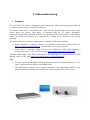
The ACCES CoViz facility should be accessible with a minimum of knowledge of how to
operate the hardware and software.
This guide is designed to provide users with the basic knowledge required to use the CoViz
facility for both visualization and videoconferencing. Please contact [email protected] if additional
information is required.
Information regarding the goals of the CoViz facility and the installed hardware and software
can be found on the ACCES wiki (http://wiki.epfl.ch/acces.viz).
2. Starting your session
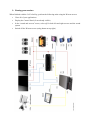
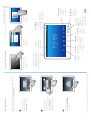
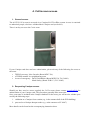
The CoViz facility is managed by a web-based control system. This is generally accessed from
the Wacom tablet, but is also available e.g. on the mobile Samsung tablet. Both tablets have a
touch screen.
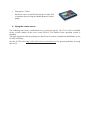
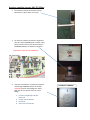
• Switch on the Wacom tablet (using button at top right)
• Logon with username “user” (there is no password required)
• Select the CoViz Control Panel (generally the default selection, but if not click on
“control panel” icon at bottom left)
• Select “screens & sound” from the top horizontal menu (generally the default selection)
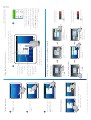
• Switch on the left and/or right main screens, by selecting the input source:
o off: switch the screen off (at the end of your session)
o computer: input from CoViz display server
o blueray: input from OPPO Blu-ray player
o external: input from e.g. laptop, Wacom tablet
o videoconf: input from videoconferencing system
You should hear an audible click from each screen when switched on, before a visual
image appears a short time later.
• The sound can be similarly controlled using the “sound system” menu.
• If appropriate, from the top horizontal menu select:
o apps: run application software via the control panel interface
o videoconference: web control interface for videoconferencing
o media & demos: general and lab-specific examples of presentations, images,
movies and demos
o help: useful information to assist operation