1
9 Help in the case of problems
x-touchBOX/PANEL
Version 3.0
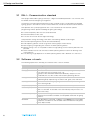
9.1 Resetting to factory defaults
9 Help in the case of problems
9.1 Resetting to factory defaults
If you reset the configuration of the ›x-touch‹ software to the factory defaults, your settings and the
addressing of the operating devices will be deleted.
–
The Main Menu is displayed.
1.
2.
3.
4.
Press the Main Menu button.
Press the Configuration button.
Press the System tab.
Press the Reset to factory defaults button.
= The ›x-touch‹ software is reset to the factory defaults.
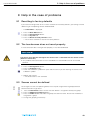
9.2 The touchscreen does not react properly
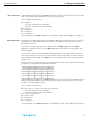
If the touchscreen does no longer react properly, it must be recalibrated.
NOTICE
The device might become damaged if the touchscreen is calibrated with the remote control
(Ethernet connection).
¾ Only calibrate the touchscreen on the x-touchBOX or x-touchPANEL and not via the web
browser.
1.
2.
3.
4.
Press the Main Menu button.
Press the Configuration button.
Press the Calibrate button.
Touch the calibration symbol with a pen and ensure that you are touching the center of the
calibration symbol.
5. Repeat step 4 twice.
= The touchscreen is now centered.
9.3 Scenes cannot be defined
Hint
To configure a scene, one operating device must only be assigned to one groupe, because
otherwise conflicts might occur.
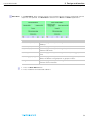
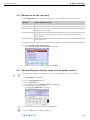
1. Press the Main Menu button. Ensure that each device is assigned to exactly one group.
2. Press the Addressing/grouping button.
3. Press the Folder button and check the groups one after the other. Ensure that the device is
assigned to a group.
4. Change the grouping if necessary.
49