1
TROUBLESHOOTING GUIDE
FOR YOUR TIME RECORDER
YOU MUST BE LOGGED IN AS ADMIN IN TIMETRAX AS WELL
AS ANY OTHER INTEGRATED SOFTWARE PROGRAM, SUCH AS
QUICKBOOKS, TO PERFORM ANY MAINTENANCE FUNCTIONS.
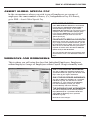
Software is Acting in an Unexpected Manner
TROUBLESHOOTING
• Restart TimeTrax and see if that corrects the problem.
• Reboot your computer and re-launch TimeTrax.
• Make sure you meet the minimum system requirements listed in the
MINIMUM SYSTEM REQUIREMENTS section of this manual.
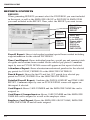
Upgrade or Software Reinstallation Single Version User
•
•
•
•
•
Close out of TimeTrax Software.
Create a “TimeTrax Backup” folder on your desktop.
Right-click on the Desktop and select ➞ NEW ➞ FOLDER.
Name this folder DATA.
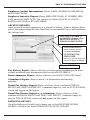
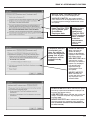
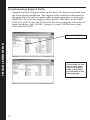
Navigate to My Computer – C:\ Program Files\Pyramid\TimeTrax folder
and locate the following 6 files:
Pyramid.mdb
Pyrarchive.mdb
Pyrexport.mdb
Pyrpolmd.mdb
Pyramid.ini
Pyramid.bku
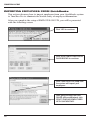
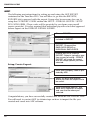
If you cannot see the file extensions, you may need to go to Tools, Folder
Options, View and then make sure HIDE FILE EXTENSIONS FOR KNOWN
FILE TYPES is unchecked. These are your database files and contain all of
your information.
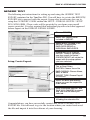
• Copy these files to the DATA folder on your desktop. To do this, select
the first file and single left click so that it is highlighted, hold the CTRL
key on your keyboard and select the other 5 files. Choose EDIT ➞ COPY
and close out. Open the DATA folder on your desktop and choose
EDIT ➞ PASTE.
*It is very important that you have all 6 files in your DATA file before
moving forward.
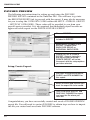
• Close out of all open windows. Navigate to Control Panel and select
ADD/REMOVE PROGRAMS. Locate TIMETRAX on the list and choose
REMOVE.
62