1
PBPS User Manual
2.
3.
4.
5.
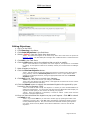
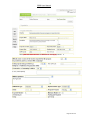
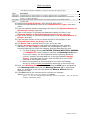
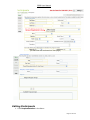
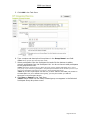
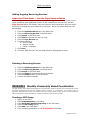
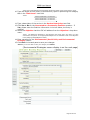
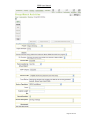
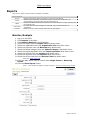
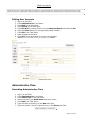
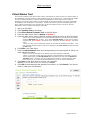
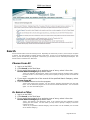
Click Participant in the Sub-Menu.
Click Edit in the Task Pane
Make changes to the form.
Click Save or Cancel in the Task Pane.
Deleting Participants
*Note: You may not delete a participant that is already used in a service or in a Mentoring program.
1.
2.
3.
4.
5.
6.
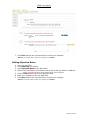
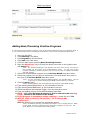
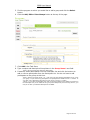
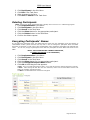
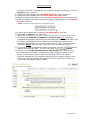
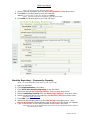
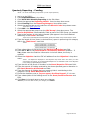
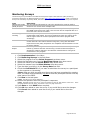
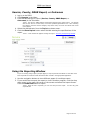
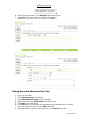
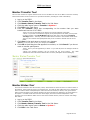
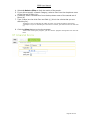
Click Implementation in the Menu.
Click Participant in the Sub-Menu.
Click Search in the Task Pane
Click the Select button for the appropriate participant.
Click the Delete button in the Task Pane.
Confirm the delete request.
Encrypting Participants’ Names
By encrypting the participant name, the PBPS strips the name from the participant record and assigns an
unidentifiable number (which becomes their ID) that is used to manage the participant within the PBPS.
Encryption is important in order ensure client confidentiality and to handle the participants who withhold their
name. You can only encrypt a participant’s name after the participant has been added and saved into the
PBPS.
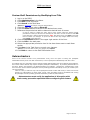
*NOTE: ONCE A PARTICIPANT’S NAME IS ENCRYPTED,
IT CANNOT BE UNDONE (IT IS PERMANENT).
1.
2.
3.
4.
5.
6.
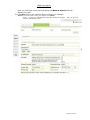
Click
Click
Click
Click
Click
Click
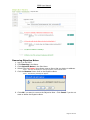
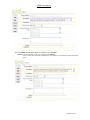
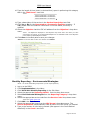
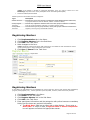
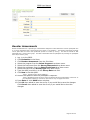
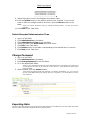
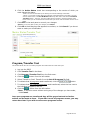
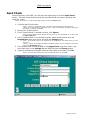
Implementation in the Menu.
Participant in the Sub-Menu.
Search in the Task Pane.
the Select button for the appropriate participant.
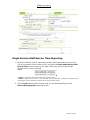
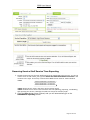
the Encrypt Participant Name button.
OK at the dialog box that appears.
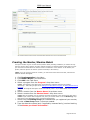
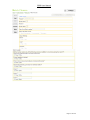
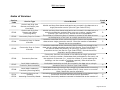
*Note: This is your last opportunity to abort. If you click OK, then the changes cannot be reversed.
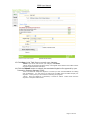
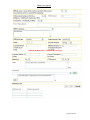
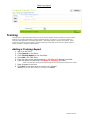
**Note: After clicking OK and after the form refreshes, notice how the First Name and the Last
Name are randomly generated number.
***Note: The birth date does not become encrypted.
Page 38 of 102