1
Clear WiFi Setting—To erase the console’s
wireless network settings and have it forget the
currently selected wireless network, follow the
instructions in the matrix.
Log in to your iFit Live account on the web page.
Then, enter the numerical code into the indicated
field. Follow any other instructions on the web
page.
4.Use WiFi–Normal to set up a wireless
connection.
This option will allow you to set up a wireless network connection using the console.
When the console is connected to a wireless
network, the wireless symbol in the display will
stop flashing and become solid. The wireless symbol will show the strength of your wireless signal;
four arcs indicate full signal strength.
Note: You will need to know your network name
(SSID). If your network has a password, you will
also need to know the password.
If you cannot complete any part of this
process, or if you have any questions, go to
http://support.ifit.com for assistance.
To set up a wireless network connection using the
console, first press the Enter button.
5.Use WiFi–WPS to set up a wireless connection.
This option will allow you to set up a wireless network connection using your WPS router.
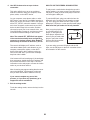
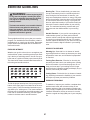
Next, set the included WiFi setup card on the
console. The buttons on the WiFi setup card
are referenced in the following instructions.
To set up a wireless network connection using your
WPS router, first press the Enter button and follow
the instructions in the matrix.
A list of networks will appear in the matrix. Press
the up and down buttons to highlight the desired
network. Then, press the Enter button. Note: Do
not select IFIT_SETUP.
A numerical code and a web address will appear in
the matrix. Go to the web address on your internetcompatible device.
Note: The time display will show the number of
the currently-selected access point. The distance
display will show the total number of access points
detected.
Log in to your iFit Live account on the web page.
Then, enter the numerical code into the indicated
field. Follow any other instructions on the web
page.
If the network has a password, enter the password.
When the console is connected to a wireless
network, the wireless symbol in the display will
stop flashing and become solid. The wireless symbol will show the strength of your wireless signal;
four arcs indicate full signal strength.
A keyboard will appear in the matrix. As necessary,
press the buttons on the WiFi setup card to select
the caps option, the number option, or the symbol
option.
If you cannot complete any part of this
process, or if you have any questions, go to
support.ifit.com for assistance.
Press the up, down, left, and right buttons to highlight the desired letter or number. Then, press the
Enter button to select the letter, number, or symbol.
When you have finished entering the password,
press the Done button.
A numerical code and a web address will appear in
the matrix. Go to the web address on your internetcompatible device.
21