1
2.7 Active Cameos
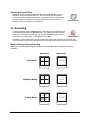
A cameo is defined as any cell within a multiscreen display. Active Cameo mode allows the user to
access and edit each cameo individually.
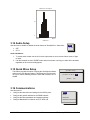
Entering Active Cameo Mode
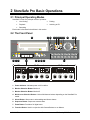
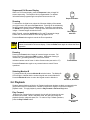
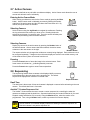
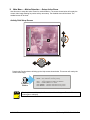
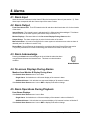
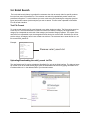
While viewing a multiscreen, enter Active Cameo mode by pressing the Enter
button. Active Cameo mode is indicated on-screen by flashing the number
and titles of the active cameo and the LED above the Enter button is lit. By
default, the top left cameo is activated.
Enter Button
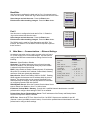
Selecting Cameos
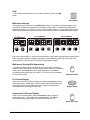
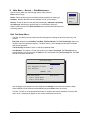
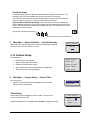
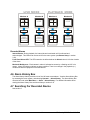
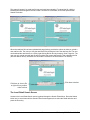
Select a cameo using the Jog/Shuttle to navigate the multiscreen. Rotating
the Jog selects the next screen up or down a row. Rotating the shuttle
selects the next screen in numerical order. The active cameo will always be
indicated by the flashing camera number and titles.
Jog/Shuttle
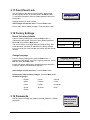
Selecting Cameras
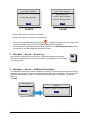
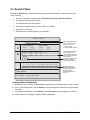
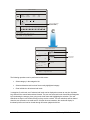
Display any camera in the active cameo by pressing the Number button of
the desired camera. Once a camera has been selected, the active cameo
advances to the next cameo on the right.
1
Number Button
The camera selection only changes the multiscreen currently being displayed. Each multiscreen must
be configured separately. Changes to the multiscreen display are saved in non-volatile memory, and
will be retained even if power is removed from the unit.
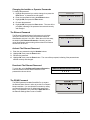
Freezing
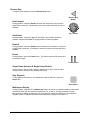
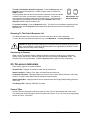
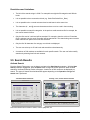
Press the Freeze button to freeze the image in the selected cameo. Each
frozen cameo is indicated as * (a flashing asterisk) on-screen.
Press the Freeze button again to cancel Freeze operations.
Freeze Button
2.8 Sequencing
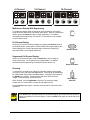
The sequencing feature allows a camera to be displayed briefly on-screen,
before advancing to the next camera in the sequence list. The default
sequence list displays each camera in numerical order.
Sequence Button
Dwell Time
The dwell time is the amount of time each camera is displayed on-screen before advancing to the next
camera. The default dwell time is 3 seconds.
Autolist™ Custom Sequence List
The Autolist™ feature allows the user to create a custom sequence list, controlling the order the
cameras are displayed and the dwell time. Separate Autolists may be created for Monitor A (Live and
Playback mode) and Monitor B (Live mode). Using the Monitor button, select the monitor to be
programmed. Then, using a Number button, select any camera for full screen display.
NOTE
0150-0295B
The unit must be in Full Screen Display mode before starting to create the sequence list.
This initial camera is not part the sequence list.
22
GE Security DVMRe StoreSafe Pro