1
1. Logging In and Selecting a Project
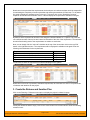
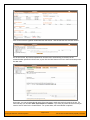
Once you have either downloaded and installed a trial version of SpiraTeam or signed up for a hosted
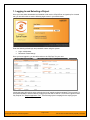
trial, you should be able to see the following login screen in your web browser:
Enter the following default login and password to start using the system:
•
•
Login: administrator
Password: PleaseChange
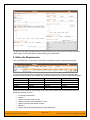
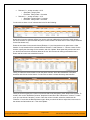
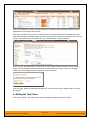
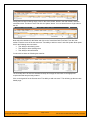
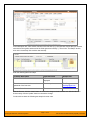
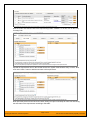
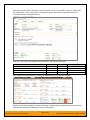
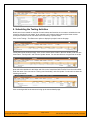
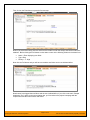
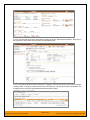
Once you have logged-in, you should be taken to the “My Page” for your user:
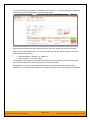
Initially this page will be fairly empty, with only the list of sample projects populated. This is normal. For
this tutorial we want to start out with an empty project that has no data in it, so click the hyperlink under
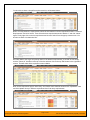
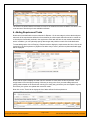
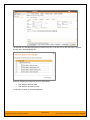
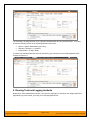
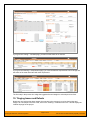
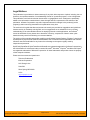
“My Projects” for “Sample Application Two”. That will bring up the homepage for the empty project:
© Copyright 2006-2014, Inflectra Corporation
Page 2 of 29
This document contains Inflectra proprietary information