1
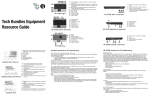
2. Connect your PC to the Document Camera's RGB input first before you power on your
computer.
3. Make sure to switch your Laptop dual screen display mode.
There are distorted lines running across the presentation screen.
1. Reset your camera's display mode, press Menu > Settings > Mode > High Frame > Enter.
Then return to Menu, select Default > Yes. Finally power-cycle your camera.
The brightness on the presentation screen is dark and unreadable.
1. Toggle the Auto image button on your unit's control panel
2. Reset your units display by pressing Menu, select Mode > Text. Return to Menu and select
Default > Yes. Finally power-cycle your camera.
3. Make sure there are sufficient lighting in the room or Turn on the LED lamp on your
document camera head
4. If you are in a dark environment, turn on "Night View" in your document camera's menu.
5. Manually adjusts the Brightness and Contrast levels in the Camera's Menu.
6. Check your projector's bulb, it may need to be changed.
The AVerVision Software cannot detect the document camera.
1. Make sure your USB cable is connected
2. Make sure the USB cable or USB port is not defective
3. Check your Device Manager, If Digital presenter driver shows damaged, right click and
select "Update Drive