1
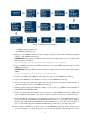
Figure 1: OFELIA User Work Flow
(e) ETHZ island description [2].
(f) OFELIA whitepaper [11].
2. Register to the OFELIA testbed in order to acquire a login account and the matching credentials
(step 2.1 of the OFELIA tutorial [3]).
ATTENTION: The registration URL described in [3] has changed since it was last written. The
updated registration URL is:
https://register.fp7-ofelia.eu/registration/register
3. Login to OFELIA and setup your VPN connection to access the OFELIA testbed (step 2.2 of the
OFELIA tutorial [3]).
ATTENTION: The login URL described in [3] has changed since it was last written. The updated
URL is:
https://register.fp7-ofelia.eu/login/login.
4. Connect over VPN to the OFELIA control network (step 2.2 of the OFELIA tutorial [3]).
5. Login to the OFELIA Control Framework (step 2.3 of the OFELIA tutorial [3]).
6. Create a new project, request and acquire the necessary permissions from the island manager of
your home island (step 3.1 of the OFELIA tutorial [3]).
7. Add the required Aggregate Managers (AMs) to your project (e.g., ETHZ island Virtualization
AM, ETHZ island Openflow AM).
8. Create an experimental slice within your project (step 3.2 of the OFELIA tutorial [3]). Make sure
you also add the needed AMs to your slice, in order to be able to access the associated resources.
9. Set the OpenFlow controller for your OpenFlow network (step 3.2 of the OFELIA tutorial [3]).
You can use the IP of the OFELIA OpenVPN tunnel interface on your computer (home VM), or
the IP of any other created VM within the island, which belongs to your slice (see later steps on
how to create VMs using the virtualization AM interface). This step is optional at this point.
10. Set a request for OpenFlow resources (step 3.3 of the OFELIA tutorial [3]). In the current version
of the user interface, you have the option to choose between “Simple” and “Advanced” resource
2