1
User Manual
82
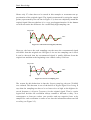
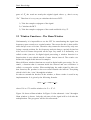
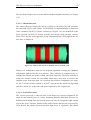
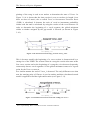
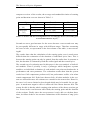
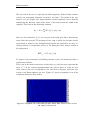
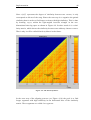
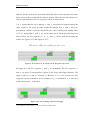
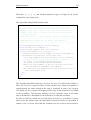
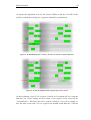
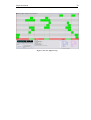
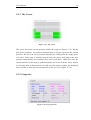
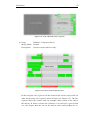
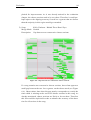
When a line segment is clicked, it gets selected by changing the rectangle’s colour from green to blue. At the same time important information (such as
TrackID, start and end time etc.) for this line segment is shown in the “Properties” panel (see Figure 5-14). In order to allow the user to compare two line
segments, two columns are available in this panel. The blue column shows the
information for the currently selected line segment, while the pink one shows it
for the last selected one. Therefore also the blue colour of the selected rectangle
changes to pink if another rectangle is selected. This way it is easy to compare
two tracks i.e. for their similarity.
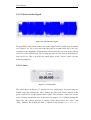
5.2.4 The Player
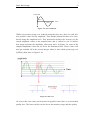
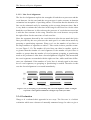
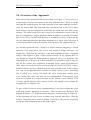
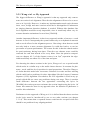
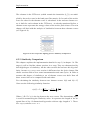
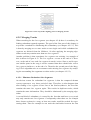
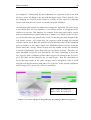
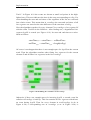
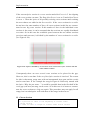
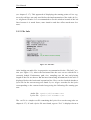
Figure 5-15: The player.
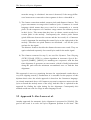
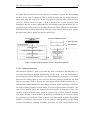
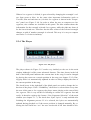
The player shown in Figure 5-15 works very similarly to the one in the main
window although it offers some advanced features. The time shown in the left
half of the black panel indicates the current time in the song. It can be changed
by placing the cursor on a certain position in the song (see chapter 5.2.2). During play back it is automatically updated in order to always display the time of
the current position in the song.
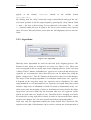
The check boxes in the right half of the black panel are used to change the behaviour of the player. If the “Click&Play” check box is selected then every time
the user clicks onto a line segment, the player starts playing at the start of this
line segment. This is very useful for listening to certain line segments fast and
easily. It therefore replaces the feature “Line Segments Selection” of the main
window (see chapter 5.1.7). The check box “Sync Lyrics” is only enabled after
finishing the alignment process. If it is selected, the lyrics are automatically
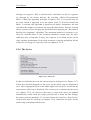
updated during playback or if the cursor position is changed manually. By selecting the last check box “sec” the user can decide if the time should be dis-