1
6. Verifying Hardware and Driver Functions
6.1
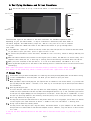
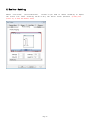
Follow the steps to verify if the wired tablet is installed properly:
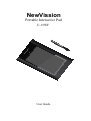
Active area
Power on/ Power off but t on
Button2
Indicator Light
Button1
Pen tip
The blue LED light on the tablet is the main indicator for hardware operation and
depending on your pen tablet model, it may be located at a different place that shown in
the above diagram. This LED normally stays off, and will only turn on or off in response
to various conditions. Watch the state of the LED on the tablet as you go through these
test steps:
1. Press down the “power on” button at the top of the pen, then the pen will be turned on and activated.
If you want to quit your work, press it again to turn it off.
2. As soon as the pen tablet itself activates, the LED will be lit briefly, and will then go and stay off
again.
3. When the tablet detects the presence of the digital pen or mouse, the LED will be blink slowly. This
happens either when pen tip is hovering or placing within the working area which above the tablet.
4. When you press a button on the pen barrel, or click on a mouse button, the LED will be lit up.
5. Hovering and moving the pen or the mouse in the working area will cause the cursor on the screen to move
accordingly.
Note: After the tablet's device driver has been properly installed, a small tablet icon ( )
will appear in the system tray, which is normally at the lower right corner of the screen.
7. Usage Tips
7.1 Please make sure you have turned power on of the digital pen by holding down power switch before using.
7.2 It was recommended to turn the power off when you are about to quit your work.
7.3 Double tapping
When you double tap with the digital pen (equivalent to a double click with a mouse), try to keep the
pen tip away from the tablet’s surface, or at least try to lift the pen tip as fast as possible before
the second tap.
7.4 Storing the digital pen
To store the pen, make sure the pen tip does not touch anything, and especially do not let the pen
stand in a cup or penholder with the tip down. Even though the possibility is low, constantly put stress
on the pen tip might damage precise configuration of the pen . Place the pen in a penholder, or turn
the pen tip pointing upward or horizontally with the pen tip free of any pressure by other objects.
7.5 Scrolling function of digital pen
The digital pen has the same function of the normal mouse for scrolling pages. Press the first button
of the digital pen (same function as mouse’s middle click) over the tablet’s working area.
7.6 Using a pen without an ordinary mouse
You may install the digital pen, digital mouse, and normal mouse in your computer at the same time
and you can also remove them to a different computer as well. However, only one device is able to work
at a time.
*. Do not use more than two devices at the same time in case the screen cursor is jittering or not
moving.
Page 2