1
The Wizard Test Maker™
PRINT OPTIONS MENU
By selecting the Print Options menu at the top of the Printing Suite, a series of options becomes available. When you
select one, a check mark will appear before it.
Test Options
"__" before Question Numbers: Places a space before the questions for students to write in the answer.
Print Lines after Free Response: Must be selected
for short answer questions to have lines at the end rather
than spaces.
Replace Question Number with ID Number: Each
question will begin with its Question ID number instead
of a chronological number.
Teacher Copy [Bold Answers]: Another test will print
after the student copy with bold answers.
Short Answer Questions at End of Test: Places short
answers and free response questions last.
Appendices
Question ID's Numerically Order: Will print a list of
your exam's question IDs in numerical order.
Question ID's as Ordererd in the Test: Will print a list
of your exam's question IDs in the order they appear on
the exam.
Genealogy of Quesitons with ID: Prints the classification of exam questions with their ID numbers.
MULTIPLE VERSIONS PRINT
Choose the Multiple Versions Print option in the Printing Suite to produce several variations on the same test. This will
help to reduce cheating in the classroom, especially if you use the same test from year to year.
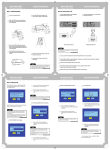
Click the down arrow to choose the amount of different tests
you want printed.
Choose what types of variations you want in your test. You
can just mix up the questions, the answers, or both. An
answer key will print out for every version you make.
This option will print the verion letter in the footer if you leave
that field blank in the Printing Suite.
10