1
FILL UP
NOTE: It is very important that you fill your tank
COMPLETELY in order to obtain good results when using
Miles to Go.
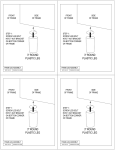
The FILL UP option presents you with three data entry fields:
PRICE, GALLONS, and ODOMETER. Press the UP and
DOWN buttons on your phone's keypad in order to select the
appropriate field. Press the NUMBER KEYS to enter in the
appropriate values. Press CLR/BACK in order to make
corrections to entries.
In the PRICE and GALLONS fields, enter the values shown
on the fuel pump after you finish filling your vehicle. Enter
your vehicle's odometer (mileage) in the corresponding field at
the bottom of the FILL UP screen, just as it is shown on your
vehicle's dashboard.
As you type, Miles to Go will display the mileage that you received since your last Fuel Record. In the
bottom of the display, a needle will point to your mileage.
To save your changes, press the OK/SELECT key, or press the Left Menu Key, labeled “Save.” By
default, the Record will be saved with the current time and date; you can change the time associated
with the Fuel Record by using the RECORD EDITOR. To cancel and discard your record, press the
Right Menu Key, labeled “Back.”
If you have entered a previous Fuel Record, Miles to Go will automatically take you to the REVIEW
screen once you save your new record.
Miles to Go
RiffWare LLC
6