1
1.3.10
Increasing the Number of Turtle Agents
(1) Create multiple agents
When you have successfully created an agent which moves diagonally, let’s next try
creating multiple agents. No matter how many of them we create, if they are all initially
placed in the same location, they will all move in the same way. We will thus vary the
location at which every agent is placed.
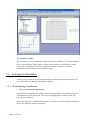
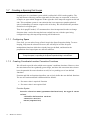
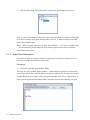
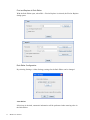
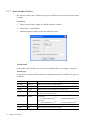
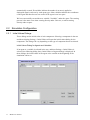
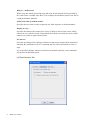
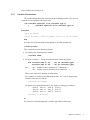
Select the Turtle agent in the component tree, and right-click to display the context menu.
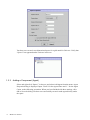
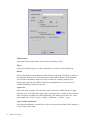
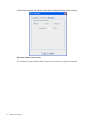
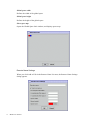
Select Properties to display Agent Properties dialog. Set the Agent Count to 3, and click
OK.
The agent count is set using Agent Properties.
(2) Provide agents with initial locations individually
We want to start the respective agents from different locations. What do we need to do in
order to provide separate initial values to the X and Y variables representing the agents’
locations in the space?
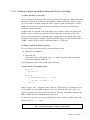
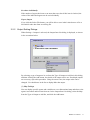
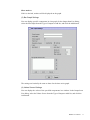
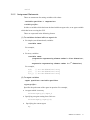
Variables have the ability to have initial values individually, so we will be using this
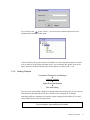
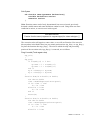
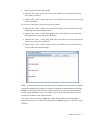
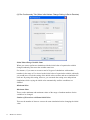
functionality. Select the variable X under the Turtle agent in the component tree, and
right-click to display the context menu. Select Initial Values to display Initial Values of
Variables dialog.
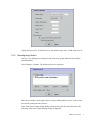
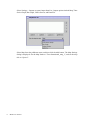
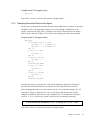
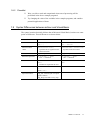
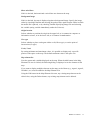
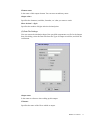
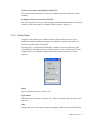
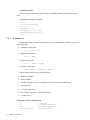
Three turtle agents — numbers 0, 1, and 2 — are listed. Give these the values 5, 10, and
15, respectively, as shown in the following screenshot. If the numbers are hard to see,
drag the right edge of gray column header X to adjust the width of the column. After you
have entered these settings, click OK to close the dialog. You will see that, despite the
simplicity of the rules, the movements which result are quite interesting.
artisoc User Manual
19