1
NOTIFICATIONS
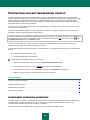
ATTEMPT TO ACCESS THE SYSTEM REGISTRY DETECTED
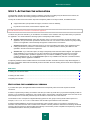
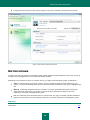
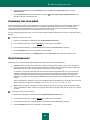
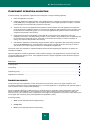
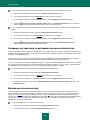
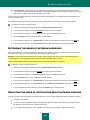
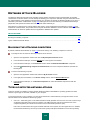
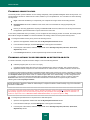
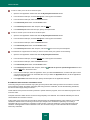
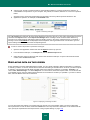
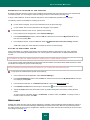
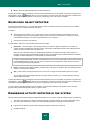
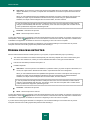
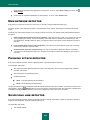
When Proactive Defense detects an attempt to access system registry keys, a special notification pops up containing:
The registry key being accessed.
Full name of the file of the process that initiated the attempt to access the registry keys and a path to it.
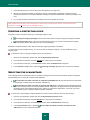
Possible responses:
Allow – allows to execute the dangerous action once;
Block – blocks the dangerous action once.
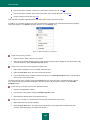
To perform the action you have selected automatically every time this activity is initiated on your computer, check the
Create a rule box.
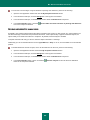
If you are sure that any activity by the application that attempted to access system registry keys is not dangerous, add the
application to the trusted application list.
NETWORK ACTIVITY OF AN APPLICATION HAS BEEN
DETECTED
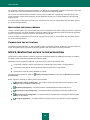
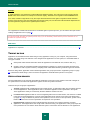
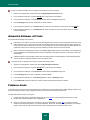
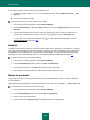
If any network activity of an application is detected (default option for the applications included in the Low Restricted or
High Restricted groups) (see section "Application groups" on page 88), a notification will be displayed on the screen.
A notification will be displayed if My Computer Protection is running in interactive mode (see section "Using interactive
protection mode" on page 156), and if no packet rule has been created for the application whose network activity had
been detected (see page 103).
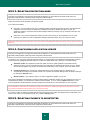
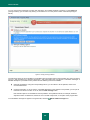
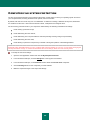
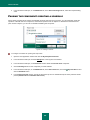
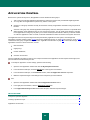
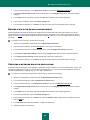
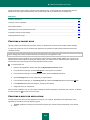
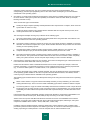
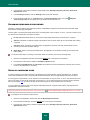
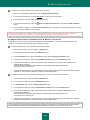
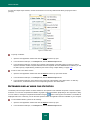
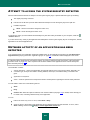
The notification contains:
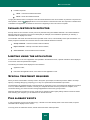
Activity description – name of the application and general features of the connection it initiates. Generally, the
connection type, local port from which it is being initiated, remote port, and address being connected to are
given.
Application run sequence.
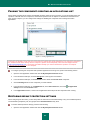
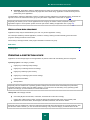
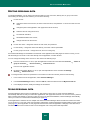
Action – series of operations that Computer Protection should perform regarding the network activity detected.
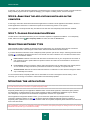
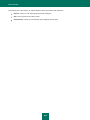
You are asked to select one of the following actions:
Allow.
Deny.
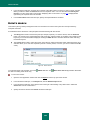
Create a rule. When this option is selected, Rule Creation Wizard (see page 104) is started, which will help you
to create a rule, controlling network activity of the application.
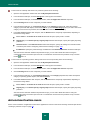
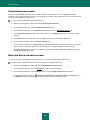
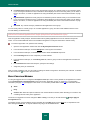
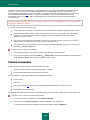
You can:
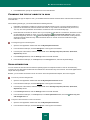
Perform an action only once. To do so, select Allow or Deny.
Apply an action to the session of the application whose network activity has been detected. To do so, select
Allow or Deny, and check the
Apply to current application session box.
261