1
Nitro PDF Professional 6 User Guide
Nitro PDF Professional User Guide
Table of Contents
1 START
6
2 Help & Registration
7
...................................................................................................................................
7
Getting
Started guide
7
Online...................................................................................................................................
help
...................................................................................................................................
7
Checking
for software updates
...................................................................................................................................
8
Registering
& activating the product
...................................................................................................................................
8
Support
Tools
3 Workspace
9
9
Ribbon...................................................................................................................................
interface
..........................................................................................................................................................
10
Hiding & showing
the ribbon
.......................................................................................................................................................... 10
Ribbon shortcuts
11
Quick...................................................................................................................................
Access Toolbar
...................................................................................................................................
11
Nitro PDF
Button/File menu
12
Move...................................................................................................................................
& select
12
Zoom...................................................................................................................................
in & out
...................................................................................................................................
14
Page Display
modes
...................................................................................................................................
15
Rotating
page view
...................................................................................................................................
15
Comments
& attachments
...................................................................................................................................
16
Document
properties
.......................................................................................................................................................... 16
Summary information
Initial View .......................................................................................................................................................... 17
.......................................................................................................................................................... 18
Fonts
.......................................................................................................................................................... 18
Security
...................................................................................................................................
19
Paging through document
...................................................................................................................................
19
Bookmarks
and pages
...................................................................................................................................
21
Searching
text
4 Creating PDF
22
...................................................................................................................................
22
Creating
PDF from any file
..........................................................................................................................................................
22
One-click PDF
creation from any file
.......................................................................................................................................................... 22
Fast PDF Creation
24
Printing any ..........................................................................................................................................................
file to PDF
..........................................................................................................................................................
24
Nitro PDF Creator
settings
...................................................................................................................................
27
Converting
Microsoft Office files to PDF
..........................................................................................................................................................
27
Converting Microsoft
Word files to PDF
..........................................................................................................................................................
29
Converting Microsoft
Excel files to PDF
..........................................................................................................................................................
30
Converting Microsoft
PowerPoint files to PDF
© 2010 Nitro PDF Software
1
Nitro PDF Professional User Guide
..........................................................................................................................................................
32
Converting Microsoft
Publisher files to PDF
..........................................................................................................................................................
33
Converting Microsoft
Visio files to PDF
..........................................................................................................................................................
34
Microsoft Office
add-in settings
...................................................................................................................................
35
Creating
PDF from screen captures
...................................................................................................................................
36
Creating
PDF/A files
...................................................................................................................................
37
Creating
new blank PDF files
...................................................................................................................................
37
Creating
PDF from Clipboard
5 Scanning and OCR
39
...................................................................................................................................
39
Creating
PDF from Scanner
..........................................................................................................................................................
39
Image compression
settings
OCR ................................................................................................................................... 41
41
OCR in Nitro..........................................................................................................................................................
PDF Professional
Preferences
......................................................................................................................................................... 41
..........................................................................................................................................................
42
Using the OCR
engine
OCR via.........................................................................................................................................................
Create PDF from Scanner
42
OCR an .........................................................................................................................................................
existing PDF
42
..........................................................................................................................................................
43
Troubleshooting
OCR
6 Exporting from PDF
44
...................................................................................................................................
44
Copying
text
...................................................................................................................................
45
Copying
page snapshots
...................................................................................................................................
45
Converting
PDF to Microsoft Word
...................................................................................................................................
46
Converting
PDF to Microsoft Excel
...................................................................................................................................
46
Converting
PDF to Image
...................................................................................................................................
47
Converting
PDF to Rich Text
48
PDF to...................................................................................................................................
Word/RTF Export Settings
...................................................................................................................................
49
Converting
PDF to plain text
...................................................................................................................................
50
Extracting
all images
7 Combining files & assembling pages
51
...................................................................................................................................
51
Combining
files to PDF
...................................................................................................................................
52
Assembling
pages
...................................................................................................................................
52
Cropping
or resizing pages
...................................................................................................................................
52
Rotating
pages
...................................................................................................................................
53
Extracting
pages
...................................................................................................................................
53
Deleting
pages
...................................................................................................................................
53
Reordering
& rearranging pages
...................................................................................................................................
54
Inserting
pages
...................................................................................................................................
54
Splitting
pages
..........................................................................................................................................................
54
Split into groups
of pages
..........................................................................................................................................................
55
Split by bookmarks
..........................................................................................................................................................
55
Split by page ranges
2
Nitro PDF Professional User Guide
8 Editing
57
...................................................................................................................................
57
Undo/redo
edits
Text ................................................................................................................................... 58
..........................................................................................................................................................
59
Adding headers
& footers
60
Adding Bates..........................................................................................................................................................
numbering
................................................................................................................................... 61
Images
.......................................................................................................................................................... 61
Arranging images
61
Resizing and..........................................................................................................................................................
cropping images
.......................................................................................................................................................... 62
Replacing images
.......................................................................................................................................................... 62
Extracting images
.......................................................................................................................................................... 62
Inserting images
..........................................................................................................................................................
62
Changing image
color space
.......................................................................................................................................................... 63
Deleting images
Watermarks .......................................................................................................................................................... 63
...................................................................................................................................
64
Optimizing
& shrinking files
..........................................................................................................................................................
64
Image optimization
settings
...................................................................................................................................
65
Attaching files
...................................................................................................................................
66
Document
properties
..........................................................................................................................................................
66
Document information
or metadata
..........................................................................................................................................................
67
Document security
..........................................................................................................................................................
67
Fonts
..........................................................................................................................................................
67
Initial View properties
9 Interactivity
69
................................................................................................................................... 69
Bookmarks
69
Viewing and ..........................................................................................................................................................
using bookmarks
..........................................................................................................................................................
70
Creating bookmarks
..........................................................................................................................................................
70
Editing bookmarks
..........................................................................................................................................................
71
Automatic bookmark creation
Links ................................................................................................................................... 74
Adding links.......................................................................................................................................................... 75
Editing links .......................................................................................................................................................... 75
..........................................................................................................................................................
76
Automatic page
number links
..........................................................................................................................................................
76
Creating web links from URLs
..........................................................................................................................................................
77
Automatic keyword link creation
10 Commenting
78
...................................................................................................................................
78
Adding
sticky notes
...................................................................................................................................
78
Highlighting
text
...................................................................................................................................
79
Marking
up with drawing tools
...................................................................................................................................
80
Adding
Text Boxes
...................................................................................................................................
81
Adding
Call Outs
...................................................................................................................................
81
Adding
stamps
...................................................................................................................................
82
Attaching
files
...................................................................................................................................
83
Managing
& viewing comments
.......................................................................................................................................................... 83
Sorting comments
© 2010 Nitro PDF Software
3
Nitro PDF Professional User Guide
.......................................................................................................................................................... 83
Reply to comment
.......................................................................................................................................................... 84
Hide all comments
..........................................................................................................................................................
84
Combine comments
from multiple files
...................................................................................................................................
84
Summarizing
comments
11 Security
86
...................................................................................................................................
86
Permission
settings
...................................................................................................................................
86
Password
security
...................................................................................................................................
87
Certificate
security
...................................................................................................................................
88
Security
profiles
...................................................................................................................................
89
Internet
Access
................................................................................................................................... 89
JavaScript
...................................................................................................................................
90
Digital
IDs
.......................................................................................................................................................... 90
My Digital IDs
.......................................................................................................................................................... 91
Trusted contacts
12 Digital signatures
92
92
Using...................................................................................................................................
digital signatures
92
Customizing..........................................................................................................................................................
signature appearance
...................................................................................................................................
93
Viewing
and validating certificates and signatures
...................................................................................................................................
94
Certifying
PDF files
13 Forms
96
96
Filling...................................................................................................................................
forms
...................................................................................................................................
97
Designing
forms
97
Using...................................................................................................................................
form field controls
.......................................................................................................................................................... 98
Form field attributes
99
Creating text..........................................................................................................................................................
fields
..........................................................................................................................................................
100
Creating check box fields
..........................................................................................................................................................
101
Creating radio
button fields
..........................................................................................................................................................
101
Creating combo box fields
..........................................................................................................................................................
102
Creating list box fields
..........................................................................................................................................................
103
Creating button fields
..........................................................................................................................................................
103
Creating signature fields
..........................................................................................................................................................
104
Creating multiple fields
...................................................................................................................................
104
Setting
tab order
...................................................................................................................................
104
Editing,
aligning and spacing multiple fields
...................................................................................................................................
105
Aligning
form fields to a grid
...................................................................................................................................
106
Reusing
form field appearance settings
...................................................................................................................................
106
Importing
and exporting form data
...................................................................................................................................
106
Resetting
form data
...................................................................................................................................
107
Submitting
form data
...................................................................................................................................
107
Showing/Hiding
fields
...................................................................................................................................
108
Calculating
field data
4
Nitro PDF Professional User Guide
................................................................................................................................... 109
JavaScript
.......................................................................................................................................................... 109
Finding JavaScripts
..........................................................................................................................................................
109
Copying and
pasting JavaScripts
110
Using folder..........................................................................................................................................................
level JavaScript
..........................................................................................................................................................
110
Writing document
level script
..........................................................................................................................................................
110
Writing calculation
scripts
..........................................................................................................................................................
111
Using Simplified
field notation
..........................................................................................................................................................
111
Using the JavaScript
console
..........................................................................................................................................................
111
Viewing output
and JavaScript errors
..........................................................................................................................................................
111
Supported JavaScript
Objects
App object
......................................................................................................................................................... 111
Doc object
......................................................................................................................................................... 112
color object
......................................................................................................................................................... 114
console
.........................................................................................................................................................
object
114
event object
......................................................................................................................................................... 114
Field object
......................................................................................................................................................... 115
global .........................................................................................................................................................
object
118
identity.........................................................................................................................................................
object
118
Link object
......................................................................................................................................................... 118
this object
......................................................................................................................................................... 119
util object
......................................................................................................................................................... 119
14 Document management system (DMS)
120
integration
...................................................................................................................................
120
Connecting
to a DMS with WedDAV
15 Shortcuts
121
................................................................................................................................... 121
Viewing
................................................................................................................................... 121
Navigating
................................................................................................................................... 122
Editing
File ................................................................................................................................... 123
Tools................................................................................................................................... 123
© 2010 Nitro PDF Software
5
Nitro PDF Professional User Guide
1
START
START
Quick Start
Looking at the workspace
Creating PDF
Key tools
Exporting from PDF
Viewing
Editing text, images and pages
Navigating
Securing, digitally signing, and certifying
Keyboard shortcuts
Commenting
Updating software
Bookmarks & links
Registering & activating your product
Forms
© 2010 Nitro PDF Software
6
Nitro PDF Professional User Guide
2
Help & Registration
Help & Registration
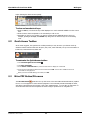
Nitro PDF Professional includes a Help ribbon tab which brings together everything you’ll need to use,
register and get help when using the software.
To open the user guide:
Do one of the following:
On the Help tab, in the Help group, click User Guide
.
In the top right corner of the Nitro PDF Professional window, click the help
2.1
button.
Getting Started guide
The Getting Started guide provides you with a quick way to learn how to use Nitro PDF Professional to
perform the most commonly used tasks. Specifically, the Using Nitro Pro module provides a visual tour of the
Nitro PDF Professional interface, complete with an overview of how the program works along with the
location of key tools. This is the ideal place for new users to start becoming familiar with the program. The
Getting Started window opens automatically when you first start Nitro PDF Professional, but it can also be
opened manually and reset to be permanently on or off.
To open the Getting Started dialog:
On the Help tab, in the Help group, click Getting Started
.
To prevent the Getting Started window from opening at startup:
1. Open Nitro PDF Professional.
2. On the Getting Started dialog, in the top-right corner, click the Do not show at startup checkbox.
2.2
Online help
To get online help using Nitro PDF Professional, visit the support section of the Nitro PDF web site. The
section includes an online product manual and a support section for registered users.
Knowledge Base. Provides a repository for commonly asked questions and resolutions to common
problems.
Priority support. All registered users get full 14-day e-mail support to get you up and running.
Extended support. To get extended support from the Nitro team, subscribe to ongoing support.
2.3
Checking for software updates
Nitro PDF Professional can be set up to automatically check for product updates or you can check for
updates manually. By default, the Check for Updates preference utility will check for software updates
once a day.
To check for updates manually:
On the Help tab, in the Product group, click Check For Updates.
To change updating preferences:
1. Click the Nitro PDF Button
2. Click Check For Updates.
3. Click the setting to use.
© 2010 Nitro PDF Software
, and then click Preferences.
7
Nitro PDF Professional User Guide
Help & Registration
4. Click OK.
2.4
Registering & activating the product
Product activation is the process we use for registering your Nitro PDF Professional product license for use
on a particular computer. Activation is completely anonymous; no personal information is required nor is
any personal information sent to Nitro PDF Software or its partners.
For detailed instructions, please visit the dedicated webpage: http://www.nitropdf.com/professional/
support/activation.htm
2.5
Support Tools
The Nitro PDF Professional Support Tools provide you with a quick way to gather support-related
information that can be useful in requesting assistance from the Nitro PDF Support Team. You can also use
Support Tools to reinstall the Nitro PDF Creator printer driver or update the Microsoft Office add-ins.
To gather support-related information:
1. On the Help tab, from the Online Support group, choose Support Tools.
2. From the Support tab, click Save to File.
3. Select a location for the Support Tools file, and choose Save.
4. Submit the Support Tools file along with your support case or bug report.
To reinstall the Nitro PDF Creator printer driver:
1. On the Help tab, from the Online Support group, choose Support Tools.
2. From the PDF Creation tab, click Reinstall Nitro PDF Creator.
To update the Microsoft Office add-ins:
1. On the Help tab, from the Online Support group, choose Support Tools.
2. From the PDF Creation tab, click to select the Microsoft add-ins you would like to be available.
3. Click Update Add-ins.
© 2010 Nitro PDF Software
8
Nitro PDF Professional User Guide
3
Workspace
Workspace
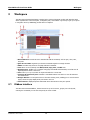
The Nitro PDF Professional workspace is packed with tools that help make working with PDF files easier,
and is organized into a document pane, a navigation pane, and toolbars. A good way to get up to speed
in using Nitro Pro is by familiarizing yourself with its workspace.
1. Nitro PDF Button. Provides access to standard file-related commands, such as open, close, save,
and print.
2. Quick Access Toolbar. Organizes your favorite commands together in a single location.
3. Ribbon. Provides easy access to everyday tasks and commands.
4. Tools. Home to the commonly-used Hand, Zoom, Copy Text, and Edit tools.
5. Navigation pane . Enables you to navigate using page thumbnails and bookmarks, as well as view all
digital signatures within a document.
6. Find. Enables you to quickly search for keywords within the current PDF.
7. Comments & Attachments panes. Provides a centralized location from which to view all comments
and attachments.
8. Navigate & Zoom. Provides quick access to document viewing tools, enabling you to move between
pages, switch the page display mode, and zoom in and out.
9. Information bar. Displays important information about documents as they are opened.
3.1
Ribbon interface
The Nitro PDF Professional Ribbon, located across the top of the screen, groups your tools by task,
ensuring the commands you use most frequently are close at hand.
© 2010 Nitro PDF Software
9
Nitro PDF Professional User Guide
Workspace
1. Tabs are home to a set of task-related tools.
2. Groups within each tab break a task into subtasks.
3. Command buttons carry out a command or display a menu of commands.
3.1.1
Hiding & showing the ribbon
Although the ribbon provides a convenient way to quickly access tools, you may find occasions where you
wish to hide the ribbon; for example, to make more space available in which to display your PDF files.
Full Ribbon
Minimized ribbon
To show/hide the ribbon:
1. Do one of the following:
Double-click a tab (e.g. the Review tab).
Press CTRL+F1.
2. The ribbon will re-appear or be hidden. To return to the previous view, repeat step 1.
To temporarily show a hidden ribbon tab:
1. Click once on the ribbon tab (e.g. Review).
2. From the tab, click the command or tool you’d like to use.
When you are finished, the ribbon will return to being minimized.
3.1.2
Ribbon shortcuts
Like most programs, all commands and tools available in the Nitro Pro ribbon have shortcut keys for faster
access. You can also easily view available shortcut keys (including keys for commands on the active tab), to
© 2010 Nitro PDF Software
10
Nitro PDF Professional User Guide
Workspace
help in learning the shortcuts more quickly.
To view and use shortcut keys:
1. Press the Alt key. The shortcut keys will be displayed over each command available from the current
view.
2. Press the letter that corresponds to the command you wish to use.
3. Depending on the key you pressed, you may be presented with additional shortcut keys. For
example, pressing R will display the Review tab, along with the shortcut keys for the reviewing
tools.
3.2
Quick Access Toolbar
As the name suggests, the Quick Access Toolbar provides you easy access to your favorite tools. By
default it includes common tasks such as Open, Save, Print, Undo and Redo, but you can customize it to
include any command from any ribbon tab.
To customize the Quick Access toolbar:
1. Click Customize Quick Access Toolbar
.
2. Click More Commands.
3. In the Choose commands from list, select the tab name to display its commands.
4. From left pane, highlight the desired command and click Add. You will see it added to the list of
commands in the right pane.
5. When you have finished adding commands, click OK.
3.3
Nitro PDF Button/File menu
The Nitro PDF Button
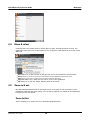
(located in the top left corner of the Nitro PDF Professional window) replaces
the File menu that appears in other software programs. The functionality remains essentially the same,
with all the typical features such as Open, Close, Save, Email and Print. You can also use this button to
access and view PDF Document Properties as well as configure preferences for using Nitro Pro.
© 2010 Nitro PDF Software
11
Nitro PDF Professional User Guide
3.4
Workspace
Move & select
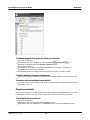
Commonly used tools, including those for moving about the page, searching document contents, and
making quick edits, have been grouped together in the Tools group, which appears at the far left of each
ribbon tab.
Hand. Allows you to grab a location on the page and move it around within the document pane.
Zoom. Allows you to zoom in and out or view the document at different magnification levels.
Find. Allows you to search a specific word or phrase within the document.
Copy Text. Allows you to select and copy text for re-use in other applications.
Edit. Allows you to edit text, images, and links within the document.
3.5
Zoom in & out
Nitro PDF Professional includes tools for zooming in and out on the page, as well as zooming to preset
magnification levels and other page settings. You can view the pages in your PDF files at any magnification
level between 25% and 1600%.
Zoom In/Out
These tools allow you to zoom in and out to particular magnification levels.
© 2010 Nitro PDF Software
12
Nitro PDF Professional User Guide
Workspace
To change magnification using the Zoom In/Out tools:
1. Do one of the following:
On any ribbon tab, in the Tools group, select the Zoom In
or Zoom Out
tool.
Right-click the page and select the Zoom In or Zoom Out option.
2. Do one of the following:
Click anywhere on the page to increase the magnification by one level. To decrease the
magnification by one level, use CTRL+click.
Click and drag the Zoom rectangle around the portion of the page you wish to magnify.
To switch between Zoom In and Zoom out:
When either zoom tool is selected, hold down CTRL and click the page to switch between tools.
To zoom in and out using the mouse wheel:
If you use a mouse wheel, hold down the CTRL key while rotating the wheel forward to zoom in or
backward to zoom out.
Preset zoom levels
The preset zoom values let you quickly switch to the most commonly-used magnification levels. These
include presets for 25%, 50%, 75%, 100%, 125%, 150%, 200%, 400%, 800%, and 1600%.
To use the Preset zoom levels:
Do either of the following:
Right-click the page and select the desired magnification level.
On any ribbon tab, in the Tools group, click Zoom and select the desired magnification level.
© 2010 Nitro PDF Software
13
Nitro PDF Professional User Guide
Workspace
Custom zoom level
If you need to you can always zoom to an exact magnification level by entering in a desired magnification
percentage.
To zoom to an exact magnification level:
1. In the bottom right corner of the Nitro PDF Professional window, click the magnification percentage
value.
2. Select Zoom to.
3. Enter the magnification level.
4. Click OK.
Zoom slider
The slider is permanently visible in the bottom-right corner of the Nitro PDF Professional window and it
gives you a quick and easy way to zoom in and out within the page.
Fixed page views
Nitro Pro also provides you with three preset options for fitting your page within the Document pane.
Actual Size displays the page at 100% zoom level.
Fit Width makes the width of the page fill the width of the Document pane.
Fit Page forces both the page width and height to fit within the Document pane.
To change the fixed page view mode:
1. Do one of the following:
On the View tab, in the Make Page group, select the page view to use.
On the ribbon tab, in the Tools group, click the arrow beneath the Zoom tool and select the page
view to use.
In the bottom corner of the Nitro PDF Professional window, click the Make Page Zoom Level
button, and then select the page view to use.
3.6
Page Display modes
Nitro PDF Professional gives you several different ways to view pages, depending on the types of
documents you are working with or tasks you wish to perform.
Page display modes include:
Single. Displays one page at a time, with no portion of the next page displayed.
Facing. Displays two pages at a time, with facing pages appearing side by side as a spread.
Continuous. Displays pages in one long column, for continuous scrolling.
Facing Continuous. Displays facing pages in two side-by-side vertical columns, with continuous
scrolling.
© 2010 Nitro PDF Software
14
Nitro PDF Professional User Guide
Workspace
To change the Page Display mode:
1. Do one of the following:
On the View tab, in the Page Display group, click the mode to use.
In the bottom right corner of the Nitro PDF Professional window, click the Page Display
and then select the mode to use.
3.7
button,
Rotating page view
Nitro PDF Professional supports both temporary rotation of the page, as well as permanent page rotation.
If you wish to rotate a page temporarily while viewing a document, you can do so by rotating the page
view.
To temporarily rotate page view:
On the View tab, in the Rotate group, click either Right or Left.
Note: Changes made using page view rotation are temporary and will not be saved. If you would
like to rotate pages permanently, refer to Rotating pages.
3.8
Comments & attachments
The Comments and Attachments panes give you a centralized place to see and organize all of your
annotations and file attachments.
Comments pane
The Comments pane lets you keep track of comments added to your PDF documents. The pane displays a
list of each comment, its type, reviewer name, date added, and the text included in any pop-up notes
and text boxes.
To show or hide the Comments pane:
On the View ribbon tab, in the Show Panels group, click the Comments checkbox.
Attachments pane
The Attachments pane gives you a central place to view, insert, delete and export any files that are
attached to your PDF file.
© 2010 Nitro PDF Software
15
Nitro PDF Professional User Guide
Workspace
To show or hide the Attachments pane:
On the View ribbon tab, in the Show Panels group, click the Attachments checkbox.
3.9
Document properties
PDF document properties provide you with additional information about a PDF file, including who created
it, how it will display when opened, any security settings that have been applied to it, the fonts it
includes, and more.
PDF document properties are organized into the following groups:
Summary information. Contains basic information about the document, including author, title,
and keywords.
Initial View. Specifies the initial view of the PDF when it is opened in a PDF viewer program.
Fonts. Details fonts that have been included in the PDF, and the level of embedding used.
Security. Provides information relating the type of security used, along with levels of access
supported.
To view the document properties:
1. Do one of the following:
Press CTRL+D.
Click the Nitro PDF Button
3.9.1
, and then click Document Properties
.
Summary information
PDF summary information is useful for providing you more information about a document, as well as
providing support for indexing your documents. With Nitro PDF Professional, you can edit the document
title, author, subject and keyword fields, as well as add your own custom meta data fields. The default
summary information includes:
• Title. Sets the document's title. On the web, PDF document titles are typically used in displaying
search engine results; if left unset, the filename will be used.
• Author. Specifies the document's author.
• Subject. Sets the document's subject, which is useful in categorizing the document.
• Keywords. Sets the document's keywords, which is useful in categorizing, indexing, and searching
for the document.
• Base URL. Specifies the base URL to be used by relative web links within the PDF. If the complete
URL is contained in the link, the base URL is not used.
• Custom. Unlimited fields that can be used for customizable categorization.
• Creator. Details the program from which the PDF was created - for example, Microsoft Word or
Publisher.
• Producer. Details the program used in creating the PDF from the original file - for example, Nitro PDF
Professional.
• Fast Web View. Specifies if the PDF is optimized for online use. Documents load faster when
optimized for online use.
© 2010 Nitro PDF Software
16
Nitro PDF Professional User Guide
Workspace
• Tagged PDF. Specifies whether the PDF file has been tagged for accessibility.
• PDF Version. Details the file's PDF version level, as established by the PDF Specification. Depending
on the PDF Version used, some PDF features may not be available when the document is opened in
older PDF viewing programs. Nitro PDF Professional can produce PDFs that adhere to the 1.3, 1.4,
or 1.5 PDF specifications.
• Number of Pages. Details how many pages the document contains.
• Page size. Displays the height and width of the pages within the PDF. You can specify the default
measurement units to use via the Nitro Pro Preferences.
To edit summary information fields:
1. Do one of the following:
Press CTRL+D.
Click the Nitro PDF Button
, and then click Document Properties
2. Type your information into the desired field(s).
3. Click OK.
.
Note: Certain PDF summary information, such as PDF Creator, PDF Producer, and Number of
Pages, is not editable.
To add or edit custom information fields:
1. Do one of the following:
Press CTRL+D.
Click the Nitro PDF Button
, and then click Document Properties
2. Click Edit.
3. Enter a name for the custom field and a value.
4. Click Add, and then click OK.
3.9.2
.
Initial View
You can set PDF documents to display in many different ways, depending how your file will be used. For
example, if your document contains bookmarks and you wish for them to be easily accessible, you might
set the document to open with the Bookmarks pane already displayed.
• Navigation. Sets whether a navigation pane, including Bookmarks and Pages, is displayed when the
file is opened.
• Go to Page. Specifies at which page to open the PDF.
• Layout. Sets the page mode to open with, Single, Continuous, Facing, or Facing Continuous. Single
and Facing modes treat the document as though it were a series of pages that you move through.
The other modes work more like the document is one large column that you scroll through (like a
web page).
• Zoom. Sets the default magnification level. Choose from a particular magnification percentage, or
choose the Fit Width, Fit Height or Visible Content settings.
• Window Title. Sets what is displayed in the title bar of Nitro PDF Professional. Either the file name or
the document title field.
• Hide Menu Bar. Stops the menu (the Menu Bar) from appearing when the PDF is opened in Adobe
Acrobat or Adobe Reader.
• Hide Toolbar. Stops all toolbars from appearing when the PDF is opened in Adobe Acrobat or Adobe
Reader.
• Hide Window Controls. Hides left panel and status bar when the PDF is opened in Adobe Acrobat or
Adobe Reader.
To view and edit initial view properties:
1. Do one of the following:
Press CTRL+D.
© 2010 Nitro PDF Software
17
Nitro PDF Professional User Guide
Workspace
.
Click the Nitro PDF Button
, and then click Document Properties
2. Click the Initial View tab.
3. Select the settings to use, and then click OK.
4. Save the PDF.
3.9.3
Fonts
Nitro PDF Professional enables you to quickly view information relating to the fonts that have been used a
PDF file. The font summary information is included in the Document Properties dialog.
With PDF files, font information can be embedded directly within the file. Font embedding means that
users do not need to have the fonts used in the document installed on their computers. The PDF
document can be viewed or printed and the text appears exactly as it does when viewed or printed from
the computer where the file was created. Embedded fonts can increase the size of the PDF file, but can
be helpful if the PDF will be viewed or edited on another computer.
There are three levels of font embedding that you may encounter with PDF files:
No embedding. When fonts are not embedded, the PDF files are much smaller than those containing
embedded fonts. This is because the font information does not need be stored within the PDF.
Depending on the fonts used, the PDF files may look very different on different computers.
Subset embedding. When fonts are subset, only a portion of each font is stored within the PDF.
This ensures the file will display properly while being as compact as possible, but may not be suitable if
text within the PDF needs to be edited.
Full embedding. Full embedding embeds the entire font within the PDF. Like subsetting, the file will
display properly on other computers. Fully embedding fonts can increase the file size significantly, but
is the best option if text within the PDF needs to be edited, since (unlike subsetting) it guarantees
that all of the font information will be available.
NOTE: Embedding fonts requires a license from the font's creator. You should always check the
terms of your font licensing agreement(s) before embedding any fonts. Refer to Font Embedding
and Text Editing for further information on embedding fonts.
To view the PDF font information:
1. Do one of the following:
Press CTRL+D.
Click the Nitro PDF Button
2. Click the Fonts tab.
3.9.4
, and then click Document Properties
.
Security
A summary of all security settings is found in the Document Properties dialog. From there, you can also
modify the settings if you have the rights to do so. For more information on various PDF permissions
settings, refer to Permission settings.
To view security settings:
1. Do one of the following:
Press CTRL+D.
Click the Nitro PDF Button
, and then click Document Properties
.
2. Click the Security tab.
3. To edit the settings, click the Security method list, modify the settings, and then click OK.
© 2010 Nitro PDF Software
18
Nitro PDF Professional User Guide
Workspace
3.10 Paging through document
To page through a PDF document, you can use the standard key and mouse functionality you find in most
applications, including arrows and page up/down keys on your keyboard, and the scroll wheel on your
mouse.
In addition, Nitro PDF Professional includes a set of paging controls along the bottom of the Nitro PDF
Professional window.
These paging controls include:
First/Last Page. To go straight to the start or end of a document.
Next/Previous Page. To go one page back or forward one page in a document.
Next/Previous History. To move backwards and forwards between each view change you make
when looking at a PDF. A history view might include movements around a page, moves between
pages, changes in magnification level, and more.
Go to page number. Lets you enter the exact page number to go to.
To go to the start or end of a document:
1. Do one of the following:
Along the bottom of the Nitro PDF Professional window, click the First Page or Last Page button.
On your keyboard, press the Home or End key.
To go to the next or previous page:
1. Do one of the following:
Along the bottom of the Nitro PDF Professional window, click the Next Page or Previous Page
button.
On your keyboard, press CTRL+Page Down or CTRL+Page Up .
To go to a specific page:
Along the bottom of the Nitro PDF Professional window, in the page numbering field, type a page
number, and then press Enter.
To go to the previous or next view:
1. Do one of the following:
Along the bottom of the Nitro PDF Professional window, click the Next Page or Previous Page button.
On your keyboard, press CTRL+> or CTRL+<.
3.11 Bookmarks and pages
The Bookmarks and Pages panels provide you additional ways to navigate within documents. Both display
to the left of the document area, and can be accessed via the navigation tabs located along the far left
edge of the Nitro PDF Professional window.
Bookmarks panel
The bookmarks panel allows you to display text bookmarks that perform an action when clicked, such as
going to a page within the document, opening a file, or going to a web page.
© 2010 Nitro PDF Software
19
Nitro PDF Professional User Guide
Workspace
To show or hide the Bookmarks panel:
From the navigation tabs, click the Bookmarks tab.
Pages panel
The Pages panel displays a thumbnail image of each page within the document, enabling you to quickly
move to the page you are looking for. You can also use the Pages panel to rearrange the order of the
pages in your document – just right-click on the thumbnail and choose from options such as replace,
delete, extract, crop and rotate pages.
To show or hide the Pages panel:
From the navigation tabs, click the Pages tab.
© 2010 Nitro PDF Software
20
Nitro PDF Professional User Guide
Workspace
3.12 Searching text
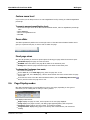
To search for a word or phrase in a PDF file you can use the Find box, which appears in the top-right
corner of the Nitro PDF Professional window. To restrict your search to case-sensitive or whole words
only, click the down arrow next to the Find box.
To find text:
1. Do one of the following:
Press CTRL+F.
On any ribbon, in the Tools group, click Find.
2. In the Find box, type in your search phrase, and then press Enter.
3. To search for the next or previous occurrence of a phrase in the document, click the Find Previous
or Find Next buttons to the right of the Find box.
Tip: To stop a search at any time, press the Escape key.
© 2010 Nitro PDF Software
21
Nitro PDF Professional User Guide
4
Creating PDF
Creating PDF
Nitro PDF Professional makes creating PDF and PDF/A documents simple and streamlined. With a click or
two you can quickly convert virtually any kind of file to PDF without having to open the source
application.
•
•
•
•
One-click PDF creation from any file
Create PDF from Microsoft Office
Create PDF from screen captures
Create PDF from scanner
To learn about combining files, see the Combining files and assembling pages section.
4.1
Creating PDF from any file
4.1.1
One-click PDF creation from any file
Nitro PDF Professional can convert virtually any kind of printable file to PDF simply by dragging the file into
the Nitro Pro program window, alternatively you can use Nitro Pro to quickly convert files to PDF directly
from within Windows® Explorer.
Nitro Pro also includes a built-in Create From File tool that is available from the Create and Convert tab
in the Nitro Pro program window. Refer to Fast PDF Creation for more information.
Note: The only requirement to perform one-click conversion to PDF is that you have the document
authoring program installed. For example, in order to convert a Microsoft Publisher file to PDF,
Microsoft Publisher must be installed.
To create a PDF with one click:
• In the folder that contains the file, click the file and drag it on to the Nitro PDF Professional
desktop icon or, if Nitro Pro is open, drag the file directly into the application window.
To convert files to PDF from a folder or the desktop:
1. Open the folder that contains the files you want to convert.
2. Click to select a file. To select multiple files, hold down the CTRL key as you click each file.
3. Right-click a selected file, and then choose Convert To PDF.
4.1.2
Fast PDF Creation
The Create From File tool enables you to quickly convert files to PDF from directly within the Nitro Pro
program window. You can choose to convert a single file, or whole batches of files, all in the same
process. You can choose from pre-built conversion profiles for quick creation of Print-, Office-, or Webready files, as well as specify custom PDF output settings.
To convert files to PDF using the Create From File tool:
1. On the Create and Convert tab, in the Create group, click From File
.
2. On the Create PDF Files dialog, click the Add Files button, and then select the files to convert.
3. In the Make PDF files list, do one of the following:
• If the document requires high print quality, click Print-ready.
• If the print quality is less important than file size, click Office-ready.
• If small file size is the most important quality, click Web-ready.
• If you wish to customize your PDF output settings, click Custom, and then click Options. Choose
© 2010 Nitro PDF Software
22
Nitro PDF Professional User Guide
Creating PDF
from available settings and click OK.
4. Do any of the following:
• If PDF/A output is required, ensure the PDF/A1-b compatibility checkbox is checked.
• If you wish to view the file upon conversion, click to select the Open PDF files after creation
checkbox.
5. In the Save PDF to list, do one of the following:
• If you would like to specify a location for each file as it is converted, click Ask when creating PDFs.
• If you would like to specify a single folder in which to place the created PDF(s), click Specific folder
. Click the Browse button to select a folder.
• If you would like the created PDF(s) to be placed in the same folder as the original file, click Same
folder as original.
6. Click Create.
Custom PDF Output Settings
When using the Create From File tool, Nitro Pro enables you to specify custom PDF output settings by
simply choosing the Custom option (available from the Make PDF Files list), allowing you to choose from
several options to provide the optimal balance between visual quality and file size. The Create From File
tool's custom PDF output settings are grouped into tabs, and include:
Images. Enables you to specify custom settings for image optimization. Depending on the types of
images in your document, you can choose from the following options:
Color Conversion. Sets whether to convert color images to grayscale, or grayscale images to
monochrome (black and white).
Downsample (DPI). Sets whether to use the original DPI, or allows you to choose the DPI to be
used in rendering each image. Setting this to a lower number will reduce the quality of your printed
images, and will also reduce file size.
Compression. Sets the type of compression to use in compressing images. If Automatic is
selected, Nitro PDF will select the best compression type to suit the majority of images within the
document. You can also experiment with different settings to find the optimal balance between file
size and image quality.
Image Quality. If JPEG compression is selected, you can adjust this setting to specify the desired
image quality, depending on how your document will be used. Higher image quality will result in
larger file sizes.
Fonts. Enables you to specify custom settings for font embedding.
Embedding. Sets the type of font embedding to use.
Embed (subset) includes only the portion of characters for each font that are required to
properly display the document. If text in the PDF needs to be edited in the future, some
characters may not be available, but the file size will be smaller than the full font is embedded.
Embed (fullset) includes the complete character set for every font in the document, ensuring
the fonts are available if the PDF needs to be edited in future. Full embedding also increases file
size.
Do not embed fonts means that the font information will not be embedded in the PDF. This
creates the smallest file size, but may alter the PDF file's appearance when viewed on computers
that don't have the same fonts installed.
If embedding fails enables you to specify whether to proceed with creating your PDF file if the
fonts cannot be embedded.
Pages. Enables you to specify custom page sizes and orientation.
Page sizes. Sets the page size to use.
Standard allows you to choose from a list of standard page sizes - for example, US Letter or
A4.
Custom allows you to specify the exact height and width for pages in the output file, based on
the units of measurement set in Nitro Pro's preferences.
Orientation. Sets whether the Portrait or Landscape orientation is to be used.
© 2010 Nitro PDF Software
23
Nitro PDF Professional User Guide
4.1.3
Creating PDF
Printing any file to PDF
Nitro PDF Professional lets you create PDF files from any program that can print, meaning you can create
PDFs from hundreds of different types of files. Just start your program as normal, open the file you want
to convert, and then print.
To create a PDF from a file:
1. Open the file in the authoring program, and click the Print option.
2. From the Printer list, choose Nitro PDF Creator, and then click OK. The Create PDF window
appears.
3. Do any of the following:
Enter a name and location for the PDF file.
Under Save As Type, choose the type of PDF you wish to create (for example, PDF or PDF/A).
Click Prompt for Document Properties. If set, after you click Create you will be prompted to
edit your PDF document properties. If left unset, your file will be created using the options set in
the Nitro PDF Creator's PDF creation settings.
In the drop-down box, choose whether or not the PDF should automatically be opened in your
default PDF viewer upon creation.
4. Click Create to create your PDF, or click Exit to cancel.
Note: PDF files will be created using Nitro PDF Creator's saved PDF creation settings. Refer to
Nitro PDF Creator settings for information about these settings, and instructions for changing
them.
4.1.4
Nitro PDF Creator settings
The Nitro PDF Creator Printing Preferences window is divided into two panes, with each panel providing
you several options for customizing the PDF files you create. Unless you specify otherwise, these settings
are used in every PDF you create.
Nitro PDF Creator settings are grouped into the following categories:
Save options
PDF Compliance options
Security and Encryption options
Printing Preferences options
View options
Optimization options
Save options
Use this panel to specify options to be applied in saving created PDF files.
Target folder. Sets the default location to which created PDF files should be saved.
If file exists. If a file having the same name already exists in the target folder, specifies whether or
not to prompt for a new filename or to overwrite the existing file.
Close progress window when finished. If set (checked), the progress window will automatically
close once PDF creation is complete.
PDF Compliance options
Use this panel to specify the desired level of PDF standards compliance.
PDF. Created PDFs will be produced to be compliant with the PDF standard, with no additional
compliancy restrictions (Default).
PDF/A-1b. Created PDFs will be produced to be compliant with the PDF/A-1b standard for archival
© 2010 Nitro PDF Software
24
Nitro PDF Professional User Guide
Creating PDF
electronic documents. Refer to Creating PDF/A files for more details.
When not compliant. Specifies the action to take if a compliant PDF cannot be produced.
Document Information
Use this panel to specify the metadata you wish to associate with your PDF document.
Title. Sets the document's title. On the web, PDF document titles are typically used in displaying
search engine results; if left unset, the filename will be used.
Subject. Sets the document's subject, which is useful in categorizing the document.
Author. Specifies the document's author.
Keywords. Sets the document's keywords, which is useful in categorizing, indexing, and searching
for the document.
Security and Encryption options
Use this panel to specify PDF encryption, password protection, and other security options.
Note: Security settings cannot be applied when creating PDF/A-compliant files.
User Options.
Require user password to open the document. If checked, users will be required to enter the
specified password in order to view the file.
Owner Options.
Use owner password to restrict printing, editing, and extraction. If checked, users will be
required to enter the specified password in order to modify any of the Owner options below.
Printing allowed. Specifies the level of printing allowed.
None. Users will not be able to print the document.
Low resolution. Users will be able to print a low resolution version of the document.
High resolution. Users will be able to print the document at the highest resolution available.
Changes allowed. Specifies the level of changes allowed in the PDF document .
None. Users will not be able to make any changes to the document.
Creating, inserting, deleting, and rotating pages. Users will be able to create, insert,
delete, and rotate pages.
Filling in form fields and signing. Users will be able to fill in forms and add digital signatures,
but will not be able to add comments or create new form fields.
Commenting, filling in form fields and signing. Users will be able to fill in forms, as well as
add comments and digital signatures, but will not be able to edit the document or create new
form fields.
Any except extract pages. Users will be able to edit the document, create and fill in form
fields, add comments and digital signatures, but will not be able to extract pages.
Allow copying and extraction of contents. If set, users will be able to copy text and
graphics from the created PDF for use in other programs.
Enable text access for screen reader devices for the visually impaired. Setting this
ensures that screen readers will be able to access text within your PDFs, in order to read your
document aloud.
Security level.
Encryption Level. Sets the encryption level to be applied to your created PDFs.
None. The PDF will not be encrypted, and no security options will be applied.
Low (40-bit RC4) - Acrobat 3.0 and later. The document will be secured using 40-bit
encryption,and may be opened in Acrobat 3.0 or later.
Medium (128-bit RC4) - Acrobat 5.0 and later. The document will be secured using
128-bit RC4 encryption,and may be opened in Acrobat 5.0 or later.
High (128-bit AES) - Acrobat 7.0 and later. The document will be secured using 128bit AES encryption,and may be opened in Acrobat 7.0 or later.
Note: You must set an encryption level in order to apply User and Owner security options. Setting
© 2010 Nitro PDF Software
25
Nitro PDF Professional User Guide
Creating PDF
security level to 'None' will disable any other security options, including password protection.
Printing Preferences options
Use this panel to specify the page size, orientation, and other preferences to be used in creating your
PDF.
Page size. Use the drop-down menu to select from a list of predefined page sizes, for example
Letter, Legal, or A4.
Custom Forms. Allows you to specify your desired page size and width, and then save your
custom page size for future use.
Orientation. Sets whether the PDF will be created using the Portrait or Landscape orientation.
Printer margins. Specifies the page margins (left, right, top and bottom) to use in creating the
PDF.
Get Margins from Printer. Allows you to select a printer to copy margin settings from.
View options
Use this panel to specify how your created PDF documents will be viewed when initially opened in a PDF
viewer.
Display. Sets whether or not the navigation pane is displayed in the PDF viewer program when the
file is opened.
Page Layout. Specifies the number of pages to be displayed in the PDF viewer at a time, and
whether or not continuous scrolling should be used when moving between pages.
Zoom. Sets the magnification level to use when the file is opened in the PDF viewer.
Open to Page. Specifies the page you wish to display first when the file is opened.
Center window on screen. If set, when the file is opened the PDF viewer's window will be
positioned in the center of the user's monitor screen.
Full-screen mode. If set, when the file is opened in the PDF viewer, the PDF pages will fill the
entire screen and the viewer's menu bar, toolbars, and window controls are hidden.
Note: The Full-screen mode setting affects PDFs opened in Adobe Reader or Adobe Acrobat only.
Optimization options
Use this panel to specify the level of optimization to use in creating your PDF.
Web ready (small file size). If set, created PDFs will be optimized for onscreen viewing.
Office ready (medium file size). If set, created PDFs will be optimized for general office printing.
Print ready (large file size). If set, created PDFs will be optimized for printing to professional
printers.
Custom. Enables you to specify customized optimization options.
Image Optimizer. Enables you to specify custom settings for image optimization. Depending
on the types of images in your document, you can choose from the following options:
Color Conversion. Sets whether to convert color images to grayscale, or grayscale images to
monochrome (black and white).
Downsampling. Sets the number of dots per inch to be used in rendering each image.
Setting this to a lower number will reduce the quality of your printed images, and will also
reduce file size.
Compression. Sets the type of compression to use in compressing images. If Automatic is
selected, Nitro PDF will select the best compression type to suit the majority of images within
the document. You can also experiment with different settings to find the optimal balance
between file size and image quality.
Image Quality. If JPEG compression is selected, you can adjust this setting to specify the
desired image quality, depending on how your document will be used. Higher image quality
will result in larger file sizes.
© 2010 Nitro PDF Software
26
Nitro PDF Professional User Guide
Creating PDF
Font Optimizer. Enables you to specify custom settings for font embedding.
Embedding. Sets the type of font embedding to use.
Embed (subset) includes only the portion of characters for each font that are required to
properly display the document. If text in the PDF needs to be edited in the future, some
characters may not be available, but the file size will be smaller than the full font is
embedded.
Embed (fullset) includes the complete character set for every font in the document,
ensuring the fonts are available if the PDF needs to be edited in future. Full embedding also
increases file size.
Do not embed fonts means that the font information will not be embedded in the PDF.
This creates the smallest file size, but may alter the PDF file's appearance when viewed on
computers that don't have the same fonts installed.
If embedding fails enables you to specify whether to proceed with creating your PDF file if
the fonts cannot be embedded.
To change Nitro PDF Creator settings:
1. From any program, choose the program's Print option to open the printer window.
2. In the Printer list, choose Nitro PDF Creator, and then click Properties.
3. Select your desired options, and then click OK.
4.2
Converting Microsoft Office files to PDF
Nitro PDF Professional enables you to create intelligent PDF files from Microsoft Office applications,
automatically adding bookmarks, links, document information, security, and more during creation. If you're
using Office 2007, Nitro Pro includes additional features that make it quicker and easier to secure and
distribute files, as well as choose the appropriate output settings.
Converting
Converting
Converting
Converting
Converting
4.2.1
Microsoft
Microsoft
Microsoft
Microsoft
Microsoft
Word files to PDF
Excel files to PDF
PowerPoint files to PDF
Visio files to PDF
Publisher files to PDF
Converting Microsoft Word files to PDF
Using Microsoft Word 2007
In Microsoft Word 2007, Nitro PDF appears as a tab in the Word ribbon, allowing you to quickly create PDF
files and change your conversions settings with just a few clicks.
To create a PDF:
1. Select your desired PDF settings from the Nitro PDF tab.
2. Do one of the following:
• To create a PDF using the current settings, click Convert to PDF
.
• To create and email a PDF using the current settings, click Convert to PDF and Email
.
To create a secure PDF:
1. In the Nitro PDF tab, from the Creation group, select the Apply Security checkbox.
2. Click Convert to PDF
or Convert to PDF and Email
.
3. In the Create Secure PDF window, choose your desired security options and then click Create.
To create a PDF/A-1b compliant PDF:
© 2010 Nitro PDF Software
27
Nitro PDF Professional User Guide
Creating PDF
1. In the Nitro PDF tab, from the Creation group, select the PDF/A-1b compliance checkbox.
2. Click Convert to PDF
or Convert to PDF and Email
.
Tip: You can also use Advanced Settings
to configure Nitro Pro to always create PDF/A-1b
compliant files from your Word documents.
Note: Due to PDF/A compliance requirements, you cannot create a PDF/A-1b PDF with security.
To change your PDF conversion settings:
1. Click Advanced Settings
.
2. In the Settings, Optimization, and View tabs, select the desired options.
3. Click OK.
Tip: Refer to Microsoft Office add-ins settings for information on the PDF conversion options
available from within Microsoft Office programs.
Using Microsoft Word 2003
In Microsoft Word 2000 and 2003, Nitro PDF appears as a group of toolbar options, allowing you to quickly
create PDF files and change your conversions settings with just a few clicks. You can also use the Nitro
PDF menu to perform these tasks.
To create a PDF:
Do one of the following:
• To create a PDF using the current settings, click Convert to PDF
.
• To create and email a PDF using the current settings, click Convert to PDF and Email
• To create a secure PDF using the current settings, click Create Secure PDF
available options, and then click Create.
.
, select from
To create a PDF/A-1b compliant PDF:
1. Click Convert to PDF
or Convert to PDF and Email
.
2. The Save As window appears. From the Save As Type list choose PDF/A files (*.pdf), then
click OK.
Tip: You can also use Nitro PDF Professional Word Settings
to configure Nitro Pro to always
create PDF/A-1b compliant files from your Word documents.
Note: Due to PDF/A compliance requirements, you cannot create a PDF/A-1b PDF with security.
To change your PDF conversion settings:
4. Click Nitro PDF Professional Word Settings
.
5. In the Settings, Optimization, and View tabs, select the desired options.
6. Click OK.
Tip: Refer to Microsoft Office add-ins settings for information on the PDF conversion options
available from within Microsoft Office programs.
© 2010 Nitro PDF Software
28
Nitro PDF Professional User Guide
4.2.2
Creating PDF
Converting Microsoft Excel files to PDF
Using Microsoft Excel 2007
In Microsoft Excel 2007, Nitro PDF appears as a tab in the Excel ribbon, allowing you to quickly create PDF
files and change your conversions settings with just a few clicks.
Tip: To convert an entire workbook, make sure the Entire Workbook option is selected in the
Advanced Settings
.
To create a PDF:
1. Select your desired PDF settings from the Nitro PDF tab.
2. Do one of the following:
• To create a PDF using the current settings, click Convert to PDF
.
• To create and email a PDF using the current settings, click Convert to PDF and Email
.
To create a secure PDF:
1. In the Nitro PDF tab, from the Creation group, select the Apply Security checkbox.
2. Click Convert to PDF
or Convert to PDF and Email
.
3. In the Create Secure PDF window, choose your desired security options and then click Create.
To create a PDF/A-1b compliant PDF:
1. In the Nitro PDF tab, from the Creation group, select the PDF/A-1b compliance checkbox.
2. Click Convert to PDF
or Convert to PDF and Email
.
Tip: You can also use Advanced Settings
to configure Nitro Pro to always create PDF/A-1b
compliant files from your Excel spreadsheets.
Note: Due to PDF/A compliance requirements, you cannot create a PDF/A-1b PDF with security.
To change your PDF conversion settings:
1. Click Advanced Settings
.
2. In the Settings, Optimization, and View tabs, select the desired options.
3. Click OK.
Tip: Refer to Microsoft Office add-ins settings for information on the PDF conversion options
available from within Microsoft Office programs.
Using Microsoft Excel 2003
In Microsoft Excel 2000 and 2003, Nitro PDF appears as a group of toolbar options, allowing you to quickly
create PDF files and change your conversions settings with just a few clicks. You can also use the Nitro
PDF menu to perform these tasks.
Tip: To convert an entire workbook, make sure the Entire Workbook option is selected in the
Nitro PDF Professional Excel Settings
.
© 2010 Nitro PDF Software
29
Nitro PDF Professional User Guide
Creating PDF
To create a PDF:
Do one of the following:
• To create a PDF using the current settings, click Convert to PDF
.
• To create and email a PDF using the current settings, click Convert to PDF and Email
• To create a secure PDF using the current settings, click Create Secure PDF
available options, and then click Create.
.
, select from
To create a PDF/A-1b compliant PDF:
1. Click Convert to PDF
or Convert to PDF and Email
.
2. The Save As window appears. From the Save As Type list choose PDF/A files (*.pdf), then
click OK.
Tip: You can also use Nitro PDF Professional Excel Settings
to configure Nitro Pro to always
create PDF/A-1b compliant files from your Excel spreadsheets.
Note: Due to PDF/A compliance requirements, you cannot create a PDF/A-1b PDF with security.
To change your PDF conversion settings:
1. Click Nitro PDF Professional Excel Settings
.
2. In the Settings, Optimization, and View tabs, select the desired options.
3. Click OK.
Tip: Refer to Microsoft Office add-ins settings for information on the PDF conversion options
available from within Microsoft Office programs.
4.2.3
Converting Microsoft PowerPoint files to PDF
Using Microsoft PowerPoint 2007
In Microsoft PowerPoint 2007, Nitro PDF appears as a tab in the PowerPoint ribbon, allowing you to quickly
create PDF files and change your conversions settings with just a few clicks.
Tip: To convert a PDF to automatically display as a slideshow in Adobe Reader or Acrobat, make
sure to set the View Mode to Full Screen Mode in the Advanced Settings
.
To create a PDF:
1. Select your desired PDF settings from the Nitro PDF tab.
2. Do one of the following:
• To create a PDF using the current settings, click Convert to PDF
.
• To create and email a PDF using the current settings, click Convert to PDF and Email
.
To create a secure PDF:
1. In the Nitro PDF tab, from the Creation group, select the Apply Security checkbox.
2. Click Convert to PDF
or Convert to PDF and Email
.
3. In the Create Secure PDF window, choose your desired security options and then click Create.
© 2010 Nitro PDF Software
30
Nitro PDF Professional User Guide
Creating PDF
To create a PDF/A-1b compliant PDF:
1. In the Nitro PDF tab, from the Creation group, select the PDF/A-1b compliance checkbox.
2. Click Convert to PDF
or Convert to PDF and Email
.
Tip: You can also use Advanced Settings
to configure Nitro Pro to always create PDF/A-1b
compliant files from your PowerPoint documents.
Note: Due to PDF/A compliance requirements, you cannot create a PDF/A-1b PDF with security.
To change your PDF conversion settings:
1. Click Advanced Settings
.
2. In the Settings, Optimization, and View tabs, select the desired options.
3. Click OK.
Tip: Refer to Microsoft Office add-ins settings for information on the PDF conversion options
available from within Microsoft Office programs.
Using Microsoft PowerPoint 2003
In Microsoft PowerPoint 2000 and 2003, Nitro PDF appears as a group of toolbar options, allowing you to
quickly create PDF files and change your conversions settings with just a few clicks. You can also use the
Nitro PDF menu to perform these tasks.
Tip: To convert a PDF to display as a slideshow in Adobe Reader or Acrobat, make sure to set the
View Mode to Full Screen in the Nitro PDF Professional PowerPoint Settings
.
To create a PDF:
Do one of the following:
• To create a PDF using the current settings, click Convert to PDF
.
• To create and email a PDF using the current settings, click Convert to PDF and Email
• To create a secure PDF using the current settings, click Create Secure PDF
available options, and then click Create.
.
, select from
To create a PDF/A-1b compliant PDF:
1. Click Convert to PDF
or Convert to PDF and Email
.
2. The Save As window appears. From the Save As Type list choose PDF/A files (*.pdf), then
click OK.
Tip: You can also use Nitro PDF Professional PowerPoint Settings
to configure Nitro Pro to
always create PDF/A-1b compliant files.
Note: Due to PDF/A compliance requirements, you cannot create a PDF/A-1b PDF with security.
To change your PDF conversion settings:
1. Click Nitro PDF Professional PowerPoint Settings
© 2010 Nitro PDF Software
31
.
Nitro PDF Professional User Guide
Creating PDF
2. In the Settings, Optimization, and View tabs, select the desired options.
3. Click OK.
Tip: Refer to Microsoft Office add-ins settings for information on the PDF conversion options
available from within Microsoft Office programs.
4.2.4
Converting Microsoft Publisher files to PDF
You can convert Microsoft Publisher files to PDF from within the Publisher application, directly from your
desktop, or via the Create PDF Files dialog within Nitro PDF Professional.
Note: In order to convert a Microsoft Publisher file to PDF, Microsoft Publisher must be installed.
To create PDF files from within Microsoft Publisher:
1. Open the PUB file in Microsoft Publisher, and click the Print option.
2. From the Printer list, choose Nitro PDF Creator, and then click OK. The Create PDF window appears.
3. Do any of the following:
Enter a name and location for the PDF file.
Under Save As Type, choose the type of PDF you wish to create (for example, PDF or PDF/A).
Click Prompt for Document Properties. If set, after you click Create you will be prompted to
edit your PDF document properties. If left unset, your file will be created using the options set in
the Nitro PDF Creator's PDF creation settings.
In the drop-down box, choose whether or not the PDF should automatically be opened in your
default PDF viewer upon creation.
4. Click Create to create your PDF, or click Exit to cancel.
Note: PDF files will be created using Nitro PDF Creator's saved PDF creation settings. Refer to
Nitro PDF Creator settings for information about these settings, and instructions for changing
them.
To convert a Publisher file directly from within a folder:
From within the folder, do one of the following:
• Drag the file onto the Nitro PDF Professional
desktop icon.
• Right-click the file to convert, and then click Convert to PDF.
To batch-convert Publisher files to PDF:
1. Do one of the following:
In the folder containing the PUB files, select them, right-click and then choose Convert to PDF.
In Nitro PDF Professional, on the Create and Convert tab, in the Create group, click From File
. Click Add Files and select the PUB flies to convert.
2. In the Make PDF files list, do one of the following:
• If the document requires high print quality, click Print-ready.
• If the print quality is less important than file size, click Office-ready.
• If small file size is the most important quality, click Web-ready.
• If you wish to customize your PDF output settings, click Custom, and then click Options. Choose
from available settings and click OK.
3. Do any of the following:
• If PDF/A output is required, ensure the PDF/A1-b compatibility checkbox is checked.
• If you wish to view the file upon conversion, click to select the Open PDF files after creation
checkbox.
© 2010 Nitro PDF Software
32
Nitro PDF Professional User Guide
Creating PDF
4. In the Save PDF to list, do one of the following:
• If you would like to specify a location for each file as it is converted, click Ask when creating PDFs.
• If you would like to specify a single folder in which to place the created PDF(s), click Specific folder
. Click the Browse button to select a folder.
• If you would like the created PDF(s) to be placed in the same folder as the original file, click Same
folder as original.
5. Click Create.
4.2.5
Converting Microsoft Visio files to PDF
You can convert Microsoft Visio files to PDF from within the Visio application, directly from your desktop, or
via the Create PDF Files dialog within Nitro PDF Professional.
Note: In order to convert a Microsoft Visio file to PDF, Microsoft Visio must be installed.
To create PDF files from within Microsoft Visio:
1. Open the VSD file in Microsoft Visio, and click the Print option.
2. From the Printer list, choose Nitro PDF Creator, and then click OK. The Create PDF window appears.
3. Do any of the following:
Enter a name and location for the PDF file.
Under Save As Type, choose the type of PDF you wish to create (for example, PDF or PDF/A).
Click Prompt for Document Properties. If set, after you click Create you will be prompted to
edit your PDF document properties. If left unset, your file will be created using the options set in
the Nitro PDF Creator's PDF creation settings.
In the drop-down box, choose whether or not the PDF should automatically be opened in your
default PDF viewer upon creation.
4. Click Create to create your PDF, or click Exit to cancel.
Note: PDF files will be created using Nitro PDF Creator's saved PDF creation settings. Refer to
Nitro PDF Creator settings for information about these settings, and instructions for changing
them.
To convert a Visio file directly from within a folder:
From within the folder, do one of the following:
• Drag the file onto the Nitro PDF Professional
desktop icon.
• Right-click the file to convert, and then click Convert to PDF.
To batch-convert Visio files to PDF:
1. Do one of the following:
In the folder containing the VSD files, select them, right-click and then choose Convert to PDF.
In Nitro PDF Professional, on the Create and Convert tab, in the Create group, click From File
. Click Add Files and select the VSD flies to convert.
2. In the Make PDF files list, do one of the following:
• If the document requires high print quality, click Print-ready.
• If the print quality is less important than file size, click Office-ready.
• If small file size is the most important quality, click Web-ready.
• If you wish to customize your PDF output settings, click Custom, and then click Options. Choose
from available settings and click OK.
3. Do any of the following:
© 2010 Nitro PDF Software
33
Nitro PDF Professional User Guide
Creating PDF
• If PDF/A output is required, ensure the PDF/A1-b compatibility checkbox is checked.
• If you wish to view the file upon conversion, click to select the Open PDF files after creation
checkbox.
4. In the Save PDF to list, do one of the following:
• If you would like to specify a location for each file as it is converted, click Ask when creating PDFs.
• If you would like to specify a single folder in which to place the created PDF(s), click Specific folder
. Click the Browse button to select a folder.
• If you would like the created PDF(s) to be placed in the same folder as the original file, click Same
folder as original.
5. Click Create.
4.2.6
Microsoft Office add-in settings
The Microsoft Office add-ins give you additional control over the PDF files you produce, including options
for adding security, inserting bookmarks and hyperlinks, customizing pages sizes, compressing images, and
much more. The settings vary based on the Office program you are using, and you can set different
settings for each program, depending on the types of files you wish to produce.
To modify the Office add-in settings:
For Microsoft Office 2007 programs:
1. In the Office program, on the Nitro PDF tab, in the Program Settings and General Settings
groups, click and select the settings to use.
2. Optionally, in the General Settings group, click Advanced Settings
and choose from
additional settings.
For Microsoft Office 2003 programs:
1. In the Office program, click the Nitro PDF: Nitro PDF Settings
2. Modify the settings and click OK.
toolbar button.
The icons in the table below show which Microsoft Office applications (Word
PowerPoint
, Excel
) support the feature.
General settings
Open PDF file after
creation
Opens the PDF once it has been created.
Convert document
summary
Imports document properties such as Author, Title,
Subject, and more into the PDF.
Prompt for filename
Pops up a dialog, allowing you to rename the PDF before
saving it.
Convert links
Converts all active links in Word files, or web links in
PowerPoint or Excel files, to active hyperlinks in the PDF
file.
Include Workbook,
Sheets, or Selection
Allows you to specify whether to convert an entire Excel
workbook to PDF, a group of sheets, or a selection.
Add bookmarks to
Automatically creates bookmarks for Word headings, for
each sheet in an Excel spreadsheet, or for each slide in a
© 2010 Nitro PDF Software
34
, and
Nitro PDF Professional User Guide
Creating PDF
PDF
PowerPoint presentation.
Frame slides
Places a frame around each slide.
Layout slides
Allows you to layout more than one slide per page in your
PDF, as well as displaying your PowerPoint notes beneath
each slide in the PDF.
Advanced settings
Optimization
The optimization settings allow you to select from prebuilt optimization options, depending on how your file is
to be used (for example, for web display or general office
printing). You can also customize optimization settings,
enabling you to specify image compression and font
embedding options. Image compression and font
embedding can significantly impact file size; you should
experiment with different settings to determine the right
balance between visual quality and file size for your
needs.
View
The view options enable you to specify how the created
PDF file will be opened in the PDF viewer. You can select
from document display, page layout, and zoom options,
as well as specify a page to open the file to. Additionally,
you can set whether the file is opened in full-screen
mode (if supported by the PDF viewer), or whether or not
the window will be centered onscreen.
Security
Applying security
Use passwords to control access to and the usage of PDF
files. See the PDF Security section of this user guide for
full information on the settings available.
Compliance
Make PDF/A
compliant
4.3
Enables you to create PDF/A-1b compliant files from your
Office documents. Refer to Creating PDF/A files for
further information.
Creating PDF from screen captures
Nitro PDF Professional lets you create PDFs directly from your screen captures or ‘screenshots.’ Taking
captures of your computer screen and then putting them straight into Nitro PDF Professional works
particularly well when you want to add comments or drawing markups to the image you’ve captured.
To create a PDF from a screen capture:
© 2010 Nitro PDF Software
35
Nitro PDF Professional User Guide
Creating PDF
1. Press the Print Screen key.
2. On the Create and Convert tab, in the Create group, click From Clipboard
4.4
.
Creating PDF/A files
Nitro Professional enables you to create PDF/A compliant files. This means you can create PDF/A compliant
files by simply printing to Nitro PDF Creator, as well as using the Office add-ins or Scan to PDF functionality.
About PDF/A
Intended to support long-term archiving of electronic documents, PDF/A is a archival standard approved by
ISO. Compliance with the standard guarantees that PDF/A documents can be viewed and reproduced in
exactly the same way for years to come, regardless of future changes to the PDF format.
In order to achieve this, all PDF/A documents are required to be 100% self-contained. This means that all
of the information necessary for displaying the document must be embedded in the file, including all
content (text, images and graphics), as well as fonts and color information.
PDF/A prohibits certain PDF features that prevent long-term archiving of the PDF file, such as hyperlinks to
external sources, embedded audio and video content, and inclusion of Java Scripts and executable files.
Additionally, PDF/A compliant documents cannot be encrypted, while the use of standards-based
metadata and device-independent colorspaces are required.
PDF/A-1a and PDF/A-1b
The PDF/A standard includes two levels of compliance for PDF files: PDF/A-1a and PDF/A-1b. PDF/A-1b
conformance ensures the document’s visual appearance will be reliably reproduced over the long term,
while PDF/A-1a inserts an additional requirement that the document structure be included, to guarantee
content re-purposing (for example, in displaying PDFs on portable devices such as PDAs) as well as to make
certain the document will be accessible to impaired users.
Nitro PDF Professional can create PDF files which are compliant with the PDF/A-1b standard.
To create PDF/A using the Nitro PDF Creator print driver:
1. Open the file in the authoring program, and click the Print option.
2. From the Printer list, choose Nitro PDF Creator, and then click OK. The Create PDF window
appears.
3. Under Save As Type, choose PDF/A.
4. Do any of the following:
Enter a name and location for the PDF file.
Click Prompt for Document Properties. If set, after you click Create you will be prompted to
edit your PDF document properties. If left unset, your file will be created using the options set in
the Nitro PDF Creator's PDF creation settings.
In the drop-down box, choose whether or not the PDF should automatically be opened in your
default PDF viewer upon creation.
5. Click Create to create your PDF.
Note: PDF files will be created using Nitro PDF Creator's saved PDF creation settings. Refer to
Nitro PDF Creator settings for information about these settings, and instructions for changing
them.
To create PDF/A using the Create from File tool:
© 2010 Nitro PDF Software
36
Nitro PDF Professional User Guide
Creating PDF
1. On the Create and Convert tab, in the Create group, click From File
.
2. On the Create PDF Files dialog, click the Add Files button, and then select the files to convert.
3. In the Make PDF files list, do one of the following:
• If the document requires high print quality, click Print-ready.
• If the print quality is less important than file size, click Office-ready.
• If small file size is the most important quality, click Web-ready.
• If you wish to customize your PDF output settings, click Custom, and then click Options. Choose
from available settings and click OK.
4. Select the PDF/A1-b compatibility checkbox.
5. Optionally, click to select the Open PDF files after creation checkbox.
6. In the Save PDF to list, do one of the following:
• If you would like to specify a location for each file as it is converted, click Ask when creating PDFs.
• If you would like to specify a single folder in which to place the created PDF(s), click Specific folder
. Click the Browse button to select a folder.
• If you would like the created PDF(s) to be placed in the same folder as the original file, click Same
folder as original.
7. Click Create.
To create PDF/A from Microsoft Office 2007 programs:
1. In the Nitro PDF tab, from the Creation group, select the PDF/A-1b compliance checkbox.
2. Click Convert to PDF
or Convert to PDF and Email
.
To create PDF/A from Microsoft Office 2003 programs:
1. Click Convert to PDF
or Convert to PDF and Email
.
2. The Save As window appears. From the Save As Type list choose PDF/A files (*.pdf), then click
OK.
To create PDF/A from a scanner:
1. On the Create and Combine tab, in the Create group, click From Scanner
.
2. In the Create PDF From Scanner dialog, select your scanner, the sheets to scan, image compression,
and then specify the destination.
3. Select the PDF/A1-b compatibility checkbox.
4. Click Scan to open your default scanning software.
5. Select the mode of scanning- color, grayscale, or monochrome/black-and-white.
6. Select the menu command to return to Nitro PDF Professional.
7. Select the Finish option to end your scanning job, or select Scan front of sheet two to continue
scanning.
4.5
Creating new blank PDF files
Should the need arise, you can quickly and easily create a blank PDF file in Nitro PDF Professional. Why
would you ever want to create a blank PDF file? For form designers, in particular, it is a useful way to work
on a form without distractions. Once the form is designed, the page(s) beneath the form fields can be
replaced with the correct ones.
To create a blank PDF file:
Click the Nitro PDF Button
4.6
, and then click New.
Creating PDF from Clipboard
The Create PDF From Clipboard tool allows you to quickly and easily create a PDF file containing an image
© 2010 Nitro PDF Software
37
Nitro PDF Professional User Guide
Creating PDF
from your clipboard, making it easy to share screenshots and other images with other users. The created
PDF file will have the exact dimensions as the clipboard image, with no extra white space.
To create a PDF from a clipboard image:
1. Select an image and copy it to your clipboard.
2. In Nitro Pro, on the Create and Convert tab, from the Create group, click From Clipboard.
© 2010 Nitro PDF Software
38
Nitro PDF Professional User Guide
5
Scanning and OCR
Scanning and OCR
Using Nitro PDF Professional you can scan paper documents directly to PDF, with the option of using
Optical Character Recognition (OCR) * for enabling document searching.
* Requires Nitro PDF Professional with OCR edition to be installed. More details can be found here.
5.1
Creating PDF from Scanner
Nitro PDF Professional provides you with an easy way to convert your paper documents to digital form for
easier storage and access. Depending on the type of scanner you have, you will be able to convert
individual pages or entire documents in one process. If required, you can also merge different documents
to create a PDF document compiled from various paper sources.
To scan paper documents to PDF:
1. On the Create and Convert tab, in the Create group, click From Scanner
.
2. In the Create PDF From Scanner dialog, select your scanner, the sheets to scan, image
compression, and then specify the destination.
3. Click Scan to open your default scanning software.
4. Select the scanning mode - color, grayscale, or monochrome/black-and-white.
5. Select the menu command to return to Nitro PDF Professional.
6. Select the Finish option to end your scanning job, or select the Scan front of sheet two to
continue scanning.
5.1.1
Image compression settings
When scanning to PDF with Nitro PDF Professional, the type of compression used- color, grayscale, or
monochrome- is determined by the output setting you select in your default scanning software.
Therefore, if you intend to do a color scan, you do not need to modify the monochrome settings as they
will not affect your image.
Image compression options
Color/Grayscale:
JPEG. The main Joint Photographic Experts Group standard achieves 10:1 compression ratios with
little perceptible quality loss.
JPEG2000. Achieves higher compression ratios than JPEG, and uses both lossy and lossless
compression in the same file stream.
ZIP. Uses the ZIP compression algorithm to reduce the image size without affecting quality.
Monochrome:
CCITT Group 4. A fax document transmission standard which uses advanced compression
methods for lossless reproduction.
CCITT Group 3. The Group 3 standard achieves less compression, and is less advanced than the
CCITT Group 4 method.
Run Length. Particularly effective on files that contain many long runs of the same bit, value, or
character. This method is primarily used on binary files.
ZIP. Uses the ZIP compression algorithm to reduce the image size without affecting quality.
Quality
150DPI. Might be suitable for use on the web due to the smaller file size produced, however will
not produce high quality prints.
200DPI. Suitable for higher quality viewing on computer monitors.
300DPI. The standard generally used for office quality prints, and generates slightly larger file
sizes.
© 2010 Nitro PDF Software
39
Nitro PDF Professional User Guide
Scanning and OCR
600DPI. Generates large file sizes, however it is recommended for high print quality of the image.
© 2010 Nitro PDF Software
40
Nitro PDF Professional User Guide
5.2
Scanning and OCR
OCR
What is OCR?
Optical Character Recognition, or OCR, is a software process which enables images of printed text to be
translated into machine-readable text. OCR is most commonly used when scanning paper documents to
create electronic copies, but can also be performed on existing electronic documents (e.g. PDF).
Learn more about OCR.
5.2.1
OCR in Nitro PDF Professional
The OCR edition of Nitro PDF Professional includes the OCR plugin as part of the installer. You can
purchase an upgrade for your current version of Nitro PDF Professional if it does not include the OCR
button. Alternatively you can purchase the complete edition of Nitro PDF Professional OCR.
Learn more about obtaining Nitro PDF Professional with OCR.
5.2.1.1
Preferences
The I.R.I.S. OCR plugin fully integrates with Nitro PDF Professional allowing it to recognize text from
scanned pages, or from images in open PDF documents. The OCR utility is fully customizable, with options
to configure options such as skewed image correction, to image compression settings. You can also enable
text recognition for scanners directly on the Create PDF From Scanner dialog, to automatically create
PDF documents from scanned pages with text that can be modified or searched.
To configure OCR preferences:
1. Click the orange Nitro PDF Professional button in the top-left corner of the application.
2. Click on the Preferences button at the bottom of the main menu.
3. In the Preferences dialog, click on OCR in the categories column.
OCR General Preferences
The general preferences to configure the OCR functionality are split into 3 categories, with the following
options:
Correct image skew. Straighten any text which is skewed on the scanned document.
Use fixed threshold. Thresholding is the process of analyzing the histogram of an image to
distinguish the text from the background. A fixed threshold applies the same cut-off point to the
entire image, as opposed to finding the text dynamically. The percentage values indicate the point
at which the contrast between blacks and whites is ideal to recognize text, with 0% being
completely dark and 100% being completely white. This setting is recommended if an image
contains different background colors, or a background which varies in shading or gradient. For more
common OCR operations, it is recommended to disable the fixed threshold setting.
Detect text orientation. Rotate pages automatically when they have been scanned at 90, 180,
or 270 degree angles.
Smooth color image. Flatten out the colors of the image to remove the JPEG compression
artifacts and help recognition.
Language. Select the language in which the scanned text is written.
Quality.
Low (fast). Ideally used when the text on the scanned document is very crisp and easy to
recognize. This setting allows scans to be performed quickly.
Medium (medium). Recognition is more precise than the Low setting, requiring the scan to take
© 2010 Nitro PDF Software
41
Nitro PDF Professional User Guide
Scanning and OCR
slightly longer.
High (slow). Recommended for scanning text which is harder to recognize. Scan time with this
setting is noticeably longer since the recognition methods are more complex.
Type.
Editable text. Rebuilds the entire document, resulting in a PDF file that contains both searchable
and editable text. Because this method does not retain the original scanned image, results may
vary, and is only recommended when you need to make changes to the PDF file.
Searchable image. Adds a hidden layer of text to enable searching and text markup (e.g.
highlighting). The text however cannot be modified in any way.
Downsample images. After the scan is complete, you are able to reduce the resolution of your
scanned images to lower the size of the resultant PDF document.
Image compression factor. The more an image is compressed, the smaller the file size of the
output PDF. However, if your PDF document is intended for print, low compression is recommended
to preserve quality.
Embed fonts. After the scan process, if the required fonts are found on the system, the output
PDF will save and store the fonts used to recognize the output text.
5.2.2
Using the OCR engine
5.2.2.1
OCR via Create PDF from Scanner
To OCR a paper document:
1. On the Create and Convert tab, in the Create group, click From Scanner
.
2. In the Create PDF From Scanner dialog, select your scanner, the sheets to scan, image
compression, and then specify the destination.
3. Click the Make document searchable checkbox to enable the OCR plugin, and click the
Advanced button to set your preferences.
4. Click Scan to launch your default scanning software.
5. Select the scanning mode - color, grayscale, or monochrome/black-and-white, and adjust the
scanning contrast.
6. Select Scan to begin the scanning process (some scanner drivers require you to Close the dialog
once the scan is complete).
7. Select the Finish option to end your scanning job, or select the Scan front of sheet two to
continue scanning.
8. If you scanned multiple pages, clicking Finish will open the scanned document in Nitro PDF
Professional.
Once the scan is complete and the document open in Nitro PDF Professional, you will be able to use the
Find tool to locate words which were detected by the OCR process. You will also be able to copy text to
the clipboard, as well as mark the document with the different highlight tools in the Comment panel of
the Review tab.
5.2.2.2
OCR an existing PDF
To OCR using the Recognize Text button:
1. In Nitro PDF Professional, open a PDF document you want to OCR.
2. On the Create and Convert tab, click the Recognize Text button in the OCR panel.
3. In the Recognize Text using OCR dialog, specify the text language and page options.
4. In the Output section, choose whether the output text should be editable or just searchable.
5. Should you wish to configure more options, click the Advanced button for further settings.
6. Click OK to commit your settings and proceed with the text recognition.
7. If you selected Editable Text as your output type, you will be prompted to name and save your
new PDF document.
8. If you selected Searchable Text Image as your output type, then your current (now searchable)
document will remain open.
© 2010 Nitro PDF Software
42
Nitro PDF Professional User Guide
Scanning and OCR
To OCR from the navigation pane:
1. From the navigation tabs (displayed along the left side of the Nitro Pro window), click the Pages
tab.
2. Right-click on the required page in the Pages pane and select OCR Pages...
3. In the Recognize Text using OCR dialog, specify the text language and page options.
4. In the Output section, choose whether the output text should be editable or just searchable.
5. Should you wish to configure more options, click the Advanced button for further settings.
6. Click OK to commit your settings and proceed with the text recognition.
7. If you selected Editable Text as your output type, you will be prompted to name and save your
new PDF document.
8. If you selected Searchable Text Image as your output type, then your current (now searchable)
document will remain open.
NOTE: If you selected Editable Text as your output type, select the Edit tool in the Create and
Convert ribbon to modify the text.
NOTE: It is not recommended to use the Editable Text output on PDF documents with mixed
content (images, text, graphics) since some graphic elements might be incorrectly rendered by the
OCR engine.
5.2.3
Troubleshooting OCR
Tips to improve OCR results:
Set the scanner color settings to Grayscale, or Black and White if the text is black against a white
background.
If supported by your scanner, adjust brightness and contrast to achieve deep blacks and bright
whites.
Set the scan quality (resolution) to 300dpi or better.
Start with a good original document. Wrinkles and creases might hinder OCR accuracy.
Ensure scanner glass is clean and free from smudges.
Keep your pages as straight as possible during scanning. Skewed pages require more processing in
the OCR engine.
Depending on the quality of your scanner, you might need to attempt several scans of the same
document to process the best resulting image.
If your text is on a patterned or colored background, try to obtain another version on a plain white
background. Text against colored backgrounds or gradients will require several attempts with
different settings until the right configuration for successful OCR is found.
Some smudges can be manually repaired by using white correction fluid to cover unwanted artifacts.
If supported by your scanner, enable the despeckle setting to remove noise from your image.
If supported by your scanner, increase text smoothing to remove harsh blends and grain.
NOTE: OCR is generally used for scanning documents consisting of black (or dark) text against
light backgrounds. The current OCR technology does not yet support all the different scenarios, so
it is always recommended to process crisp documents which are not composed of complex
elements.
© 2010 Nitro PDF Software
43
Nitro PDF Professional User Guide
6
Exporting from PDF
Exporting from PDF
Nitro PDF Professional includes tools to export PDF files so you can re-use the content in applications such
as Microsoft Word, WordPerfect, Open Office and more. You can re-save files as DOC, RTF, TXT and,
when extracting images, as BMP, JPG, PNG, GIF or TIF. In addition, you can copy text and images directly
from the pages in your PDF files.
Copy Text tool. Copy text from pages for reuse in other applications.
Page Snapshot tool. Capture an image of an area of the page and paste it into another application.
PDF to Word. Convert files to .DOC format for re-purposing in Microsoft Word.
PDF to Excel. Convert files to .XML format for re-purposing in Microsoft Excel.
PDF to Image. Convert entire documents or individual pages to image files.
PDF to Rich Text. Convert files to .RTF format for re-purposing in WordPerfect, OpenOffice, Google
Docs and other word processing programs.
Extract all text & images. Extract each image as an individual file and extract all text to a plain text
file.
Tip: The preferences in Nitro PDF Professional let you configure the default settings to use when
exporting and copying. Go to Nitro PDF Button > Nitro PDF Preferences to set them.
6.1
Copying text
With Nitro PDF Professional it’s easy to copy blocks of text from PDF documents and reuse them in other
applications like Microsoft Word, Excel and WordPerfect . The Copy Text tool enables you to copy text
with or without text formatting intact - including font type, size and color.
To copy a selection of text from a page:
1. On any tab, in the Tools group, click Copy Text
.
2. Highlight the desired text on the page and do either of the following:
• Press CTRL+C.
• Right-click and select Copy.
3. Paste the text into another program.
To copy an entire page of text:
1. On any tab, in the Tools group, click Copy Text
.
2. To select all of the text, do either of the following:
• Press CTRL+A.
• Right-click and choose Select All.
3. With the text highlighted, do either of the following:
• Press CTRL+C.
• Right-click and select Copy.
4. Paste the text into another program.
To specify whether or not to preserve formatting in copied text:
, then click Preferences.
1. Click the Nitro PDF button
2. In the left pane, click General.
3. Under Copy Text Tool, do one of the following:
Choose Copy text without formatting to remove all formatting, and just retain the blocks of text.
Choose Copy text with formatting to preserve all formatting, for reuse in a word processing program.
© 2010 Nitro PDF Software
44
Nitro PDF Professional User Guide
6.2
Exporting from PDF
Copying page snapshots
Nitro Pro makes it possible to capture a section of a PDF page (both text and graphics) and then paste
the image in another application like Microsoft Word , PowerPoint, Paint , or Adobe Photoshop. You can also
copy a section of a page and create a new PDF from it using the Create PDF from Clipboard tool.
To copy a snapshot of page content:
1. On any tab, in the Tools group, click Snapshot
.
2. Drag the selection rectangle around the area of the page to copy.
3. Click OK.
4. Paste the image into another program, or create a new PDF from your snapshot using the Create
PDF from Clipboard tool.
Tip: Refer to Creating PDF from Clipboard for instructions on creating a new PDF from your
snapshot.
Note: Page snapshots create images of your PDF content. As a result, any text contained in the
snapshot images will not be editable or searchable. If you will need to edit or search for the text in
future, please refer to Copying text for instructions on using the Copy Text tool.
6.3
Converting PDF to Microsoft Word
Nitro PDF Professional’s export functionality allows you to convert PDF files into Microsoft Word documents
(.DOC files) enabling you to easily and reliably re -purpose your content in Microsoft Word. You can export
a range of pages, whole files, or whole collections of files in a single task.
To convert PDF to Microsoft Word:
1. On the Create and Convert tab, in the Convert group, click To Word
.
2. In the To Word window, do any of the following:
Under Files for Conversion, click Add Files, and then browse to select additional PDF files to
include.
Highlight a PDF file from the list and then use the Move Up or Move Down options to reorder
the documents, or click Remove to remove a document from the list.
Click the checkbox next to Include all open PDF documents to quickly export the open PDFs to
Word.
To convert specific pages within a document, highlight the document then click Choose Pages.
In the Pages box, enter the desired page or range of pages (separated by a dash). For example,
to convert pages 3, 4, and 5 of an 8-page document, enter 3-5.
Tip: You can use the page navigation arrows at the bottom of the window to preview individual
pages for easier selection.
Under Conversion Settings, choose a layout mode from the Layout list, or click Options... to
© 2010 Nitro PDF Software
45
Nitro PDF Professional User Guide
Exporting from PDF
set additional options. Refer to PDF to Word/RTF Export Settings for more information on layout
modes and other available options.
Under Output, select from available Folder options to specify where the exported file is stored.
Click the Open files after conversion checkbox to automatically open the exported documents
in the default program.
3. Click Convert to complete the conversion.
6.4
Converting PDF to Microsoft Excel
Nitro PDF Professional’s export functionality allows you to convert PDF files into Microsoft Excel
spreadsheets (.XML files), enabling you to easily and reliably re -purpose your content in Microsoft Excel.
You can export a range of pages, whole files, or whole collections of files in a single task. For Nitro PDF
Professional to process the conversion your PDF must contain tabular data, otherwise the conversion will
not be successful.
To convert PDF to Microsoft Excel:
1. On the Create and Convert tab, in the Convert group, click To Excel
.
2. In the To Excel window, do any of the following:
Under Files for Conversion, click Add Files, and then browse to select additional PDF files to
include.
Highlight a PDF file from the list and then use the Move Up or Move Down options to reorder
the documents, or click Remove to remove a document from the list.
Click the checkbox next to Include all open PDF documents to quickly export the open PDFs to
Excel.
To convert specific pages within a document, highlight the document then click Choose Pages.
In the Pages box, enter the desired page or range of pages (separated by a dash). For example,
to convert pages 3, 4, and 5 of an 8-page document, enter 3-5.
Tip: You can use the page navigation arrows at the bottom of the window to preview individual
pages for easier selection.
Under Output, select from available Folder options to specify where the exported file is stored.
Click the Open files after conversion checkbox to automatically open the exported documents
in the default program.
3. Click Convert to complete the conversion.
To open the converted file in Microsoft Excel
1. Right-click on the .XML file, select Open with then Choose program...
2. In the Open With dialog, select Excel from the list of programs, or use the Browse button to
locate Excel manually.
3. With Excel highlighted in the list of programs, ensure the Always use the selected program...
check box is ticked.
4. Click OK and Microsoft Excel will open the newly converted .XML file.
5. Alternatively, you can open Excel first, then choose Open (Ctrl + O) to locate and open the .XML
file.
Tip: You can convert the .XML file by selecting Save As in Excel, and changing the Save as
type to .XLS or .XLSX.
6.5
Converting PDF to Image
Nitro PDF Professional’s export functionality allows you to convert entire PDF files or individual pages to an
image file, giving you the functionality to select the type of image format, as well as to downsample the
© 2010 Nitro PDF Software
46
Nitro PDF Professional User Guide
Exporting from PDF
quality if necessary. Converting a PDF file to an image is useful in many ways; for example, you can 'flatten'
a PDF file to merge various layers of a document into one, or you can add textual documents in an image
gallery. The Convert to Image tool is more powerful than the Snapshot tool and it produces higher quality
images with useful configuration options.
To convert PDF to Image:
1. On the Create and Convert tab, in the Convert group, click To Image
.
2. In the To Image window, do any of the following:
Under Files for Conversion, click Add Files, and then browse to select additional PDF files to
include.
Highlight a PDF file from the list and then use the Move Up or Move Down options to reorder
the documents, or click Remove to remove a document from the list.
Click the checkbox next to Include all open PDF documents to quickly export the open PDF
files as images.
To convert specific pages within a document, highlight the document then click Choose Pages.
In the Pages box, enter the desired page or range of pages (separated by a dash). For example,
to convert pages 3, 4, and 5 of an 8-page document, enter 3-5.
Tip: You can use the page navigation arrows at the bottom of the window to preview individual
pages for easier selection.
Under Conversion Settings, select an Image Format from the available PNG, TIFF, or JPEG
formats.
Under Conversion Settings, select whether you wish to Downsample the image to a specific
DPI value, or select Keep original DPI to leave the resolution unchanged.
Under Output, select from available Folder options to specify where the exported file is stored.
Click the Open files after conversion checkbox to automatically open the exported documents
in the default program.
3. Click Convert to complete the conversion.
6.6
Converting PDF to Rich Text
Nitro PDF Professional’s export functionality allows you to convert PDF files into Rich Text Format
documents (.RTF files) enabling you to easily and reliably re -purpose your content in WordPerfect, Open
Office or another word processing application. You can export a range of pages, whole files, or whole
collections of files in a single task.
To convert PDF to Rich Text:
1. On the Create and Convert tab, in the Convert group, click To Rich Text
.
2. In the To Rich Text window, do any of the following:
Under Files for Conversion, click Add Files, and then browse to select additional PDF files to
include.
Highlight a PDF file from the list and then use the Move Up or Move Down options to reorder the
documents, or click Remove to remove a document from the list.
Click the checkbox next to Include all open PDF documents to quickly export the open PDFs to
RTF.
To convert specific pages within a document, highlight the document then click Choose Pages. In
the Pages box, enter the desired page or range of pages (separated by a dash). For example, to
convert pages 3, 4, and 5 of an 8-page document, enter 3-5.
Tip: You can use the page navigation arrows at the bottom of the window to preview individual
pages for easier selection.
Under Conversion Settings, choose a layout mode from the Layout list, or click Options... to
© 2010 Nitro PDF Software
47
Nitro PDF Professional User Guide
Exporting from PDF
set additional options. Refer to PDF to Word/RTF Export Settings for more information on layout
modes and other available options.
Under Output, select from available Folder options to specify where the exported file is stored.
Click the Open files after conversion checkbox to automatically open the exported documents in
the default program.
3. Click Convert to complete the conversion.
6.7
PDF to Word/RTF Export Settings
There are several settings that give you control over the output Nitro PDF Professional creates when
exporting PDF content to Microsoft Word (.DOC) and Rich Text Format (.RTF) documents. These settings
can be accessed by clicking the Options... button directly within the export window, or from within Nitro
PDF Professional's Preferences window.
Note: It is technically impossible to convert PDF to a Word file which preserves the exact layout
and formatting. Nitro PDF Professional does its best to provide you with a reusable Word file that
retains the look and feel of the original PDF document.
Available options include:
Page Layout. Page layout modes provide you with options to choose the right balance between the
output file's editability as well as its visual accuracy when compared to the original PDF.
Highly editable (with layout). This option produces a file that is moderately editable, while still
retaining the look-and-feel of the original PDF. Text formatting, graphics, and paragraphs are all
recovered, and the output file is laid out in columns to maintain visual accuracy.
Highly editable (single column). This option produces a file that is ideal for making major structural
or layout changes to the document. Text formatting, graphics and paragraphs are all recovered, but
no columns are used in laying out the content.
Precisely laid out. This option produces a file that accurately reproduces the look of the PDF, using
text boxes to precisely layout content. This option can be used in circumstances where the visual
quality of the file is of utmost importance, and only minor content edits are required....
Use custom character spacing to retain original layout. If set, Nitro Pro will adjust the spacing
between characters in order to closely reproduce the PDF text appearance.
Auto-rotate pages based on text orientation. If set, pages in the exported document will be rotated
to match the orientation of the majority of the text in the PDF.
Images. Image options allow you to set how images will be handled during the conversion process.
Automatic Anchoring. Nitro Pro will automatically determine the best method for anchoring
images, based on the type of content found in the PDF.
Anchor to Paragraph. Images will be anchored to the nearest paragraph, making it easier to edit
content since the image will move with the paragraph as the surrounding content is edited. Works
well with the 'Highly editable (with layout)' layout option.
Anchor to Page. An image will be anchored to a fixed location within the exported page, to precisely
match the location of the image within the PDF page. Works well with the 'Precisely laid out' layout
option.
Convert in-line images only. Only images placed between words and on the same baseline as line of
text will be converted. Other images will not be converted.
Tables. Nitro Pro allows you to determine whether or not tabular content is converted to tables in your
output files.
Detect Tables. If set, Nitro Pro will automatically detect content that is organized into tables within
the PDF and attempt to convert it to tables in the exported file.
Headers and Footers. Using these options, you can specify how Nitro Pro handles content that appears
to be header or footer information.
Detect and convert back to headers and footers. Nitro Pro will automatically detect headers and
footers, and will convert these into headers or footers in the exported file.
Detect and delete headers and footers. Content that appears to be header or footer information
will not be included in the exported file.
© 2010 Nitro PDF Software
48
Nitro PDF Professional User Guide
Exporting from PDF
Don't detect headers and footers. Header and footer information will be converted as normal
content, and will be placed in the body of the exported document's contents, near the top/bottom of
the page.
Advanced Text Recovery. Advanced text recovery options can help you in converting PDF files that
contain fonts using non-standard encoding, resulting in garbled text in the output Word or RTF
document.
All text. If set, Nitro Pro will apply an advanced optical recovery technique to all text within the
document, and all text will use the same font style in the output.
Just problem text. If set, Nitro Pro will apply advanced optical text recovery only to problem text
within the document, retaining the original font appearance wherever possible.
Don't fix problem text. If set, problem text will not be repaired.
Text recovery language. Allows you to specify the language used by the optical text recovery tool
in attempting to interpret words found in the PDF file.
To change PDF to Word/RTF Export Settings
Do one of the following:
Click the Nitro PDF Button
, and then click Preferences. From the left pane, click Conversion,
and then click to expand Word & Rich Text.
From the To Word or To RTF export window, under Conversion Settings, click Options.
6.8
Converting PDF to plain text
Nitro PDF Professional’s export functionality allows you to convert PDF documents into plain text files (.TXT
files) enabling you to quickly create text-only versions of your content. You can export a range of pages,
whole files, or whole collections of files in a single task.
To convert PDF to Plain Text:
1. On the Create and Convert tab, in the Convert group, click To Plain Text .
2. In the To Plain Text window, do any of the following:
Under Files for Conversion, click Add Files, and then browse to select additional PDF files to
include.
Highlight a PDF file from the list and then use the Move Up or Move Down options to reorder the
documents, or click Remove to remove a document from the list.
Click the checkbox next to Include all open PDF documents to quickly export the open PDFs to
TXT.
To convert specific pages within a document, highlight the document then click Choose Pages. In
the Pages box, enter the desired page or range of pages (separated by a dash). For example, to
convert pages 3, 4, and 5 of an 8-page document, enter 3-5.
Tip: You can use the page navigation arrows at the bottom of the window to preview individual
pages for easier selection.
Under Conversion Settings, choose whether text should remain with its corresponding paragraph,
or if a line break should automatically be inserted once each line reaches the specified width.
Under Output, select from available Folder options to specify where the exported file is stored.
Click the Open files after conversion checkbox to automatically open the exported documents in
the default program.
3. Click Convert to complete the conversion.
© 2010 Nitro PDF Software
49
Nitro PDF Professional User Guide
6.9
Exporting from PDF
Extracting all images
Nitro PDF Professional’s export functionality allows you to extract all of the images contained within your
PDF documents into individual image files, which can then be reused in other programs. You can extract
images from a range of pages, whole files, or whole collections of files in a single task.
To extract images from PDF files:
1. On the Create and Convert tab, in the Convert group, click Extract Images .
2. In the Extract Images window, do any of the following:
Under Files for Conversion, click Add Files, and then browse to select additional PDF files to
include.
Highlight a PDF file from the list and then use the Move Up or Move Down options to reorder the
documents, or click Remove to remove a document from the list.
Click the checkbox next to Include all open PDF documents to quickly extract all images from
the currently open PDFs.
To extract images from specific pages within a document, highlight the document then click
Choose Pages. In the Pages box, enter the desired page or range of pages (separated by a
dash). For example, to convert pages 3, 4, and 5 of an 8-page document, enter 3-5.
Tip: You can use the page navigation arrows at the bottom of the window to preview individual
pages for easier selection.
Under Conversion Settings, choose the desired output format for Color and Monochrome images
(Optimal will intelligently select the image file type based on the PDF information.)
Under Output, select from available Folder options to specify where the extracted files are to be
stored.
Click the Open folder after creation checkbox to automatically open the destination folder.
3. Click Convert to complete the extraction.
© 2010 Nitro PDF Software
50
Nitro PDF Professional User Guide
7
Combining files & assembling pages
Combining files & assembling pages
PDF files provide an easy way to package up a collection of different files from a variety of sources, and to
share them accurately and reliably. With Nitro PDF Professional, you can combine reports, spreadsheets,
presentations, and more, all in a single task.
• Combine files to PDF
In addition, Nitro PDF Professional gives you the complete set of tools for assembling and rearranging
pages in PDF files, including:
•
•
•
•
•
•
•
7.1
Crop or resize pages
Rotate pages
Extract pages
Delete pages
Reorder, move, or rearrange pages
Insert pages
Split pages
Combining files to PDF
With a number of different file types supported, Nitro PDF Professional allows you to quickly convert and
combine multiple files together in a single task.
Supported file types
Documents
Graphics
Microsoft Word (.DOC, .DOCX)
Microsoft Excel (. XLS, .XLSX)
Microsoft PowerPoint (.PPT, PPTX)
Microsoft Publisher (.PUB)
Microsoft Visio (.VSD)
Nitro PDF (.PDF)
HTML (.HTML, .HTM)
WordPerfect (.WPD)
Rich Text (RTF)
Text (.TXT)
Bitmap (.BMP)
GIF (.GIF)
JPEG (.JPG, .JPEG, .JPE)
JPEG2000 (.JPF, .JP2, .J2K)
PNG (.PNG)
Metafile (.WMF, .EMF)
TIFF (.TIF, .TIFF)
To combine files to PDF from a folder or the desktop:
1. Open the folder that contains the files you want to combine.
2. Hold down CTRL and click the files you want to select.
3. Right-click, and then choose Combine supported files in Nitro PDF.
4. Click Move Up and Move Down to reorder the files as desired.
5. In the Make PDF files list do one of the following, depending on whether file size or print quality is
more important to you:
If the document requires high print quality, click Print-ready.
If the print quality is less important than file size, click Office-ready.
If a small file size is the most important quality, click Web-ready.
6. In the Save PDF to list, select the location you want to save the file to.
7. Click Create.
To combine files to PDF in Nitro PDF Professional:
© 2010 Nitro PDF Software
51
Nitro PDF Professional User Guide
Combining files & assembling pages
1. On the Create and Convert tab, in the Create group, click Combine Files
.
2. On the Combine PDF dialog, click the Add Files button, and then select and order the files to
convert.
3. In the Make PDF files list do one of the following, depending on whether file size or print quality is
more important to you:
If the document requires high print quality, click Print-ready.
If the print quality is less important than file size, click Office-ready.
If a small file size is the most important quality, click Web-ready.
4. In the Save PDF to list, select the location you want to save the file to.
5. Click Create.
7.2
Assembling pages
The Pages pane can make rearranging the pages of your PDF documents much easier. When expanded,
the pages pane is located along the left side of the Nitro Pro window, displaying thumbnail-sized versions
of each page so you can quickly identify and select the pages you want to edit.
To access the page assembly tools, do one of the following:
On the Insert and Edit tab, go to the Pages group.
From the navigation tabs (displayed along the left side of the Nitro Pro window), click the Pages
tab, then right-click on any page in the Pages pane.
7.3
Cropping or resizing pages
The Crop tool enables you to select part of a page to retain while removing the portions outside of your
selection, which can be helpful in eliminating unnecessary information from your document, or in resizing
your pages. You can crop pages visually with the Crop tool and then further refine your cropped area
using the Crop Pages dialog.
To crop pages with the Crop tool:
1.
2.
3.
4.
5.
7.4
On the Insert and Edit tab, in the Pages group, click Crop
.
Click and drag within the page to select the crop area.
Double-click inside the crop area.
In the Crop Pages dialog, adjust the crop margins and specify additional pages to crop, if desired.
Click Crop.
Rotating pages
Being able to rotate pages is often required when a document contains both portrait and landscape
pages, and the text onscreen appears in both vertical and horizontal orientations. For example, a PDF
document may contain several pages of text, followed by a table or chart that is oriented such that the
text is running up the screen instead of appearing horizontally. With Nitro PDF Professional, you can rotate
any page in 90° increments.
There are two ways in which pages can be rotated:
Rotate while viewing. Allows you to temporarily rotate all pages in the PDF you are currently
viewing.
Rotate permanently. Allows you to change the rotation of one of more pages in a document and
to save those changes.
To temporarily rotate a PDF document while viewing it:
1. On the View tab, in the Rotate group, click Left or Right.
© 2010 Nitro PDF Software
52
Nitro PDF Professional User Guide
Combining files & assembling pages
Note: This view rotation is not saved when you close the document.
To permanently rotate pages in a PDF:
1. On the Insert and Edit tab, in the Pages group, click Rotate
2. In the Direction list, click the rotation level.
3. Specify the pages to rotate, then click Rotate.
7.5
.
Extracting pages
Nitro PDF Professional enables you to extract one or more pages from a PDF document, quickly creating a
new document containing those pages. Optionally, you can also delete the pages from the original PDF file
once they are extracted.
To extract pages:
1. On the Insert and Edit tab, in the Pages group, click Extract
.
2. In the Extract Pages dialog, select the pages to extract.
3. Optionally, click to select the Delete pages after extraction checkbox.
4. Click Extract.
7.6
Deleting pages
Nitro Pro enables you to quickly delete one or more pages from within your PDF document. You can do
this via the Pages pane or by using the Delete pages tool.
To delete pages using the Delete pages tool:
1. On the Insert and Edit tab, in the Pages group, click Delete
2. In the Delete Pages dialog, select the pages to extract.
3. Click Delete.
.
To delete pages using the Pages pane:
1. From the navigation tabs (displayed along the left side of the Nitro Pro window), click the Pages
tab to display the Pages pane.
2. In the Pages pane, hold down CTRL and click to select one or more pages.
3. Right-click the selection and choose Delete Pages...
4. In the Delete Pages dialog, select the pages to extract.
5. Click Delete.
7.7
Reordering & rearranging pages
You can easily rearrange pages within your PDF files using the tools in Nitro PDF. With the Pages pane, it’s
simply a matter of dragging the pages into the desired order.
To reorder pages in the Pages pane do the following:
1. From the navigation tabs (displayed along the left side of the Nitro Pro window), click the Pages tab to
display the Pages pane.
2. In the Pages pane, do any of the following:
To select a single page to move, click the page.
To select multiple pages that are not in sequence, hold down the CTRL key while clicking each
© 2010 Nitro PDF Software
53
Nitro PDF Professional User Guide
Combining files & assembling pages
page.
To select consecutive pages, click the background of the Pages pane and then drag to draw a
rectangle around the desired pages.
3. Drag the selected page(s) to the new position in the document.
7.8
Inserting pages
Nitro PDF Professional enables you to combine pages from multiple PDFs into a single file. When inserting
pages, you can choose whether to insert an entire document or just a range of its pages.
To insert pages into a PDF:
1. On the Insert and Edit tab, in the Pages group, click Insert
.
2. In the Open dialog, select the document to insert.
3. Click Open.
4. In the Insert Pages dialog, select from the available page range options, and specify where the
pages should be placed within your file.
5. Click Insert.
7.9
Splitting pages
The page splitting functionality gives you advanced tools to copy pages from existing PDFs and re-use
them to assemble new files. The functionality includes:
Splitting into groups of pages
Splitting based on bookmarks
Splitting based on the page range parameters you specify
Retaining navigation when splitting
A common problem when splitting PDF files is that most of the connections between the links and their
end points are broken because they are no longer located in the same PDF file or because the pages have
been rearranged. The advanced update navigational elements feature updates all links in bookmarks, links
and destinations, ensuring all links are correctly maintained.
7.9.1
Split into groups of pages
You can elect to split a PDF document into a set of individual PDF files, each containing a specific number
of pages. For example, if the original file contains 30 pages, and you choose to split it into files containing 5
pages each, 6 PDF files will be created.
To split a PDF into groups of pages:
1. On the Insert and Edit ribbon tab, in the Pages group, click Split
.
2. Click the Into files of n pages option, and then enter the number of pages each new file should
contain.
3. In the General Options group, do any of the following:
• If the document is intended for web display, select Enable fast web view.
• To redirect navigational elements (such as bookmarks and hyperlinks) to the new location, select
Update navigational elements.
• To support creating identical form fields, select Support identical form fields.
• To update the PDF title with the output filename, select Update title with output filename.
• Specify how bookmarks should be displayed when the new file is opened, choose the desired
option from the Bookmarks list.
4. In the Output Destination and Filename group, do one of the following:
© 2010 Nitro PDF Software
54
Nitro PDF Professional User Guide
Combining files & assembling pages
• If you would like to use the original filename as the base filename for the split files, select Use
filename.
• To specify a new base filename, clear the Use filename checkbox, then type a new name in the
Base filename field.
5. Choose how the filename is to be created by selecting an option from the Make the target
filename by adding list, entering a starting number if required.
6. In the Destination folder group, do one of the following:
• To place the split PDFs in the same location as the original file, click Same as source folder.
• If you would like to specify a new folder to place the split PDFs, select the In radio button then click
the Browse button to select a folder.
7. Click Split.
7.9.2
Split by bookmarks
This method of splitting allows you to split a single PDF into multiple files based on the bookmark hierarchy
and bookmark levels. This can be particularly useful when bookmarks are based on the sections and
structure of your PDFs.
Note: When splitting by bookmarks, if no base filename is set, Nitro PDF Professional uses the
bookmark text to form the file names of the resulting PDFs.
To split by bookmarks:
1. On the Insert and Edit ribbon tab, in the Pages group, click Split
.
2. Click the By bookmarks option, and enter the level or levels of bookmarks to split at.
3. In the General Options group, do any of the following:
• If the document is intended for web display, select Enable fast web view.
• To redirect navigational elements (such as bookmarks and hyperlinks) to the new location, select
Update navigational elements.
• To support creating identical form fields, select Support identical form fields.
• To update the PDF title with the output filename, select Update title with output filename.
• Specify how bookmarks should be displayed when the new file is opened, choose the desired
option from the Bookmarks list.
4. In the Output Destination and Filename group, do one of the following:
• If you would like to use the bookmark name as the filename for each of the split files, select Use
filename.
• To specify a new base filename, clear the Use filename checkbox, then type a new name in the
Base filename field.
5. Choose how the filename is to be created by selecting an option from the Make the target
filename by adding list, entering a starting number if required.
6. In the Destination folder group, do one of the following:
• To place the split PDFs in the same location as the original file, click Same as source folder.
• If you would like to specify a new folder to place the split PDFs, select the In radio button then click
the Browse button to select a folder.
7. Click Split.
7.9.3
Split by page ranges
The page range method gives you additional page splitting flexibility, including:
Splitting individual pages into new file(s).
Splitting a page ranges into new file(s).
Combine pages and pages ranges.
Separating page ranges into separate output files.
Extracting unwanted pages.
© 2010 Nitro PDF Software
55
Nitro PDF Professional User Guide
Combining files & assembling pages
Using overlapping page ranges to create multiple files.
Split into odd and even pages.
Reverse page order.
By combining page numbers with simple parameters (commas, dashes, semicolons, odd, and even), you
can specify which pages should be merged together to form a new PDF, and which pages should be split
separately to form another PDF.
Parameter
Function
Example
'
page separator
1-20, 30-40 would create a single PDF containing page 120 and 30-40.
-
from/to
1-5 would extract pages 1 through 5 into a new PDF. 5-1
would extract pages 5 through 1 into a new PDF (reverse
order).
;
file separator
1-20; 21-40 would create two new PDFs - one containing
pages 1-20, the other containing pages 21-40.
even
even page
1-20 even would create a single PDF containing only the
even pages within the range of 1-20.
odd
odd page
1-20 odd would create a single PDF containing only the
odd pages within the range of 1-20.
To split by page range:
1. On the Insert and Edit ribbon tab, in the Pages group, click Split
.
2. Click the By page range option, and then enter the page range to use.
3. In the General Options group, do any of the following:
• If the document is intended for web display, select Enable fast web view.
• To redirect navigational elements (such as bookmarks and hyperlinks) to the new location, select
Update navigational elements.
• To support creating identical form fields, select Support identical form fields.
• To update the PDF title with the output filename, select Update title with output filename.
• Specify how bookmarks should be displayed when the new file is opened, choose the desired
option from the Bookmarks list.
4. In the Output Destination and Filename group, do one of the following:
• If you would like to use the original filename as the base filename for the split files, select Use
filename.
• To specify a new base filename, clear the Use filename checkbox, then type a new name in the
Base filename field.
5. Choose how the filename is to be created by selecting an option from the Make the target
filename by adding list, entering a starting number if required.
6. In the Destination folder group, do one of the following:
• To place the split PDFs in the same location as the original file, click Same as source folder.
• If you would like to specify a new folder to place the split PDFs, select the In radio button then click
the Browse button to select a folder.
7. Click Split.
© 2010 Nitro PDF Software
56
Nitro PDF Professional User Guide
8
Editing
Editing
With the right PDF editing tools, the amount of time you spend switching between different programs
and file types is minimized. Nitro PDF Professional includes an extensive set of tools to edit the text,
graphics and pages in your existing PDFs, as well as prepare and polish them for distribution.
Text
Images
Files
Edit
Delete
Document Info
Headers & footers
Insert
Initial View
Bates numbering
Replace
Fonts
Crop
Security
Extract
Optimize & shrink
Resize
Arrange
Color space
Watermarks
See the Combining files & assembling pages section for editing pages.
8.1
Undo/redo edits
Nitro PDF Professional provides quick tools to assist you in undoing the last actions that you made, as well
as redoing actions that you undid.
To undo an action:
Do one or more of the following:
Click Undo
on the Quick Access Toolbar.
Press CTRL+Z on the keyboard.
To undo several actions at once, click the arrow next to Undo, select the actions in the list that you
want to undo, and then click the list. All of the selected actions are reversed.
To redo an action that you undid:
Do one or more of the following:
Click Redo
on the Quick Access Toolbar.
Press CTRL+Y on the keyboard.
To redo several actions at once, click the arrow next to Redo, select the actions in the list that you
want to redo, and then click the list. All of the selected actions are reversed.
© 2010 Nitro PDF Software
57
Nitro PDF Professional User Guide
8.2
Editing
Text
Nitro PDF Professional includes all of the text-editing tools usually required for making last-minute
corrections and updates to PDF documents, without the need to reopen the source files in the authoring
program. In addition to providing you tools for inserting and editing specific text directly within your
documents, Nitro Pro also includes special tools to assist you in quickly adding text to each page in your
document, in the form of headers and footers and page numbering.
Headers & footers
Bates numbering
Tip: If you’re planning to make many small or several major text corrections to a document, we
recommend you go back to the source file and make the changes there- you’ll have more precise
control over the exact layout and look, and there may be an opportunity to automate the
corrections to save time. Alternatively, use our export tools to create a highly editable DOC or RTF
file.
Inserting and Editing Text
To insert text:
1. On the Insert and Edit tab, in the Text group, click Insert
.
2. Click the location on the page where you would like to insert text.
3. On the Text Editing tab, select any of the text options to set the appearance of the text.
4. Begin typing your text.
Tip: To insert multiple lines of text, press Enter to start a new line.
To edit text:
1. On any ribbon tab, in the Tools group, click the arrow next to Edit
2. Click Edit Text & Images.
3. Do one of the following:
.
Double-click the line of text you wish to edit, then click to insert the cursor in the desired
location.
Click and drag to select several lines of text at once (for example, to delete a block of text).
Note: If you don’t have the font installed that you are trying to edit, and it has not been embedded,
you may not be able to edit the text. Refer to Font Embedding and Text Editing for more
information.
Text insertion preferences
If you find yourself inserting text regularly, you can save time by using the Text Insertion preferences to
set the default font face, size and color, as well as the line height to use when inserting text.
To set the text insertion preferences:
1. Click the Nitro PDF Button
2. Click Text insertion.
3. Click the text settings to use.
© 2010 Nitro PDF Software
, and then click Preferences.
58
Nitro PDF Professional User Guide
Editing
4. Click OK.
Font Embedding and PDF Text Editing
The properties of fonts can vary significantly depending on the settings used during the PDF file's creation,
and this can affect your ability to edit text within the PDF. In particular, PDF files containing subset fonts
can be problematic when last-minute edits are required.
Non embedded. Choosing not to embed fonts creates the smallest file size simply because the
fonts do not need be stored within the PDF. The tradeoff is that, depending on the fonts used,
the PDF may look very different among different users. When common system fonts are used (for
example, Times New Roman, Arial, Times, Courier, and Symbol), the PDF looks very similar to the
original since these fonts are installed on virtually every computer. However, if you use a specialty
font that your recipients do not have installed, your document could look quite different from the
file you designed.
Subset embedding. Subset embedding means only a portion of each font used in the source
document is stored within the PDF, namely the characters that are required to properly reproduce
the original. Since only part of the entire font has been included in the PDF, if you try to edit the
PDF by inserting a character (e.g. X) that was not used in the original document, the character may
not be inserted because it was not included in the PDF. The reason why people choose to subset
fonts is that they want their file to look exactly as they designed while being as compact as possible
-- embedding an entire font can increase file size significantly.
Note: If you try to enter a character that was not included with a subset font, the character will
appear as a rectangle.
Full embedding. Full embedding embeds the entire font within the PDF. This increases the PDF file
size but is the best option for editing text directly within the PDF, since it guarantees that all of the
font information will be available.
Tip: To view the properties of text within your PDF, select the Edit Text & Images tool, rightclick the desired text and click Properties. The information message (displayed at the bottom of
the window) will help you in determining if the font is embedded.
8.2.1
Adding headers & footers
The Header & Footer tool enables you to quickly insert text and graphics across one or more pages in a
document, placing this new content in front of or behind existing page content, depending on your
preference. Best of all, by saving your settings as profiles, you can reuse them over and over. Here are
some common uses of Nitro Pro's headers and footers functionality:
• Dynamic stamps. Automatically insert dynamic information like page numbers, author, document
title, date and time.
• Headers. Insert document title, chapters and date information.
• Footers. Insert page numbering, date, and time information.
To insert a header and footer:
1. On the Insert and Edit tab, in the Headers & Footers group, click the arrow next to Header &
Footer
.
2. Highlight Apply to document to expand its list, and then click the header & footer profile to use.
Note: If you are inserting text-based headers or footer, they may not display the same way if the
recipient doesn’t have them installed on their system. If you are unsure about what fonts your
recipients use, it’s best to use system fonts like Times New Roman, Times, Courier, Helvetica and
Symbol.
© 2010 Nitro PDF Software
59
Nitro PDF Professional User Guide
Editing
To create a header & footer profile:
1. Do one of the following:
On the Insert and Edit tab, in the Headers & Footers group, click Header & Footer
.
On the Insert and Edit tab, in the Headers & Footers group, click the arrow next to Header &
Footer
, then choose Manage Headers and Footers.
2. Click New Profile .
3. Click Add, and then click the type of header or footer to add.
4. In the Header/Footer name box, enter a name.
5. Click the options to set the look and placement of the header or footer.
6. Click Save .
To create a header & footer profile with dynamic text:
1. Do one of the following:
On the Insert and Edit tab, in the Headers & Footers group, click Header & Footer
.
On the Insert and Edit tab, in the Headers & Footers group, click the arrow next to Header &
Footer
, then choose Manage Headers and Footers.
2. Click New Profile.
3. Click Add, and then click Text.
4. In the Header/Footer name box, enter a name.
5. In the Dynamic text list, click the option you want to use.
6. Click Insert.
7. Click the other options to set the look and placement of the dynamic text.
8. Click Save.
8.2.2
Adding Bates numbering
Bates numbering is useful in legal and other fields that need all pages in a document collection to be
labeled, accounted for, and easy to locate. The Bates numbering tool allows you to add a unique number
to each page. You can start the numbering at any point and, when processing more than one document,
continue the numbering across the documents.
To add Bates numbers to a PDF:
1.
2.
3.
4.
On the Insert and Edit tab, in the Headers & Footers group, click Bates Number
In the Prefix, Suffix, and Start at boxes, enter your numbering as required.
Click the options to use for font properties and layout, and the pages to process.
Click Apply.
.
To add Bates numbers to a collection of PDF files:
1. On the Insert and Edit tab, in the Headers & Footers group, click the arrow next to Bates Number
2.
3.
4.
5.
and click Multiple Files.
Add and order the files you want to process, and then click Next.
In the Prefix, Suffix, and Start at boxes, enter your numbering as required.
Click the options to use for font properties and layout, and the pages to process.
Click Apply.
© 2010 Nitro PDF Software
60
Nitro PDF Professional User Guide
8.3
Editing
Images
Nitro PDF Professional includes an advanced set of tools for editing images directly, meaning there should
be less need to go back to the source document when fixes are required.
Images can be edited by selecting them with the Edit Text & Images tool. When you double-click an
image a new Format tab will appear in the ribbon area that is home to all image editing tools.
Delete
Insert
Replace
Crop
Extract
Resize
Arrange
Color space
Watermarks
8.3.1
Arranging images
The image arranging tools let you move images in front and behind other objects on the page, flip or
mirror, and rotate them.
To rearrange images:
1. On any ribbon tab, in the Tools group, click the arrow beside the Edit button.
2. Click Edit Text & Images
3. Double-click the image.
.
4. On the Format context tab, in the Arrange group, click Bring To Front
, Send To Back
, Flip
, or Rotate .
8.3.2
Resizing and cropping images
The image editing tools let you resize an image proportionally, or you can adjust just the height or width.
If you want to permanently remove detail from the edges of images then you can use the crop tool.
To resize images:
1. On any ribbon tab, in the Tools group, click the arrow beside the Edit button.
2. Click Edit Text & Images
3. Click the image.
4. Do one of the following:
.
To resize proportionally, grab and drag the corner of the image.
To resize the height or width, grab the image at the mid-point between the corners and drag the
image.
To crop an image:
1. On any ribbon tab, in the Tools group, click the arrow beside the Edit button.
2. Click Edit Text & Images
3. Double-click the image.
.
4. On the Format context tab, in the Size group, click Crop
© 2010 Nitro PDF Software
61
.
Nitro PDF Professional User Guide
Editing
5. To crop the image, grab the edge of it and drag towards the center of the image.
8.3.3
Replacing images
The Replace Image functionality lets you remove one image and put another in its place. Once inserted,
you can use the full set of image editing tools to correctly position and size the new image.
To replace an image:
1. On any ribbon tab, in the Tools group, click the arrow beside the Edit button.
2. Click Edit Text & Images
3. Do one of the following:
.
Double-click the image.
Click the images, and then click the Format context tab in the ribbon.
4. On the Format context tab, in the Adjust group, click Replace
5. Select the new image and then click Open.
8.3.4
.
Extracting images
The Extract Image tool lets you extract images out of PDFs for reuse in other applications.
To extract an image:
1. On any ribbon tab, in the Tools group, click the arrow beside the Edit button.
2. Click Edit Text & Images
3. Do one of the following:
.
Double-click the image.
Click the images, and then click the Format context tab in the ribbon.
4. On the Format context tab, in the Adjust group, click Extract
5. Save the image.
8.3.5
.
Inserting images
The Insert Image tool lets you add images to your PDF files so you don’t need to go back and edit the
original source file.
To insert images:
1. On the Insert and Edit tab, in the Graphics group, click Image
.
2. Select the image and click Open.
3. Click the image and then resize and move it to the correct position on the page.
8.3.6
Changing image color space
With Nitro PDF Professional, you can update the color space of each image individually.
To change the color space of images:
1. On any ribbon tab, in the Tools group, click the arrow beside the Edit button.
2. Click Edit Text & Images
3. Double-click the image.
© 2010 Nitro PDF Software
.
62
Nitro PDF Professional User Guide
Editing
4. On the Format context tab, in the Adjust group, click Color
5. Click the color space.
8.3.7
.
Deleting images
You can use the Edit Text & Images tool to remove images from your PDF files.
To delete images:
1. On any ribbon tab, in the Tools group, click the arrow beside the Edit button.
2. Click Edit Text & Images
3. Click the image to delete.
4. Do one of the following:
.
Press the Delete key.
Right-click and then click Delete .
To select multiple images:
1. On any ribbon tab, in the Tools group, click the arrow beside the Edit button.
2. Click Edit Text & Images
3. Do one of the following:
.
Hold down the SHFT key and then click on each image to select.
Click and drag the pointer to select a group of images.
4. Do one of the following:
Press the Delete key.
Right-click and then click Delete .
8.3.8
Watermarks
The watermarks tool lets you can quickly insert text and graphics across one or more pages in a
document. You have full control over the position, size , opacity, and more of your watermarks, and you
can save them for reuse. Common uses of watermarks include:
• Backgrounds and watermarks. Insert company logos and other marks to retain corporate identity
across pages and documents.
• Showing document status. Apply an image as a watermark- such as Reviewed, Approved, and
Draft- so your recipients know the status of the document you have shared.
To create a watermark profile:
1.
2.
3.
4.
5.
6.
On the Insert and Edit tab, in the Graphics group, click Watermark
Click New Profile .
Click Add, and then click the type of header or footer to add.
In the Watermark name box, enter a name.
Click the options to set the look and placement of the watermark.
Click Save .
.
To insert a watermark:
1. On the Insert and Edit tab, in the Graphics group, click the Watermark text label.
2. In the Apply to document list, click the profile to use.
Note: If you are inserting text-based watermarks, it may not display the same if the recipient
© 2010 Nitro PDF Software
63
Nitro PDF Professional User Guide
Editing
doesn’t have them installed on their system. If you are unsure about what fonts your recipients
use, it’s best to use system fonts like Times New Roman, Times, Courier, Helvetica and Symbol.
8.4
Optimizing & shrinking files
Nitro PDF Professional includes a powerful set of tools for removing unwanted document objects and
compressing images – helping you shrink files significantly.
• Images. The image compression settings provide you with several options for optimizing your documents
to reach the right balance between file size and visual quality. Nitro Pro includes several preset image
quality settings, allowing you to quickly optimize your PDFs for output to various devices, along with
custom settings that afford you a greater level of control over how your images are handled. Refer to
Image optimization settings for more information on the various setting options available.
• Remove objects. These general settings allow you to remove individual types of objects, including
annotations, form fields, JavaScripts, links, bookmarks, attachments, named destinations, and
embedded thumbnails, as well as invalid or unused links, bookmarks and named destinations.
To optimize a PDF file:
1. Click the Nitro PDF Button
, highlight Prepare, and then click Optimize Document
.
2. On the Images tab, do one of the following:
Choose from one of the preset image quality options.
Choose Custom, click Settings, and then specify custom image compression options. Click OK.
3. On the Remove Objects tab, select the object types you wish to remove.
4. Click Optimize.
8.4.1
Image optimization settings
Optimizing images in your PDFs allows you to create the perfect balance between file size and visual
quality, depending on how your files are to be used. There are two primary techniques used in optimizing
images: compression and downsampling.
Compression. There are two types of image compression:
Lossless. Lossless compression reduces the file size of an image file without loss of data, by
removing only repetitive information. If an image is compressed using a lossless compression
technique, it is identical to the original in visual quality, and can be useful if you need to
extract the images for editing later.
Lossy. Lossy compression eliminates "unnecessary" bits of information from the image.
Because lossy compression discards data, it can achieve smaller file sizes than lossless
compression, but may not be suitable for high-quality printing, or if you later need to extract
the image for editing or reuse.
Downsampling. Downsampling reduces image resolution by lowering the number of dots per inch
(DPI) that the image contains. Since there is less information that needs to be saved, the resultant
PDF file sizes can be considerably smaller. In general, it is a good idea to downsample images based
on the resolution of the device you are sending the file to. For example, typical computer monitors
have a resolution between 72dpi and 96dpi, which is the highest resolution the monitor can display.
Available Image Optimization Settings
The following image optimization settings are available when using Nitro PDF Professional's Optimize
Document tool:
© 2010 Nitro PDF Software
64
Nitro PDF Professional User Guide
Editing
Web. Creates files optimized that are optimized for on-screen viewing. Images will be compressed using
a lossy compression technique, and images with resolution greater than 150dpi will be downsampled.
Use this setting when you want to create the smallest possible file size and where print quality is less
important than file size, for example in preparing PDFs for display over the web.
Office Quality. Creates files that are optimized for printing to standard home or office printers. Images
will be compressed using a lossy compression technique, and images with resolution greater than 300dpi
will be downsampled. Use this setting when you want to create a file that retains decent print quality
when printed to a general use printer, while remaining relatively compact in terms of file size, for
example in preparing PDFs for emailing to coworkers.
Professional Quality. Creates files that are optimized for printing to professional-quality printers.
Images will be compressed using a lossless compression technique (pixel information will not be
discarded), and images with resolution greater than 600dpi will be downsampled. This setting creates
high print-quality files, while reducing file size as much as possible, and is ideal for files intended for
commercial printing.
As close to original. Creates files that contain images having the same resolution as the original.
Images are compressed using lossless compression, are not downsampled. This setting will somewhat
reduce file size, particularly in documents containing many large images, and is ideal for cases where
image quality is of utmost importance.
Leave images as is. Images will not be compressed or downsampled. Use this setting when you do not
wish to compress or downsample images, but still wish to perform other optimization tasks, such as
removing objects.
Custom. Allows you to specify different settings for various types of images contained within your
document, for example color or grayscale images. Depending on the types of images contained in your
document, available options include:
Downsample (DPI). Sets whether to use the original DPI, or allows you to choose the DPI to be
used in rendering each image. Setting this to a lower number will reduce the quality of your
printed images, and will also reduce file size.
Compression. Sets the type of compression to use in compressing images. If Automatic is
selected, Nitro PDF will select the best compression type to suit the majority of images within the
document. You can also experiment with different settings to find the optimal balance between
file size and image quality.
Image Quality. If JPEG compression is selected, you can adjust this setting to specify the desired
image quality, depending on how your document will be used. Higher image quality will result in
larger file sizes.
8.5
Attaching files
In addition to containing text and graphics, PDF files can contain entire files inside them as attachments making exchanging sets of documents much easier and more reliable. The Attachments pane provides you
a central place to view, insert, delete, and export attachments. Nitro PDF Professional enables you to
attach files at the document level, or attach them to individual pages as annotations.
Document Level Attachments. if you’re preparing a document for others to review, you may wish to
attach the source file along with additional reference materials (such as spreadsheets and drawing files) at
the document level, providing reviewers a complete packet of information that they can access at any
time while reviewing the PDF version.
Annotation Attachments. If you're reviewing a document prepared by someone else, and need to
provide feedback in the form of a separate file (for example, a revised engineering drawing or price list),
you may wish to attach these files as annotations, since you can insert these at exact locations within the
PDF. The annotation-type attachments will display as a paper clip icon on the PDF page; reviewers can
double-click the icon to open the file. Refer to Attaching files as Annotations for more information.
© 2010 Nitro PDF Software
65
Nitro PDF Professional User Guide
Editing
Note: Files attached at the document level can only be viewed using the Attachments pane. Files
attached as annotations can be viewed in both the Attachments pane as well as the Comments
pane.
To attach a file at the document level:
• On the Insert and Edit tab, in the Files group, click Attach , then browse to the file you wish to
attach.
To attach a file as an annotation:
1. On the Review tab, in the Comment group, click Attach File
.
2. Click the location on the page where you would like the attachment icon to appear.
3. Browse to the file you wish to attach, and click OK.
To view all attachments in a file:
• On the View tab, in the Show Panels group, click Attachments.
8.6
Document properties
The document information fields in Nitro PDF Professional are useful for users who want to know more
about a document, and they’re particularly useful if documents are to be indexed. These fields can be
used to help categorize documents and help narrow down search results from search engines and other
indexes.
To view document properties:
• Click the Nitro PDF Button
8.6.1
, and then click Document Properties
.
Document information or metadata
With Nitro PDF Professional you can edit the document title, author, subject, and keyword fields, as well
as add your own custom metadata fields.
Tip: Not all the document information can be modified. Many fields are set at the time of creation
or when last edited. For example, creation time, creator, optimization, PDF version, and so on.
To add or edit document information or metadata:
1. Click the Nitro PDF Button
, and then click Document Properties
.
2. In the Title, Author, Subject and Keywords boxes, update or enter text.
3. Click OK.
To add or edit custom metadata fields:
1.
2.
3.
4.
Click the Nitro PDF Button
, and then click Document Properties
Click Edit.
In the Name and Value boxes, enter your text, and then click Add.
Click OK.
© 2010 Nitro PDF Software
66
.
Nitro PDF Professional User Guide
Editing
5. In the Document Properties dialog, click OK.
8.6.2
Document security
Details on the security and restrictions that have been placed on a PDF can be found in the Document
Properties dialog. For more information on various PDF permissions settings, refer to Permission settings
.
To view the security in a file:
1. Click the Nitro PDF Button
2. Click the Security tab.
8.6.3
, and then click Document Properties
.
Fonts
If you need information on the fonts contained in a document, you can do this in the Document
Properties dialog. For further explanation of PDF font information, refer to the Fonts section. To edit text,
see the Text Editing section.
To view all fonts in a document:
• Click the Nitro PDF Button
8.6.4
, click Document Properties
, and then click the Fonts tab.
Initial View properties
PDF documents can be set to display in particular ways when opened in a PDF viewer. For example, if your
document contains bookmarks and you want them to be easily accessible, you can set the document to
open with the Bookmarks pane already displayed. You can also set your PDF so it’s displayed at a particular
zoom level, opens at a particular page, and so on. In Nitro PDF Professional these settings are all controlled
in the Document Properties dialog.
• Navigation. Sets which pane is displayed by default. The Bookmarks pane, Pages pane, or no pane.
• Page layout. Sets the page mode to open with, Single, Continuous, Facing, or Facing Continuous.
• Zoom. Sets default magnification level. Choose from zoom percentage, or choose from the Fit Page,
Fit Width and Fit Height settings.
• Always open document to page. Specifies which page to open the PDF at.
• Resize window to fit document. Resizes the size of the Nitro PDF Professional window to fit the
magnification size specified for the document to display at.
• Center window on screen. Opens the Nitro PDF Professional application window in the center of
your screen.
• Full-screen mode. Opens the document in full-screen mode when opened in Adobe Reader or
Acrobat.
• Window title. Set what is displayed in the title bar of Nitro PDF Professional. Either the file name or
the document title field.
• Hide menu bar. Stops the menus from appearing when a PDF is opened in Adobe Reader or
Acrobat.
• Hide tools. Stops the toolbars from appearing when a PDF is opened in Adobe Reader or Acrobat.
• Hide window controls. Stops the left pane and status bar from appearing when a PDF is opened in
Adobe Reader or Acrobat
To set initial view properties:
1. Click the Nitro PDF Button
, click Document Properties
2. Click the options you would like to use.
© 2010 Nitro PDF Software
67
, and then click the Initial View tab.
Nitro PDF Professional User Guide
Editing
3. Click OK.
4. In the Document Properties dialog, click OK.
© 2010 Nitro PDF Software
68
Nitro PDF Professional User Guide
9
Interactivity
Interactivity
Nothing makes your PDF documents usable more quickly than bookmarks and links. By using them you can
make it much easier to navigate to pages, open other files and access pages on the web.
Bookmarks
Links
Tip: To quickly make your document easier to navigate, use the tools for automated bookmark and
link creation.
9.1
Bookmarks
The bookmarks in Nitro PDF Professional work much like the bookmarks you place in paper books- they
allow you to retain links to particular pages in a document for quicker access, as well other actions, such
as:
Go to a page in the current PDF document.
Go to a page in another PDF document.
Go to a web page.
Open another file.
Reset a form.
Submit a form.
Run JavaScript.
With electronic bookmarks, you can group these links together in hierarchies, specify the exact text labels
to use, and set your document so that the bookmarks are displayed or hidden when a document is first
opened.
If they’re well laid out, a set of bookmarks will help the user understand the basic structure of long
documents. Moreover, including bookmarks can help in encouraging your users to view documents
onscreen instead of wasting paper by printing them.
The most common use of bookmarks- linking to different pages within a PDF- is just about the simplest
way to make a document more user-friendly.
To view bookmarks in a PDF file:
• From the navigation tabs displayed along the left side of the Nitro Pro window, click the Bookmark
tab.
Tip: You can set the initial view of a document so that it opens with the Bookmarks pane already
displayed. Go to Nitro PDF Button > Document Properties > Initial View > Navigation and
choose the Bookmarks pane and pages option.
9.1.1
Viewing and using bookmarks
Bookmarks are displayed in the Bookmarks pane, which appears to the left of the document area.
To open the Bookmarks pane:
• From the navigation tabs (displayed along the left side of the Nitro Pro window), click the
Bookmark
© 2010 Nitro PDF Software
tab .
69
Nitro PDF Professional User Guide
Interactivity
To increase or decrease the font size displayed in the Bookmarks pane:
1. Click the Nitro PDF Button
, and then click Nitro PDF Preferences.
2. Click Interface, and in the Bookmark text size list, click the text size.
3. Click OK.
9.1.2
Creating bookmarks
You can create bookmarks by selecting text on a page and making it a bookmark, or by adding an untitled
bookmark and then setting and naming it in the Bookmarks pane.
When adding bookmarks that link to another part of the same document, you’re not limited to just linking
to a page number, you can have precise control over the exact view a user experiences- for example, a
bookmark could move a user to another page and zoom in to a small area of the page. You set this by
editing the action property of the bookmark.
To add a bookmark to a PDF document:
1. On the Insert and Edit tab, in the Navigation group, click Bookmark
2. In the Bookmarks pane, type in your bookmark label.
.
Note: A bookmark added this way is set by default to link to the current page being viewed. To use
a different kind of action, see the editing bookmarks section below.
To turn a heading or text into a bookmark:
1.
2.
3.
4.
9.1.3
On the ribbon tab, in the Tools group, click Copy Text
.
Highlight the text to use.
Right-click and then choose Add Bookmark.
In the Bookmarks pane, drag to move the bookmark to its proper order within the list.
Editing bookmarks
Nitro PDF Professional comes with a complete set of tools for editing, ordering, grouping, altering the
appearance of, and deleting the bookmarks in your PDF documents.
Tip: You can edit more than one bookmark at a time. To select a range of bookmarks already in
order, left-click the first one, then hold down Shift and click the last one. To select bookmarks that
are not next to each other, just hold down Control while you select them.
To set the bookmark action:
1. In the Bookmarks pane, right-click on the bookmark and select Properties.
2. Click the Action tab.
3. In the Action list, click the action, and then click Add Action to List.
4. Set the action.
5. Click Close .
To delete a bookmark:
1. In the Bookmarks pane, select the bookmark and do one of the following:
• Press the Delete key.
• Right-click and click Delete .
© 2010 Nitro PDF Software
70
Nitro PDF Professional User Guide
Interactivity
To delete all bookmarks:
1. On the Insert and Edit tab, in the Navigation group, click the arrow below Bookmark
2. Click Delete All Bookmarks
.
.
To rename a bookmark label:
1. In the Bookmarks pane, do either of the following:
• Right-click and choose Rename .
• Double-click the bookmark label.
2. Type the new bookmark text.
To change the appearance of bookmarks:
1. Right-click on the bookmark(s), select Properties and do any of the following:
• In the Style list, click the text style.
• In the Color palette, choose a pre-defined or custom color.
Bookmarks can be nested or grouped together so that a parent bookmark has child bookmarks grouped
under it- this allows you to have multiple tiers or levels of bookmarks, which become particularly useful
when preparing navigation for long, well-structured documents.
To reorder bookmarks:
1. Click the bookmark and drag it to the new position.
2. Place the cursor on top of the bookmark that will appear above it and release the bookmark.
To group or nest bookmarks:
1. Click the bookmark and drag it to the new position.
2. Place the cursor on top of the bookmark text label that will appear above it and release the
bookmark.
9.1.4
Automatic bookmark creation
The Auto Build Bookmarks feature can totally automate the creation of bookmarks in your PDFs, and with
very little effort greatly enhance the usability of the PDFs you publish. Use it to auto-generate bookmarks
based on the font styles (headings, chapters, etc.) and the layout used in your PDFs. You can also use it
to build bookmarks based on the textual and numerical content of the PDF files by using the text masking
and wildcards features.
To create bookmarks automatically:
1. On the Insert and Edit tab, in the Navigation group, click the arrow below Bookmark
.
2. Click Auto Build Bookmarks
.
3. In the Build Bookmarks dialog, click Level 1. This will open up the Select Bookmark Attributes
dialog.
4. Do one or both of the following:
• With the mouse pointer use the cursor to select an example of the text (such as a heading) on the
page.
• Enable the checkboxes of the properties that you want to create the bookmarks from.
5. Click OK.
6. To make more than one tier of bookmarks, click Level 2 (and so on) and then perform steps three
and four again.
7. In the Build Bookmarks dialog, click Build.
© 2010 Nitro PDF Software
71
Nitro PDF Professional User Guide
Interactivity
Tip: With Nitro PDF you can generate bookmarks automatically from your Word and PowerPoint
based on the heading styles they contain. See the Create PDF section of the user guide.
Bookmark selection attributes
There are five text properties that can be used when choosing the properties that the bookmarks will be
created from. Combining the various properties will create bookmarks that only match the criteria of the
combined properties. If the text in the document does not meet the requirements of the properties,
then no bookmarks will be created.
• Font Name. Creates bookmarks from the selected font. Clicking Update Font Name will update the
font menu listing to include all the fonts contained in the document. Embedded fonts are not
included.
• Font Size. Creates bookmarks from text that conforms to the specified font size.
• Font Color. Creates bookmarks from text that matches the selected text’s color.
• Left Indentation. Creates bookmarks from text with its line indent starting at the specified
distance from the left-hand side of the page. An example of line indentation is bullet headingsselecting these bullet headings with the Left Indentation and Font Name properties enabled would
produce bookmarks from the bullet headings: Font Name, Font Size, Font Color, Left Indentation
and Text Mask (if the Font Name property wasn’t enabled, all text with the same indentation as the
bullets would be turned into a bookmark).
• Text Mask. Creates bookmarks from text that matches the characters entered into the Text Mask
textbox. Text masking is handy when there are no defining bookmark properties, or if you need to
selectively filter out certain text that may otherwise become a bookmark. See the section on text
masking for more information on using these special characters.
• Keyword list. This feature allows you to include and exclude particular bookmarks based on its text
label. The keyword list file is simply a text file with a list of words. If you choose to include with a
keyword list, then the only bookmarks generated will be ones that include any of the keywords in
your list. If you choose to exclude with a keyword list, then no bookmarks will be created that
contain any of the words in your keywords list.
• Ignore repeated headings. Creates a bookmark for only the first occurrence of a repeated
bookmark name.
• Multi-lined headings. Creates bookmarks from text spanning more than one line.
• Leading numbers. This feature allows you to add or remove leading numbers to bookmarks. For
example, if your headings and chapters are prefixed with a numbering system. These leading
numbers can be excluded from the bookmark labels that are generated automatically.
• Text masking. Includes or excludes content as bookmarks based on the wildcards you specify.
Instead of searching a PDF file for the attributes (font name, size and color) and layout
(indentation) the Text Mask feature allows you to search the text content of the files to include
and exclude text from being made into a bookmark. Text masking is particularly useful when there
are few defining bookmark properties- when the PDF file has not been structured well or
consistently- or when you want to filter out bookmarks based on their text-based content.
Text Masking
Text Masking gives you more advanced tools that let you include or exclude content as bookmarks based
on the wildcards you specify. Text masking is particularly useful when there are few defining bookmark
properties- when the PDF file has not been structured well or formatted consistently- or when you want
to filter out bookmarks based on their text-based content.
.
The “.” matches one instance of any character.
Example: Entering the expression “P.F” into the Text Mask field would create a bookmark from any
© 2010 Nitro PDF Software
72
Nitro PDF Professional User Guide
Interactivity
line of text that contained “PDF, PeF, PdF,” etc.
^
The “^” only creates a bookmark if the specified text appears at the very start of the line.
Example: Entering the text “^abc” will only create a bookmark if the line started with “abc”. If a
line of text started with “1.0 abc” no bookmark would be created.
$
The “$” only creates a bookmark if the specified text appears at the very end of the line. If you only want
to create bookmarks from lines that only contain the exact text you specify, use both the “^” and “$”
characters.
Example: Entering the text “abc$” will create a bookmark only from text with lines ending with
“abc”, so “…xyzabc” would generate a bookmark from that line, but “abcxyz” would not.
[]
Any lines containing characters inside the “[ ]” will generate a bookmark. Characters can be specified
literally, or as a range of characters.
Example: “[abc]” will create bookmarks from any lines containing either a, b, or c. This is
opposed to only creating a bookmark from text containing abc if “abc” is entered. “[a-dA-D]” will
create bookmarks from lines containing any of the characters between a-d (that is, a, b, c and d),
in both lower- and upper-case.
[^]
Any text containing characters inside the “[ ]” and after the “^” will not be turned into bookmarks. This
feature is very handy when applied with in conjunction with other bookmark selection properties to stop
unwanted bookmarks from being created. Please note that conversely this means that any other text not
in the “[ ]” will be considered as potential bookmark material. Therefore you should consider using another
bookmark selection in conjunction with this one. If you really want to exclude numbers like 1.0 you would
need to modify it to “[^0-9\.]. The “\” is explained below, and is needed because “.” is a considered
special character in text masking.
Example: Entering “[^0-9]” will still create bookmarks containing numbers if the text line contains
any other character – 1.0 will be turned into a bookmark because it contains a “.”.
\
The “\” character is used when you wish to actually match a special character, such as “.” Or “$”. These
special characters are used in the Text Mask field to perform special text matching.
© 2010 Nitro PDF Software
73
Nitro PDF Professional User Guide
Interactivity
Example: Entering “\$” will search and create a bookmark from text on the document containing a
“$”, ignoring the normal “$” text mask command.
*
Use the “*” character to create bookmarks from more than one set of characters at the same time.
Example: Entering “a*b” will create bookmarks from any line of text containing either a and/or b.
+
Use the “+” character to create bookmarks from a set of characters arrayed in a certain order. Bookmarks
can be created from the first character(s) before the “+”, however, characters after the “+” can only be
bookmarked if the characters before the “+” are also present.
Example: Entering “a+b” will create bookmarks from any line of text containing ab, aab, aaab¸
etc. Any text like ba, or cb, will be ignored.
?
Like the “+” character, the “?” character creates bookmarks from a set of characters arrayed in a certain
order, but in this case, bookmarks can be created from characters before the “?” only if the proceeding
characters are also present. The characters after the “?” can be used to create bookmarks, irrespective of
whether characters before the “?” are present.
Example: Entering “a?b” will create bookmarks from any line of text containing ab, abb, or just b.
()
Allows characters to be grouped together and be combined with other special characters.
Example: “(a*b)$” will create bookmarks from lines of text containing either a and/or b, but only if
these lines end with a or b.
|
Creates bookmarks from either one set of characters or another.
Example: Entering “a | b” into the Text Mask field will create bookmarks from lines of text
containing either a or b.
9.2
Links
Links in Nitro PDF Professional add a powerful interactive aid that makes reading, navigating, and using PDF
© 2010 Nitro PDF Software
74
Nitro PDF Professional User Guide
Interactivity
documents much easier onscreen. The links are inserted on the pages of your PDF documents and, when
clicked, can perform different actions, such as:
Go to page in document.
Go to page in another PDF document.
Go to a Web page.
Open another file.
Reset a form.
Submit a form.
Run JavaScript.
Links work much like links do on the web- when you hover over them with your mouse the cursor
changes to indicate the link is there. When you click the link, an action is performed. You can easily format
links in your PDFs so they are invisible or visible, using a variety of styles.
9.2.1
Adding links
You can add links manually to your PDF pages by clicking the Link tool and drawing the outline of the link
on the page. Once it’s added you can edit its appearance and set the action it should perform when
clicked by the user.
To add a link to a PDF document:
1. On the Insert and Edit tab, in the Navigation group, click Link
.
2. On the page, click and drag the pointer to add the link.
3. In the Create Link window, set the Link appearance properties and select the Link action.
4. Click Next to configure the options related to your selected Link action.
5. Click and drag the link to move it, or click and drag one of the corner handles to resize it.
9.2.2
Editing links
You can control what links look like, including what color they are when visible, as well as how the link will
appear when clicked on. If you need to you can also lock your links so each link keeps its position and
properties.
If you have created a set of links in a PDF and they need to be precisely laid out- for example, when
you’ve added navigation links in the header or footer of a page- use the link aligning tools in the Link
Tools context ribbon.
To edit the appearance of links in PDF documents:
1. On the ribbon, in the Tools group, click Edit Links
from the list of tools.
2. Right-click on the link and click Properties.
3. On the Appearance tab, click the options you would like to change.
Tip: To edit the appearance of more than one link, hold down Ctrl and left-click each link to select
them.
To set the default link style:
1. On the ribbon, in the Tools group, click Edit Links
from the list of tools.
2. Right-click on a link that uses the style you would like to make the default, and then click Use
Current Appearance as Default.
To align, resize, and reposition links:
© 2010 Nitro PDF Software
75
Nitro PDF Professional User Guide
Interactivity
If you have created a set of links in a PDF and they need to be precisely laid out- for example, when
you’ve added navigation links in the header or footer of a page- use the link aligning tools.
1. On the ribbon, in the Tools group, click Edit Links
from the list of tools.
2. Hold down Ctrl and click on each link you would like to reposition.
3. Right-click and choose from the Align, Center, Distribute, and Size options.
Note: To use the Align, Center, Distribute, and Size options you must select at least two links.
To lock and unlock the position and properties of links:
1.
2.
3.
4.
On the ribbon, in the Tools group, click Edit Links
Right-click on the link and select Properties.
Click the Locked option.
Click Close .
.
To delete links:
1. On the ribbon, in the Tools group, click Edit Links
2. Left-click on the link to select it.
3. Do either of the following:
.
• Press the Delete key on your keyboard.
• Right-click on the link, click Edit and then Delete .
9.2.3
Automatic page number links
The Create Page Links tool lets you automatically turn all numbers on an area of the page into active
hyperlinks that will link each number to the corresponding page in the document. It’s ideal for making
sections of documents, like the table of contents and index, more intelligent and easier to use. It’s simply
a matter of selecting the part of the page or range of pages you want to scan, and then running the tool
to turn them into active links.
To create page links:
1. On the Insert and Edit tab, in the Navigation group, click the arrow beneath Link
.
2. Click Auto Page Links
.
3. To specify the area of the page or page range to process, do either of the following:
• To scan only an area of the page, click and drag the cursor to select it, and then specify the pages
to scan
• To scan the whole page, or a range of whole pages, select the Range option, and then enter the
pages to include
4. Click the options to set the appearance of the links.
5. Click the Create button to generate the links.
9.2.4
Creating web links from URLs
The Create Weblinks tool scans your PDF for URLs and turns them into active webpage links.
To make weblinks active:
1. On the Insert and Edit tab, in the Navigation group, click the arrow below Link
2. Click Create Weblinks.
3. Click the option to specify the range of pages to scan for links.
© 2010 Nitro PDF Software
76
.
Nitro PDF Professional User Guide
9.2.5
Interactivity
Automatic keyword link creation
With Nitro PDF Professional you can turn every occurrence of a particular word or phrase into an active
hyperlink. For example, you could make all occurrences of your company name in your document link
through to your company web site. The Auto Keyword Link tool gives you the choice of going through
each occurrence and approving them one at a time, or you can just convert all occurrences automatically
in the one go.
Links can be set to execute a variety of actions such as open a URL or external file, go to a specific page
or named destination, or even the next instance of the word in the document.
To create keyword links:
1. On the Insert and Edit tab, in the Navigation group, click the arrow beneath Link
.
2. Click Auto Keyword Links.
3. In the Find box, enter the word or phrase you want to turn into an active link.
4. In the Action type list, click the action to use and then specify the action to perform.
5. In the Link properties group, click the options to set the appearance of the links.
6. To create the links, do either of the following:
• To convert all keywords to hyperlinks, click the Create All button
• To review each instance of a keyword before applying the link, click Find Next and then click Create
to turn it into a link.
7. Click Close .
© 2010 Nitro PDF Software
77
Nitro PDF Professional User Guide
10
Commenting
Commenting
One of the biggest advantages of working with PDF is having the ability to annotate electronically in the
same ways you can with paper. With Nitro PDF Professional, comments can be added to pages as sticky
notes, text highlighting, drawing markups, stamps, and file attachments.
Most types of comments include a pop-up note, enabling you to add additional feedback. For example, if
you’ve marked some text with the Highlight Text tool, you can open the corresponding pop-up note and
type an explanation to clarify why you’ve highlighted it. All commenting and drawing tools are accessible
from the Review tab. You can also use the Commenting pane to view, manage and organize comments
from others.
Sticky notes
Highlight, underline & cross-out text
Lines, arrows, rectangles, ovals. polygons and clouds
Stamps
File attachments
Organize and view comments
10.1 Adding sticky notes
Similar to a paper sticky note, PDF sticky notes allow you to easily insert feedback in a pop-up style
window. Reviewers simply click the sticky note icon to open or close the text window.
To add a sticky note to a PDF document:
1. On the Review tab, in the Comment group, click Sticky Note
.
2. Click the desired position within the PDF page to place the sticky note, and then enter your text in
the text window.
To update the appearance or properties of a sticky note:
1. Right-click the sticky note icon.
2. Click Properties.
3. Click the options you want to change.
4. Click OK.
To set the default appearance of Sticky Notes:
1. Right-click a Sticky Note that uses the desired appearance.
2. Click Make Current Properties Default.
To delete a Sticky Note:
1. With any Comment tool selected, click to select the Sticky Note.
2. Press the Delete key.
10.2 Highlighting text
The text highlighting tools enable you to call attention to specific text within your documents. The penlike tools provide you the ability to highlight, underline and cross-out text to PDFs just as you would to
paper. You can also add additional comments or feedback for each highlight, using the corresponding text
window.
To markup text:
1. On the Review tab, in the Comment group, click Highlight Text
© 2010 Nitro PDF Software
78
, Cross-Out Text
,
Nitro PDF Professional User Guide
Commenting
Underline Text
, or Replace Text
2. Click and drag the pointer to select the desired text.
3. Double-click the highlighted text to open the text window and enter your desired text.
To update the appearance or properties of the Highlight, Cross-Out, Underline,
or Replace Text:
1. Right-click the marked up text.
2. Click Properties.
3. Click the options you want to change.
4. Click OK.
Tip: The Underline Text tool’s properties can be changed so that a squiggly line appears beneath
highlighted text instead of a straight line.
To delete a markup:
1. With any Comment tool selected, click the marked up text.
2. Press the Delete key.
10.3 Marking up with drawing tools
Nitro PDF Professional’s drawing tools allow you to add predefined shapes (for example, lines, rectangles,
or ovals) as well as free-form drawings to your PDF documents. Both types of drawing tools include a
corresponding text window, enabling you to provide additional comments or further explanation for each
drawing. You can also change the appearance of your drawings, with options for color, opacity, pointer
styles, and more, depending on the type of drawing you are working with.
Drawing shape tools include:
Line
Arrow
Oval
Rectangle
Polygon
Polygon Line
Cloud
Pencil (for freehand drawing)
To add a line, arrow, rectangle, or oval drawing markup:
1. On the Review tab, in the Comment group, click the arrow below Rectangle and choose the
type of shape to insert.
2. Click the desired location within the PDF page to place the drawing shape.
To add a free-form drawing:
1. On the Review tab, in the Comment group, click Pencil
.
2. Drag the pointer to create the desired shape within the PDF page.
To add text feedback to a drawing:
Double-click the drawing, then enter your text in the text window.
To update the appearance or properties of a drawing:
1. Right-click the drawing.
© 2010 Nitro PDF Software
79
Nitro PDF Professional User Guide
Commenting
2. Click Properties.
3. Click the options you want to change.
4. Click OK.
To set the default appearance of drawing annotations:
1. Right-click a drawing that uses the desired appearance.
2. Click Make Current Properties Default.
To convert a straight line drawing into an arrow:
1. Right-click the straight line drawing.
2. Click Properties.
3. In the Start and End lists, click the options you want to use.
4. Click OK.
To delete a drawing:
1. With any comment tool selected, click the drawing.
2. Press the Delete key.
10.4 Adding Text Boxes
Text boxes allow you to position important text clearly on the page. Text boxes are always visible (unlike
sticky notes, they cannot be opened or closed).
To add a Text Box comment:
1. On the Review tab, in the Comment group, click Text Box
.
2. Click to place the Text Box within the PDF page, and then enter your text.
Tip: If you need to edit text in an existing text box, click the Text Box tool and then click anywhere
inside the text box to place the cursor and begin typing your text.
To reposition a Text Box comment:
To move the annotation, drag it to the desired location
To resize it, click to select it and then drag the edges to the desired size.
To change the appearance of a Text Box comment:
1. Right-click the desired text box.
2. Click Properties.
3. Click the options you want to change.
4. Click OK.
Tip: If the cursor is blinking inside the text box, it means it is in text-editing mode. To edit the text
box properties, you must first click outside of the text box and then right-click the text box to
display the Properties menu option.
To set the default appearance of Text Boxes:
1. Right-click a Text Box that uses the desired appearance.
2. Click Make Current Properties Default.
To delete a Text Box:
1. With any Comment tool selected, click to select the Text Box.
© 2010 Nitro PDF Software
80
Nitro PDF Professional User Guide
Commenting
2. Press the Delete key.
10.5 Adding Call Outs
Call outs behave similar to text boxes, with the addition of an arrow that can be used to point to a specific
location on the page. This can be useful in associating a comment to a particular section of text or graphic
within your files.
To add a Call Out comment:
1. On the Review tab, in the Comment group, click arrow beneath the Text Box
, and click Call
Out
.
2. Click to place the Text Box within the PDF page, and then enter your text.
Tip: If you need to edit text in an existing call out box, click the Text Box tool and then click
anywhere inside the callout to place the cursor and begin typing your text.
To reposition a Call Out comment:
To move the annotation, drag it to the desired location
To resize it, click to select it and then drag the edges to the desired size.
To move the callout arrow, click on its point and then drag to the desired location.
To change the appearance of a Call Out comment:
1. Right-click the desired Call Out.
2. Click Properties.
3. Click the options you want to change.
4. Click OK.
Tip: If the cursor is blinking inside the call out box, it means it is in text-editing mode. To edit the
call out's properties, you must first click outside of the call out's text field and then right-click the
call out to display the Properties menu option.
To set the default appearance of Call Outs:
1. Right-click a Call Out that uses the desired appearance.
2. Click Make Current Properties Default.
To delete a Call Out:
1. With any Comment tool selected, click to select the Call Out.
2. Press the Delete key.
10.6 Adding stamps
Stamp comments enable you to easily add non-permanent stamps to pages. The built-in stamps (such as
Draft, Reviewed, and Approved) give you a simple means to indicate the status of a file. Using the
custom stamp feature, you can turn any image into your own stamp.
To add a stamp to a PDF document:
1. On the Review tab, in the Comment group, click the arrow below Stamp
2. Click the stamp to use.
© 2010 Nitro PDF Software
81
.
Nitro PDF Professional User Guide
Commenting
3. Click the desired position within the PDF page to place the stamp.
To add text feedback to a stamp:
Double-click the stamp icon, then enter your text in the text window.
To delete a stamp:
1. With any Comment tool selected, click the stamp icon.
2. Press the Delete key.
To create a custom stamp:
1.
2.
3.
4.
5.
6.
On the Review tab, in the Comment group, click the arrow below Stamp
Click the Create New Stamp option.
In the Stamp name field, enter a name for your stamp.
Click Browse and select the file to use as a stamp.
Click the options you want the stamp to use.
Click Save.
.
10.7 Attaching files
Just like attaching a paper file to another with a paperclip, the Attach File annotation tool enables you to
attach electronic files to your PDFs. The annotation attachments will display as a paper clip icon on the PDF
page; reviewers can double-click the icon to open the file. You can view annotation attachments in both
the Commenting pane as well as the Attachments pane. (The Attachments pane gives you a central
place to view, insert, delete, and export all attachments in a document, even files not attached as
annotations.)
To attach a file as an annotation:
1. On the Review tab, in the Comment group, click Attach File
.
2. Click the location on the page where you would like the attachment icon to appear.
3. Browse to the file you wish to attach, and click OK.
To update the appearance or properties of a file attachment annotation:
1. Right-click the file attachment icon.
2. Click Properties.
3. Click the options you want to change.
4. Click OK.
To open a file attachment:
Double-click the file attachment icon.
To save a file attachment:
1.
2.
3.
Right-click the file attachment icon.
Click the Save Embedded File to Disk option.
Click Save.
To view all file attachments in the current PDF:
On the sidebar, click the Attachments tab.
© 2010 Nitro PDF Software
82
Nitro PDF Professional User Guide
Commenting
10.8 Managing & viewing comments
Nitro PDF Professional enables you to view all of your PDF file’s comments in a single location and group
them the way that works best for you, via the Comments pane. The Comments pane lists all of the
comments in your file, along with pertinent information relating to each comment.
You can also use the Comments pane to perform the following tasks:
Expand or collapse comments
Delete comments
Sort comments
Reply to comments
To view the Comments pane:
On the sidebar, click the Comments tab.
To expand or collapse comments:
From the Comments pane, do either of the following:
To expand or collapse individual comments, click the + or - icon next to the comment.
To expand or collapse all comments in the document, choose Expand All or Collapse All.
Note: The Expand All option will display all available information about each comment in the
document, including page number, reviewer name, comment type, and any text feedback. The
Collapse All option will collapse all comments into groups based on the currently selected Sort
option (for example, by page, reviewer, or comment type.)
Tip: To hide all comments so that they no longer appear in the document viewing area, refer to
Hide all comments.
To delete a comment:
From the Comments pane, select the comment and click Delete.
10.8.1 Sorting comments
The Comments pane allows you to keep track of comments that have been added to PDF documents.
The pane displays a list containing each comment, along with its type, reviewer name, time stamp, any
text feedback, as well as any replies.
To sort comments:
1. On the Review tab, in the Review group, click Open Pane .
2. In the Comments pane, click Sort By, and choose the way the comments should be grouped.
10.8.2 Reply to comment
Nitro PDF Professional makes it easy for you to reply to individual comments made by other reviewers.
Each reply is linked with the original comment, allowing you to review multiple replies quickly and easily
© 2010 Nitro PDF Software
83
Nitro PDF Professional User Guide
Commenting
using the Comments pane. This can greatly streamline electronic document review cycles, by organizing
multiple replies so that they appear in a thread, saving you from having to sort through them one-by-one.
To reply to a comment:
1. Do either of the following:
In the Comments pane, highlight the annotation, and then click Reply.
On the page, right-click on the annotation, and then click Reply.
2. In the pop-up note, enter your feedback text.
10.8.3 Hide all comments
If you want to view a document without all the comments displayed, you can choose to hide all
comments at once, rather than closing or deleting each comment manually.
To hide all comments:
On the Review tab, in the Review group, click Hide All Comments
.
10.8.4 Combine comments from multiple files
In cases where you receive feedback from multiple participants, each contained in a separate copy of the
original PDF file, you may find it helpful to merge these comments into a single PDF for easier review.
Merging comments involves two steps: exporting comments from each commented file, then importing
these comments into a single PDF.
To export comments from a commented file:
1. With a commented file open, click the Review tab and, from the Review group, click Migrate
then choose Export Comments.
,
2. Specify a unique filename and location for the exported comments, and then click Save.
3. Repeat steps 1 and 2 for each commented file.
To import comments from multiple reviewers into a single PDF:
1. With the original PDF open, from the Review group, click Migrate
Comments.
, then choose Import
2. Select the comment file to import then choose Open.
3. Repeat steps 1 and 2 for each comment file.
10.9 Summarizing comments
Nitro PDF Professional enables you to quickly summarize all of the comments contained in your PDF
documents. Summarizing comments allows you to easily view all of the comments alongside the
document's contents. When comments are summarized, each comment is displayed as a callout alongside
the original PDF page, allowing you to quickly view the contents of each comment side-by-side with the
original document. Each callout is also assigned an ID, and an accompanying summary table lists each
© 2010 Nitro PDF Software
84
Nitro PDF Professional User Guide
Commenting
comment by ID, along with the comment's contents and other details. This makes it very convenient to
view all of the comments at once, as well as flip back and forth between pages of the document to view
comments individually.
You can choose whether to summarize comments for viewing onscreen (as PDF) or on paper. You can
also customize how you would like the summarized comments to display and print in the Summarize
Comments Settings or in Nitro PDF Professional Preferences.
To summarize comments as PDF:
1. On the Review tab, in the Review group, click Summarize Comments.
2. Select the desired page range.
3. Optionally, click Settings to configure settings.
4. Click OK.
To summarize comments for printing:
1. Do either of the following:
Click the Nitro PDF Button
, highlight Print, and choose Print with Comments Summary.
On the Review tab, in the Review group, click the arrow below Summarize Comments, then
choose Summarize Comments and Print.
2. Select the desired page range.
3. Optionally, click Settings to configure settings.
4. Click OK.
To edit Printing & Summarizing preferences:
Click the Nitro PDF Button
, then click Preferences. Click to expand the Commenting entry
and choose Printing and Summarizing.
Printing and Summarizing Setting Options
The Printing & Summarizing preferences window provides you with several options in controlling how
summarized comments display and print. Available settings include:
Sort comments by. Allows you to specify how comments will be sorted in the summary table,
including location on the page, author, creation/modification times, and comment type.
Font. Sets the font to use in summarizing comment information. This font will be used in both the
comment callouts as well as the summary table.
Header text size. Sets the size of the header text. The header text is displayed across the top of
each callout, as well as across the top of the summary table.
Body text size. Sets the size of the body text. The body text displays the comment contents in
each row of the summary table, as well as the body of each comment's callout.
Line style. Sets the line style to use in pointing from the summary callouts to the comment's
original location.
Page margins. Sets the size of the summary page margins. Large page margins provide more room
for the callouts to be displayed, whereas small margins allow you to see a larger version of the
original PDF page.
Print comment's details. If set, the comments author, creation date and time will be included in
the summary details.
Exclude pages containing no comments. If set, only those pages containing comments will be
included in the summary. This can be particularly useful in summarizing large documents, since any
uncommented pages will be excluded from the output file or print version, also resulting in faster
processing time.
Add a border to the original page. If set, a border will be drawn around the edges of the
original page, with summary information placed outside of the border.
Comment sizes (width and height). Sets the height and width of the comment callouts.
© 2010 Nitro PDF Software
85
Nitro PDF Professional User Guide
11
Security
Security
With Nitro PDF Professional, you can apply two different types of security to control who can access your
files and what actions they can perform once they receive them: password-based security, and certificatebased security.
Password-based security. Passwords allow you to restrict access and usage of your content to people
who have the password used to secure the PDF file. Depending on your needs and the intended
audience, you can choose between 40-bit RC4, 128-bit RC4, or 128-bit AES encryption.
Open passwords. Securely lock your file so only people with the correct password can open the file.
Permission passwords. These lock particular functionality when a user opens your file. For example,
you can prevent recipients from modifying or printing your document.
Certificate-based security. Certificate-based security has many advantages over password-based
security: documents can be opened without the need to remember passwords, Digital IDs cannot be
shared or copied easily, and a single document can contain different security settings for individual
recipients. For example, you may grant one person editing and printing privileges, while another is limited
to just viewing the file.
To view the security in a file:
1. Click the Nitro PDF Button, and then click Document Properties.
2. Click the Security tab.
11.1 Permission settings
The usage permission settings let you restrict what features can be used when a recipient opens a file you
have secured. This means, for example, that you can distribute documents that can’t be edited or
printed, but can be opened and viewed. Using these permission settings with digital ID certificate-based
security gives you even greater flexibility as you can set different permissions for each individual recipient of
your file.
The usage permissions you can control include:
Printing. Control the user’s ability to print the document, and at what resolution quality.
Modify document. Control the user’s ability to edit the contents of a document.
Content copying or extraction. Control the user’s ability to copy content from a document.
Content accessibility enabled. Control the user’s ability to use accessibility tools to access PDF
documents.
Commenting. Control the user’s ability to add notes, text highlights, and drawing markups.
Form field fill-in or signing. Control the user’s ability to fill in forms and digitally sign documents.
Document assembly. Control the user’s ability to insert pages into and extract pages out of PDF
documents.
Access for screen readers. Allow text to be accessed by screen-reading software for users with a
visual impairment .
11.2 Password security
Passwords allow you to restrict access and usage of your content to people who have the password used
to secure the PDF file.
Open passwords. These lock your file so only people with the correct password can open the file.
Permission passwords. These lock particular functionality when a user opens your file. For example,
you could stop recipients from copying text from or printing your document.
© 2010 Nitro PDF Software
86
Nitro PDF Professional User Guide
Security
There are two ways to secure a PDF file using certificate security:
Password Security dialog. In the Document Properties area of Nitro PDF Professional you can view
security settings and manually apply security.
Security profiles. The re -usable security profiles allow you to save custom security settings and then
apply those settings to a document with one click.
To apply password security:
1. Do one of the following:
Click the Nitro PDF Button
, and then click Document Properties
. On the Security tab, in
the Security method list, select Password security and click Change Settings.
On the Secure and Sign ribbon tab, in the Secure Document group, click Password Security
2. In the Password Security dialog do one or more of the following:
If you want users to enter a password to open your file, click the Require a password to the
document box, and then enter your password.
If you want to restrict permissions once a file is opened, click the Require a password to change
security settings and access specific functions box, and then enter your password and click the
options you want to restrict.
3. Click OK or Finish.
4. Click the Nitro PDF Button
.
, and then click Save to apply the security.
To apply password security with a security profile:
1. Ensure that you have already created a security profile. To view and manage profiles, on the
2.
3.
Secure and Sign ribbon tab, in the Secure Document group, click Manage Profiles
.
On the Secure and Sign tab, in the Secure Document group, click the arrow below Password
Security .
Click the security profile from the list.
4. Click the Nitro PDF Button
, and then click Save to apply the security.
11.3 Certificate security
Digital IDs let you encrypt files that can only be opened and used by people who have exchanged
certificates. Certificate-based security has many advantages over password-based security: documents can
be opened without the need to remember passwords, Digital IDs cannot be shared or copied easily, and
the one document can contain different security settings for each recipient of a file. For example, you may
grant one person editing and printing privileges, while another is limited to just viewing the file.
Getting Started
Before you can receive files encrypted for your digital ID you must create your digital ID and then share its
certificate with people you intend to share certificate-secured files with. You must have also received and
imported another person’s certificate before you can encrypt files for their use.
Note: When using certificate-based security, remember to add your own certificate as an
intended recipient – if you don’t you will not have access to the PDF once it has been secured.
There are two ways to secure a PDF file using certificate security:
Certificate Security dialog. In the Document Properties area of Nitro PDF Professional you can view
© 2010 Nitro PDF Software
87
Nitro PDF Professional User Guide
Security
security settings and manually apply security.
Security profiles. The re -usable security profiles allow you to save custom security settings and then
apply those settings to a document with one click. Profiles can include details on the recipients you
allow under the profile so it’s especially easy to secure documents the same way for each recipient
each time.
To apply certificate security:
1. Do one of the following:
Click the Nitro PDF Button
, and then click Document Properties
. On the Security tab, in
the Security method list, select Certificate security and click Change Settings.
On the Secure and Sign ribbon tab, in the Secure Document group, click Certificate Security
.
2. In the Certify Security dialog, click on each contact you want to allow access to your secured file,
and click Add. To restrict usage for each recipient as you add them, click the Restricted Permissions
option and then choose what functionality you would like to restrict for that person.
3. Click OK or Finish.
4. Click the Nitro PDF Button
, and then click Save to apply the security.
To apply certificate security with a security profile:
1. Ensure that you have already created a security profile. To view and manage profiles, on the
2.
3.
Secure ribbon tab, in the Secure Document group, click Manage Profiles
.
On the Secure and Sign tab, in the Secure Document group, click the arrow below Certificate
Security.
Click the security profile from the list.
4. Click the Nitro PDF Button
, and then click Save to apply the security.
11.4 Security profiles
The beauty of security profiles is that you can re -use them repeatedly. So, instead of re-entering
passwords or re-adding recipient names every time, you simply open up the file in Nitro PDF Professional
and select the security profile from a list. If you’re using certificate-based security and you’re regularly
sending files to the same people, setting up security profiles will save you a lot of time.
To view your security profiles:
1. On the Secure and Sign tab, in the Secure Document group, click Manage Profiles
2. In the Security profiles pane, click on each profile to view its details.
.
To edit a security profile:
1.
2.
3.
4.
5.
On the Secure and Sign tab, in the Secure Document group, click Manage Profiles
In the Security profiles pane, click on the policy and then click Edit.
In the Security Profile dialog, update the name and description and then click Next.
Select and update the settings you would like to update.
Click Finish.
.
To add a security profile:
1. On the Secure and Sign tab, in the Secure Document group, click Manage Policies
.
2. Click New.
3. In the New Security Profile dialog, enter a name and description for your profile, and then click
© 2010 Nitro PDF Software
88
Nitro PDF Professional User Guide
Security
Next.
4. Do one or more of the following:
If you want users to enter a password to open your file, click the Require a password to the
document box, and then enter your password.
If you want to restrict usage permissions once a file is opened, click the Require a password to
change security and access specific functions box, and then enter your password and click the
options you want to restrict.
5. Click Finish.
To delete a security policy:
1. On the Secure and Sign tab, in the Secure Document group, click Manage Policies
2. In the Security profiles pane, click on the policy and then click Delete .
.
11.5 Internet Access
PDF files may connect to the internet to share or retrieve information. For security and policy reasons,
controlling internet access at a desktop level is a common IT practice in many organizations, and the same
level of control can be applied to connection attempts made by PDF files.
To access the settings:
1. Click the Nitro button to access the file menu, then click Preferences.
2. In the Preferences dialog, click Internet Access from the categories on the left.
Available options include:
Behavior.
Let me specify a list of trusted sites. you will be prompted to grant or deny access whenever
a PDF file attempts to connect to the Internet.
Allow all websites. all PDF files are granted unconditional access to the Internet.
Block all websites. Internet access is denied whenever a PDF file attempts to connect.
Access List. Image options allow you to set how images will be handled during the conversion process.
Access to the following websites... type the address of a website in the text field, then click
Allow to grant it unconditional web access.
Edit. click on a website address in the exception list, then click Edit to modify the address.
Delete. click on a website address in the exception list, then click Delete to remove the
address from the list.
For websites not in the above list.
Always ask. PDF files attempting to connect to websites that are not in the exception list will
require your permission to connect.
Block access. PDF files will be denied access when connecting to any websites are not in
the exception list.
11.6 JavaScript
It is possible to obtain a PDF document containing embedded JavaScript that can trigger security
vulnerabilities. Some users may wish to disable JavaScript for security reasons, or system
administrators might need to disable JavaScript to abide by their company's IT policy. It is possible to
disable JavaScript by ticking the Disable JavaScript checkbox.
© 2010 Nitro PDF Software
89
Nitro PDF Professional User Guide
Security
11.7 Digital IDs
A digital ID is much like paper-based identification such as a passport. It can prove who you are and give
you special rights to do particular things. In the case of digital IDs in Nitro PDF Professional, your digital ID
can let you make your PDF files tamper proof, as well as give you special access to files from users who
have approved your digital ID. The beauty of digital IDs when securing a document is that you can change
access and usage rights on a user-by-user basis.
Digital IDs are comprised of a public and private key. The public key contains a certificate and identifying
information, and this is what you share with other users. Once other users have your public key they can
secure (encrypt) documents that you may be able to access and use. The private key is the part of the
digital ID that is never shared and is the part of the ID that unlocks (decrypts) files that you have been
granted access to and usage of.
Nitro PDF Professional supports the use of two types of digital IDs:
PKCS#12 digital ID file. This type of digital ID is more flexible because you can use the same ID on
multiple computers. For example, if you had an office workstation and a notebook with the same
certificate installed, you could open the same secured PDF file on both computers. The digital ID
remains secure when moved between computers as you must enter a password when you import it
to your My Digital IDs.
Windows Certificate Store. This type of digital certificate locks the ID to a user on a particular
computer and cannot be copied and imported to another computer.
11.7.1 My Digital IDs
The My Digital IDs feature in Nitro PDF Professional lets you to create, manage, and store your digital IDs.
For most users you will probably only need the one digital ID.
Tip: The Trusted Contacts feature is where you store certificates from other people with whom
you are sharing secured documents.
To create a digital ID:
1.
2.
3.
4.
5.
6.
7.
8.
9.
On the Secure and Sign tab, in the Digital IDs group, click My Digital IDs
In the My Digital IDs dialog, click New .
Click the type of digital ID to use.
In the Identity boxes, enter information about yourself.
In the Intended Usage list, click the type of security to use.
Click Next.
Click Browse, choose a location to save the ID, and then enter a file name.
Enter a password.
Click OK.
.
To import a digital ID:
1.
2.
3.
4.
On the Secure and Sign tab, in the Digital IDs group, click My Digital IDs
In the My Digital IDs dialog, click Import.
Select the digital ID and click Open.
Click Close .
.
To export a digital ID:
1. On the Secure and Sign tab, in the Digital IDs group, click My Digital IDs
© 2010 Nitro PDF Software
90
.
Nitro PDF Professional User Guide
Security
2. In the My Digital IDs dialog, click Export.
3. Click Save data to file option, and then click Next.
4. Enter a name for the ID and then click Save .
To export a digital ID via email:
1.
2.
3.
4.
On the Secure and Sign tab, in the Digital IDs group, click My Digital IDs
In the My Digital IDs dialog, click Export.
Click Send data to others via email, and then click Next.
Type the email address to send your digital ID to, and then click Send.
.
11.7.2 Trusted contacts
When another user shares their public key certificate with you and vice versa, and you both add each
other to your Trusted Contacts list, you then both have the ability to encrypt files for each other’s digital
ID.
With Nitro PDF Professional you can add people to your Trusted Contacts list by importing their public key
certificate manually, or you can share both your public key and their public key in the one process by using
the Request Contacts feature.
To add a trusted contact ID:
1. On the Secure and Sign tab, in the Digital IDs group, click Trusted Contacts.
2. Click Add, select the certificate, and then click Open.
To export an ID:
1.
2.
3.
4.
On the Secure and Sign tab, in the Digital IDs group, click My Digital IDs
Click Trusted Contacts.
Highlight the contact to export, and then click Export.
In the Save As dialog, name the certificate and click Save .
.
To share public key certificates:
1.
2.
3.
4.
5.
6.
7.
On the Secure and Sign tab, in the Digital IDs group, click My Digital IDs
.
Highlight the contact to share with, click Request.
Enter your contact details.
Click the Include my certificate in email checkbox, and then select the certificate to share.
Click Next.
Enter the recipient’s email address, and then click Send.
Once the information and certificate are moved to your email client, click Send.
© 2010 Nitro PDF Software
91
Nitro PDF Professional User Guide
12
Digital signatures
Digital signatures
A digital signature is like a paper-based signature – each giving you a method for adding a unique identifier
to a document. Both provide you with an easy way to show a person signed a particular document at a
particular time, but a digital signature goes further as it can ensure that the document content has not
been tampered with after it was signed. In addition, the document version history can let recipients see
when a document was signed and see when any changes were made to it. This revision history is
encrypted and stored inside the PDF and can be viewed at anytime via the Signatures pane.
To digitally sign a PDF document, you must have a digital ID, and to verify other people’s signatures, you
must first share your digital IDs and add each other to your Trusted Contacts list.
Edit signature fields
Insert blank signature field
Customizing signature appearance
Create a digital ID
Add people to your Trusted Contacts
12.1 Using digital signatures
Each time a signature is applied to a document, a new message digest is created. This digest stores an
encrypted ‘hash’ version of the document (taken at the time of signing) and then embeds it along with
the signature inside the document. When a recipient receives the file and validates the signature, another
digest is generated and then compared with the original digest to confirm they have remained the same.
Tip: The embedded certificate verifies the signer’s identity, while the message digest verifies the
content has not changed.
To digitally sign a document:
1. On the Secure and Sign ribbon, in the Signatures group, click Sign
.
2. One a page, click and drag to place where you would like the signature to appear.
3. In the Apply Digital Signature dialog, select the digital ID to use, and then click Next.
4. Select the reason for signing from the list, or type your own reason for signing.
5. Click the option to save the signed PDF as a new file or save it to the current document.
6. Click Finish.
Note: To digitally sign a document, you must have a digital ID. Learn about digital IDs or how to
create digital IDs.
12.1.1 Customizing signature appearance
Your digital signatures can be easily customized to make just the information you want to share visible and
used to display your physical signature, a corporate logo, or whatever other graphic you'd like to appear
alongside your signature. You can edit the appearance of your signature at the time of signing a
document, or at any time by heading to the preferences.
To customize a signature's appearance during signing
1. Do one of the following:
On the Secure and Sign tab, click Sign and then click on the page to place your signature.
Click on a digital signature field that is already on the page.
2. Click Continue Signing.
3. Select the digital ID to use and click Next.
© 2010 Nitro PDF Software
92
Nitro PDF Professional User Guide
Digital signatures
4. Do one of the following:
To choose an existing signature, select it from the Use this signature appearance list.
Click New and create and save a new signature appearance.
5. Click Finish.
To edit the appearance of a digital signature
1. Click the Nitro PDF Button
, click Nitro PDF Preferences, and then click Security.
2. In the Signature appearances list, select the signature and then click Edit.
3. Select the information you wish to appear with your signature.
4. To add a graphic, click Graphic from file, select the file, and then click OK.
5. Click OK.
To create a new digital signature appearance
1. Click the Nitro PDF Button
, click Nitro PDF Preferences, and then click Security.
2. Click New.
3. Type a name for your signature's appearance.
4. Select the information you wish to appear with your signature.
5. To add a graphic, click Graphic from file, select the file, and then click OK.
6. Click OK.
Using handwritten signatures
To make your physical signature appear in your digital signature, it's just a matter using a scanner to make
a digitized copy of it and then following the step above to set up a new digital signature appearance. You
can digitize your signature using just about any scanner and the software that comes with it. You can also
use use Nitro Pro's Create PDF From Scanner feature to digitize your signature by following the
instructions below.
1. Sign a piece of paper and place it into your scanner.
2. Open Nitro PDF Professional.
3. On the Home tab, in the Convert group, click the arrow below Create PDF
.
4. Click Create PDF From Scanner
.
5. In the Create PDF From Scanner dialog, select your scanner and then specify the destination.
6. Click Scan to open your default scanning software.
7. Select the mode of scanning- color, grayscale, or monochrome/black-and-white.
8. Select the menu command to return to Nitro PDF Professional.
9. Select the Finish option to end your scanning job.
10.Save your PDF file.
12.2 Viewing and validating certificates and signatures
You can view and verify the status of your signatures by looking directly at them on your pages or by
viewing them all via the Signatures pane.
To open the Signature pane:
On the navigation tab, click Signatures.
Signatures are validated when a document is opened and then automatically re-validated whenever
changes occur in the document. You can view the status of each by looking in the Signatures pane, or by
clicking on the signatures themselves. To check the status at a glance, use the icons that appear along
with the signature.
© 2010 Nitro PDF Software
93
Nitro PDF Professional User Guide
Status
Icon
Digital signatures
What it means
Valid
This document is certified and the document has not changed in a
way not permitted by the certificate.
Valid
The signature is valid and the document has not been changed
since this signature was added.
Change
view
The certificate is valid, however the current view of the document
is not the same as when it was signed.
Unknown
The certificate is not trusted as it could not be properly verified.
The document does not appear to have been changed.
Unknown
The certificate is not trusted as it could not be properly verified.
Unable to determine if document has been changed.
Invalid
The certificate is invalid or Illegal changes have been made to the
document.
12.3 Certifying PDF files
As the author of a document, when you certify it, you attest to its contents and control what (if
anything) can be done to it while retaining its certified status. If changes occur to the document that you
have not permitted, then the document is invalidated and the certification is revoked.
Tip: Always certify the PDF files you author rather than sign them.
If you are the author of a PDF file of which you want to maintain the integrity, you apply a certifying
signature by using the Certify feature. When you certify (rather than just add a digital signature) you can
control document usage in the following ways:
Disallow any changes. Disables all tools that can be used to change a file (including editing,
commenting, form filling and signing). If any change is made to the document after certification, its
certificate becomes invalid.
Only allow form fill-in actions. Disables all tools that can be used to change a file, except for the
form filling and signing tools. An example of when you would use this is when collecting information
from users via an official form that requires the user to enter their information but must not allow
them to change the form you have designed.
Only allow commenting and form fill-in actions. Disables all tools that can be used to change a
file, except for the form filling, signing, and commenting tools. An example of when you would use
this is when reviewing a contract that may require signatures and comments during the reviewing
stage.
Why certify a document?
When you want people to be able to sign, form fill or annotate a PDF file without invalidating the
certificate.
To attest you are the document’s author.
To vouch for its contents.
To specify what changes are permitted for it to stay certified.
To automatically disallow functionality such as inserting pages, changing text, and editing form field
properties.
© 2010 Nitro PDF Software
94
Nitro PDF Professional User Guide
Digital signatures
Tip: PDF files can be certified only once, but if permissions allow, can be digitally signed many
times. This is the benefit of certifying the files you author rather than just signing it.
To certify a PDF document:
1. On the Secure and Sign ribbon, in the Signatures group, click Certify
.
2. On the Certify Document dialog, choose the actions you want to permit from the Permitted
actions list.
3. Click Next.
4. Select the digital ID with which to certify and choose whether to make the certificate visible or not.
5. Click Next.
6. If you chose to make the certificate visible, click on the page where you would like it to appear.
7. On the Certify Document dialog, do the following:
Choose a reason for signing the file from the Reason for signing document list, or enter your
own reason.
Choose to save the certification to the current document or save as a new document.
Choose how you would like the certificate should appear.
8. Click Finish.
Note: When sharing certified PDF files with other users, the PDF viewer they use must support the
functionality for certification and signatures to work correctly. Nitro Pro, Adobe Acrobat and Adobe
Reader can all share certified and signed PDF files between them.
© 2010 Nitro PDF Software
95
Nitro PDF Professional User Guide
13
Forms
Forms
Forms are one of the most common uses of PDF documents. Using form tools and JavaScript you can
create dynamic, interactive documents, and create alternatives for writing complex HTML code when
hosting forms on web sites. Nitro PDF Professional includes several tools that can be used for creating PDF
forms. Each tool offers a number of different settings to control form behavior and appearance.
When a PDF form is opened in Nitro Pro, the Information bar (above the document pane area) appears,
notifying the user that the file contains forms fields.
Forms preferences
The forms preferences provide you with additional control over how you work with PDF forms.
Preferences include:
Automatically calculate field values. A PDF form containing many complex and interdependent form
calculations can affect how well a PDF viewer performs. If you use this kind of form regularly, or know
you're about to fill in such a form, consider turning off this preference.
Highlight form fields. A PDF form can be difficult for people to use as it is not always visibly clear what
areas of the file must be filled in. When this preference is turned on, each time a form is opened in Nitro
Pro, all form fields will display using the background color specified here. You can also specify a different
color to use in highlighting fields that are required.
Double click form field opens. When designing forms, there are two different ways to access key
properties and appearance settings: via the Properties context ribbon (located at the top of the
screen), or via the Properties dialog (which opens as separate window). This preference allows you to
choose which method will be used when you double-click a form field to edit it.
To edit form preferences:
Click the Nitro PDF Button
and then click Nitro PDF Preferences.
Click Forms and update your preferences.
Click OK.
13.1 Filling forms
Nitro PDF Professional includes all the tools you need for filling, saving, printing and submitting PDF forms.
Tip: When you open a PDF form in Nitro Pro, the Information bar (above the document pane area)
will appear, letting you know that the file contains form fields. To highlight all fields in the
document (for better visibility), make sure that the Highlight Fields box is checked.
To print a form:
Click the Nitro PDF Button
, and then click Print
.
To email a form:
After saving the form, click the Nitro PDF Button
© 2010 Nitro PDF Software
96
, choose Send, and then click Email.
Nitro PDF Professional User Guide
Forms
13.2 Designing forms
The form creation tools are all located on the Forms ribbon tab in Nitro PDF Professional. There are several
field types available; for each field type, you can set a variety of options through the form field Properties
dialog box or ribbon tab.
Nitro Pro also includes a unique tool that lets you save your form field appearance settings for quick reuse.
For example, if you regularly use several different styles of push buttons (colors, styles, borders, etc.), you
can add these to the Appearance gallery and reuse them for future forms. (See the Reusing form field
appearance settings topic for more information.)
Tip: When editing form fields, the Edit All Fields tool lets you select and edit any type of field.
To add a form field:
1. Open the PDF in Nitro PDF Professional.
2. On the Forms ribbon tab, in the Fields group, click the field type to add.
3. On the page, drag a rectangle to define the size of the field, and then release the mouse button to
create the field.
4. Double-click the field to edit field properties as desired.
To edit a form field:
1. On the Forms ribbon tab, in the Fields group, do either of the following:
Click the field type that corresponds to the field you want to edit; for example, if you wish to edit a
text field, click the Text Field tool.
Click Edit All Fields.
2. Double-click the field to begin editing it.
13.3 Using form field controls
There are several different form field tools. Each tool is used to create the respective field type. To create
a field, first select the tool for the kind of field to be created, and then drag the pointer on the page
where you want to position the field. After creating a field, you can move the field by selecting the
respective tool, clicking the field and then dragging it on the page. You can resize a field by dragging any
one of the corner handles in or out. If you need to change field attributes, you can double-click the form
field to access its properties.
The types of fields you can create in Nitro Pro include:
Text Field
. Text fields allow respondents to type text directly within the field. By default,
entered text can contain both alpha and numeric values, although you can change the field
properties to only allow certain types of entries (for example, numeric data only).
Check Box
. Check Boxes are used for allowing the user make one or more selections from a
number of different options (for example, a shopping list where the user checks all the items to be
purchased).
Radio Button
. Radio Buttons are similar to Check Boxes, but are typically used in cases where only
one selection is acceptable. For example, you might present a group of radio buttons that correspond
to credit card types on an order form; users will then be allowed to only choose one credit card type
to be used in their transaction. Unlike check boxes, when one radio button is selected, the remaining
buttons within the group are turned off. All other behaviors and conditions assigned to check boxes
and radio buttons are identical.
© 2010 Nitro PDF Software
97
Nitro PDF Professional User Guide
Forms
Combo Box
. Combo Boxes and List Boxes are used when you want to create menus and offer
respondent’s options for selecting choices from a list. The Combo Box appears as a drop down list, and
uses a down-pointing arrow to expand the list. Users are limited to choosing a single option from the
list.
List Box
. List Boxes are scrollable lists, with a scroll bar enabling users to move up and down within
the list. List Boxes enable users to choose multiple options from the list by pressing the CTRL key
while selecting.
Push Button
. Buttons are used for hyperlinking and invoking actions. You might create a button
to clear data in a form, or to submit form data to a web address or email account.
Digital Signature
. Signature fields are fields that respondents can use in applying their
individual digital signatures.
13.3.1 Form field attributes
The different types of form fields have some attributes the same, as outlined below, but because the
form fields differ greatly in their design and intent, you have unique attribute assignments you can add to
any given field type. For example, when creating text fields, you have options for data formatting,
validation, and calculations. When using button fields, you have more options for adding appearances
where icon images can be used as button faces. When using combo and list boxes you have options for
adding menu names.
General
Name. As each field is created, Nitro PDF Professional automatically names the field according to field
type and order. For example, if you have two text fields on a page and create a third text field,
then Nitro PDF Professional defaults the name to Text3 (Text for the field type and 3 for the next
field of the same type). Drawing your first button field results in Button1 for the field name.
Tooltip. Type text in the Tooltip text box and a tooltip appears below the cursor when a user
places the mouse cursor above the field.
Visibility. In most cases, a form field will be visible. You have three additional options, Hidden, Visible
but doesn't print, and Hidden but printable.
Orientation. You can choose rotation angles in 90-degree increments.
Read Only. A Read Only field is not editable. Checking the Read Only check box prevents a user
from editing the field data.
Required. Check the box when a field is required for completion before submitting form data.
Locked. This checkbox locks a field in place on the document page and prevents changes to the
attribute settings. If you need to change attributes, first uncheck the checkbox that is locked.
Appearance
Font Name. The typeface you assign to a field appears only when text is added to a field, like when
a user types text in a text field. Text changes do not affect tooltips or text appearing in the Form
Properties dialog box.
Font Size. All fields except signature fields accept font size changes. The default size is Auto. When
you create a field box, Nitro PDF Professional automatically sizes the text to fit the vertical size. From
a drop down menu you can select fixed-point sizes or enter a value in the Font Size text box.
Font Color. The same color options you have for appearances can be applied to fonts.
Border Color. The rectangle (or circle) border can be assigned no color or a color from the pop-up
color palette. Click the More option and you can assign any color supported by Windows.
Line Width. From a pop-up menu select Thin, Medium, or Thick to change the rectangle (or circle)
border stroke weight.
Line Style. From the pop-up menu select Solid, Dashed, Beveled, Inset, or Underlined.
© 2010 Nitro PDF Software
98
Nitro PDF Professional User Guide
Forms
Fill Color. The contents of the rectangle (or circle) can be filled with a color using the same color
palette options as you have when adding color to line widths.
Action
You can assign the same action types as you have available with bookmarks and links. Actions attributes
offer you two primary options- the trigger and the action type.
Select Trigger. The Trigger is the mouse action. An action is performed on a mouse behavior from
the following options:
Mouse Up. This is the default trigger. When the mouse button is released, the assigned action is
performed.
Mouse Down. When the mouse button is depressed, the assigned action is performed.
Mouse Enter. When the cursor enters a field, the assigned action is performed.
Mouse Exit. When the cursor exits a field, the assigned action is performed.
On Focus. When a user tabs into the field, the assigned action is performed.
On Blur. When a user tabs out of the field, the assigned action is performed.
Select Action. All the same action types you have available with bookmarks and links are available
with form fields. Click the Select Action option and choose an action type from the drop down
menu.
The Actions box expands as actions are identified to accommodate a description of the assigned action(s).
Use this box to view at a glance actions assigned to form fields. The box itself is not editable, but you can
double-click on items to change the action. For example, when you use the Open a web link action,
double clicking on the web link reported in the Actions box opens the Open a web link dialog box where a
URL is typed. You can edit the URL and the change is reflected back in the box. Below the Actions box
are buttons that offer you options for moving actions up or down in the box.
An Edit button opens the dialog box where an action is assigned, and the Delete button is used to delete
a selected action in the box.
13.3.2 Creating text fields
The most common field type on PDF forms is the text field. Text fields permit respondents to add alpha
text and/or numeric values. You can format text fields in a number of different ways to insure fields are
completed properly. You can add custom format scripts, validate data, assign actions, and perform
calculations on text fields.
Tip: You can edit general- and appearance-related attributes via the Properties context tab or the
Properties dialog, depending on your preferences. (See more about forms preferences.)
To add a text field:
1. Open the PDF in Nitro PDF Professional.
2. On the Forms ribbon tab, in the Fields group, click Text Field.
3. On the page, drag the pointer where you want the field to appear.
4. Double-click on the field and do one of the following (depending on your preferences):
In the Properties context tab, name the field and set its appearance settings.
In the Properties dialog, name the field and set its appearance settings.
5. Do either of the following:
If you're using the Properties context tab, in the More group, click Properties and then Options
.
If you're using the Properties dialog, click the Options tab.
6. Select Options. Click Alignment and select from drop down menu items text alignment for left,
center, or right .
7. Add text in the Default Text box if you want text to appear as a default for the field. Something
like a zip code or country might be used where most of your respondents are likely to come from
© 2010 Nitro PDF Software
99
Nitro PDF Professional User Guide
Forms
the area you add for the default text .
8. Check Multiple Line if you want the text to appear on multiple lines and check Scroll long text to
have the text scroll in a box.
9. Click Limit of characters and enter the number of characters you want to limit a response to.
Something like a zip code would work here .
10.Check Password to password secure a field .
11.Check Comb of Characters to create a comb field. (Note: You must turn off all other checkboxes
to use this feature.) Comb fields are designed for characters to be added in individual boxes. The
number of boxes are defined in the text box that appears after you check the Comb of
Characters box.
12.Format. If you want a format other than text, such as a date or custom format, then choose an
option from the Select format category drop down menu.
13.Validation. If you want the field data to be validated, you need to know JavaScript. Check Run
custom validation script and type the JavaScript code to validate the field data.
14.Calculate. If the field is to be calculated, check an option for calculating data.
To edit a list box form field:
1. Open the PDF in Nitro PDF Professional.
2. On the Form ribbon tab, in the Fields group, do either of the following:
Click the field type that corresponds to the field you want to edit.
Click Edit All Fields.
3. Double-click the field to begin editing its attributes.
13.3.3 Creating check box fields
In almost all cases you should use unique field names when creating form fields. If you use the same name
for a field, like a text field, data typed in the field box is replicated for all fields with the same name. The
exception to the rule is when creating check box and radio button fields. If you want one check box or
radio button in a group to be unchecked as another check box or radio button is checked, you use the
same field name. Both these field types have an option for adding an export value. When you create fields
with the same name, you use different export values to distinguish one choice from another.
Tip: You can edit general- and appearance-related attributes via the Properties context tab or the
Properties dialog, depending on your preferences. (See more about forms preferences.)
To add a check box field:
1. Open the PDF in Nitro PDF Professional.
2. On the Forms ribbon tab, in the Fields group, click Check Box
.
3. On the page, drag the pointer where you want the field to appear.
4. Double-click on the field and do one of the following (depending on your preferences):
In the Properties context tab, name the field and set its appearance settings.
In the Properties dialog, name the field and set its appearance settings.
5. Do either of the following:
If you're using the Properties context tab, in the More group, click Properties and then Options
.
If you're using the Properties dialog, click the Options tab.
6. Select Options. Choose a style for the check box appearance from the Check Box Style list. Click
in Export Value field and add a value. If you have two fields that you want to use as Yes and No
responses, use the same name for the two fields and add an export value of Yes in one field and No
in the other field.
To edit a check box form field:
1. Open the PDF in Nitro PDF Professional.
2. On the Form ribbon tab, in the Fields group, do either of the following:
© 2010 Nitro PDF Software
100
Nitro PDF Professional User Guide
Forms
Click the field type that corresponds to the field you want to edit.
Click Edit All Fields.
3. Double-click the field to begin editing its attributes.
13.3.4 Creating radio button fields
Radio buttons can be assigned the same attributes as check box fields. You use radio buttons more often
for either/or responses. When you create check boxes you can uncheck a checkbox by clicking on it. The
only way to uncheck a radio button is to clear a form or check another button that turns off companion
radio button checkmarks.
Tip: You can edit general- and appearance-related attributes via the Properties context tab or the
Properties dialog, depending on your preferences. (See more about forms preferences.)
To add a radio button field:
1. Open the PDF in Nitro PDF Professional.
2. On the Forms ribbon tab, in the Fields group, click Radio Button
.
3. On the page, drag the pointer where you want the field to appear.
4. Double-click on the field and do one of the following (depending on your preferences):
In the Properties context tab, name the field and set its appearance settings.
In the Properties dialog, name the field and set its appearance settings.
5. Do either of the following:
If you're using the Properties context tab, in the More group, click Properties and then Options
.
If you're using the Properties dialog, click the Options tab.
6. Select Options. Choose a style for the radio button appearance from the Radio Button Style drop
down menu. Click the Export Value field and add a value. If you want all radio buttons checked
when one button is selected, check the box for The same name and values are selected in unison.
To edit a radio button form field:
1. Open the PDF in Nitro PDF Professional.
2. On the Form ribbon tab, in the Fields group, do either of the following:
Click the field type that corresponds to the field you want to edit.
Click Edit All Fields.
3. Double-click the field to begin editing its attributes.
13.3.5 Creating combo box fields
Combo Boxes provide users a drop down menu. Only a single response can be selected from the menu.
You add menu topics for combo boxes in the Options category in the Form Properties.
Tip: You can edit general- and appearance-related attributes via the Properties context tab or the
Properties dialog, depending on your preferences. (See more about forms preferences.)
To add a combo box field:
1. Open the PDF in Nitro PDF Professional.
2. On the Forms ribbon tab, in the Fields group, click Combo Box
.
3. On the page, drag the pointer where you want the field to appear.
4. Double-click on the field and do one of the following (depending on your preferences):
In the Properties context tab, name the field and set its appearance settings.
In the Properties dialog, name the field and set its appearance settings.
5. Do either of the following:
© 2010 Nitro PDF Software
101
Nitro PDF Professional User Guide
Forms
If you're using the Properties context tab, in the More group, click Properties and then Options
.
If you're using the Properties dialog, click the Options tab.
6. Select Options. Click in the Item field and enter a name in the text box. Click the Add button to
add the text to the Items list. Type an export value in the Export Value text box. Continue adding
items following the same steps.
7. Click the Sort Items check box if you want the list sorted in alphabetical order. Select items in the
list and click the Down/Up buttons to rearrange the items in the list manually. Select an item and
click Delete to remove it from the list.
8. If you want a user to type an item instead of choosing from the list, click the Allow custom text
input check box.
9. Format. If you want a format other than text, such as a date or custom format, chose an option
from the Select format category drop down menu.
10.Validation. If you want the field data to be validated, you need to know JavaScript. Check Run
custom validation script and type the JavaScript code to validate the field data.
11.Calculate. If the field is to be calculated, check an option for calculating data.
To edit a combo box form field:
1. Open the PDF in Nitro PDF Professional.
2. On the Form ribbon tab, in the Fields group, do either of the following:
Click the field type that corresponds to the field you want to edit.
Click Edit All Fields.
3. Double-click the field to begin editing its attributes.
13.3.6 Creating list box fields
List Boxes provide users scrollable menus. You can define attributes for list boxes to accept only a single
response or multiple responses. Adding items to the menu list are performed similarly to defining responses
in combo boxes.
Tip: You can edit general- and appearance-related attributes via the Properties context tab or the
Properties dialog, depending on your preferences. (See more about forms preferences.)
To add a list box field:
1. Open the PDF in Nitro PDF Professional.
2. On the Forms ribbon tab, in the Fields group, click List Box
.
3. On the page, drag the pointer where you want the field to appear.
4. Double-click on the field and do one of the following (depending on your preferences):
In the Properties context tab, name the field and set its appearance settings.
In the Properties dialog, name the field and set its appearance settings.
5. Do either of the following:
If you're using the Properties context tab, in the More group, click Properties and then Options
.
If you're using the Properties dialog, click the Options tab.
6. Select Options. Click Item and type a name in the text box. Click the Add item to add the text to
the Items List. Type an export value in the Export Value text box. Continue adding items following
the same steps.
7. Click Sort items if you want the list sorted in alphabetical order. Select items in the list and click
the Down/Up buttons to rearrange the items in the list manually. Select an item and click Delete
to remove it from the list .
8. If you want a user to select multiple items for the response, check Multiple Selection.
To edit a list box form field:
1. Open the PDF in Nitro PDF Professional.
© 2010 Nitro PDF Software
102
Nitro PDF Professional User Guide
Forms
2. On the Form ribbon tab, in the Fields group, do either of the following:
Click the field type that corresponds to the field you want to edit.
Click Edit All Fields.
3. Double-click the field to begin editing its attributes.
13.3.7 Creating button fields
Of all the field types, button fields have the broadest use. You can add buttons on PDF forms to perform
a variety of actions associated with filling out a form or you can use buttons on PDF documents not
intended for form use. Buttons can be used for items in any PDF such as navigational tools in a PDF design,
hyperlinks for a variety of different actions, and just about any other condition that sparks your
imagination.
Tip: You can edit general- and appearance-related attributes via the Properties context tab or the
Properties dialog, depending on your preferences. (See more about forms preferences.)
To add a push button field:
1. Open the PDF in Nitro PDF Professional.
2. On the Forms ribbon tab, in the Fields group, click Push Button
.
3. On the page, drag the pointer where you want the field to appear.
4. Double-click on the field and do one of the following (depending on your preferences):
In the Properties context tab, name the field and set its appearance settings.
In the Properties dialog, name the field and set its appearance settings.
5. Do either of the following:
If you're using the Properties context tab, in the More group, click Properties and then Options
.
If you're using the Properties dialog, click the Options tab.
6. Set the options. If you want to use an icon appearance or have text appear inside the button,
make choices in the Options category.
7. Select the trigger. By default the Mouse Up behavior is assigned. In most cases you’ll want to leave
the trigger action as the default.
8. Assign an action. Open the Select Action drop down menu and choose an action to assign to the
button.
To edit a push button form field:
1. Open the PDF in Nitro PDF Professional.
2. On the Form ribbon tab, in the Fields group, do either of the following:
Click the field type that corresponds to the field you want to edit.
Click Edit All Fields.
3. Double-click the field to begin editing its attributes.
13.3.8 Creating signature fields
The signatures field lets you add an empty digital signatures field to a document. When a signer clicks on
the field a dialog opens prompting them to certify and/or digitally sign the file with their digital ID.
To create a blank signature field:
1. On the Forms ribbon, in the Fields group, click Digital Signature
.
2. One a page, click and drag to place the signature where you would like it to appear.
3. Double-click on the field and do one of the following (depending on your preferences):
In the Properties context tab, name the field and set its properties, appearance and actions.
In the Properties dialog, name the field and set its properties, appearance and actions.
To edit a digital signature form field:
© 2010 Nitro PDF Software
103
Nitro PDF Professional User Guide
Forms
1. Open the PDF in Nitro PDF Professional.
2. On the Form ribbon tab, in the Fields group, do either of the following:
Click the field type that corresponds to the field you want to edit.
Click Edit All Fields.
3. Double-click the field to begin editing its attributes.
13.3.9 Creating multiple fields
When creating many of the same type of form field, the quickest and easiest method is to use the Make
Copies tool. Just setup the form field with the appearance and other properties you'd like all the fields to
be like and then chose how many rows and columns you want.
To create a batch of similar fields:
1. Open the PDF in Nitro PDF Professional.
2. Create the exact form field you'd like to copy.
3. Select the form field.
4. On the Properties context tab, in the Tasks group, click Make Copies
5. Choose the number of rows and columns of fields you'd like to create.
.
13.4 Setting tab order
When working with form fields, users can move from field to field using the tab key on their keyboard. By
default, the field tab order will be set by the order in which the fields where created. Depending on the
order you added the fields, you may find cases where you need to edit the tab order to make it easier for
users to navigate.
To set the tab order:
1. Open the PDF in Nitro PDF Professional.
2. On the Forms tab, in the Setup group, click Set Tab Order.
3. Click on the form fields in the order you would like them to be tabbed through.
4. To finish, click on another tool.
13.5 Editing, aligning and spacing multiple fields
Nitro PDF Professional allows you to select multiple form fields, meaning you can edit common appearance
properties and fix alignment issues faster. You can edit the alignment via the Alignment context tab or
context ('right-click') menu. To edit the appearance of multiple form fields, you can use the Properties
context tab or Properties dialog.
Tip: You can select multiple field types using the Edit All Fields tool. Once you've selected it,
either click and drag the marquee around the fields to select them all, or click on fields (while
holding down Ctrl) to select them one at a time.
To edit the appearance of multiple fields:
1. On the Forms ribbon tab, in the Fields group, click Edit All Fields
.
2. Select the fields using one of the following methods:
Click and drag the cursor around all the fields.
Click on each field while holding down the Ctrl key.
3. Do either of the following:
On the Properties context tab, click any options in the appearance group.
Right-click, click Properties, and then change any of the appearance options.
4. Click OK.
© 2010 Nitro PDF Software
104
Nitro PDF Professional User Guide
Forms
To adjust the alignment and spacing of form fields:
1. On the Forms ribbon tab, in the Fields group, click Edit All Fields
.
2. Select the fields using one of the following methods:
Click and drag the cursor around all the fields.
Click on each field while holding down the Ctrl key.
3. Do either of the following:
On the Alignment context tab, click any option to change the alignment or spacing between
selected fields.
Right-click and click any option to change the alignment or spacing between selected fields.
Tip: Using the Alignment context tab can be quicker to use and makes it easier to reverse your
changes as the Undo button appears immediately above the alignment tools.
13.6 Aligning form fields to a grid
With Nitro PDF Professional, you can use grids to assist you in precisely lining up links, form fields, and other
objects on a page. When turned on, the grid is visible over your PDF pages; however, grid lines will not be
printed when you print your document. You can also customize the grid's display, setting preferences
such as default units, line color, spacing, and other options.
The Snap To Grid option aligns an object with the nearest intersection of lines in the grid. When you
draw, resize, or move an object, it will "snap to" the nearest intersection of lines, even if the grid is not
visible.
Tip: If your shape or object does not move where you want, turn off the Snap To Grid option.
To view or hide the grid:
On the View ribbon tab, in the Guides group, click to select or clear the Show Grid check box.
A check mark appears when the grid is visible.
To turn the Snap To Grid option on or off:
On the View ribbon tab, in the Guides group, click to select or clear the Snap to Grid check
box. A check mark appears when the option is turned on.
To customize grid preferences:
1. In the Nitro PDF Button
menu, click Preferences.
2. From the left pane, choose Units and Grid.
3. Choose from available options, and then click OK.
Unit and Grid Preferences
The following options are available when setting unit and grid preferences:
Default Units. Sets the measurement units to be used in creating the grid.
Grid line color. Sets the color of the displayed grid lines.
Height between lines. Specifies the vertical spacing between grid lines. You can specify a value
between 0 and 1000; decimal values are accepted.
Width between lines. Specifies the horizontal spacing between grid lines. You can specify a value
between 0 and 1000; decimal values are accepted.
Grid offset from left edge. By default, the grid begins at the top-left corner of the page. Use this
setting to change the horizontal starting point for the grid.
© 2010 Nitro PDF Software
105
Nitro PDF Professional User Guide
Forms
Grid offset from top edge. By default, the grid begins at the top-left corner of the page. Use
this setting to change the vertical starting point for the grid.
Subdivisions. Sets the number of grid lines used in subdividing each grid section.
13.7 Reusing form field appearance settings
Nitro PDF Professional includes a unique tool that allows you to save the appearance properties used on a
form field (such as colors, border and line style) and reuse these properties when creating future form
fields. All of the 'appearances' you create will appear in the Properties tab.
How to create a form field appearance:
1. Create a form field using the appearance settings you would like to save, and then select it.
2. On the Properties tab, in the Appearance group, click the down arrow
.
3. Click Save Selection as New Appearance.
4. Name the appearance.
5. Click OK.
How to apply a form field appearance:
1. Select the form field(s) to apply the appearance to.
2. On the Properties context tab, in the Appearance group, click the appearance to use.
13.8 Importing and exporting form data
You use Nitro PDF Professional to export form data as a separate FDF file (form data format). An exported
FDF file is much smaller than the original PDF form file, making it much more convenient for distributing to
others. You can email an FDF file to another user who can then import the data into a PDF file, or you can
use FDF files to save form data locally, as well as to import data into your forms.
When you import data into a PDF form, the form must contain fields having the exact same names as the
fields from which the data was exported. Field names are case-sensitive. Nitro PDF Professional ignores all
imported field data where the field names do not match the names from the exported file.
To export data from a PDF document:
1. Open the PDF in Nitro PDF Professional.
2. On the Forms ribbon tab, in the Form Data group, click Export
3. Type a name for the file.
4. Click Save.
.
To import data into a PDF document:
1. Open the PDF in Nitro PDF Professional.
2. On the Forms ribbon tab, in the Form Data group, click Import
3. Select the file to import.
4. Click Open.
.
13.9 Resetting form data
One of the most helpful buttons you can create on your PDF forms is one that permits the user to clear
populated fields, also referred to as a Reset button. If you are working with a form that doesn't contain a
Reset button, Nitro PDF Professional includes a Reset tool that allows you to quickly clear data from all of
© 2010 Nitro PDF Software
106
Nitro PDF Professional User Guide
Forms
the fields in the form.
To reset form data:
1. Open the form in Nitro PDF Professional.
2. On the Forms ribbon tab, in the Form Data group, click Reset
.
To create a reset button:
1. Open the PDF in Nitro PDF Professional.
2. On the Forms ribbon tab, click Push Button
.
3. On the page, drag the pointer where you want the button to appear.
4. Name the field
resetForm and set General and Appearance properties.
5. Select Layout in the Options properties and select Label only. Click the Label field and enter
Reset
Form.
6. Click Select Action and select Reset a form from the drop down menu.
7. Click Add and do one of the following:
Click Deselect All. Press Control and click each field you want to clear, if the number of fields to
clear are fewer than the total number of fields in the list .
Click Select All. Press Control and click each field you want to eliminate from clearing data, if the
number of fields to clear are greater than the total number of fields you don’t want to clear
8. Click OK.
13.10 Submitting form data
Creating a Submit button within a PDF form allows users to automatically submit their entered data to a
specified URL or email address. You can easily create a Submit button on your forms to help users in
submitting form data. If you choose to submit data to a URL, you should be aware that you will need to
set up server-side programming in order to collect and route the form data. If you choose to submit data
to an email address, the email body will contain the form data, and you have several options for specifying
which data is included or excluded.
To create a submit button:
1. Open the PDF in Nitro PDF Professional.
2. On the Forms ribbon tab, click Push Button
.
3. On the page, drag the pointer where you want the button to appear.
4. Name the field submitForm, and then set General and Appearance properties.
5. Select Layout in the Options properties and select Label only. Click the Label field and enter
Submit Form.
6. In the Actions tab, click Select Action and select Submit a form from the drop down menu.
7. Click Add and then click the Submit form to list to choose the submission method .
8. Select the fields. Click Submit all fields or Submit only these fields, and click Select fields to
select the fields you want to submit. Check the boxes for Include empty values and/or Convert
date values to standard format if desired.
9. Click OK.
13.11 Showing/Hiding fields
There may be cases when you wish to show or hide certain fields in your PDF form; for example, if the
user clicks a button, a new group of fields is displayed. You have several options to select from when
© 2010 Nitro PDF Software
107
Nitro PDF Professional User Guide
Forms
showing or hiding fields: you can elect to show or hide an individual field by setting the field's General
properties, or you can write your own custom JavaScript to show and hide fields based on user action (for
example, if a user hovers over a button or another). As another option, you can create a button that will
show or hide specific fields when pressed.
To show/hide fields:
1. Open the PDF in Nitro PDF Professional.
2. On the Forms ribbon tab, click Push Button
.
3. On the page, drag the pointer where you want the button to appear.
4. Name the field and then set General and Appearance properties.
5. In the Options tab, select Layout and select Label only. Click the Label field and enter
Show/
Hide Fields.
6. In the Actions tab, click Select Action and select Show/Hide Fields from the drop down menu.
7. Do one of the following:
Click Show .
Click Hide .
8. Click OK.
13.12 Calculating field data
Nitro PDF Professional supports field calculations using several methods. The Nitro PDF Professional built-in
calculation formulas are an easy means for creating simple, and quite restricted, field calculations. You can
also use Simplified Field Notation and JavaScripts, although these methods are much more sophisticated
and require some programming knowledge. If your calculation needs are limited to summing or averaging
data, you can use the built-in formulas without having to worry about programming.
Calculations involve, in one way or another, the use of text fields. You can perform a calculation using any
field type, but if you want the results of your calculations reported on a form, you need to have a text
field that either calculates the data and places the result in the field performing the calculation, or
calculates data in another field type and sends the data to a text field.
To create a calculation:
1. Open the PDF in Nitro PDF Professional.
2. On the Forms ribbon tab, click Text Field
.
3. On the page, drag the pointer where you want the button to appear.
4. Name the field and set General and Appearance properties.
5. Select Options and click Alignment. Select Right from the pull-down menu to align the values right.
6. Open the Format properties, click Select format category, and then select Number from the drop
down menu.
7. Click Decimal places and type the number of decimal places you want to report in the calculated
field.
8. Open the Calculate properties, and select Value type and do one of the following:
Click Sum (+) to sum a group of data.
Click Product (x) to multiply values.
Click average to average a group of field values.
Click minimum to report the minimum value among a group of fields.
Click maximum to report the maximum value among a group of fields.
9. Click the Pick option to open the Field Selection dialog box. Hold down the Control or Shift key and
click each field you want to calculate.
10.Click OK.
© 2010 Nitro PDF Software
108
Nitro PDF Professional User Guide
Forms
13.13 JavaScript
To provide a complete description of how you can use JavaScript with Nitro PDF Professional is well
beyond the scope of this user manual. If you wish to gain programming knowledge in JavaScript, we
recommend you review sources you can find on the Internet, as well as in books on JavaScript that can be
obtained from your local library or book seller.
You can also find many examples of PDF documents containing JavaScript on the Internet. The most
common use of JavaScript with PDF is to be found in PDF forms. You can locate these types of documents
on the Internet, then open the JavaScript in the Nitro PDF Professional JavaScript Console, and copy/
paste the routines in your own files. By examination, and trial and error, you can quickly learn the
programming code necessary for the tasks you wish to perform.
13.13.1Finding JavaScripts
Whether you write scripts in your own documents, or browse files for scripts to examine, you first need to
know where to look for JavaScripts. In Nitro PDF Professional you can find JavaScripts in the following
locations:
Field scripts. JavaScripts can be used with all field types. In all fields you can add scripts in the Set
Actions properties. In signature fields you can add JavaScripts in both the Set Action properties and
in the Signed properties. By far the most opportunity you have for adding scripts in field properties
is with text fields. In text fields you can add scripts to:
o Format properties. Open the Format properties and select Custom from the Select format
category drop down menu. JavaScripts are added to create a Custom Format Script and
Custom Keystroke Script.
o Validate. Open the Validate properties and select Run custom validation script to add a
JavaScript to validate field data.
o Calculate. The Calculate properties are likely to be the most frequent area where JavaScripts
are created. You can write scripts in two areas. Click the Simplified field notation button and
you can write scripts using syntax similar to spreadsheet formulas. Click the Custom calculation
script and you can write JavaScripts to calculate field data.
o Set Action. Like the other fields, text fields support the Run JavaScript action type.
JavaScript console. You can open the JavaScript Console and write a script that doesn’t belong to
any field or element. Scripts written in the JavaScript Console can be used to test routines and
debug code.
Document Actions. Opening, saving and printing PDFs are all document actions. JavaScripts can be
written when these actions occur. To add a Document Action, go to the Forms ribbon tab, in the
JavaScript group, click Document Actions.
Document level JavaScripts. A document level JavaScript can be a function that other scripts call in
subroutines. These scripts are contained at the document level and can be executed by another
script or when opening a file.
Folder level JavaScripts. A folder level JavaScript is located outside of the PDF file and can be
used by more than one PDF. When Nitro PDF Professional is opened the scripts are run.
13.13.2Copying and pasting JavaScripts
JavaScripts can be copied and pasted from one field or other location in a PDF document or between two
documents. If you examine PDF files for learning JavaScript programming, you can browse PDF files
containing scripts, copy a script from a document you download from the Internet, and paste the code
into the JavaScript Editor in your document. With a little code modification, you can quickly add scripts to
your own files.
To copy code between PDF files just open them both in Nitro PDF Professional.
© 2010 Nitro PDF Software
109
Nitro PDF Professional User Guide
Forms
13.13.3Using folder level JavaScript
Folder level JavaScripts are JavaScript files (.JS) that are run during application startup. These can be useful
for loading reusable JavaScript functions into the application, or accessing methods/properties whose
security restrictions only allow them to be run in the app/init event.
Simple examples include loading the user's Windows login into a global JavaScript variable at startup, or
loading a list of employee names from your company into a JS array at startup which can be used by the
forms that are opened in Nitro PDF Professional.
To add or edit a folder level JavaScript:
1. Open Nitro PDF Professional.
2. On the Forms ribbon tab, in the JavaScript group, click Folder Level
3. Add JS files to the folder or edit existing ones.
.
13.13.4Writing document level script
You can use JavaScript to add an almost infinite number of interactive features, create complex calculation
formulas, and add more dynamic functionality to your PDFs.
Document level scripts are used to add functions from which other scripts can reuse routines throughout a
PDF file. You can also use document level JavaScripts to invoke actions when a file opens.
To write a document level JavaScript:
1. Open the PDF in Nitro PDF Professional.
2. On the Forms ribbon tab, in the JavaScript group, click Document Level
.
3. Click New, and type a name for the JavaScript.
4. In the JavaScript Editor dialog, enter your code. In the example below, a simple routine is created
that opens an alert dialog box each time the file opens in Nitro PDF Professional. The code used is:
var msg = “Created in Nitro PDF Professional”;
app.alert(msg);
5. Click OK. If your script was written properly, a dialog box should display each time the file is opened
in Nitro PDF Professional.
13.13.5Writing calculation scripts
Any form you create that requires calculations is likely to require custom calculation scripts. The
options you have available with preset calculation formulas are limited to simple multiplication and
addition. Other kind of calculation you need requires writing a script.
To write a calculation script:
1. Open the PDF in Nitro PDF Professional.
2. On the Forms ribbon tab, in the Fields group, click Text Field.
3. Select the text field to edit
4. Right-click and select Properties.
5. Click the Calculate tab.
6. Click the Custom calculation script option, and then click the Edit button.
7. Type the code for your script. In the example below, a simple routine is created to calculate sales
tax at a 7.25 % rate. The code used is:
var f = this.getField(“subtotal”);
© 2010 Nitro PDF Software
110
Nitro PDF Professional User Guide
Forms
event.value = Math.round(f.value 7.25)/100;
8. Click OK.
13.13.6Using Simplified field notation
Simplified field notation is written more like formulas you add in spreadsheet applications like Microsoft
Excel. Writing a notation is often an easier solution when adding calculation scripts.
To add a Simplified field notation:
1. Open the PDF in Nitro PDF Professional.
2. On the Forms ribbon tab, in the Fields group, click Text Field.
3. Select the text field to edit
4. Right-click and select Properties.
5. Click the Calculate tab.
6. Click the Simplified field notation option, and then click the Edit button.
7. Type the code for your script. In this example, the same calculation for creating sales tax is added.
The code in the JavaScript Editor is written as follows:
subtotal .0725;
8. Click OK.
13.13.7Using the JavaScript console
You can open the JavaScript Console and write a script that doesn’t belong to any field or element.
Scripts written in the JavaScript Console can be used to test routines and debug code.
To use the JavaScript console:
On the Forms ribbon tab, in the JavaScript group, click Console.
13.13.8Viewing output and JavaScript errors
You can view output and JavaScript errors via the Output pane.
To open the Output pane:
• On the sidebar, click the Output tab.
13.13.9Supported JavaScript Objects
13.13.9.1 App object
A static object that represents the Nitro PDF Professional application.
Contains methods and properties for interfacing with the application as well as some for working with
active documents in Nitro Pro.
Example: Gets the number of documents open in Nitro Pro and displays it in an alert message.
var nDocs = app.activeDocs.length;
app.alert("You have " + nDocs + " documents open.");
© 2010 Nitro PDF Software
111
Nitro PDF Professional User Guide
Forms
Properties
activeDocs
app.formsVersion
app.platform
viewerType
viewerVersion
Methods
alert
browseForDoc
goBack
goForward
launchURL
mailMsg
newDoc
openDoc
response
13.13.9.2 Doc object
Used for interfacing with open documents in Nitro Pro via JavaScript code.
Example: Retrieves full path of the PDF file and stores it in the variable sPath.
var sPath = doc.path;
Properties
dirty
disclosed
© 2010 Nitro PDF Software
112
Nitro PDF Professional User Guide
Forms
documentFileName
filesize
info
layout
numFields
numPages
path
pageNum
URL
zoom
zoomType
Methods
addIcon
addField
addLink
closeDoc
deletePages
extractPages
exportAsFDF
flattenPages
getField
getIcon
getNthFieldName
getPageBox
getPageNthWord
getPageNumWords
importAnFdf
importIcon
insertPages
mailDoc
© 2010 Nitro PDF Software
113
Nitro PDF Professional User Guide
Forms
mailForm
print
removeIcon
removeField
resetForm
saveAs
selectPageNthWord
submitForm
13.13.9.3 color object
An object that can be used when setting a color in other JavaScript methods and properties.
Example: Sets the text color in the form field “First Name” to red.
this.getField("First Name").textColor = color.red;
Properties & Methods
The color object supports all properties and methods included in the Acrobat JavaScript specification.
13.13.9.4 console object
All JavaScript scripts are executed as the result of a particular event occurring. For each of these events,
JavaScript will create an event object that can be used to get and update information about the current
state of the event.
Example: Executing this JavaScript on the keystroke event will change any input from the user to
uppercase.
event.change = event.change.toUpperCase();
Properties & Methods
The console object supports all properties and methods included in the Acrobat JavaScript specification.
13.13.9.5 event object
Represents a PDF form field, and this object contains methods and properties that provide a way to modify
form fields (like you would visually with the form field tools) via JavaScript code.
Example: Changes a hidden field to be visible.
var oField = this.getField("hiddenFieldName");
oField.display = display.visible;
Properties
© 2010 Nitro PDF Software
114
Nitro PDF Professional User Guide
Forms
change
changeEx
commitKey
fieldFull
keyDown
modifier
name
rc
selEnd
selStart
shift
source
target
targetName
type
value
willCommit
13.13.9.6 Field object
Represents a PDF form field, and this object contains methods and properties that provide a way to modify
form fields (like you would visually with the form field tools) via JavaScript code.
Example: Changes a hidden field to be visible.
var oField = this.getField("hiddenFieldName");
oField.display = display.visible;
Properties
alignment
borderStyle
buttonAlignX
buttonAlignY
buttonFitBounds
buttonPosition
© 2010 Nitro PDF Software
115
Nitro PDF Professional User Guide
Forms
buttonScaleHow
buttonScaleWhen
calcOrderIndex
charLimit
comb
commitOnSelChange
currentValueIndices
defaultStyle
defaultValue
doNotScroll
doNotSpellCheck
display
doc
editable
exportValues
hidden
fileSelect
fillColor
lineWidth
highlight
multiline
multipleSelection
name
numItems
page
password
print
radiosInUnison
readonly
rect
required
richText
© 2010 Nitro PDF Software
116
Nitro PDF Professional User Guide
Forms
richValue
rotation
strokeColor
style
submitName
textColor
textFont
textSize
type
userName
value
valueAsString
Methods
browseForFileToSubmit
buttonGetCaption
buttonGetIcon
buttonImportIcon
buttonSetCaption
buttonSetIcon
checkThisBox
clearItems
defaultIsChecked
deleteItemAt
getArray
getItemAt
getLock
insertItemAt
isBoxChecked
isDefaultChecked
setAction
© 2010 Nitro PDF Software
117
Nitro PDF Professional User Guide
Forms
setFocus
setItems
setLock
13.13.9.7 global object
Allows you to share data across an instance of the Nitro Pro application (i.e. data can be accessed from
within any of the open documents).
Example: Once a user has entered their email once, store it in a global variable and auto-fill email fields in
the other open documents.
global.userEmail = this.getField("email").value;
Note: The setPersistent and subscribe methods are not currently supported in Nitro Pro.
13.13.9.8 identity object
This object holds information about the current user who is logged onto the machine using Nitro PDF
Professional. You can view this information in Nitro Pro preferences as well.
Example: This JavaScript gets the login name of the user and stores it in a global variable (called login)
that can be used by any other JavaScript. Because the identity object is only permitted during the
console, menu, application initialization and batch events, this would be ideal to be in a folder level
JavaScript file (.js) that was executed when Nitro Pro starts.
global.login = identity.loginName;
Properties
corporation
email
loginName
name
13.13.9.9 Link object
This object allows you to get and set the properties of a PDF link, as well as set a ‘Run a JavaScript’ action.
Properties & Methods
The link object supports all properties and methods included in the Acrobat JavaScript specification.
© 2010 Nitro PDF Software
118
Nitro PDF Professional User Guide
Forms
13.13.9.10this object
Is a special keyword used in JavaScript that refers to the current object. For example, when running
JavaScript when a document is open, using the this keyword is the same as using the doc keyword.
Example:
this.getField("fieldname");
would be the same as:
doc.fieldName("fieldname");
Properties & Methods
The this object supports all properties and methods included in the Acrobat JavaScript specification.
13.13.9.11util object
Contains a number of helper/convenience methods for string and date formatting and parsing.
Methods
printf
printd
printx
scand
© 2010 Nitro PDF Software
119
Nitro PDF Professional User Guide
14
Document management system (DMS) integration
Document management system (DMS) integration
14.1 Connecting to a DMS with WedDAV
Web-based Distributed Authoring and Versioning (or WebDAV), is a set of extensions to the HTTP
protocol that allows users to collaboratively upload, edit and manage documents on a remote server
(typically a web server or "web share"). This is useful for storing files in web-based repositories such as
Microsoft Sharepoint, as well as document management systems (DMS) such as Documentum and
Hummingbird, so that the files can be accessed from anywhere.
By providing built-in support for WebDAV, Nitro PDF Professional enables you to do the following:
Use Nitro Pro to open PDF files stored in HTTP locations.
Edit a file using Nitro Pro and then save changes directly to your web share's folder.
Check out files from your web share, so others can't edit them at the same time.
Flag checked-out files as read-only, allowing others to view the last saved version while you're
working.
You do not need to perform any special steps to configure Nitro Pro to work with existing WebDAV
connections. However, if you need to create a new WebDAV connection, follow the steps below:
To create a WebDAV connection in Windows Vista:
1. Select Computer from the Start icon.
2. From the toolbar, select Map network drive.
3. Click Connect to a Web site that you can use to store your documents and pictures.
4. In the Add Network Connection Wizard window, click Next.
5. Select Choose a custom network connection.
6. Enter the URL of the location you wish to connect to and click Next.
7. Enter the user name and password you use to log on to your web share and click OK.
8. Type a name for your network connection and click Next.
9. Click Finish.
To create a WebDAV connection in Windows XP:
1. From the Start menu, click My Network Places.
2. Select Add Network Place and click Next.
3. Click Choose another network location and click Next.
4. Enter the URL of the location you wish to connect to and click Next.
5. Enter the user name and password you use to log on to your web share and click OK.
6. Type a name for your connection, and click Next to complete the wizard.
© 2010 Nitro PDF Software
120
Nitro PDF Professional User Guide
15
Shortcuts
Shortcuts
Viewing
Navigating
Editing
File
Tools
15.1 Viewing
Feature
Purpose
Shortcut
Single Page
Display the document one page at a
time.
Ctrl+3
Continuous
Display the pages in a continuous vertical
column to scroll through the document
like a web page.
Ctrl+4
Continuous Facing
Display the pages in a continuous twopage vertical column.
Ctrl+5
Facing
Display the document two pages at a
time as page spreads.
Ctrl+6
Actual Size
Zoom the document so it is displayed at
its real size.
Ctrl+1
Fit Width
Zoom the document so that the width of
the page matches the width of the
document window.
Ctrl+2
Fit Page
Zoom the document so that the entire
page fits in the document window.
Ctrl+0
15.2 Navigating
Feature
Purpose
Shortcut
First Page
Go to the first page in the document.
Home
Last Page
Go to the last page in the document.
End
Previous Page
Go to the previous page in the document.
Left arrow
Ctrl+Page Down
Next Page
© 2010 Nitro PDF Software
Go to the next page in the document.
121
Right arrow
Nitro PDF Professional User Guide
Shortcuts
Previous View
Retrace your previous viewing path,
including movements between pages,
magnification levels, and via bookmarks
and links.
Ctrl+,
Next View
Retrace your viewing path, including
movements between pages, magnification
levels, and via bookmarks and links.
Ctrl+.
Scroll Up
Move up the page.
Up Arrow
Scroll Down
Move down the page.
Down Arrow
15.3 Editing
Feature
Purpose
Shortcut
Edit Text &
Images
Select text and images and then edit them.
Double-click on text to select and edit it.
Ctrl+E
Edit Links
Shows all hyperlinks in the document. Select,
edit, align, and delete them.
Ctrl+L
Edit Forms
Shows all form fields in a document when in
Form Assistant mode. Select, move, edit,
align, and delete them.
Ctrl+R
Insert Page
Insert extra pages or whole documents into
the PDF file.
Shft+Ctrl+I
Files, such as Microsoft Office files, can be
converted and then inserted in the one step.
Delete Pages
Delete pages from the PDF file.
Shft+Ctrl+D
Extract Pages
Extract pages from the file to create a new
PDF file.
Shft+Ctrl+E
Pages can also be removed and extracted
from the current file at the same time.
Split File
Pages
Extract a range of pages from the PDF file.
Rotate Pages
Rotate one or more pages in the file.
Shft+Ctrl+R
Bookmark
Add a bookmark to the file to make it easier
to find this page in the document.
Ctrl+B
© 2010 Nitro PDF Software
Shft+Ctrl+P
Split the document via page number, page
range, bookmarks and more.
122
Nitro PDF Professional User Guide
Shortcuts
15.4 File
Feature
Shortcut
Open
Ctrl+O
Save
Ctrl+S
Save As
Alt+F+A
Close
Ctrl+W
Ctrl+F4
Close All Documents
Ctrl+Shft+W
Move to next open document
Ctrl+Tab
Move to previous open document
Ctrl+Shft+Tab
Print
Ctrl+P
Document Properties
Ctrl+D
Create
Ctrl+N
Combine
Shft+Ctrl+N
Find
Ctrl+F
15.5 Tools
Feature
Purpose
Shortcut
Hand
Use the Hand tool to grab and move the
page around when not all parts of the page
is displayed.
Esc
Select text from the page and paste it into
another text editing application.
Ctrl+T
Copy Text
Ctrl+H
Click and drag the mouse to select text.
Page Area
Snapshot
Select part of the page as a snapshot or
picture that you can paste into other
applications.
Ctrl+G
Click and drag the mouse pointer to select
the snapshot area.
Edit Text &
Images
© 2010 Nitro PDF Software
Select text and images and then edit them.
Double-click on text to select and edit it.
123
Ctrl+E
Nitro PDF Professional User Guide
Shortcuts
Edit Links
Show all hyperlinks in the document. Select,
edit, align, and delete them.
Ctrl+L
Edit Forms
Show all form fields in a document. Select,
move, edit, align, and delete them.
Ctrl+R
Zoom In
Click on an area of the page to zoom in on it.
To switch to Zoom Out hold down Control.
Ctrl+J
Zoom Out
Click on the page to zoom out to a larger
area of the page. To switch to Zoom In hold
down Control.
Ctrl+K
© 2010 Nitro PDF Software
124
125
Endnotes 2... (after index)
© 2010 Nitro PDF Software
Back Cover