1
Pulse IR Touch User’s Guide
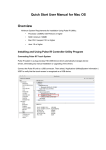
Quick Start User Manual for Mac OS
-1-
Pulse IR Touch User’s Guide
Overview
Minimum System Requirements for Installation:
•
Processor: 233MHz Intel Pentium or higher
•
RAM: minimum 128MB
•
Operating System: Windows XP or Vista, Windows 7
•
Mac OS
•
Linux
-2-
Pulse IR Touch User’s Guide
User’s Guide for Installation of H/W and Utility Program
Connecting Pulse IR Touch System
PulseIR system is a plug and play HID-USB Device which automatically manages device
drivers, eliminating any manual installation or upgrading of the drivers.
Connect the PulseIR unit to a USB connector. Then select “Applications | Utilities | System
Information | USB” to verify that the touch-screen is recognized as a USB device.
-3-
Pulse IR Touch User’s Guide
Launch Pulse IR™ Utility Program
If you do not have PulseIR Touch Controller utility for Mac, please download this program from
IDS support website (“Tools for Mac OS”). Extract the zip file, and locate and launch
PulseIRController application.
(Warning: Connect the touch screen to the PC before launching this application.)
-4-
Pulse IR Touch User’s Guide
How to Configure the Touch Screen using Pulse IR Utility Program
First note that your touch screen is listed on top table. Click on the device and the parameter
setting will update for the current configuration setting of the touch screen.
Next, select the “touch mode” of your choice.
Touch Mode
PulseIR: Multi-point Touch support via TUIO protocol.
Mouse: Touch input support for Mouse events only.
Note: If the Touch Screen was configured for another OS both radio buttons will be unselected.
Mouse Report (Applicable in Pulse IR mode)
When the Mouse Report setting is turned off, the device will transmit only the multi-touch
position data. Note: Once this setting is set to “Off” the touch screen will be inactive until a TUIO
server program (such as Nuiteq Snowflake) is running. This setting is used for special cases
where the application may confound the two signals.
(Current version of Snowflake for Mac OS requires the Mouse Report to be turned off to function
properly.)
-5-
Pulse IR Touch User’s Guide
Mouse R-Click (Applicable only for Mouse Mode)
Disable: no Mouse Right-Click input.
Long Down: Touch a point for an extended period to trigger a Mouse Right-Click event.
2 touch: Touch two points simultaneously to trigger the Mouse Right-Click.
Touch Action (Applicable only for Mouse Mode)
Touch Only Mode: Recognize touch as point and click events – limited to touch selection
functions for some kiosk applications.
Drawing Mode: Full function for touch selection, continuous line drawing, and touch gestures
Touch Sensitivity
Adjust touch sensitivity based on signal strength and duration of touch. (Use with caution as this
may have adverse effect on ambient light filtering performance.)
Touch Rotation
Use this function to match touch data to change in display orientation where touch input does
not correspond automatically to the display orientation. (In Windows 7 for instance, touch point
inputs automatically change to adapt to the new display orientation.)
Calibration
Calibrating coordinates of any point by 4-point touch centered at red-colored point.
-6-
Pulse IR Touch User’s Guide
Launch TUIOInterface Utility Program
In PulseIR Multi-Touch mode, this tool enables the touch screen to work as a TUIO client device.
Upon launching this tool, click on “TUIO Client Start” button.
Now the touch screen is ready to be used by any application that has a built-in TUIO Server
code – e.g., Nuiteq Snowflake for Mac OS will now recognize and respond to multi-touch inputs
from the touch screen.
To test the multi-touch function using a simple program inside the TUIOInterface utility tool, click
on “Test View” button. You can see the multiple touch points in action.
To run Snowflake application in multi-touch mode, be sure that TUIOInterface is running
-7-