1
ch
o
o
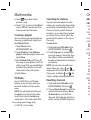
Making a quick video
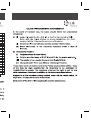
After making a video
1 Press the camera key on the right
side of the phone for a few seconds.
A still image representing your
captured video will appear on the
screen. The name of the video runs
along the bottom of the screen
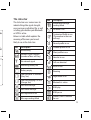
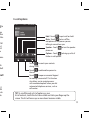
together with seven icons down the
left and right sides .
Touch to play the video.
Touch to send the video as a
Message or Email or by Bluetooth or
YouTube.
Touch to edit the video.
Touch to delete the video you
have just made and confirm by
touching Yes. The viewfinder will
reappear.
Touch
to shoot another video
straight away.
Touch to view a gallery of saved
videos and images.
TIP! To switch to the camera
mode or video mode, slide
up/down the camera or video
icon on the right centre of the
viewfinder.
2 Holding the phone horizontally,
point the lens towards the subject
of the video.
3 Press the camera key
on the
phone once to start recording. Or
touch the red dot .
4 Rec will appear at the bottom of
the viewfinder with a timer at the
bottom showing the length of the
video.
5 To pause the video, touch and
resume by selecting .
6 Touch on screen or press
the
a second time to stop
recording.
33