1
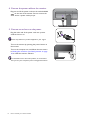
2. Connect the PC video cable
Either
Do not use both DVI-D cable and D-Sub cable on the same
PC. The only case in which both cables can be used is if they
are connected to two different PCs with appropriate video
systems.
To Connect the D-Sub Cable
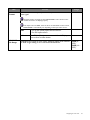
Connect the plug of the D-Sub cable (at the end
without the ferrite filter) to the monitor video socket.
Connect the other end of the cable (at the end with the
ferrite filter) to the computer video socket.
Tighten all finger screws to prevent the plugs from
accidently falling out during use.
To Connect the DVI-D Cable
Or
Connect the plug of the DVI-D cable (at the end
without the ferrite filter) to the monitor video socket.
Connect the other end of the cable (at the end with the
ferrite filter) to the computer video socket.
Tighten all finger screws to prevent the plugs from
accidently falling out during use.
To Connect the HDMI Cable
Or
Connect the plug of the HDMI cable to the HDMI port
on the monitor. Connect the other end of the cable to
the HDMI port of a digital output device.
If there is more than one video transmission method
available to you, you might want to take the picture quality
of each video cable into consideration before making the
connection.
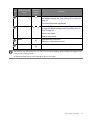
- Better quality: HDMI / DVI-D
- Good quality: D-Sub
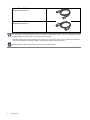
The video cables included in your package and the socket
illustrations on the right may vary depending on the product
supplied for your region.
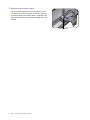
3. Connect the headphone.
You may connect headphones to the headphone jack
found on the rear of the monitor.
How to assemble your monitor hardware
11