1
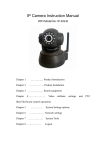
Network IP Camera Instruction Manual
Model No.: IP-402B Wi-Fi
Chapter 1
……………
Product Introduction
Chapter 2
……………
Chapter 3
………………
Search equipment
Chapter 4
………………
Video attribute settings
Chapter 5
………………
System Settings options
Chapter 6
………………
Network settings
Chapter 7
………………
System Tools
Chapter 8 …………………
Product Installation
Logout
Chapter I Product Introduction
1.1 Hardware/Software requirements:
To use the computer-camera through networks, the minimum hardware requirements of
your computer should be met,
1. Pentium III CPU or better, 1GHz or higher frequency;
2. At least 256M memory;
3. windows xp, 2000 operating system or above
Internet explorer 4.0 browser or above version, IE 6.0 is strongly recommended.
1.2 Product features:
Simple installation: the installation of network cameras is very simple, only power and
networks connection are needed. if WIFI wireless connection is used, only power is a must.
Scope of applications: apply to home, offices, enterprises, supermarkets, schools and
other public places.
Supporting multiple protocols: Embedded operation system
supports the TCP / IP,
SMTP (simple mail protocol), HTTP, UPNP, etc.
Simple configuration: Standard Web browser GUI can help users to control and
manage the networking cameras through LAN or Internet.
Video Views and Video Record: Provide concise GUI for user to view real-time images,
and the video segments can be recorded on your computer.
Alarm Monitoring: Through external alarm device, the alarm information can be sent to
your e-box or your mobile phone.
Support dynamic DDNS: Support Dynamic DNS. Users can access his/her networking
cameras easily through DDNS despite of the changed camera IP.
Simple User Authority Management: By setting USER and PASSWORD of the system,
user can protect the individual privacy easily, meanwhile, users can be authorized to
different permission levels to operate the network camera.
Chapter II installation
2.1 Hardware installation
1. Connect the network:
Connect the networking camera to the router or switch.
2. Connect the power
Connect the networking camera with power.
Cautions: Please use the original power adaptor along with the camera; otherwise, it may
cause hardware damage.
3. Check the network indicator light
when power on, the camera starts working. Normally the green indicator of the network
cameras is on continuously and yellow light flashes.
2.2 Software Installation
Software installation is very simple, you only need to run ocx.exe and installation can be
finished automatically. There are two ways to install software.
I: CD-ROM installation
1. Please put the attached CD into the CD-ROM driver in your PC.
2. Double-click ocx.exe and installation can be finished automatically.
Second: Download OCX.exe from the networking camera and install the same
1. When the software is not installed in your PC, meanwhile, the camera is connected to
the network, you will be prompted to download and install the control software. You can
download the same to any folder you want. After downloading is completed, double-click
OCX.exe and automatic installation will be implemented. Downloading OCX.exe from the
network camera is widely used in case that installation CD is not available.
Chapter III Search equipment and log in to the network camera
1: Make sure the equipment is properly connected with the network and power.
2: The router must support DHCP (Dynamic Host Configuration Protocol), because dynamic
IP addresses obtaining is one of the factory settings of camera.
3: The camera can not be immediately used when power connection is OK, system
initialization will cost about 20 seconds.
1: Search Equipment
After software installation, please activate the search tools ipcamtools.exe. When GUI
comes up, please click "refresh" button. The program will search the network cameras, and
displays the searched IP address, port number, equipment ID number and device name. If
WIFI wireless connection is in use, it will show the wireless IP address. An example is
shown as following figure.
Note: (ipcamtools.exe is only used to search for the LAN IP addresses and port numbers
of the cameras. However, the tool is not able to search IP address of the camera as well as
the port number in WAN.
2: Login Network Camera
Click on the "open device" or input the IP into the browser in its address field directly to
access the login page (for example: http://192.168.1.92). As shown
3: user name and password authentication
the default user name and password are both “admin”. For the first login, enter your user
name (admin), password (admin) and click on the "Login" button to enter the monitor
interface, the user name and password are modifiable. For the security issue, it is strongly
recommended to change the password in system tools.
After entering the correct user name and password, real-time images is displayed on the
monitor screen.
Chapter IV Video attribute settings
4.1 Function Description:
Window: the window is defined as video window number shown in the video region ,the
current maximum of which were 36.
Resolution: the size of the currently selected video. Currently supports two sizes: 640x480
and 320x240.
Mode: set the video light mode, and remove the jitter impact of the image as per the
electricity frequency. The following three modes are used: 50HZ/60HZ /outdoor model.
Generally, indoor mode use 50Hz or 60Hz, outdoor mode should be set as per the real
camera working environment.
Effect: when the video window is greater than the specified video size, two options will be
offered, try to show the video window in center or stretch the image to the real size of the
window.
Flip: the video upside down.
Mirror: Reverse the video.
Mute: Check to close/open audio.
OSD, OSD color: Display the date/time and the color when displaying.
Connection: When the video camera window specifies IP address, click on this button and
video from the connected camera will be displayed. In the opening pages of video
surveillance, it will automatically connect the camera and video will come.
Disconnect: Disconnect the video connection, and stop displaying video. If video recording
is ongoing, the operation will stop simultaneously.
snap: Photographing and save the photographed image.
View snap: Open image folder to view the pictures.
Start/Stop the video record: Start or stop the video record.
view the video: Open video folder and view the saved video segments.
ClearAlram/ClearAllAlarm: Stop alarm of current channel or all channels.
Video operation interface is shown as follows:
Description: when the window is selected, the border of the window will become red.
Double-click to select the screen, and the screen automatically changes to full-screen mode.
To return to its original state, please double-click the screen again.
Chapter V System Settings Options
Network camera page setup options are in the far left, when clicking the left arrow, the
hidden settings page will be expanded. Click the left arrow, set the options as follows
Functional description of the set-up options:
1: video monitor
For viewing video, in any case you can click on this button to enter the video mode to
watch.
2: Device Information
Display the status information of the device.
Note: The device name can be changed:
1, User can customize the name of the device in order to distinguish different equipments.
2, When the video surveillance equipment connected, the page will show the device and the
name.
3, The search tool can also display the searched device names.
3: Net config: set up network-related parameters.
3.1: IP settings
The set supports two modes of distribution network address:
1, to obtain IP address automatically (DHCP): Select DHCP, device will automatically obtain
the IP, which is not fixed (this feature requires the router to support DHCP protocol, and this
feature should be activated).
2, using the specified IP address (static IP): To specify the equipment IP, it is required to
manually fill in IP address.
Select the required mode, fill in relevant information by the Depositary and click on the
“Save” button. This function of equipment need to restart to take effect.
3.2: WiFi config
1, the device supports WiFi wireless capabilities. If user’s camera supports wireless
networking functions. After setting up WiFi parameters, such as Password, Authentication
parameters, please select "Enable" and restart the device. Then, the user will be able to
access the network through a wireless network of cameras. (Wireless settings must be in
strict accordance with the password authentication method parameters of the wireless router,
otherwise, it can not connect wireless network
3.3: Dynamic DNS
This equipment support dynamic DNS of Www.3322.org and www.dyndns.org. Enter the
applied dynamic domain name, user name, password, and click “Save” to access device
through WAN.
3.4: upnp settings
Upnp is to realize automatic port mapping function. If the camera is connected to a router, In
order to access to the cameras through WAN, it is required to open a specified port of the
router to the camera. (This feature requires router support, and this feature should be open.
Without this feature, you need to manually set up port mapping in the router). If the upnp
enabled successfully, the below figure will be displayed.
3.5: Port Management
This page is used to set the camera's external ports, the default value of 80. If you want to
visit the multiple cameras in a same local area network through WAN, in order to distinguish
different cameras, each camera needs a different port, such as 81, 82, etc. and so on.
Motion detect config
The IP Camera can do motion detect and trigger some action if necessary, such as upload
picture to FTP, send email with picture as attachment, or start record automatically.
IO Alarm
Enable or disable IO alarm at this page.
SMTP config
Provide email sender information here, which is need for send email when motion detects or
other alarm is occurring.
FTP config
Fill FTP information here, which is need to upload images to FTP server.
Chapter VII of the System Tools
Restart the equipment
When settings changes happen, it is required to restart your device to the changes to take
effect, you can click on the page "Reboot Device" to enable the device to restart. Another 20
seconds is needed to finish the device initialization.
7.2 to restore the factory settings
Click "reset configt" will enable the device to restore all settings to factory default, the default
user name and password are both “admin”.
Note: The factory default settings using DHCP to obtain IP address. After restoring the
factory settings, device IP address may be different from the one before restoration. Please
use the search tool to search for equipment. And obtain the corresponding IP.
7.3 User Management
In this page, user permissions management is applied. According to different users name,
different operating authority setting can be configured. Administrator has the privilege to
operate all functions of the camera. Ordinary users can only watch the video and control.
And visitors can only see the video.
The following are the Edit and Modify interface:
Users can be enabled or disabled. The disabled users can’t log on equipment page.
Description: user "admin" is the super-administrator user, who can set up and operate all the
functionalities of all the networking cameras.
7.4 Multiple Devices Manager
In this page, not only the main video, but also additional device can be connected be
automatically.
This page is for the maintenance of additional equipment, create, modify, and delete
equipment.
The main equipment is always displayed on the video channel 1 (CH 1), followed by
additional equipment.
Additional equipment can be "move up" or " move down" to adjust- its order in the video
surveillance page.
Additional equipment can be disabled, and the disabled device will not appear in the video
surveillance page
The next figure describe how to add/edit the additional device.
7.5 Local configuration
To set video recording and photographing saving directory, it is required to input save path
in "captured photo file" and "video record file".
7.6 Download Ocx control
Clicking on the link in this page is available for download ocx control.
7.7 Update Software
Updating software is to enable users to use the latest software. The upgrade file name is
app.bin, Click button "Browse" to find out the path where app.bin is stored. You can click to
upgrade, the system will show the upgrading files progress, success information will be
prompted if upgrading successfully. The new networking camera must be restarted to take
the new program effect.
7.8 update the webpages
Updating web page is mainly to upgrade the appearance of web pages, file name for
upgrading www.bin, Click button "Browse" to find out the path where www.bin is stored. You
can click to upgrade, the system will show the upgrading files progress, success information
will be prompted if upgrading successfully. The new networking camera must be restarted to
take the new program effect.
Chapter VIII Logout
Logging out from the current registry, it will return to the login page. Login must be
accomplished again if the user wants to operate the equipment again.