1
ETC Setup Guide
Congo Light Server
Hardware Setup
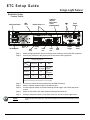
Connect Cables
Hard Power Switch
USB
Ports
Audio Out
(Audio In
Reserved for
Future
Implementation)
Ethernet Ports 1 & 2
DMX
x2
PUSH
Phone
Remote
PUSH
MIDI In
Phone Remote
100-240VAC
50/60 Hz
2A@120VAC
DMX
1
MIDI Out
DMX
2
US
3060167
IEC Receptacle
Step 1:
Step 2:
eSATA
Port
Display
Port
USB
Ports
DVI-I
Port
DVI-D
Port
USB
Ports
www.etcconnect.com
Remote Trigger
C
ETC 2U Processor Unit
Electronic Theatre Controls, Inc.
Middleton, WI USA
Remote
Trigger
Midi In
& Out
Attach the appropriate IEC power cord to the power connector, then to the IEC receptacle.
Connect any monitors to the proper ports on the back of the Light Server.
Congo Light Server supports up to 2 monitors using the
following combinations:
Signal
Type
Physical
Port
Display Port
DVI
Yes
with Adapter
Display Port
Yes
DVI-I Port
No
Yes
DVI-D Port
No
Yes
VGA
Yes
with Active
Adapter
Yes
with Adapter
No
Multitouch monitors need to be Windows 7 or 8 Compatible.
Step 3:
Step 4:
Step 5:
Step 6:
Step 7:
Connect the USB mouse and keyboard to the USB connectors.
Attach a network ethernet cable to the ethernet port.
Connect optional cables as desired including remote trigger, midi, DMX, and phone
remote.
When all connections are made, switch the hard power switch on.
Press the soft power switch, on the front of the unit, to power up the Light Server.
Note:
C on go L ig ht Se r ver S et up G u id e
If the unit does not power up, check the rear panel to insure the hard power switch
is on.
Page 2 of 3
El ect r on ic T he at r e C on tr o ls , I nc.